Modifying BigQuery Destinations to Use Service Account Authentication
On This Page
Hevo will discontinue support for user account authentication for BigQuery Destinations after September 01, 2026. Any Destinations using user account authentication after this date might stop replicating data. If your Destination is configured using a user account, you must switch to a service account before this date to ensure uninterrupted data replication.
Switching the authentication method does not affect your existing data, Pipeline configuration, or any other Destination settings. There will be a short pause in data loading while the new credentials are saved. We recommend making this change during a low-traffic window. If you have multiple BigQuery Destinations using user account authentication, you must repeat this process for each one.
A service account is a Google Cloud identity used by applications and automated workloads, rather than by an individual user. It uses a dedicated key file for authentication and operates independently of any person’s credentials. This makes it more secure and reliable for production workloads.
Benefits of Switching to a Service Account
| Capability | User Account | Service Account |
|---|---|---|
| Ownership | Credentials are associated with an individual user. | Credentials are associated with a service account and are not tied to any individual user. |
| Impact of User Changes | Changes such as password resets, MFA updates, or account deactivation can interrupt data ingestion. | Unaffected by changes to individual user accounts. |
| Security and Auditing | Access is shared through a user account, making auditing and access control more difficult. | Provides dedicated credentials with clearer auditing and access control. |
| Google Cloud Recommendation | Suitable for testing or evaluation purposes. Not recommended for production workloads. | Recommended for automated and production workloads. |
| Access Management | Permissions are managed through the user account. | Permissions are managed through IAM roles assigned to the service account. |
Modifying BigQuery Destination Configuration to Use Service Account Authentication
You can switch the account type for an existing Google BigQuery Destination from a user account to a service account from the Edit Google BigQuery Destination connection settings page. Switching the account type does not affect the data already loaded to your Destination or any other configuration settings.
The process involves the following steps:
Prerequisites
-
A GCP project is available with an active billing account.
-
You have the Owner role in your Google Cloud project. If you do not have this role, ask your Google Cloud administrator to grant it or create the service account and share the key file with you.
-
You are assigned the Team Collaborator, or any administrator role except the Billing Administrator role in Hevo to modify the Destination configuration.
Creating a Google service account
If you already have a service account with the required roles for your GCP project, skip to the Assigning roles to the service account section.
Perform the following steps to create a Google service account:
-
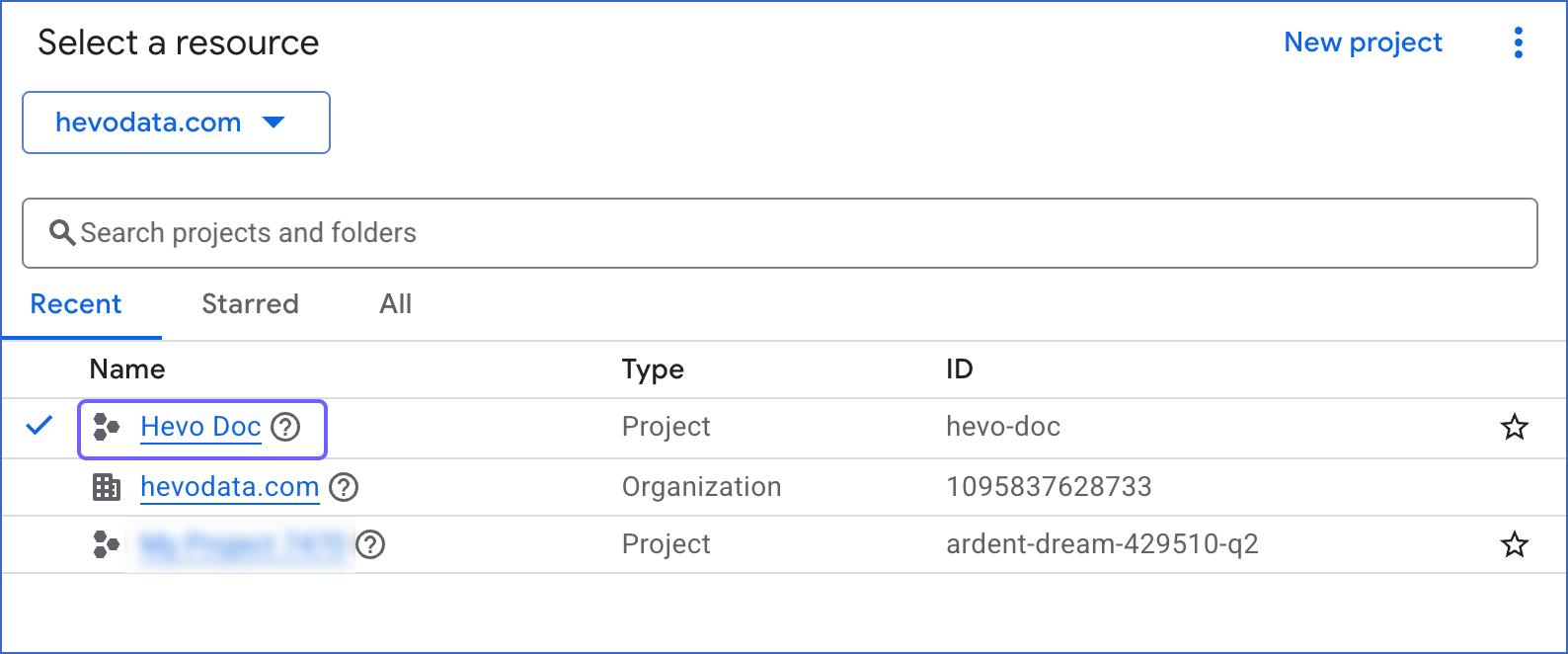
Log in to the Google Cloud Console and click the Project Picker icon at the top of the page.

-
In the Select a resource window, select the project that you have configured in your BigQuery Destination. This ensures that the service account has access to the same project, dataset, and GCS bucket, and your existing Destination configuration remains unchanged.
-
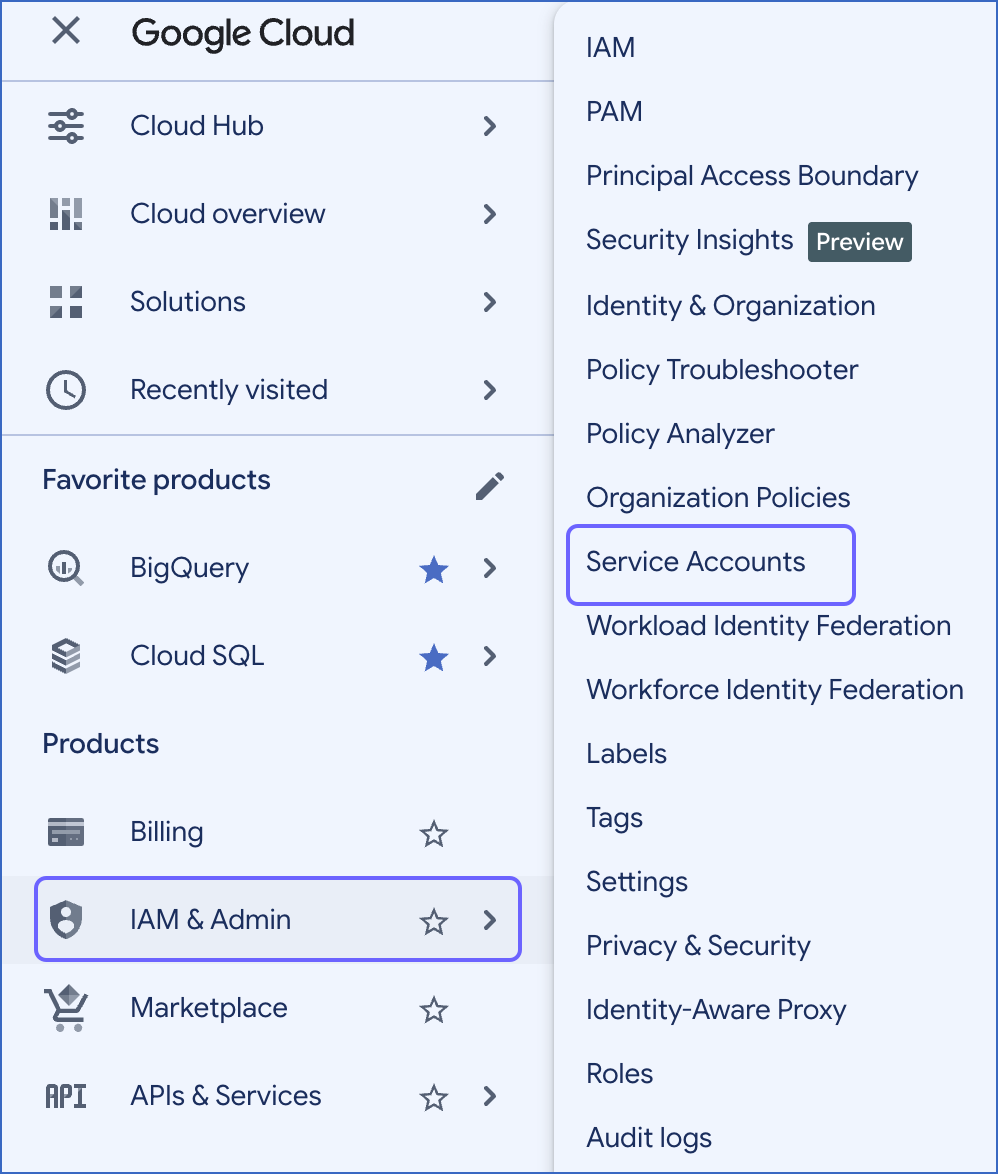
In the left navigation pane, click IAM & Admin, and then click Service Accounts.
-
Click + Create service account.

-
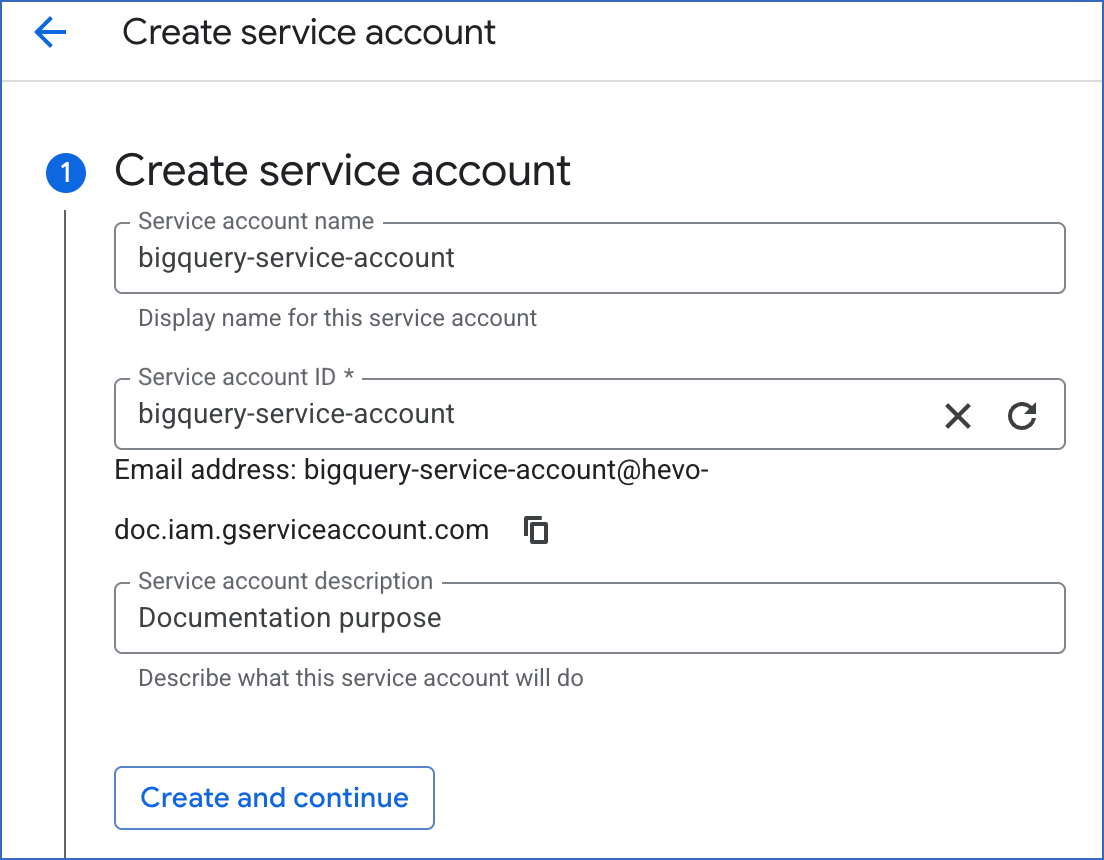
On the Create service account page, do the following:
-
Specify the following:
-
Service account name: A unique name for the service account.
-
Service account ID: A unique identifier for the service account. The account ID is automatically created based on the service account name. However, you can edit it if required.
-
Service account description: The purpose of the service account.
-
-
Click Create and continue.
-
The service account is created. Proceed to assign the required roles to it.
Assigning roles to the service account
You must assign the following roles to the service account on your Google Cloud project to allow Hevo to read and write data to BigQuery and the GCS buckets:
-
BigQuery Data Editor
-
BigQuery Job User
-
Storage Admin
Note: The Storage Admin role grants full control of GCS buckets and objects. If you prefer a more restrictive permission set, you can create a custom role at the project or organization level and assign it to the service account.
Read Roles and Permissions to learn about each role and its associated permissions.
Perform the following steps to assign the required roles:
-
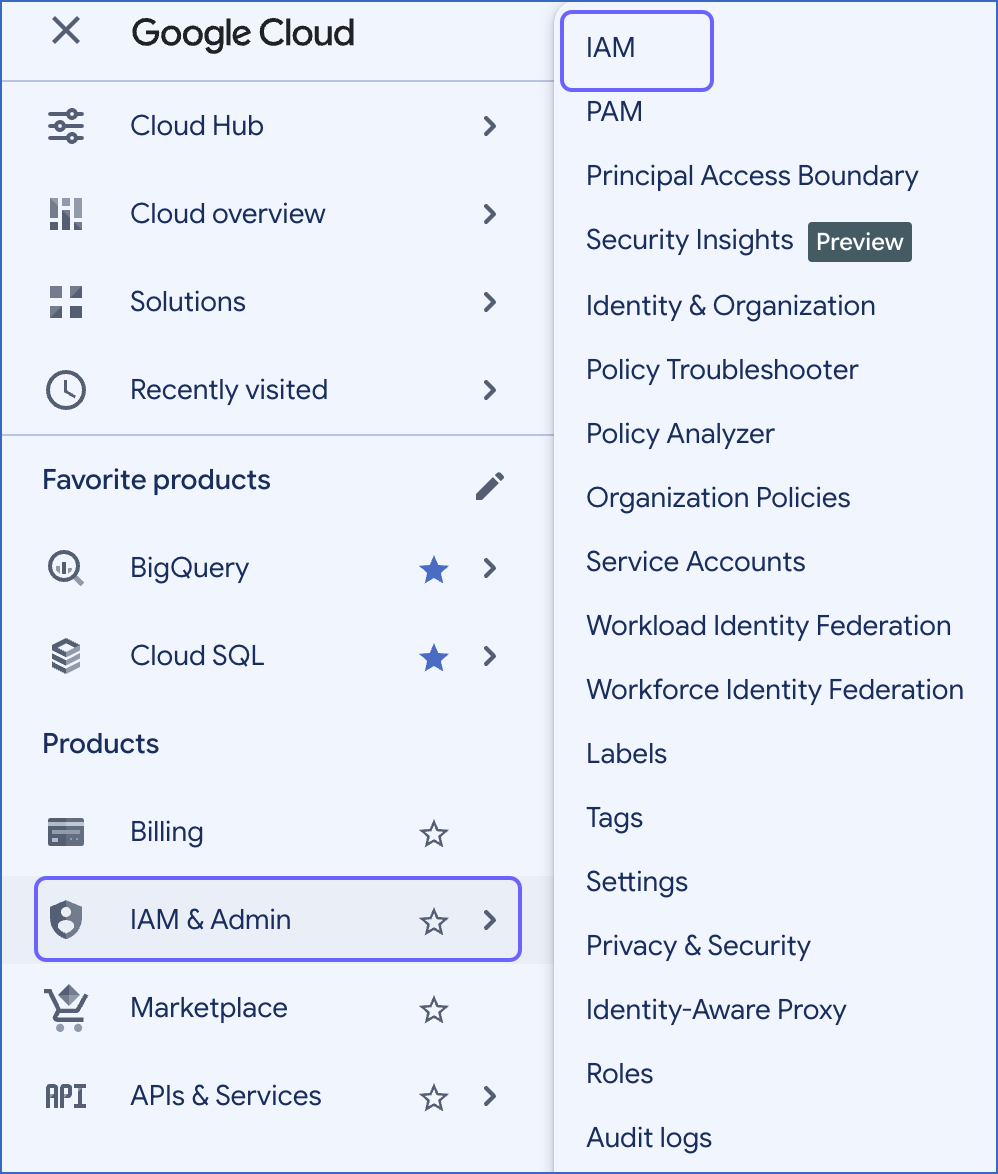
In the left navigation pane, click IAM & Admin, and then click IAM.
-
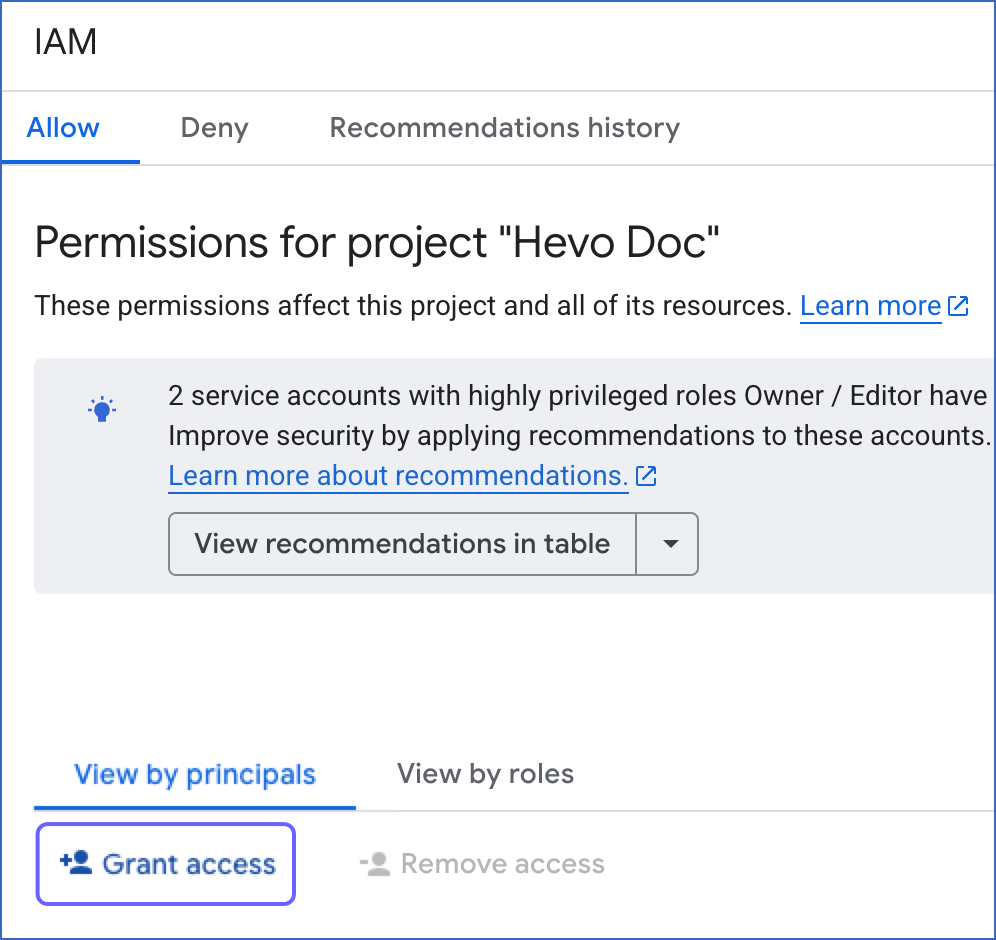
On the IAM page, click Grant Access.
-
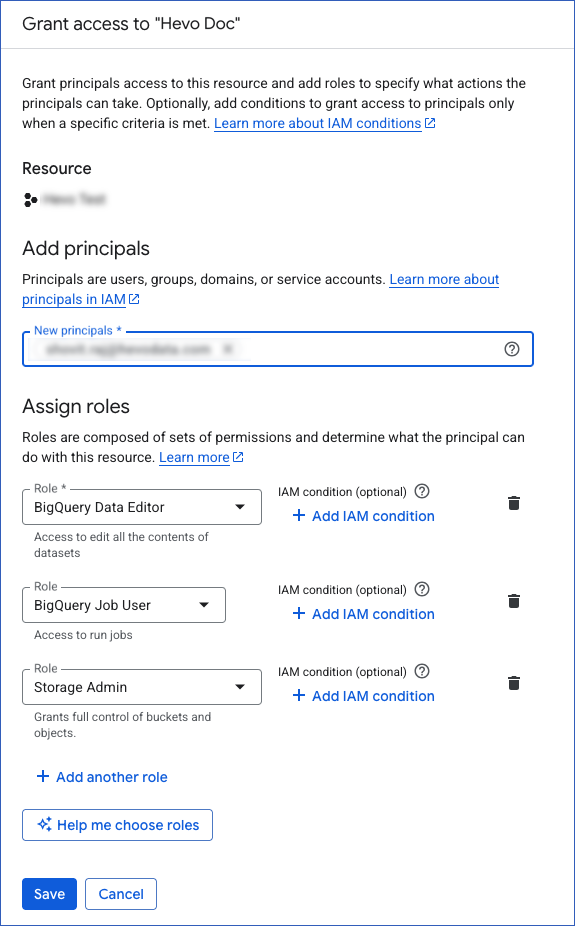
On the Grant access to <Your Project Name> slide-in page, do the following:
-
In the New principals field, specify the email address of the service account you want to connect to Hevo. This can be the one you created in the Creating a Google service account section.
-
In the Assign roles section, click Select a role.
-
Search for and select BigQuery Data Editor from the Role drop-down.
-
Click + Add another role.
-
Search for and select BigQuery Job User.
-
Click + Add another role.
-
Search for and select Storage Admin.
If you do not want to assign the Storage Admin role, you can create a custom role at the project or organization level, add the following permissions, and assign this role to the connecting Google account, to grant Hevo access to GCS resources:
-
resourcemanager.projects.get -
storage.buckets.create -
storage.buckets.delete -
storage.buckets.get -
storage.buckets.list -
storage.buckets.update -
storage.multipartUploads.abort -
storage.multipartUploads.create -
storage.multipartUploads.list -
storage.multipartUploads.listParts -
storage.objects.create -
storage.objects.delete -
storage.objects.get -
storage.objects.list -
storage.objects.update
Note: Hevo uses its own GCS bucket if the connecting Google account is not assigned the Storage Admin role or a custom role.
-
-
Click Save.
-
The required roles are assigned to the service account. Next, enable API access for it.
Enabling API access for a Google service account
You must enable the BigQuery API for your Google Cloud project to allow the service account to access your BigQuery data.
Perform the following steps to enable the BigQuery API:
-
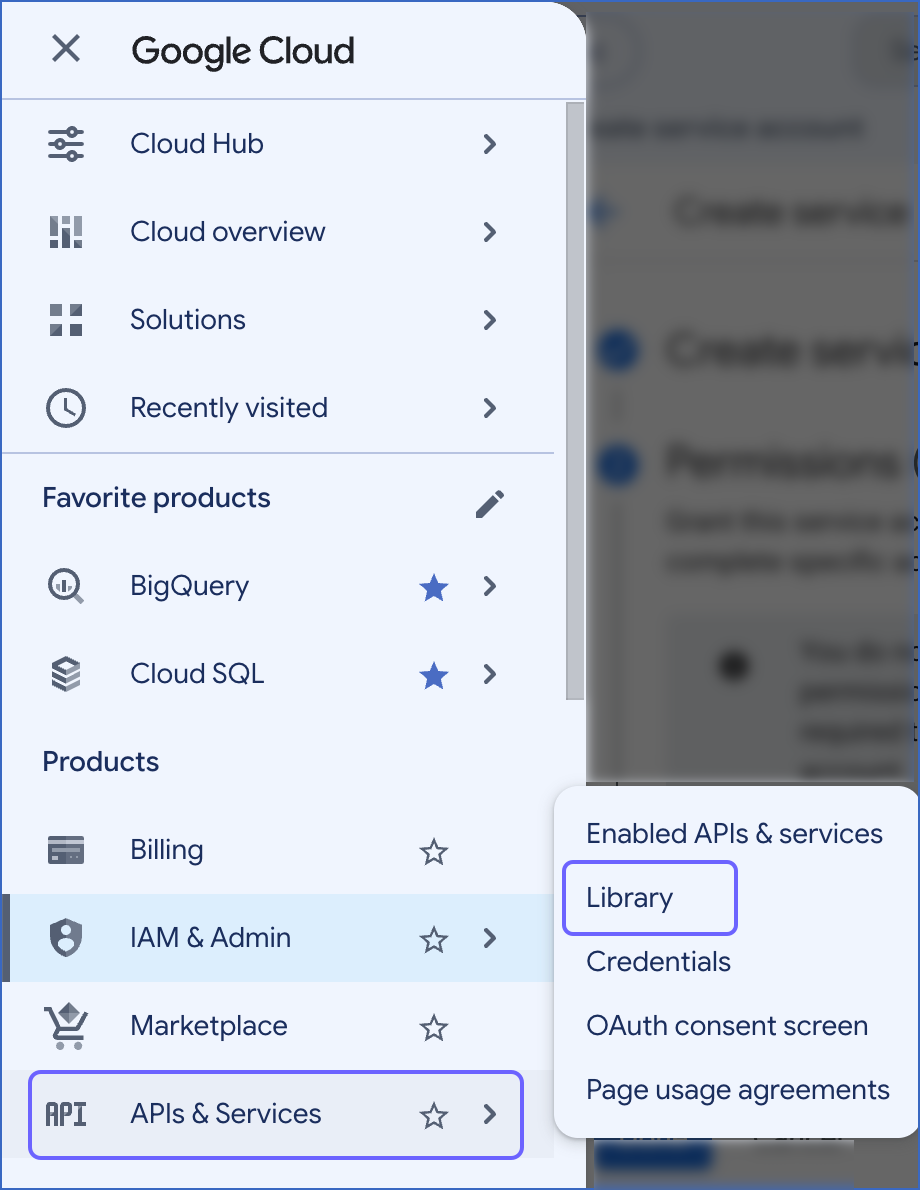
In the left navigation pane, click APIs & Services, and then click Library.
-
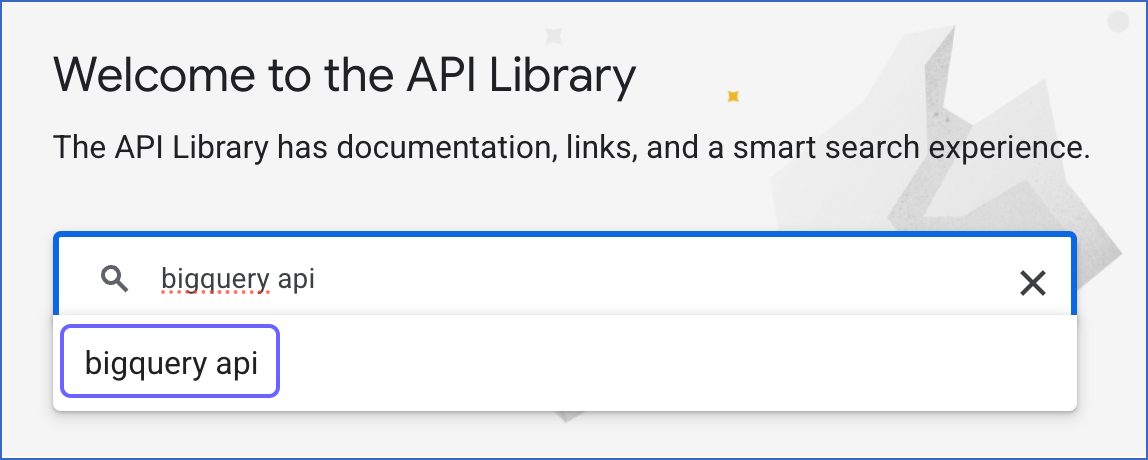
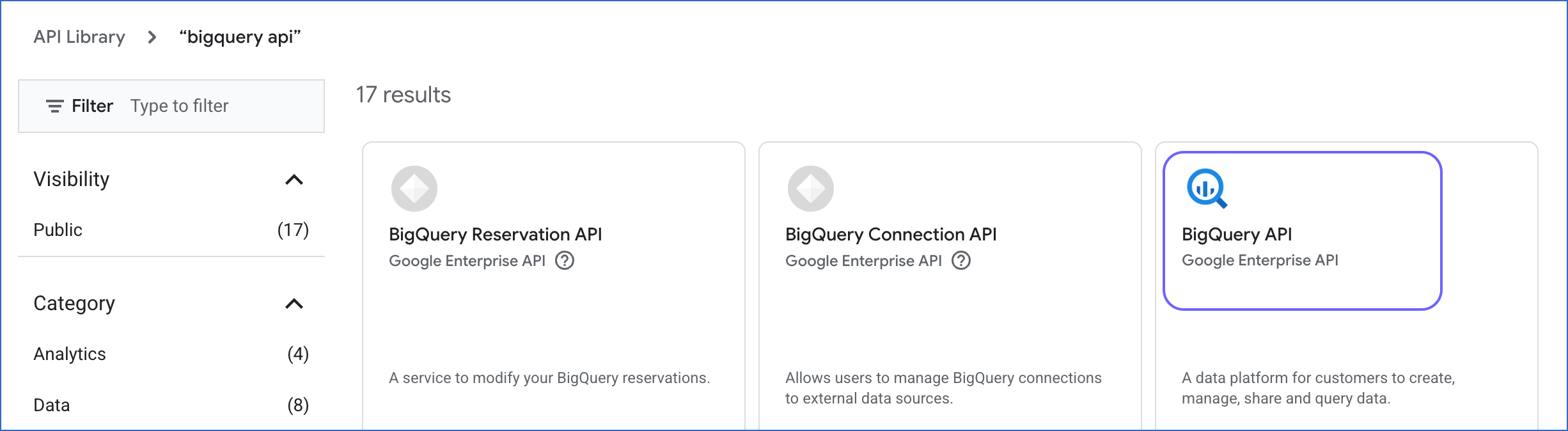
On the API Library page, search for and select bigquery api using the search box.
-
On the page that appears, select BigQuery API.
-
In the Product details section, click Enable to enable the API.
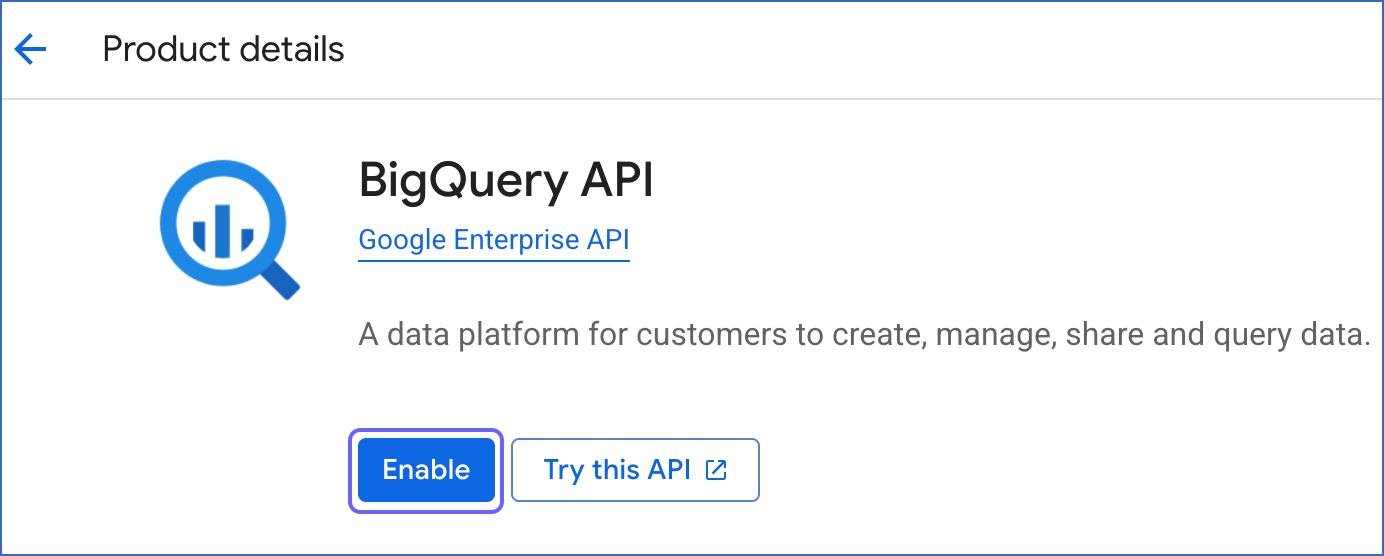
The BigQuery API is now enabled for your Google Cloud project. Proceed to download the key file for the service account.
Downloading the service account key file
The service account credentials are stored as a key file in JSON format. You need this file to connect the service account to your Destination.
Note: Hevo supports only the JSON format for this file.
Perform the following steps to download the key file:
-
In the left navigation menu, click IAM & Admin, and then click Service Accounts.
-
On the Service accounts page, select the service account you want to connect to Hevo. This can be the one you created in the Creating a Google service account section.
-
On the service account page, click the Keys tab.

-
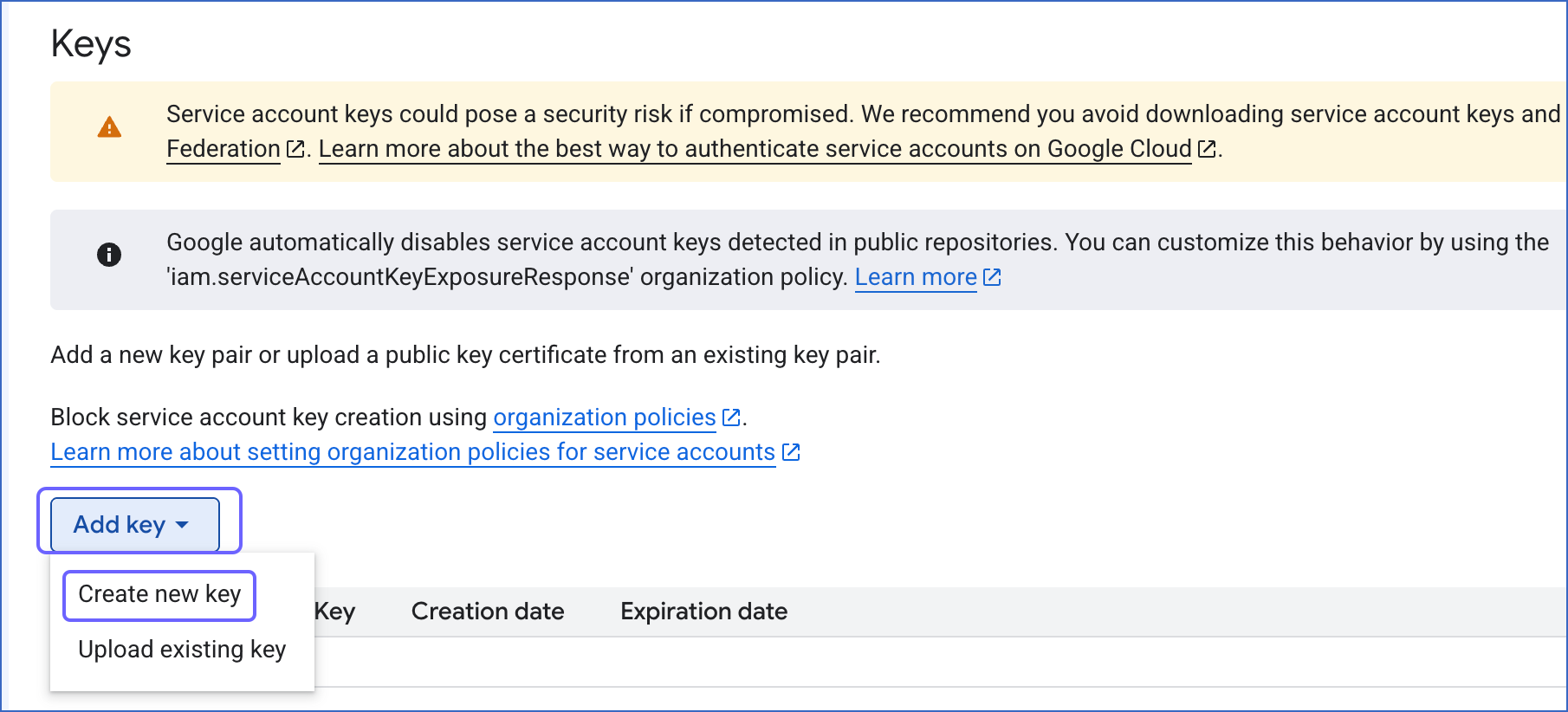
Click Add key, and then click Create new key.
-
In the pop-up dialog, select JSON as the Key type, and then click Create.
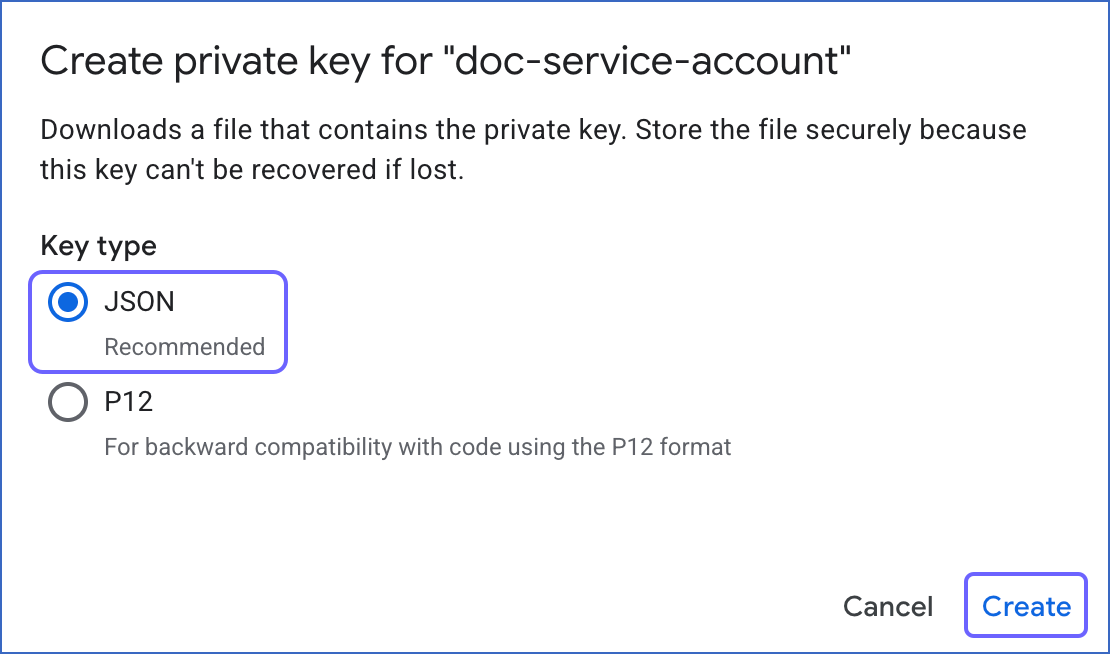
The key file is downloaded to your machine. Save this file in a secure location as it cannot be recovered if lost. Use this key file while modifying your BigQuery Destination to connect to Hevo through service account authentication.
Modifying BigQuery Destination Configuration
Once your service account key file is downloaded, perform the following steps to update the authentication for your BigQuery Destination:
-
In the detailed view of your Destination, do one of the following:
-
Click the Settings (
 ) icon next to the Destination name, and then click the Edit icon.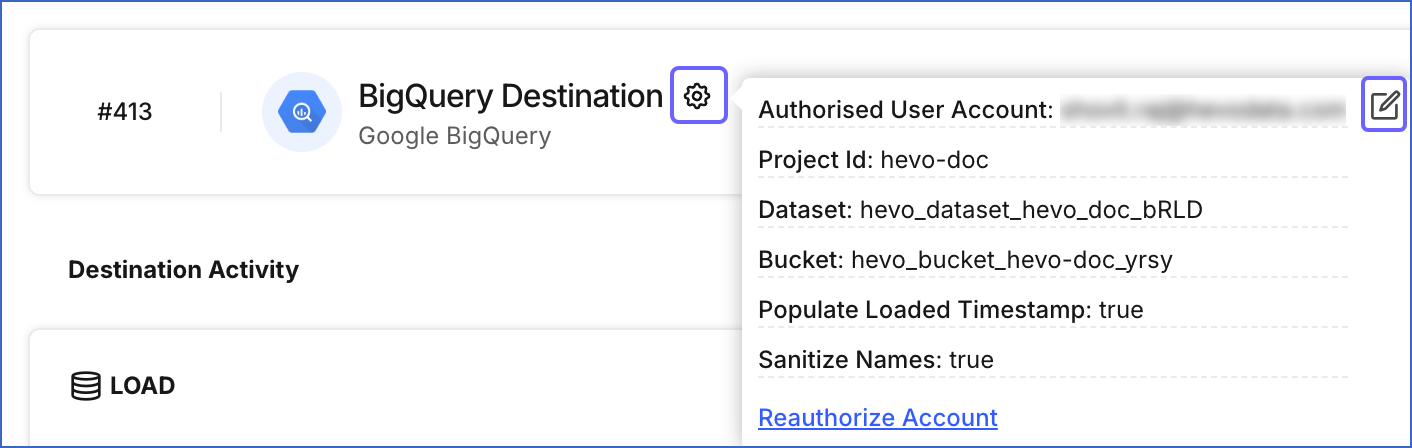
-
Click the More (
 ) icon to access the Destination actions menu, and then click Edit.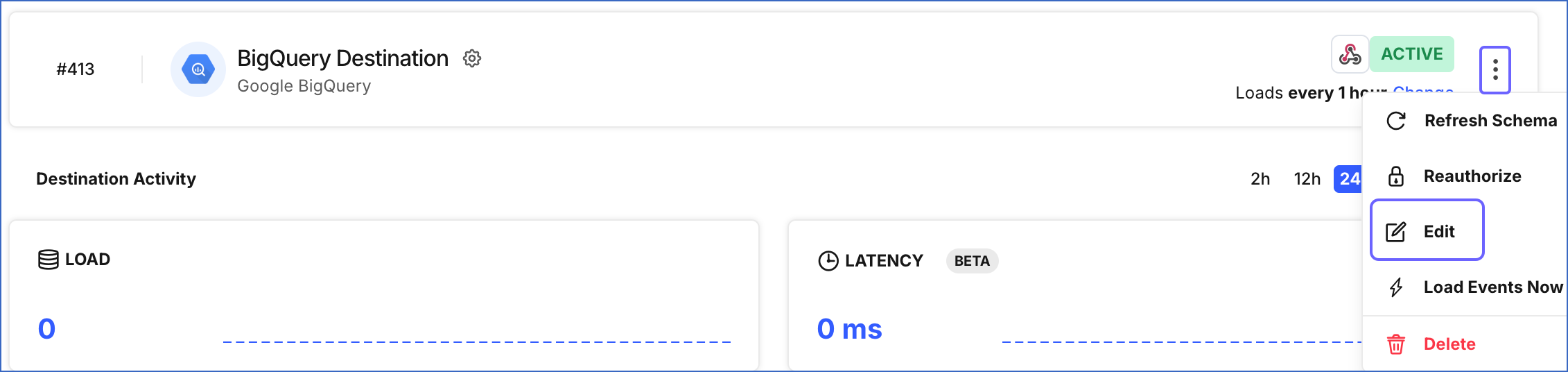
-
-
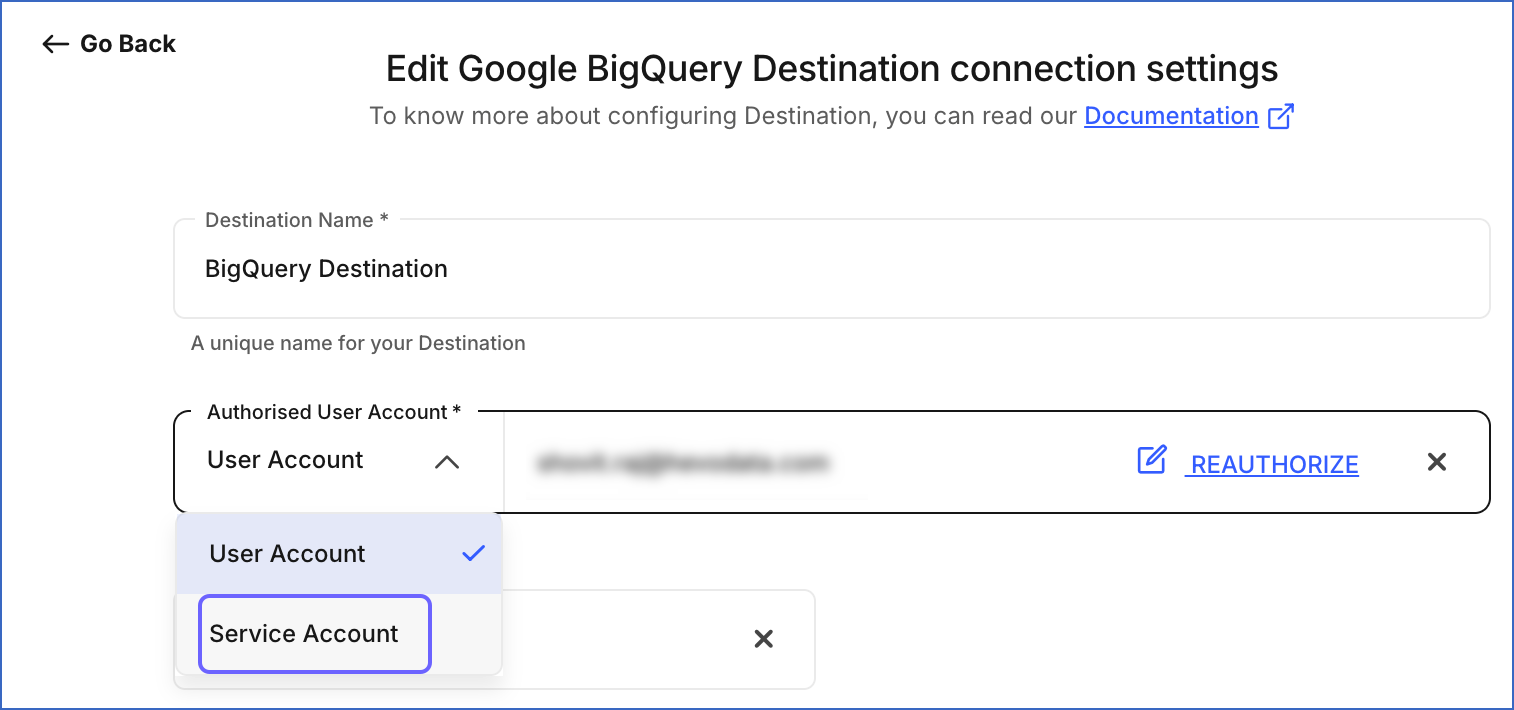
On the Edit Google BigQuery Destination connection settings page, under Authorised User/Service Account, select Service Account from the drop-down.
-
Click EDIT and attach the service account key JSON file you downloaded in the Downloading the service account key file section.
-
Click Test Connection to verify the connection to your Google BigQuery Destination.
-
Once the connection is successful, click Save & Continue. If the connection test fails, verify that the service account has the required roles assigned and that the BigQuery API is enabled. Also check that the key file is the correct JSON file for the service account and has not expired or been revoked.
-
In the confirmation dialog, click Confirm.
The authentication for your BigQuery Destination is successfully updated to use service account authentication.
FAQs Related to Switching to a Service Account
Will my existing data in the BigQuery Destination be affected?
No. Switching the authentication method does not affect the data already loaded to your BigQuery Destination. Your tables, schemas, and historical data remain unchanged.
Will my Pipeline be interrupted during the switch?
There will be a short pause in data loading while the new credentials are saved. Once the credentials are saved and the connection is tested successfully, the Pipeline resumes data loading automatically. We recommend performing the switch during a low-traffic window.
Can I use the same service account for multiple BigQuery Destinations in Hevo?
Yes. You can use the same service account across multiple BigQuery Destinations in Hevo, as long as the account has the required roles and permissions for the configured project, dataset, and GCS bucket in the Destination. However, you must modify each Destination individually by repeating steps given in the Modifying BigQuery Destination Configuration section.
What if I do not have access to create a service account in Google Cloud?
You need the Owner role in your Google Cloud project to create a service account. If you do not have this role, contact your Google Cloud administrator to either grant you the Owner role or create the service account and share the key file with you.
Does switching the account type affect any other configuration settings of my Destination?
No. Only the authentication credentials are updated. All other settings, including the project ID, dataset, and GCS bucket, remain unchanged.
Do I need to recreate my Pipelines after switching to a service account?
No. All Pipelines using the Destination continue to work without any changes. You do not need to recreate or reconfigure them.
Revision History
Refer to the following table for the list of key updates made to this page:
| Date | Release | Description of Change |
|---|---|---|
| Jul-06-2026 | NA | New document. |