Familiarizing with the Activations UI (Edge)
On This Page
When you click Activate in the Navigation Bar, the Activations List View is displayed by default. This page displays the Activations created by you or your team. You can search and filter Activations, view their status and latest run, and open an Activation in the Detailed View to view its configuration and run history.
The following sections highlight the main elements of the Activations List View and the Detailed View:
Activations List View
Refer to the image and descriptions below to familiarize yourself with the components of the Activations List View.
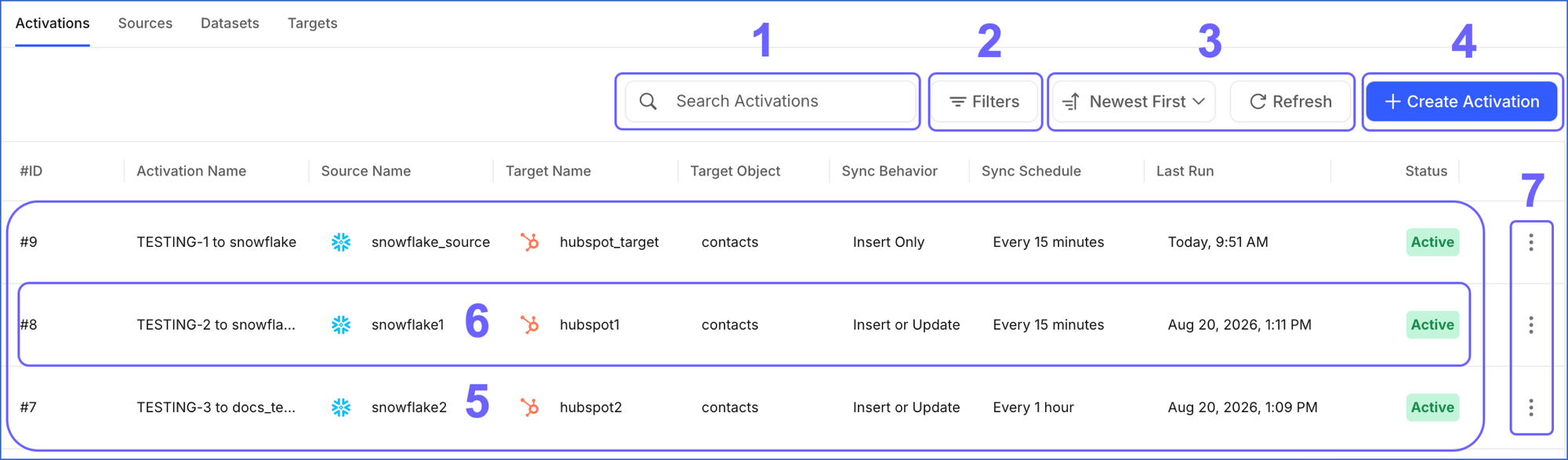
The following table describes each of these components:
| Page Component | Title | Description |
|---|---|---|
| 1 | Search Bar | Searches for Activations created by you or your team. You can search using a partial or complete Activation name. |
| 2 | Filters | Filters the list of Activations based on the following criteria: - Status: The state of the Activation, either Active, Disabled, or Failed. - Target Type: The type of Target the Activation sends data to, such as HubSpot. |
| 3 | Data Controls | Controls the list of Activations that is displayed. The Data Controls, from left to right, are: - Newest First: Sorts Activations by creation time. You can also select Oldest First. - Refresh: Allows you to view the newly created Activations that are not yet visible in the UI. |
| 4 | + Create Activation | Opens the flow to create an Activation. Read Creating an Activation for detailed steps. |
| 5 | Asset List | Displays the list of Activations created by you or your team. This list can be refined using the Search Bar, Filters, or Data Controls. |
| 6 | Activation Summary | Provides a brief summary of an existing Activation. This includes: - #ID: The sequential number assigned to the Activation when it is created. - Activation Name: The name of the Activation. Hover over a long name to view it in full. - Source Name: The Source the data is read from. - Target Name: The Target the data is sent to. - Target Object: The record type in the application that receives the data. - Sync Behavior: The rule each sync applies to records that already exist in the Target object. - Sync Schedule: The frequency at which the Activation syncs. - Last Run: The time when the Activation last synced. - Status: The state of the Activation, either Active, Disabled, or Failed. |
| 7 | Actions | Displays the actions you can perform on the Activation: - Run Now: Starts a sync immediately instead of waiting for the scheduled run. Read Running an Activation On Demand for detailed steps. - Disable or Enable: Stops or resumes scheduled runs. Read Disabling an Activation and Enabling an Activation for detailed steps. - Delete: Permanently deletes the Activation. Read Deleting an Activation for detailed steps. |
Activations Detailed View
Click anywhere in an Activation Summary row to open it in the Detailed View. The Detailed View provides the Activation’s configuration and information about its sync runs. The following image highlights the main components displayed and the actions you can perform on the page:
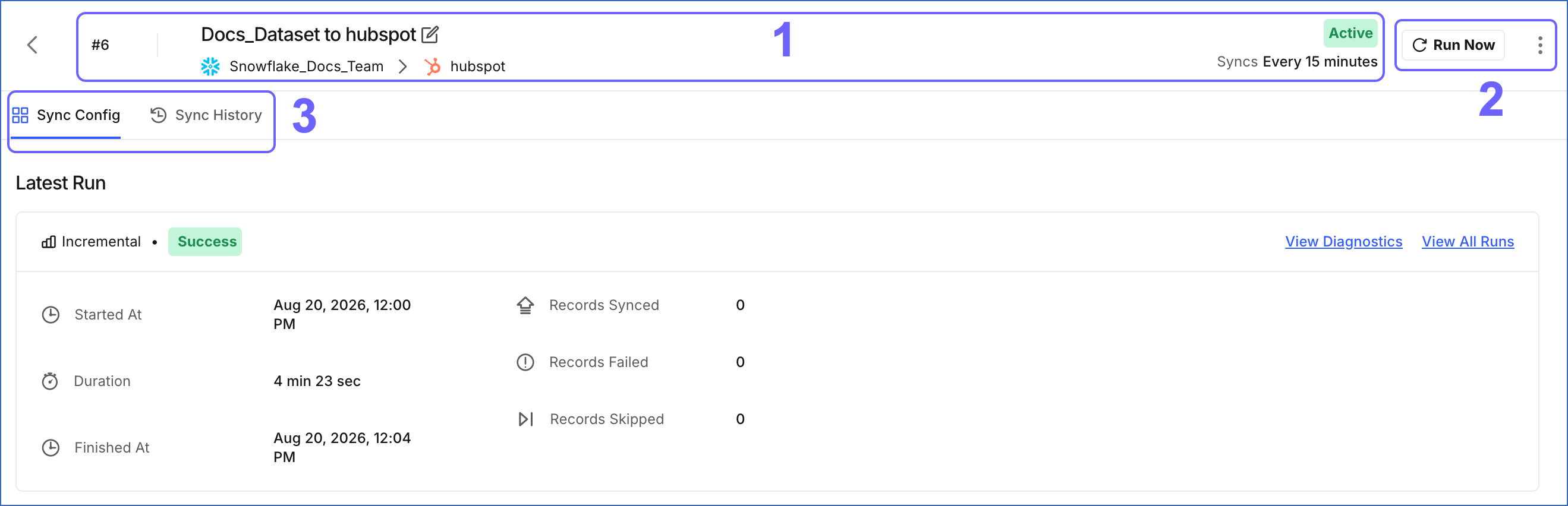
The following table describes each of these components:
| Page Component | Title | Description |
|---|---|---|
| 1 | Activation Header | Displays the Activation’s ID, name, status, sync schedule, and the Source and Target it connects. Click the Edit icon next to the name to rename the Activation. Read Renaming an Activation for detailed steps. |
| 2 | Activation Actions | Displays the actions you can perform on the Activation: - Run Now: Click to trigger a sync immediately. - Actions icon: Click to open a menu with the following options: - Resync: Click to discard the progress of previous syncs and send the full dataset again. Read Resyncing an Activation for detailed steps. - Enable or Disable: Click to resume or stop scheduled runs. - Delete: Click to permanently delete the Activation. |
| 3 | Tool Bar | Provides access to the following tabs: - Sync Config: Displays the configuration of the Activation and a summary of its most recent run. Read Sync Config Tab for a description of each section on the tab. - Sync History: Displays the runs of the Activation. Read Sync History Tab for a description of each column and the filters you can apply. |
Sync Config Tab
The Sync Config tab displays the configuration of the Activation. It contains the following sections, in order:
-
Latest Run: The summary of the most recent run. Read Latest Run Panel to check the outcome of the run and its record counts.
-
Sync Behavior: The behavior selected for the Activation, followed by a description of what it does.
-
Dataset Query: The query that defines the data the Activation sends. For a Table dataset, Hevo builds this query from the database, schema, and table you selected. The query belongs to the dataset, not to the Activation, so it is displayed here for reference only and cannot be changed on this tab.
Note: A dataset can be used by more than one Activation, so a change to it applies to every Activation that uses it.

Click Open Dataset to open the dataset in its Detailed View, where you can change its definition. Read Modifying a Dataset for detailed steps to change a dataset and what the change affects.
-
Mapping: The summary of the field mapping, in the following columns:
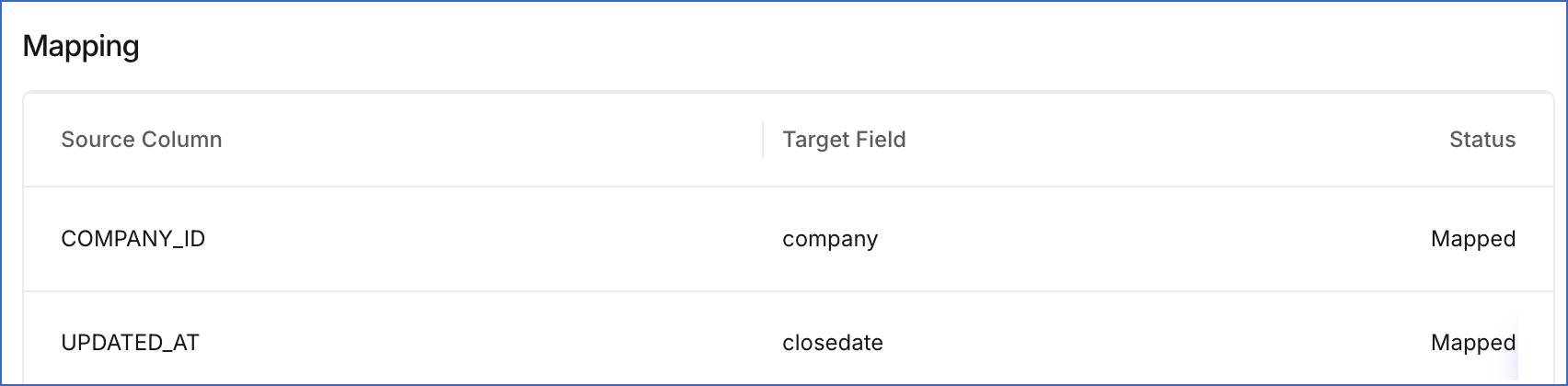
Column Description Source Column The column returned by the dataset. Target Field The field in the Target object that receives the values from that column. Status Indicates whether the column is mapped or skipped. Mapped means the column is sent, and Skipped means it is not sent.
Latest Run Panel
The Latest Run panel appears at the top of the Sync Config tab and summarizes the most recent run of the Activation.
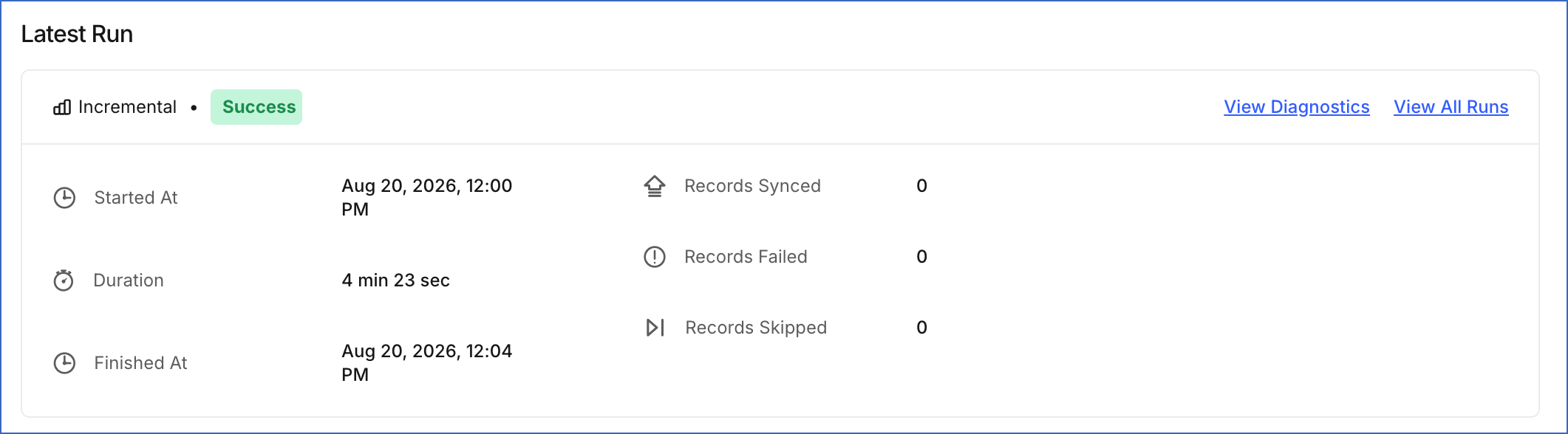
It displays the run type, either Incremental or Resync, the run status, and the following values:
| Value | Description |
|---|---|
| Started At | The time when the run began. |
| Duration | The total time the run lasted. |
| Finished At | The time when the run ended. |
| Records Synced | The number of records successfully written to the Target object. |
| Records Failed | The number of records that were not written, either because the application rejected them or because Activate could not send them. |
| Records Skipped | The number of records that Activate read but did not send. |
If the run failed, the panel also displays the reason reported by the Source or the Target application. The panel also provides the following options:
-
View Diagnostics: Opens the Run Diagnostics dialog, which reports the step at which a run failed and the reason for the failure.
-
View All Runs: Opens the Sync History tab, which lists every run of the Activation and not only the most recent one.
Sync History Tab
The Sync History tab lists the runs of the Activation with the most recent run at the top.
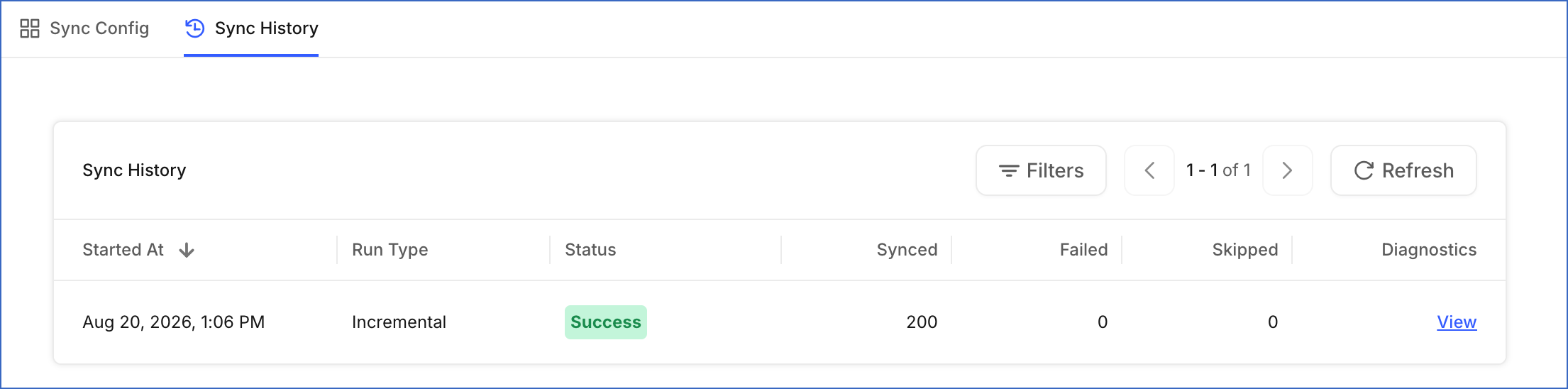
It displays the following columns:
| Column | Description |
|---|---|
| Started At | The time when the run began. |
| Run Type | The type of the run, either Incremental or Resync. Read Run Types for what each type sends. |
| Status | The outcome of the run. Read Run Statuses for what each status means. |
| Synced | The number of records successfully written to the Target object. |
| Failed | The number of records that were not written, either because the application rejected them or because Activate could not send them. Click the value to open the Failed Records dialog. |
| Skipped | The number of records that Activate read but did not send. Read Skipped Records for why records are skipped. |
| Diagnostics | Opens the Run Diagnostics dialog for that run. |
You can refine the list using the following filters:

-
Status: The outcome of the run.
-
Run Type: The type of the run, either Incremental or Resync.
-
Started At: The date range within which the run began.
Run Statuses
A run reports its outcome after processing the dataset. The status describes whether the run is still processing, completed, or encountered an error. The status you see is derived from whether the run is complete and what the record counts are:
| Status | Description |
|---|---|
| In Progress | The run is executing. Its record counts are not final. |
| Success | The run is complete and no records fail. |
| Completed with errors | The run is complete, but at least one record is rejected by the application. The records that succeed are written. |
| Completed — nothing synced | The run is complete, but no records are written. Every record is either rejected or skipped. |
| Failed | The run itself cannot complete, so no records are processed. This usually points at a problem with the Source connection, the dataset query, or the Target authorization rather than at individual records. The Run Diagnostics dialog reports which of these causes the failure. |
A run cannot be canceled once it has started. To stop future runs, disable the Activation. Read Disabling an Activation for the steps.
Run Types
Every run is one of two types:
-
Incremental: The run sends only the rows that changed since the last successful run, which keeps each run small and avoids rewriting records that have not changed. The first run has no previous run to compare against, so it sends every row that the dataset returns, and is considered incremental. Scheduled runs and the runs you trigger with the Run Now action are incremental.
-
Resync: The run sends every row returned by the dataset, regardless of whether it changed since the previous run. Use a resync when you need to send the complete dataset again. A resync runs only when you trigger it. Read Resyncing an Activation for the steps and for when it is useful.
Run Diagnostics
Run Diagnostics helps you determine why a run failed. A run can fail before it sends any records. The Sync History tab displays the Failed status for such a run. The Run Diagnostics dialog reports the reason for the failure, so that you know what to correct before the Activation runs again. To open the dialog, click the Sync History tab, and then click View in the Diagnostics column of the run you want to investigate.
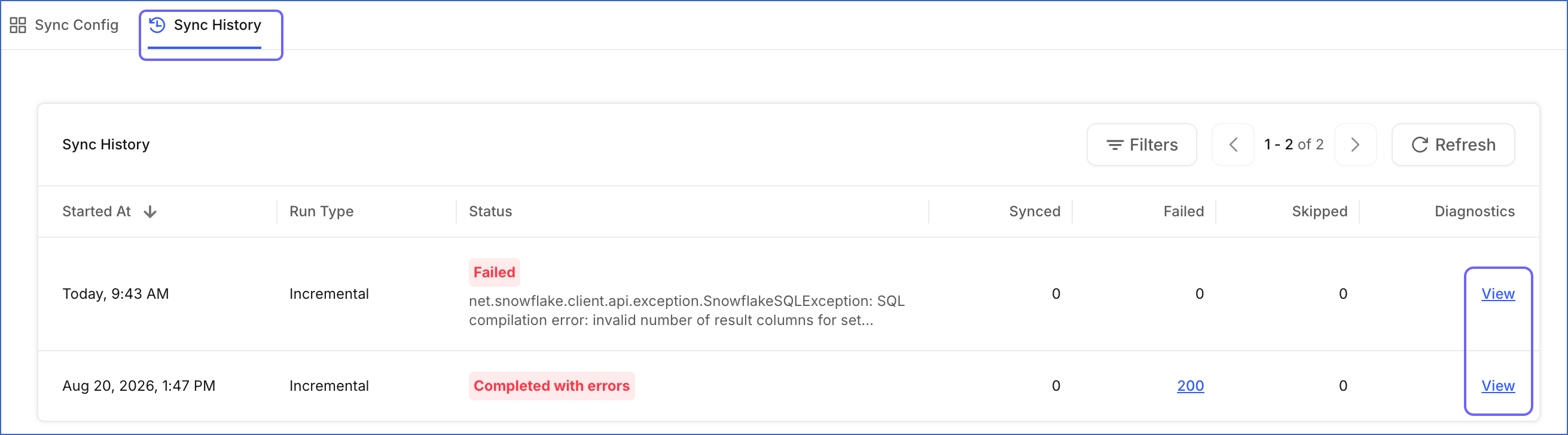
For the most recent run, you can also click View Diagnostics in the Latest Run panel. The dialog lists one entry for every failure recorded during the run. Each entry displays the step at which the run failed, the type of error, where the error came from, and the reason for it.
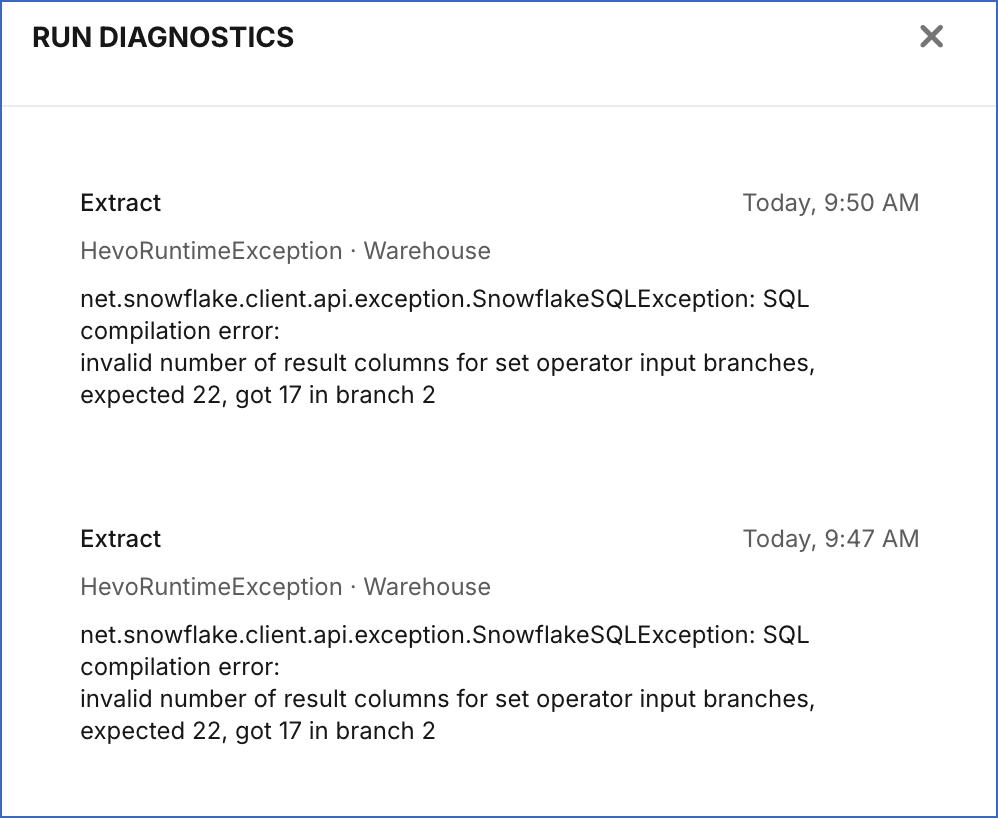
Refer to the following table to interpret what the dialog displays:
| What the Dialog Displays | What it Means |
|---|---|
| An entry from Warehouse | The error came from your Source. For example, a query that no longer runs against it. |
| An entry from Destination App | The error came from your Target application. For example, an authorization that is no longer valid. |
| Any other entry | The error came from Hevo rather than from your Source or your Target application. |
| No entries at all | The run failed before it could record an entry. Check that your Source shows the Active status and that your Target authorization is valid. |
| An entry with no reason | The run is more than 30 days old. Hevo removes the failure reason after 30 days. |
Failed Records
The Failed column in the Sync History tab displays the number of records that were not written during a run, either because the application rejected them or because Activate could not send them. The value is a link when the count is greater than zero. Click the value to open the Failed Records dialog, which lists the reasons those records failed.
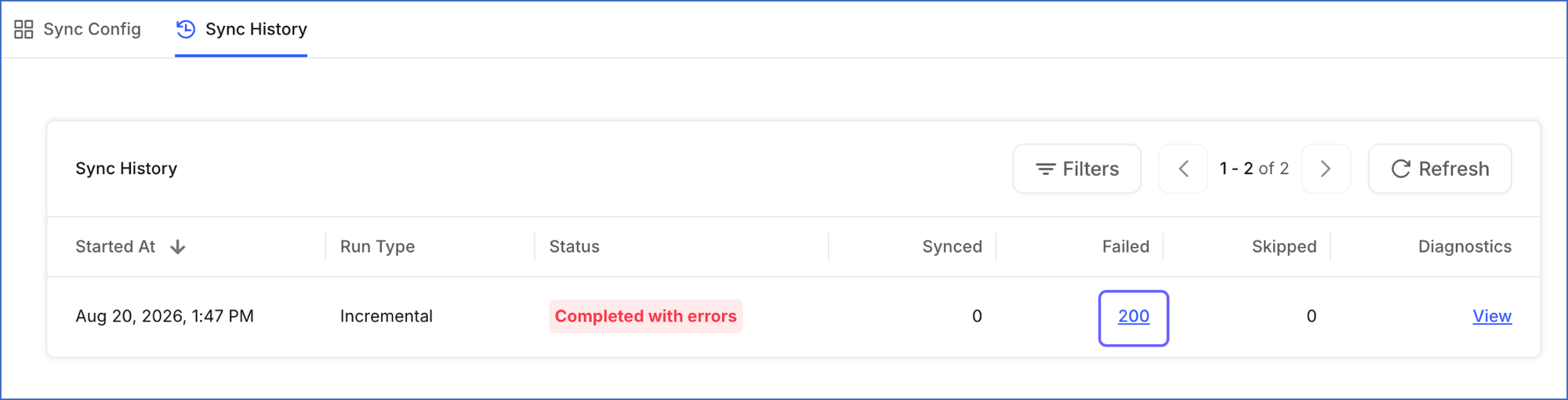
You can also open the dialog by clicking the Records Failed value in the Latest Run panel. Click Download CSV to export the list of errors, so that you can correct the underlying data in your Source and let the next run send it again.
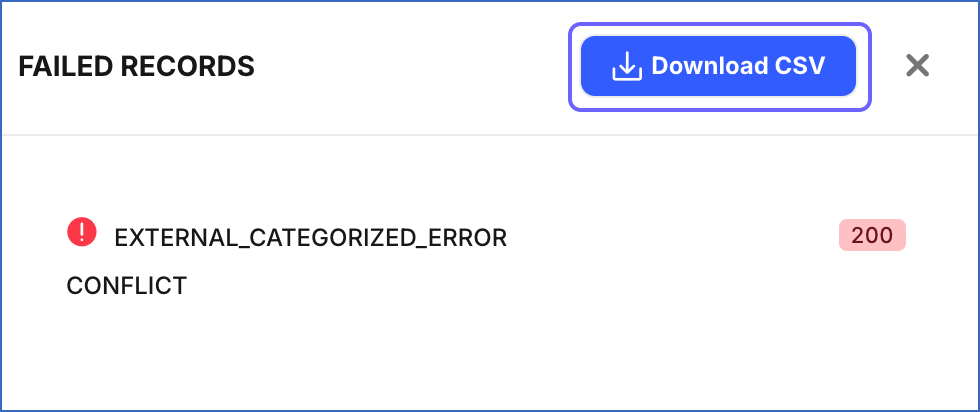
The dialog groups the failures by error. Each entry displays:
-
The error code that identifies the failure.
-
The number of records affected by that error.
-
A description of what went wrong.
-
A sample of one affected record, where one is available, so that you can see the kind of data that triggered the error.
You must consider the following about the errors reported for a run:
-
If a run produces more than 500 distinct errors, the dialog and the report show the first 500.
-
The descriptions are available for 30 days after the run. After that, the error codes and the record counts remain, but the descriptions are no longer shown.
Following are some of the common reasons for a record to fail:
-
The application rejected the record: A required field in the application is not mapped, or a value does not match the type of the field it is written into.
-
The application’s rate limits are exceeded: The API rate limits of the application are reached during the run.
-
The sync key is invalid or duplicated: Two or more rows share the same sync key value, so Activate reports them as failed before sending anything to the application.
Skipped Records
A skipped record is a row that Activate read from your dataset but did not send, because the sync behavior determined that no action was required. A skipped record is not an error.
Following are some of the common reasons for a record to be skipped:
-
No matching record to update: An Activation that uses Update Only updates records that already exist in HubSpot and does not create new ones. For example, if your dataset returns abc@example.com, which already exists in HubSpot, and xyz@example.com, which does not, Activate updates the first contact and skips the second row.
-
No matching record to delete: An Activation that uses Delete Only deletes records that match the rows in your dataset. For example, if your dataset returns xyz@example.com but HubSpot has no contact with that email address, there is nothing to delete, so Activate skips the row.
-
Sync key does not match: Activate uses the sync key to find a matching record. The value in the dataset and the Target must be the same. For example, if you use a customer ID as the sync key but HubSpot contacts do not have that ID, Activate cannot find a match. With Update Only, those rows are skipped because no existing records are found.
-
Sync key value is missing: Activate cannot find a matching record when a row has no sync key value. For example, if the email address is the sync key and a row has no email address, Activate skips that row. This applies to all sync behaviors except Insert Only, which creates records without matching them first.
The reason for a skipped record depends on the selected sync behavior and the state of the record in the Target application. If a high number of records are skipped unexpectedly, review the dataset, sync key, and sync behavior configuration. Read Select the Target for what each behavior does, and Map Fields for how a row is matched to a record.
Revision History
Refer to the following table for the list of key updates made to this page:
| Date | Release | Description of Change |
|---|---|---|
| Sep-22-2026 | 2.54 | New document. |