Google Sheets (Service Account) (Edge)
On This Page
Activate is currently available for Early Access. Please contact your Hevo account executive or the Support team to enable it for your team. Alternatively, request for early access to try out one or more such features.
A service account is an account that belongs to your Google Cloud project instead of a person. Activate uses it to write to your spreadsheets. The service account needs no roles in the project, and it can access a spreadsheet only after you share the spreadsheet with it.
To connect to Google Sheets using a service account, you need to do the following:
-
Enable the Google Sheets and Google Drive APIs in your Google Cloud project.
-
Create a service account and its key, a JSON file that Activate uses to authenticate as the service account.
-
Share your spreadsheets with the service account, with the Editor role.
Read Google Sheets for the sync behaviors, the field mapping reference, and more Target considerations.
Prerequisites
-
The spreadsheet and the tab to which you want to send data exist. Activate does not create spreadsheets or tabs.
-
The spreadsheet is a Google Sheets file, not an Excel file stored in Google Drive.
-
A Google Cloud project exists in which the Google Sheets API and the Google Drive API are enabled. Read Enable the Google Sheets and Google Drive APIs.
-
A service account exists in that project, and its JSON key file is available. Read Create a Service Account and its Key.
-
The spreadsheets that you want to send data to are shared with the email address of the service account, with the Editor role. Read Share your Spreadsheets with the Service Account.
Enable the Google Sheets and Google Drive APIs
Activate uses the Google Sheets API to write to your spreadsheets, and the Google Drive API to list them and check your access. Both APIs must be enabled in the Google Cloud project of the service account.
Perform the following steps to enable the APIs:
-
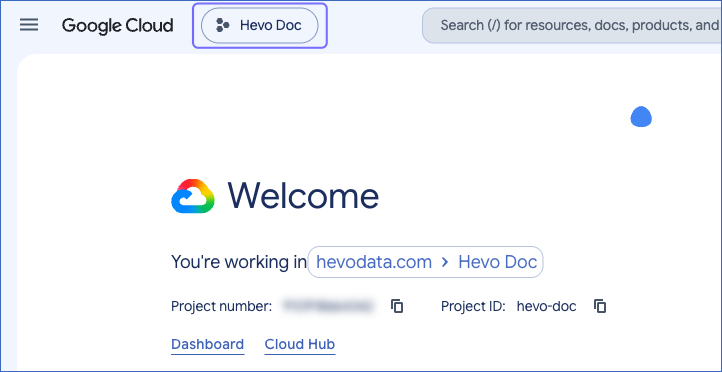
Log in to the Google Cloud console, and select the project in which you want to create the service account.
-
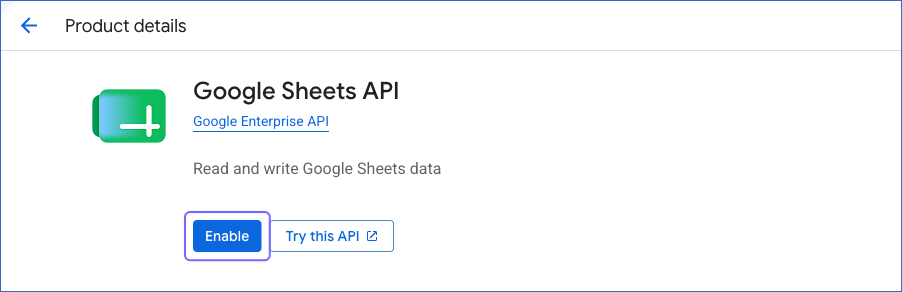
Open the Google Sheets API page, and click Enable. If the page displays Manage instead, the API is already enabled.
-
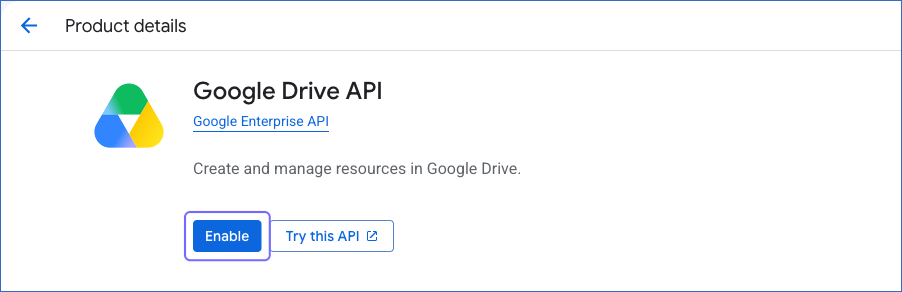
Open the Google Drive API page, and click Enable. If the page displays Manage instead, the API is already enabled.
The Google Sheets API and the Google Drive API are now enabled for your Google Cloud project. Proceed to create a service account and its key.
Create a Service Account and its Key
Activate connects to Google Sheets as a service account, using a JSON key file that you create for the account and upload while configuring the Target. You can create a new service account for Activate, or create a key for an existing one.
Perform the following steps to create a service account and download its key:
-
Open the Service accounts page in the Google Cloud console, and click + Create service account.

Note: If you want to use an existing service account, go to step 3 to create a key for it.
-
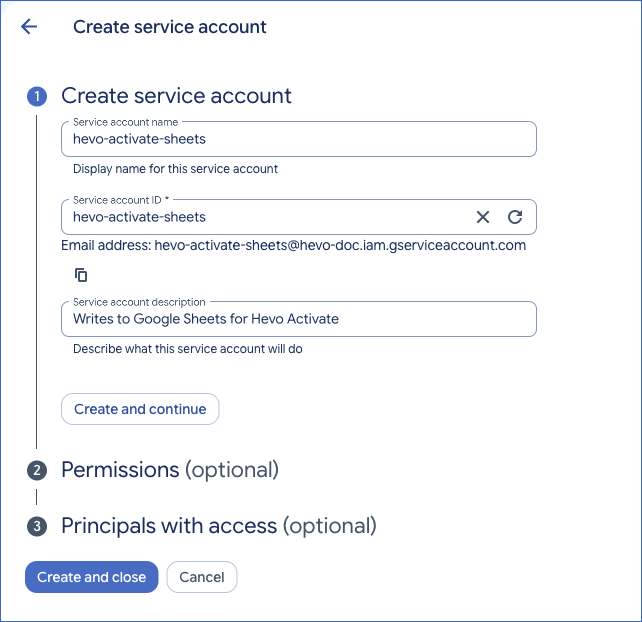
On the Create service account page, do the following:
-
Specify the following:
-
Service account name: A name for the service account, such as hevo-activate-sheets.
-
Service account ID: The ID that Google Cloud generates from the name. The ID forms the email address of the service account, for example, hevo-activate-sheets@my-project.iam.gserviceaccount.com. You cannot change the ID after you create the service account.
-
Service account description: A description of the service account.
-
-
Click Create and close. You do not need to grant the service account any roles.
-
-
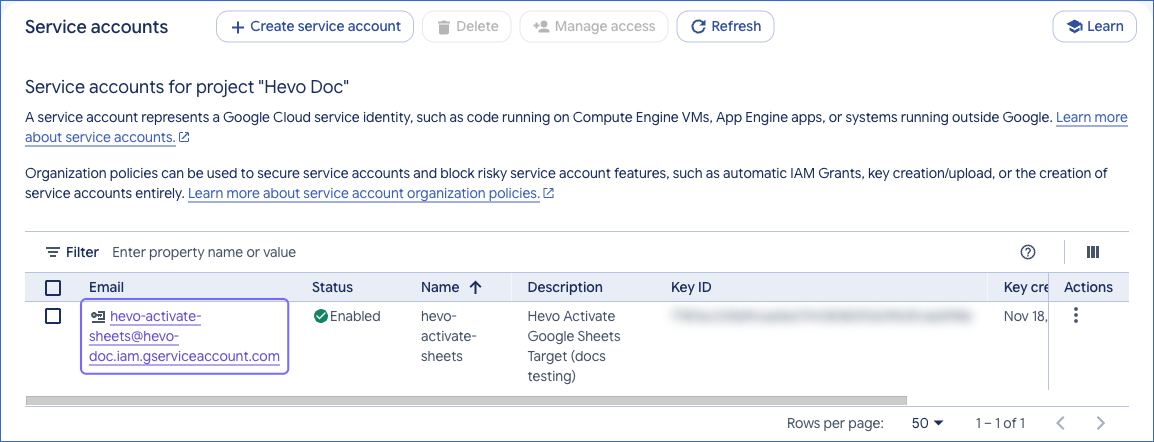
On the Service accounts page, click the email address of the service account.
-
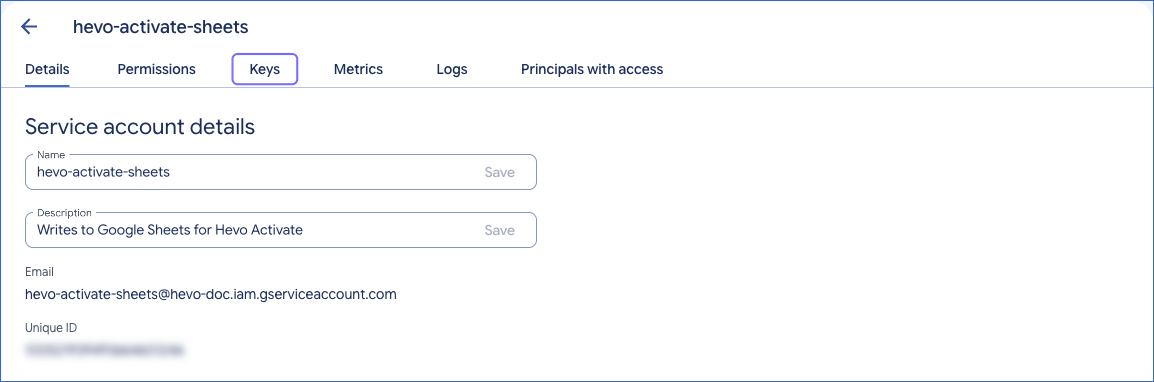
On the <Your service account> page, click the Keys tab.
-
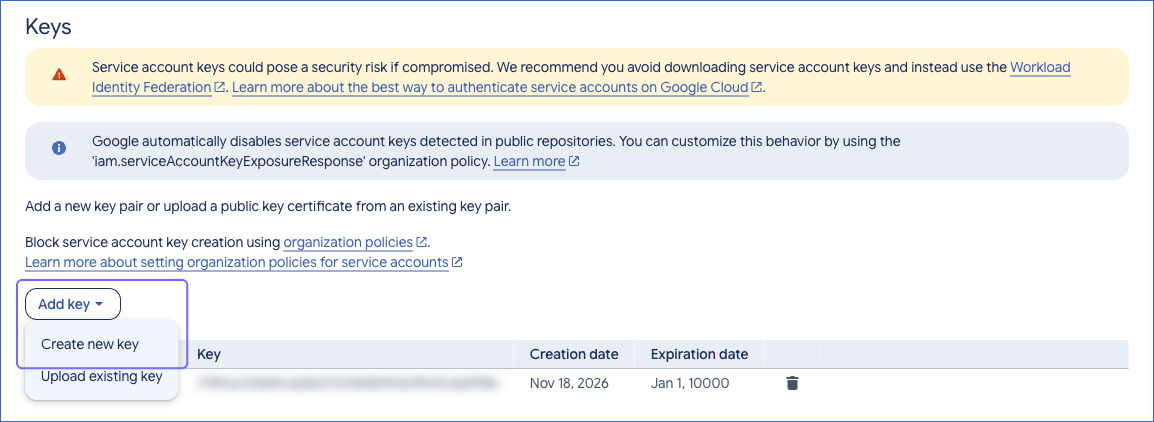
Click Add key, and then click Create new key.
Note: If an organization policy, such as
iam.disableServiceAccountKeyCreation, blocks service account key creation in your project, creating the key fails with an error. This policy is enforced by default in organizations created on or after May 3, 2024. Contact your organization administrator to allow key creation for this project. -
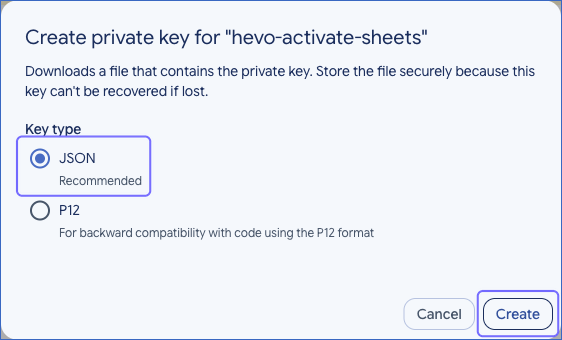
In the Create private key for <your service account> dialog, do the following:
-
Select JSON as the Key type.
-
Click Create.
The key file is downloaded to your machine. Store it securely like any other password, because Google Cloud does not let you download it again.
-
Read Create and delete service account keys for more information about service account keys.
The service account is created, and its key is listed on the Keys tab. Proceed to share your spreadsheets with the service account.
Share your Spreadsheets with the Service Account
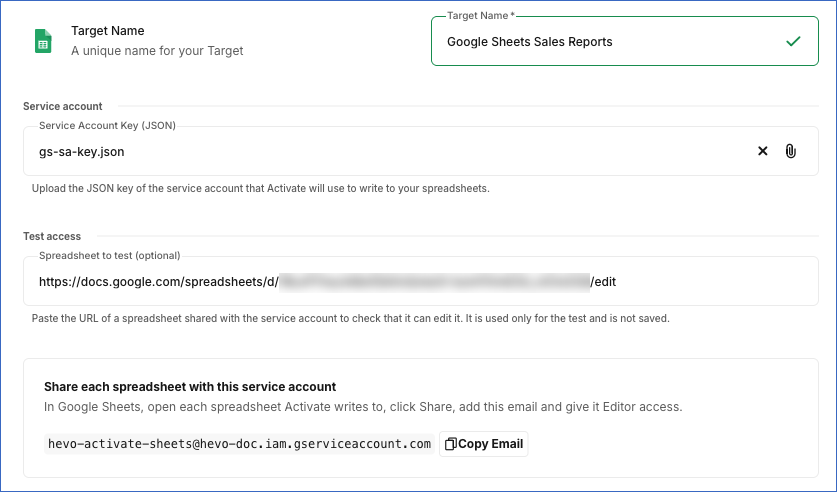
The service account can write only to the spreadsheets that are shared with it. Its email address is the client_email value in the key file, for example, hevo-activate-sheets@my-project.iam.gserviceaccount.com. Activate also displays the email address after you upload the key file, and in the Targets Detailed View, with a Copy Email button.
Perform the following steps for each spreadsheet that you want to send data to:
-
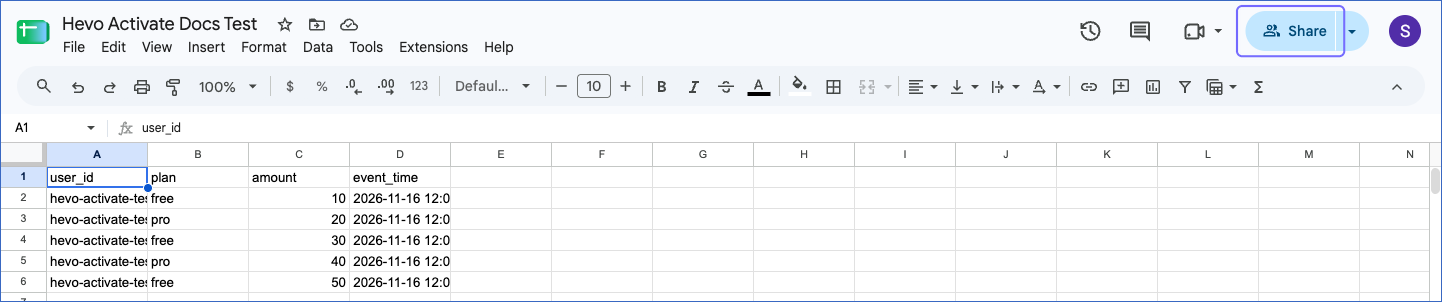
Open the spreadsheet in Google Sheets, and click Share.
-
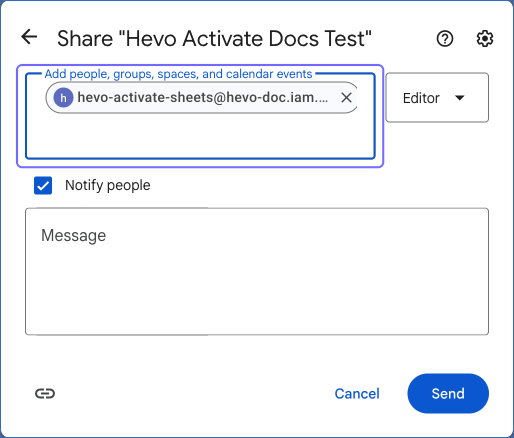
In the Add people, groups, spaces, and calendar events field, specify the email address of the service account.
-
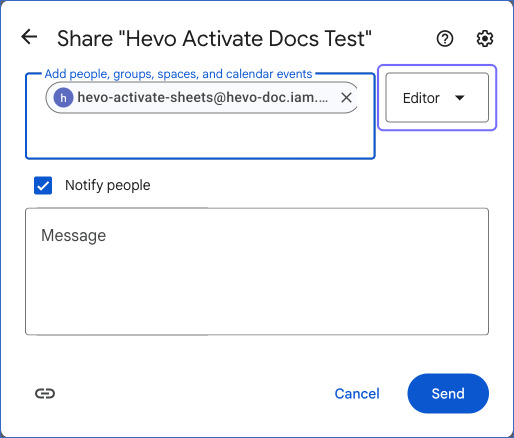
Ensure that Editor is selected as the role.
-
Click Send. If Google Sheets warns that the email address is outside your organization, click Share anyway.
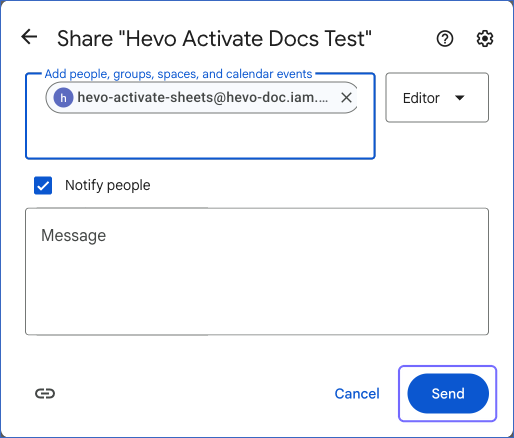
The service account is listed under People with access with the Editor role.
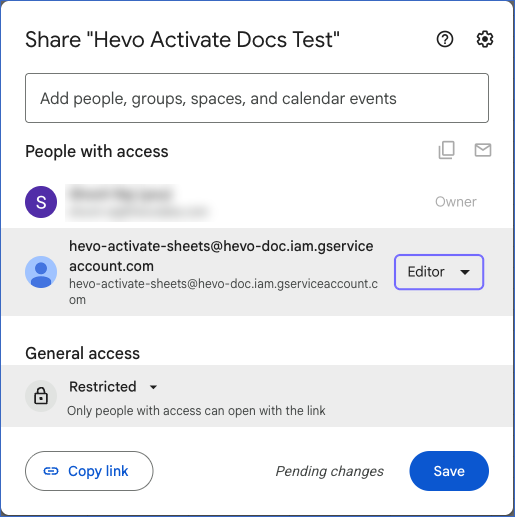
Note: The email address of a service account is outside your Google Workspace organization. If your administrator blocks sharing with people outside the organization, ask the administrator to allow it for the service account, or use a Google Sheets (User Account) Target.
The spreadsheets are now shared with the service account. Proceed to configure Google Sheets (Service Account) as a Target in Activate.
Configure Google Sheets (Service Account) as a Target
Perform the following steps to configure Google Sheets (Service Account) as a Target in Activate:
-
In the Navigation Bar, click Activate.
-
On the Activate page, click the Targets tab, and then click + Create Target.

-
On the Select Target Type page, click Google Sheets (Service Account).
-
On the Configure Target page, specify the following:
-
Target Name: A unique name for your Target, such as Google Sheets Sales Reports.
-
In the Service account section:
-
Service Account Key (JSON): Click the attach (
 ) icon, and upload the key file that you downloaded in the Create a Service Account and its Key section. Activate then displays the email address of the service account on the same page.
-
Service Account Key (JSON): Click the attach (
-
In the Test access section:
- Spreadsheet to test (optional): The URL of a spreadsheet that is shared with the service account, for example, https://docs.google.com/spreadsheets/d/1AbC…/edit. Activate uses it only to check that the service account can edit the spreadsheet, and does not save it.
-
-
Click Test & Save. Activate tests the connection, which can take up to two minutes. The test confirms the following:
-
The key file belongs to a valid service account.
-
The Google Sheets API and the Google Drive API are enabled in the project of the service account.
-
If you specified a spreadsheet to test, the service account can edit it.
-
After the connection test succeeds, you are redirected to the Targets List View, and the Target is created with the Active status.
If you do not specify a spreadsheet to test, the connection test does not check access to any spreadsheet. When you create an Activation, the spreadsheet drop-down lists only the spreadsheets that the service account can edit, and Activate checks the access again at the start of every run.
After you create the Target, you can change its Target Name and Service Account Key (JSON) by clicking Edit in the Targets Detailed View. If you upload the key of another service account, share your spreadsheets with that service account.
Troubleshooting the Connection Test
The following errors can occur while you create the Target. All the spreadsheet errors can also occur at the start of a run. The Spreadsheet not shared and Not a Google Sheets spreadsheet errors can also occur when you select a spreadsheet in an Activation.
Upload a valid Google service-account JSON key
The uploaded file is not the JSON key file of a Google Cloud service account. Create a new key for your service account and upload it. Read Create a Service Account and its Key for the steps.
Destination authentication failed
Google did not accept the key, for example, because the key was deleted, or the service account is disabled or deleted. Create a new key, or enable the service account, and upload the key again.
Google API not enabled
The Google Sheets API or the Google Drive API is not enabled in the Google Cloud project of the service account. Enable both APIs, wait a few minutes, and test the connection again. Read Enable the Google Sheets and Google Drive APIs for the steps.
Spreadsheet not shared
The service account cannot edit the spreadsheet, or the spreadsheet does not exist. Share the spreadsheet with the email address of the service account, with the Editor role. Read Share your Spreadsheets with the Service Account for the steps.
Spreadsheet is view-only
The spreadsheet is shared with the service account with the Viewer or Commenter role. In the sharing settings of the spreadsheet, change the role of the service account to Editor.
Spreadsheet in the trash
The spreadsheet is in the Google Drive trash. Restore it from the trash, or use another spreadsheet.
Not a Google Sheets spreadsheet
The file is not a Google Sheets file, for example, an Excel file stored in Google Drive. Open the file in Google Sheets. Click File, and then click Save as Google Sheets. Use the new spreadsheet.
Data Model
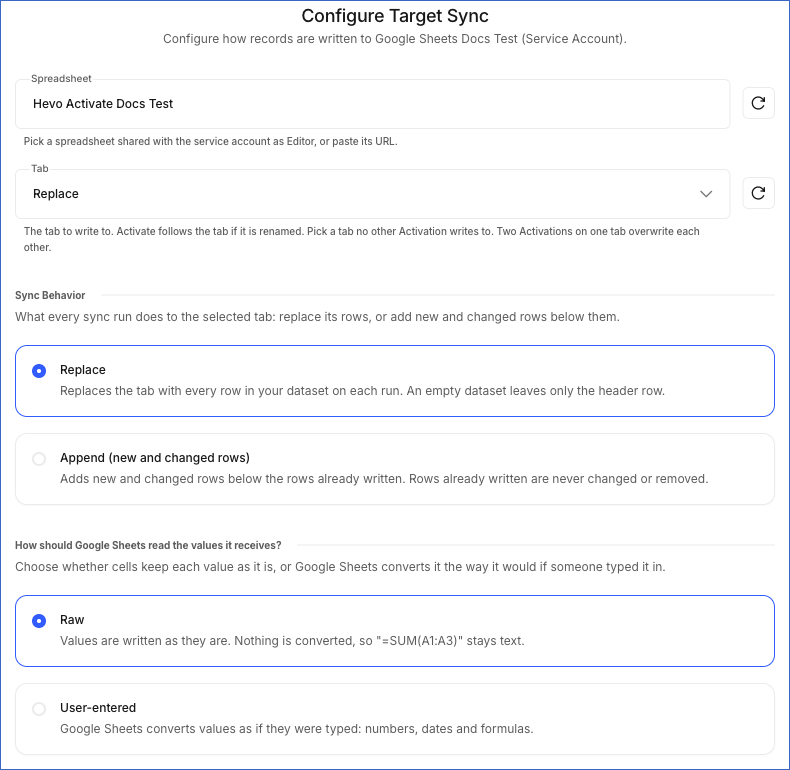
Each Activation writes to one tab of one spreadsheet. Instead of selecting a Target object, you specify the following on the Configure Target Sync page while creating the Activation:
-
Spreadsheet: The spreadsheet to write to. The drop-down lists, in alphabetical order, the Google Sheets files that the service account can edit, including the files shared with it and the files in shared drives. It lists up to 10,000 spreadsheets. If a spreadsheet is not listed, paste its URL instead.
-
Tab: The tab of the spreadsheet to write to. Chart sheets are not listed. If someone renames the tab later, Activate continues to write to it.
-
Sync Behavior: The way each run writes to the tab, by replacing its rows or by adding rows below them. Read Sync Behaviors.
-
How should Google Sheets read the values it receives?: The way Google Sheets stores each value, as it is sent or converted. Read Target Field Mapping Reference.
The Activation lists its Target object as the name of the spreadsheet and the tab, for example, Sales Reports › Weekly.
Target Considerations
-
Runs fail if the key of the service account is deleted, or if the service account is disabled or deleted. To resume the runs:
-
If the key is deleted, create a new key, click Edit in the Targets Detailed View, and upload the new key file.
-
If the service account is disabled, enable it again in the Google Cloud console.
-
If the service account is deleted, create a new service account and its key, share your spreadsheets with it, and upload the new key file to the Target.
-
Revision History
Refer to the following table for the list of key updates made to this page:
| Date | Release | Description of Change |
|---|---|---|
| Nov-27-2026 | 2.55 | New document. |