- Introduction
-
Getting Started
- Creating an Account in Hevo
- Subscribing to Hevo via AWS Marketplace
- Subscribing to Hevo via Snowflake Marketplace
- Connection Options
- Familiarizing with the UI
- Creating your First Pipeline
- Data Loss Prevention and Recovery
- Upgrading Pipeline from Standard to Edge
-
Data Ingestion
- Types of Data Synchronization
- Ingestion Modes and Query Modes for Database Sources
- Ingestion and Loading Frequency
- Data Ingestion Statuses
- Deferred Data Ingestion
- Handling of Primary Keys
- Handling of Updates
- Handling of Deletes
- Hevo-generated Metadata
- Best Practices to Avoid Reaching Source API Rate Limits
-
Edge
- Data Ingestion
- Core Concepts
-
Pipelines
- Familiarizing with the Pipelines UI
- Creating an Edge Pipeline
- Working with Edge Pipelines
- Pipeline Job History
- Pipeline Overview
- Needs Attention
- Object and Schema Management
- Activity Log
-
Sources
- Connect AI
- PostgreSQL
- Oracle
- MySQL
- SQL Server
- CockroachDB
- Troubleshooting Database Sources
- Salesforce Bulk API V2
- Ordergroove
- BambooHR
- Stripe
- NetSuite SuiteAnalytics
- Shopify
- Slack
- ClickUp
- Monday.com
- Pipedrive
- Workable
- Fathom
- HubSpot
- Salesforce Marketing Cloud
- Google Analytics 4
- Google Ads
- Facebook Ads
- Microsoft Ads
- LinkedIn Ads
- Xero
- Instagram Business
- Amazon Selling Partner
- TikTok Ads
- StackAdapt
- Amazon Ads
- Pinterest Organic
- Zendesk Support
- Snapchat Ads
- TikTok Organic
- Google Search Console
- Klaviyo v2
- Braintree Payments
- Facebook Pages
- Tempo
- PayPal
- Auth0
- Pinterest Ads
- Apple Search Ads
- Permit.io
- Amplitude Analytics
- Customer.io
- Paddle
- Jira Cloud
- Naming Conventions for Source Data Entities
- Destinations
- Transformations
- Alerts
- Activate
- Custom Connectors
-
Releases
- Edge Release Notes - October 2026
- Edge Release Notes - September 2026
- Edge Release Notes - August 2026
- Edge Release Notes - July 2026
- Edge Release Notes - June 2026
- Edge Release Notes - May 2026
- Edge Release Notes - April 2026
- Edge Release Notes - March 2026
- Edge Release Notes - February 2026
- Edge Release Notes - January 2026
- Edge Release Notes - December 2025
- Edge Release Notes - November 2025
- Edge Release Notes - October 2025
- Edge Release Notes - September 2025
- Edge Release Notes - August 2025
- Edge Release Notes - July 2025
- Edge Release Notes - November 2024
-
Data Loading
- Loading Data in a Database Destination
- Loading Data to a Data Warehouse
- Optimizing Data Loading for a Destination Warehouse
- Deduplicating Data in a Data Warehouse Destination
- Manually Triggering the Loading of Events
- Scheduling Data Load for a Destination
- Loading Events in Batches
- Data Loading Statuses
- Data Spike Alerts
- Name Sanitization
- Table and Column Name Compression
- Parsing Nested JSON Fields in Events
-
Pipelines
- Data Flow in a Pipeline
- Familiarizing with the Pipelines UI
- Working with Pipelines
- Managing Objects in Pipelines
- Pipeline Jobs
-
Transformations
-
Python Code-Based Transformations
- Supported Python Modules and Functions
-
Transformation Methods in the Event Class
- Create an Event
- Retrieve the Event Name
- Rename an Event
- Retrieve the Properties of an Event
- Modify the Properties for an Event
- Fetch the Primary Keys of an Event
- Modify the Primary Keys of an Event
- Fetch the Data Type of a Field
- Check if the Field is a String
- Check if the Field is a Number
- Check if the Field is Boolean
- Check if the Field is a Date
- Check if the Field is a Time Value
- Check if the Field is a Timestamp
-
TimeUtils
- Convert Date String to Required Format
- Convert Date to Required Format
- Convert Datetime String to Required Format
- Convert Epoch Time to a Date
- Convert Epoch Time to a Datetime
- Convert Epoch to Required Format
- Convert Epoch to a Time
- Get Time Difference
- Parse Date String to Date
- Parse Date String to Datetime Format
- Parse Date String to Time
- Utils
- Examples of Python Code-based Transformations
-
Drag and Drop Transformations
- Special Keywords
-
Transformation Blocks and Properties
- Add a Field
- Change Datetime Field Values
- Change Field Values
- Drop Events
- Drop Fields
- Find & Replace
- Flatten JSON
- Format Date to String
- Format Number to String
- Hash Fields
- If-Else
- Mask Fields
- Modify Text Casing
- Parse Date from String
- Parse JSON from String
- Parse Number from String
- Rename Events
- Rename Fields
- Round-off Decimal Fields
- Split Fields
- Examples of Drag and Drop Transformations
- Effect of Transformations on the Destination Table Structure
- Transformation Reference
- Transformation FAQs
-
Python Code-Based Transformations
-
Schema Mapper
- Using Schema Mapper
- Mapping Statuses
- Auto Mapping Event Types
- Manually Mapping Event Types
- Modifying Schema Mapping for Event Types
- Schema Mapper Actions
- Fixing Unmapped Fields
- Resolving Incompatible Schema Mappings
- Resizing String Columns in the Destination
- Changing the Data Type of a Destination Table Column
- Schema Mapper Compatibility Table
- Limits on the Number of Destination Columns
- File Log
- Troubleshooting Failed Events in a Pipeline
- Mismatch in Events Count in Source and Destination
- Audit Tables
- Activity Log
-
Pipeline FAQs
- Can multiple Sources connect to one Destination?
- What happens if I re-create a deleted Pipeline?
- Why is there a delay in my Pipeline?
- Can I change the Destination post-Pipeline creation?
- Why is my billable Events high with Delta Timestamp mode?
- Can I drop multiple Destination tables in a Pipeline at once?
- How does Run Now affect scheduled ingestion frequency?
- Will pausing some objects increase the ingestion speed?
- Can I see the historical load progress?
- Why is my Historical Load Progress still at 0%?
- Why is historical data not getting ingested?
- How do I set a field as a primary key?
- How do I ensure that records are loaded only once?
- Why can't I see my Pipelines after logging in?
- Events Usage
-
Sources
- Free Sources
-
Databases and File Systems
- Data Warehouses
-
Databases
- Connecting to a Local Database
- Amazon DocumentDB
- Amazon DynamoDB
- Elasticsearch
-
MongoDB
- Generic MongoDB
- MongoDB Atlas
- Support for Multiple Data Types for the _id Field
- Example - Merge Collections Feature
-
Troubleshooting MongoDB
-
Errors During Pipeline Creation
- Error 1001 - Incorrect credentials
- Error 1005 - Connection timeout
- Error 1006 - Invalid database hostname
- Error 1007 - SSH connection failed
- Error 1008 - Database unreachable
- Error 1011 - Insufficient access
- Error 1028 - Primary/Master host needed for OpLog
- Error 1029 - Version not supported for Change Streams
- SSL 1009 - SSL Connection Failure
- Troubleshooting MongoDB Change Streams Connection
- Troubleshooting MongoDB OpLog Connection
-
Errors During Pipeline Creation
- SQL Server
-
MySQL
- Amazon Aurora MySQL
- Amazon RDS MySQL
- Azure MySQL
- Generic MySQL
- Google Cloud MySQL
- MariaDB MySQL
-
Troubleshooting MySQL
-
Errors During Pipeline Creation
- Error 1003 - Connection to host failed
- Error 1006 - Connection to host failed
- Error 1007 - SSH connection failed
- Error 1011 - Access denied
- Error 1012 - Replication access denied
- Error 1017 - Connection to host failed
- Error 1026 - Failed to connect to database
- Error 1027 - Unsupported BinLog format
- Failed to determine binlog filename/position
- Schema 'xyz' is not tracked via bin logs
- Errors Post-Pipeline Creation
-
Errors During Pipeline Creation
- MySQL FAQs
- Oracle
-
PostgreSQL
- Amazon Aurora PostgreSQL
- Amazon RDS PostgreSQL
- Azure PostgreSQL
- Generic PostgreSQL
- Google Cloud PostgreSQL
- Heroku PostgreSQL
- Upgrading Pipelines with PostgreSQL Sources to Use the pgoutput Plugin
-
Troubleshooting PostgreSQL
-
Errors during Pipeline creation
- Error 1003 - Authentication failure
- Error 1006 - Connection settings errors
- Error 1011 - Access role issue for logical replication
- Error 1012 - Access role issue for logical replication
- Error 1014 - Database does not exist
- Error 1017 - Connection settings errors
- Error 1023 - No pg_hba.conf entry
- Error 1024 - Number of requested standby connections
- Errors Post-Pipeline Creation
-
Errors during Pipeline creation
-
PostgreSQL FAQs
- Can I track updates to existing records in PostgreSQL?
- How can I migrate a Pipeline created with one PostgreSQL Source variant to another variant?
- How can I prevent data loss when migrating or upgrading my PostgreSQL database?
- Why do FLOAT4 and FLOAT8 values in PostgreSQL show additional decimal places when loaded to BigQuery?
- Why is data not being ingested from PostgreSQL Source objects?
- Troubleshooting Database Sources
- Database Source FAQs
- File Storage
- Engineering Analytics
- Finance & Accounting Analytics
-
Marketing Analytics
- ActiveCampaign
- AdRoll
- Amazon Ads
- Apple Search Ads
- AppsFlyer
- CleverTap
- Criteo
- Drip
- Facebook Ads
- Facebook Page Insights
- Firebase Analytics
- Freshsales
- Google Ads
- Google Analytics 4
- Google Analytics 360
- Google Play Console
- Google Search Console
- HubSpot
- Instagram Business
- Klaviyo v2
- Lemlist
- LinkedIn Ads
- Mailchimp
- Mailshake
- Marketo
- Microsoft Ads
- Onfleet
- Outbrain
- Pardot
- Pinterest Ads
- Pipedrive
- Recharge
- Segment
- SendGrid Webhook
- SendGrid
- Salesforce Marketing Cloud
- Snapchat Ads
- SurveyMonkey
- Taboola
- TikTok Ads
- Twitter Ads
- Typeform
- YouTube Analytics
- Product Analytics
- Sales & Support Analytics
- Source FAQs
-
Destinations
- Familiarizing with the Destinations UI
- Cloud Storage-Based
- Databases
-
Data Warehouses
- Amazon Redshift
- Amazon Redshift Serverless
- Azure Synapse Analytics
- Databricks
-
Google BigQuery
- Clustering in BigQuery
- Partitioning in BigQuery
- Structure of Data in the Google BigQuery Data Warehouse
- Loading Data to a Google BigQuery Data Warehouse
- Near Real-time Data Loading using Streaming
- Modifying BigQuery Destinations to Use Service Account Authentication
- Troubleshooting Google BigQuery
- Google BigQuery FAQs
- Hevo Managed Google BigQuery
- Snowflake
- Troubleshooting Data Warehouse Destinations
-
Destination FAQs
- Can I change the primary key in my Destination table?
- Can I change the Destination table name after creating the Pipeline?
- How can I change or delete the Destination table prefix?
- Why does my Destination have deleted Source records?
- How do I filter deleted Events from the Destination?
- Does a data load regenerate deleted Hevo metadata columns?
- How do I filter out specific fields before loading data?
- Transform
- Alerts
- Account Management
- Activate
- Glossary
-
Releases- 2026 Releases
-
2025 Releases
- Release 2.44 (Dec 01, 2025-Jan 12, 2026)
- Release 2.43 (Nov 03-Dec 01, 2025)
- Release 2.42 (Oct 06-Nov 03, 2025)
- Release 2.41 (Sep 08-Oct 06, 2025)
- Release 2.40 (Aug 11-Sep 08, 2025)
- Release 2.39 (Jul 07-Aug 11, 2025)
- Release 2.38 (Jun 09-Jul 07, 2025)
- Release 2.37 (May 12-Jun 09, 2025)
- Release 2.36 (Apr 14-May 12, 2025)
- Release 2.35 (Mar 17-Apr 14, 2025)
- Release 2.34 (Feb 17-Mar 17, 2025)
- Release 2.33 (Jan 20-Feb 17, 2025)
-
2024 Releases
- Release 2.32 (Dec 16 2024-Jan 20, 2025)
- Release 2.31 (Nov 18-Dec 16, 2024)
- Release 2.30 (Oct 21-Nov 18, 2024)
- Release 2.29 (Sep 30-Oct 22, 2024)
- Release 2.28 (Sep 02-30, 2024)
- Release 2.27 (Aug 05-Sep 02, 2024)
- Release 2.26 (Jul 08-Aug 05, 2024)
- Release 2.25 (Jun 10-Jul 08, 2024)
- Release 2.24 (May 06-Jun 10, 2024)
- Release 2.23 (Apr 08-May 06, 2024)
- Release 2.22 (Mar 11-Apr 08, 2024)
- Release 2.21 (Feb 12-Mar 11, 2024)
- Release 2.20 (Jan 15-Feb 12, 2024)
-
2023 Releases
- Release 2.19 (Dec 04, 2023-Jan 15, 2024)
- Release Version 2.18
- Release Version 2.17
- Release Version 2.16 (with breaking changes)
- Release Version 2.15 (with breaking changes)
- Release Version 2.14
- Release Version 2.13
- Release Version 2.12
- Release Version 2.11
- Release Version 2.10
- Release Version 2.09
- Release Version 2.08
- Release Version 2.07
- Release Version 2.06
-
2022 Releases
- Release Version 2.05
- Release Version 2.04
- Release Version 2.03
- Release Version 2.02
- Release Version 2.01
- Release Version 2.00
- Release Version 1.99
- Release Version 1.98
- Release Version 1.97
- Release Version 1.96
- Release Version 1.95
- Release Version 1.93 & 1.94
- Release Version 1.92
- Release Version 1.91
- Release Version 1.90
- Release Version 1.89
- Release Version 1.88
- Release Version 1.87
- Release Version 1.86
- Release Version 1.84 & 1.85
- Release Version 1.83
- Release Version 1.82
- Release Version 1.81
- Release Version 1.80 (Jan-24-2022)
- Release Version 1.79 (Jan-03-2022)
-
2021 Releases
- Release Version 1.78 (Dec-20-2021)
- Release Version 1.77 (Dec-06-2021)
- Release Version 1.76 (Nov-22-2021)
- Release Version 1.75 (Nov-09-2021)
- Release Version 1.74 (Oct-25-2021)
- Release Version 1.73 (Oct-04-2021)
- Release Version 1.72 (Sep-20-2021)
- Release Version 1.71 (Sep-09-2021)
- Release Version 1.70 (Aug-23-2021)
- Release Version 1.69 (Aug-09-2021)
- Release Version 1.68 (Jul-26-2021)
- Release Version 1.67 (Jul-12-2021)
- Release Version 1.66 (Jun-28-2021)
- Release Version 1.65 (Jun-14-2021)
- Release Version 1.64 (Jun-01-2021)
- Release Version 1.63 (May-19-2021)
- Release Version 1.62 (May-05-2021)
- Release Version 1.61 (Apr-20-2021)
- Release Version 1.60 (Apr-06-2021)
- Release Version 1.59 (Mar-23-2021)
- Release Version 1.58 (Mar-09-2021)
- Release Version 1.57 (Feb-22-2021)
- Release Version 1.56 (Feb-09-2021)
- Release Version 1.55 (Jan-25-2021)
- Release Version 1.54 (Jan-12-2021)
-
2020 Releases
- Release Version 1.53 (Dec-22-2020)
- Release Version 1.52 (Dec-03-2020)
- Release Version 1.51 (Nov-10-2020)
- Release Version 1.50 (Oct-19-2020)
- Release Version 1.49 (Sep-28-2020)
- Release Version 1.48 (Sep-01-2020)
- Release Version 1.47 (Aug-06-2020)
- Release Version 1.46 (Jul-21-2020)
- Release Version 1.45 (Jul-02-2020)
- Release Version 1.44 (Jun-11-2020)
- Release Version 1.43 (May-15-2020)
- Release Version 1.42 (Apr-30-2020)
- Release Version 1.41 (Apr-2020)
- Release Version 1.40 (Mar-2020)
- Release Version 1.39 (Feb-2020)
- Release Version 1.38 (Jan-2020)
- Early Access New
Needs Attention (Edge)
The Needs Attention tab reflects the current health of your Pipeline by displaying only the errors that need your attention at the moment, eliminating the need to review individual sync jobs to identify issues. Instead of checking each job to determine whether the Pipeline requires action, you can use this tab to see, at a glance, whether anything needs your attention right now, even if the Pipeline appears to be running normally.
For each error, you can view a description of the issue, its cause, the time it was first detected, and the recommended action to resolve it. This lets you resolve most issues directly from this tab, such as re-authenticating a Source or resyncing an affected object, without contacting Hevo Support. The tab also displays a badge indicating the number of active errors for the Pipeline.
An error is automatically cleared from the list once it is resolved, typically after the next sync completes successfully without the same error recurring. For example, if a Source object fails with an error and then loads successfully in the next sync, Hevo treats this as confirmation that the issue is resolved and removes the error from the tab. This ensures that the tab always reflects only the errors that currently need your attention, with nothing stale or already resolved.
You can access the Needs Attention tab from the Pipeline Detailed View.
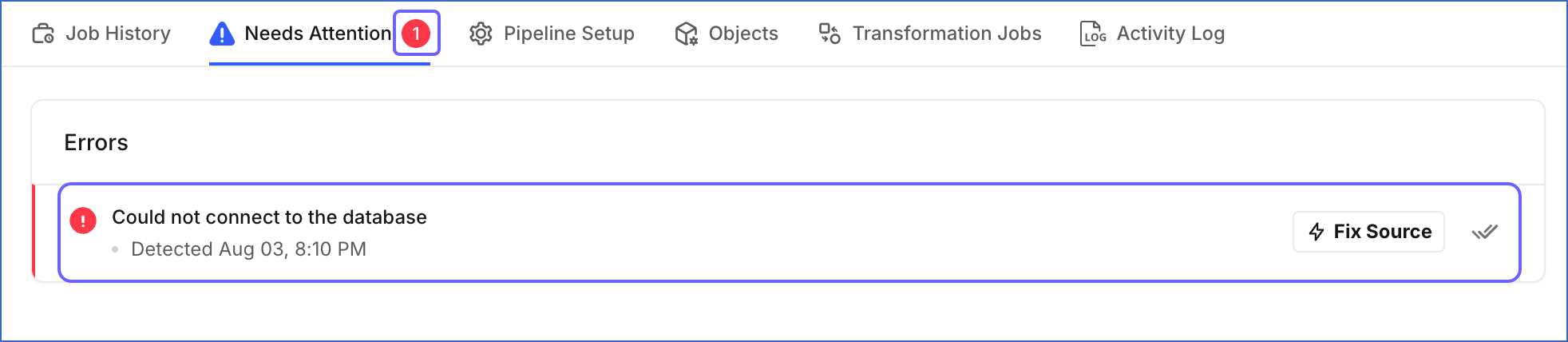
Refer to the following sections to understand how to use the Needs Attention tab:
Understanding the Errors List
The Errors list displays one row for each active error in the Pipeline. Each row includes:
-
An error icon.
-
The error title, describing the issue.
-
The date and time when the error was first detected.
-
A recommended action, such as Fix Source or Resync Object, to help resolve the error. Read Recommended Actions for information on all the available actions.
-
An acknowledge icon to dismiss the error from the list. You may use this option if you have already resolved the error outside the Needs Attention tab, or have reviewed the error and do not need it flagged again right now.
Note: If an acknowledged error occurs again, it reappears in the list.
Viewing Error Details
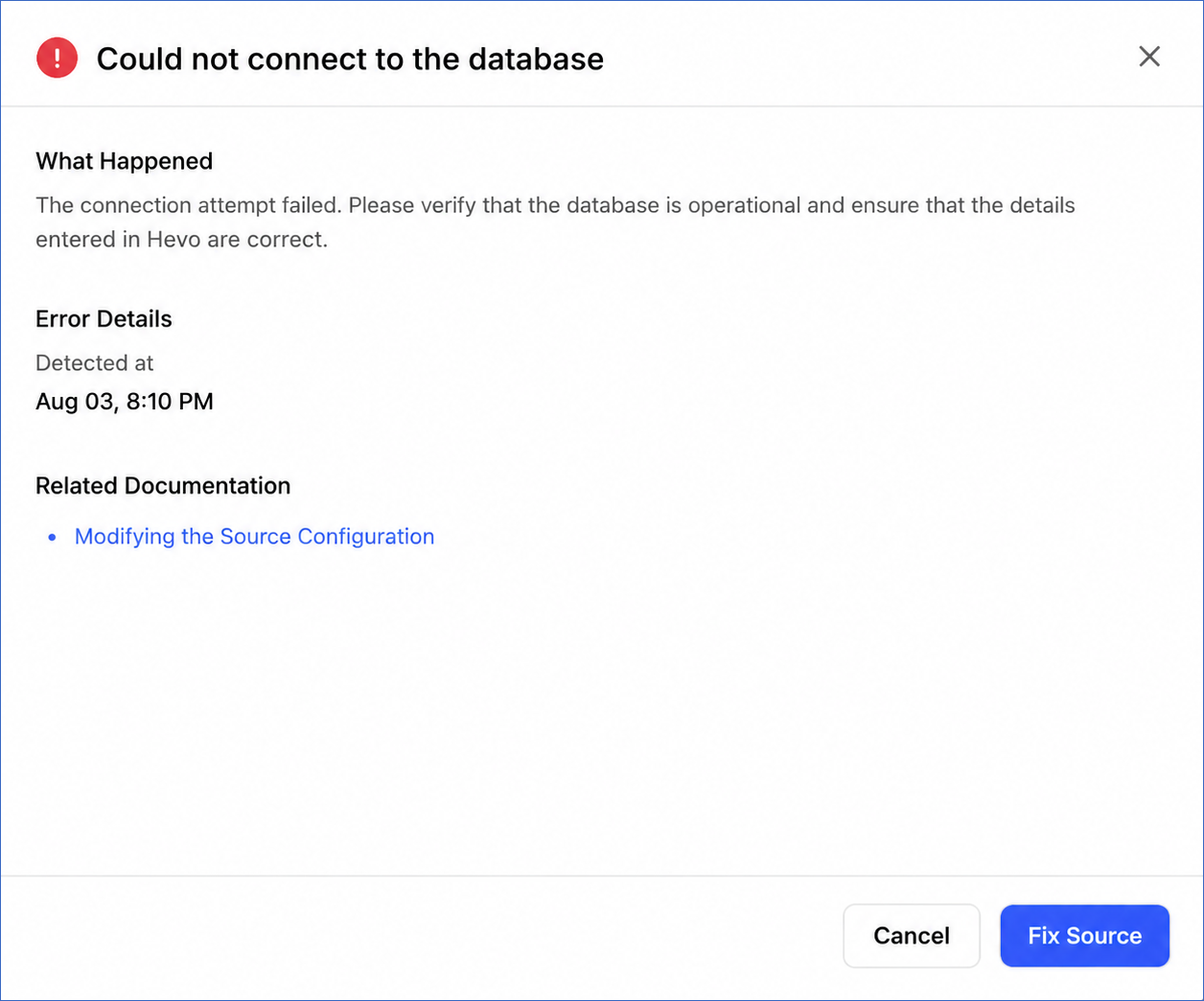
Click any error row to open the error detail side panel:
-
What Happened: A description of the error and why it occurred.
-
Error Details: The date and time the error was first detected.
-
Related Documentation: Links to relevant Hevo documentation that can help resolve the error.
If the error affects specific objects, the side panel lists the Source objects impacted by the error. The page also displays the same recommended action shown in the error row in the Needs Attention tab. Click Cancel to close the side panel without taking any action.
Recommended Actions
In the Needs Attention tab, each error includes a recommended action to help resolve the issue. The action displayed depends on the type of error. The following table describes what happens when you click each recommended action.
| Recommended Action | What Happens When You Click It |
|---|---|
| Fix Source | Opens the Source configuration page, where you can verify the configured credentials. If required, modify the incorrect fields, and click Test & Save to validate the changes, and save the updated configuration. |
| Fix Destination | Opens the Destination configuration page, where you can verify the configured credentials. If required, modify the incorrect fields, and click Test & Save to validate the changes, and save the updated configuration. |
| Fix Pipeline Config | Opens the Pipeline configuration page, where you can modify the Pipeline settings. Read Modifying the Pipeline Configuration for information about the available settings and how to update them. |
| Resync Object | Opens the error detail side panel, where you can view the list of affected objects and choose to enable the Drop and Load option. Click Resync Object in the side panel to start the resync. Read Resyncing Objects for information about object resync and its impact on data ingestion. |
| Resync Pipeline | Opens the pop-up dialog, where you can choose to enable the Drop and Load option. Click Resync Pipeline to start the resync. Read Resync Pipeline for information about Pipeline resync and its impact on data ingestion. |
| Contact Support | Opens the Hevo Support chat panel, where you can view your chat history or click New Chat to start a new conversation. If you do not get a resolution from the chat, you can raise a ticket for the support team from Support options. |
Note: Performing the recommended action alone does not remove the error. The error is removed only after the Pipeline completes its next sync successfully without the same error recurring. For example, successfully testing a database connection does not remove a Could not connect to the database error. The error is removed only after the next sync completes successfully.
Revision History
Refer to the following table for the list of key updates made to this page:
| Date | Release | Description of Change |
|---|---|---|
| Aug-26-2026 | NA | New document. |