On This Page
When you click Pipelines in the Navigation Bar, the Pipelines List View is displayed. On this page, you can view the list of Pipelines created by you or your team, filter the results using data controls, and click on any Pipeline to open it in the Detailed View.
The following sections highlight the main elements of the Pipeline List View and the Detailed View:
Pipelines List View
The Pipelines List View differs depending on when your team was created. Read the section that applies to you:
For Teams Created On or After August 20, 2026
All your Pipelines are listed in a single table. Refer to the image and descriptions below to familiarize yourself with the components of the Pipelines List View.
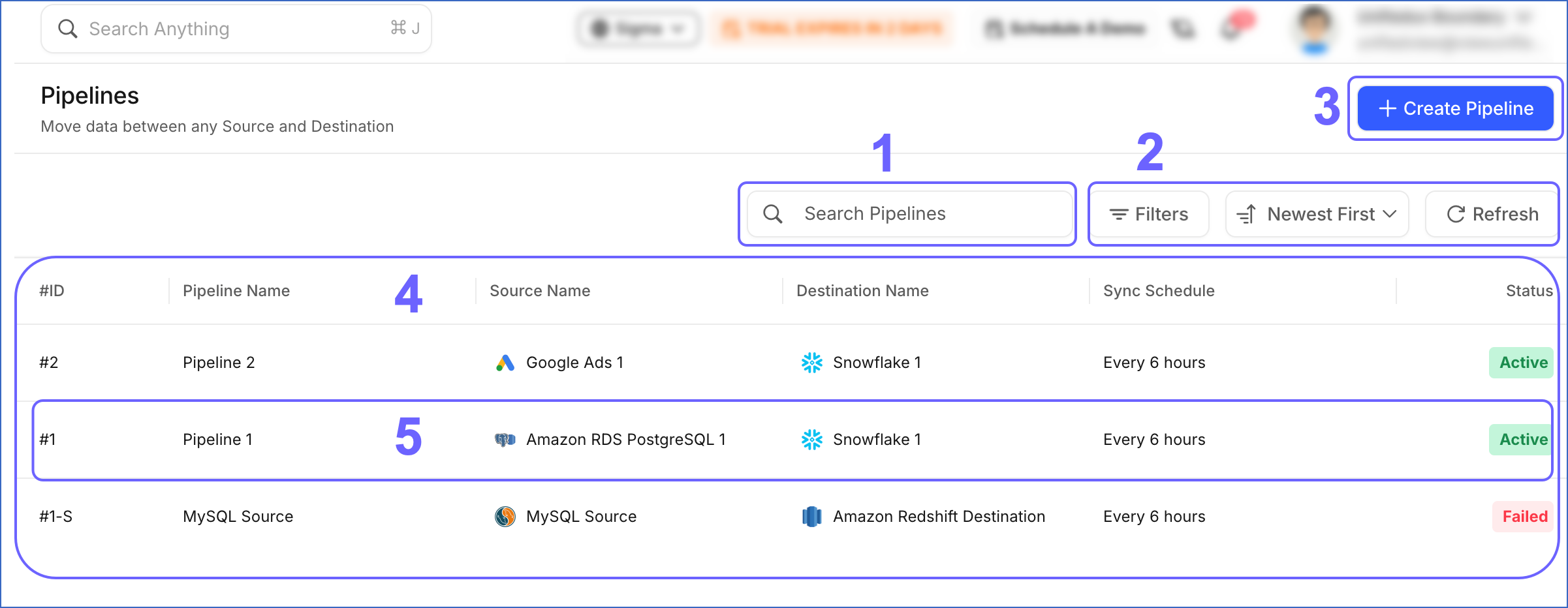
The following table describes each of these components:
| Page Component | Title | Description |
|---|---|---|
| 1 | Search Bar | Enables you to search for Pipelines using the: - Partial or complete name of the Pipeline. - Source or Destination name or type the Pipeline is created for. - Pipeline ID. |
| 2 | Data Controls | Enables you to control the data that is displayed. The Data Controls, from left to right are: - Filters: List the Pipelines based on their status, or the Destination to which data is being loaded. - Newest First: Sort and display the Pipelines list based on the criterion selected from the drop-down. The available options are Newest First (default), Oldest First, A → Z, and Z → A. - Refresh: Allows you to view the newly created Pipelines that are not visible in the UI yet. |
| 3 | + Create Pipeline button | Enables you to create a Pipeline. |
| 4 | Asset List | Displays the list of Pipelines created by you or your team. This list can be refined based on the Data Controls or the search string. |
| 5 | Pipeline Summary | Provides a brief summary of an existing Pipeline. This includes: - #ID: The sequential serial number assigned to the Pipeline at the time of creation. - Pipeline Name: The name of the Pipeline. - Source Name: The Source from where the data is being fetched. - Destination Name: The Destination where data is being loaded. - Sync Schedule: The frequency at which the Pipeline syncs data. - For an Edge Pipeline, Hevo ingests data from your Source and loads it to your Destination on this schedule, based on the sync frequency configured for the Pipeline. - For a Standard Pipeline, Hevo ingests data from your Source on this schedule, and data is loaded separately, in real time for database Destinations and at the loading frequency configured for data warehouse Destinations. Read Ingestion and Loading Frequency for more information. - Status: The status of the Pipeline. |
Pipeline Statuses
The Pipeline can have one of the following statuses:
| Status | Description |
|---|---|
| Active | The Pipeline is running and syncing data to your Destination. |
| Disabled | The Pipeline is not ingesting or loading any data. You can enable or resume it from the Pipeline Detailed View. |
| Failed | The Pipeline has stopped due to an error. Open the Pipeline Detailed View to identify and resolve the issue. |
| In Progress | The Pipeline is being set up or is resyncing data. |
| Enabling | The Pipeline is being enabled. |
| Disabling | The Pipeline is being disabled. |
Note: You can filter the list by the Active, Disabled, Failed, and In Progress statuses. Enabling and Disabling are displayed only while the action is in progress.
For Teams Created Before August 20, 2026
Your Pipelines are listed under the Standard and Edge tabs based on their type. Refer to the image and descriptions below to familiarize yourself with the components of the Pipelines List View.
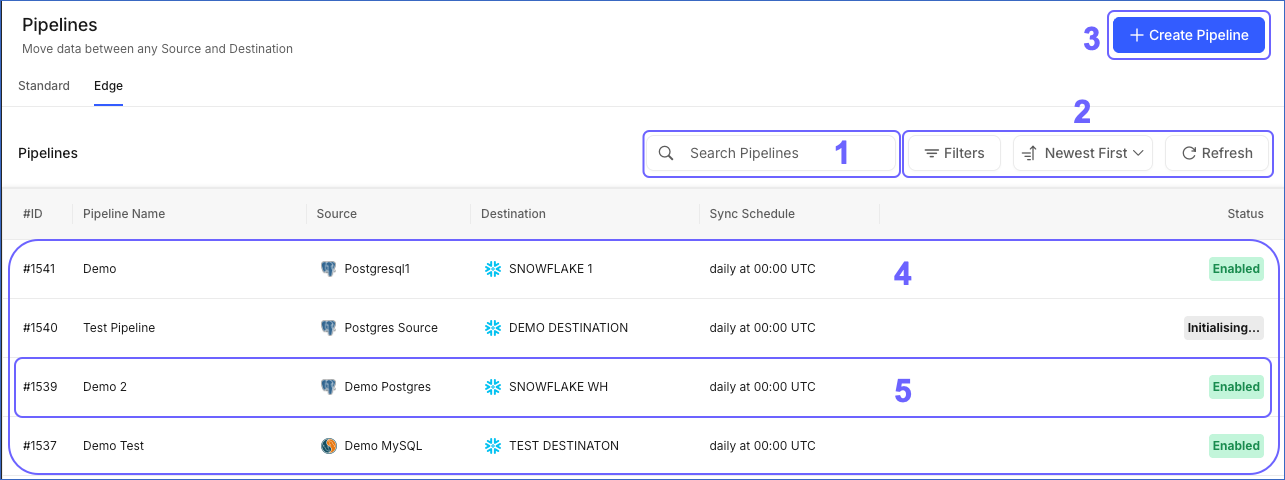
The following table describes each of these components:
| Page Component | Title | Description |
|---|---|---|
| 1 | Search Bar | Enables you to search for Pipelines using the: - Partial or complete name of the Pipeline. - Source or Destination name or type the Pipeline is created for. - Serial number of the Pipeline. |
| 2 | Data Controls | Enables you to control the data that is displayed. The Data Controls, from left to right are: - Filters: List the Pipelines based on their status, or the name of the Destination to which data is being loaded. - Newest First: Sort and display the Pipelines list based on the criterion selected from the drop-down. The available options are Newest First (default), Oldest First, A → Z, Z → A, Most Recently Run, and Least Recently Run. - Refresh: Allows you to view the newly created Pipelines that are not visible in the UI yet. |
| 3 | + Create Pipeline button | Enables you to create an Edge Pipeline. |
| 4 | Asset List | Displays the list of Pipelines created by you or your team. This list can be refined based on the Data Controls or the search string. |
| 5 | Pipeline Summary | Provides a brief summary of an existing Pipeline. This includes: - #ID: The sequential serial number assigned to the Pipeline at the time of creation. - Pipeline Name: The name of the Pipeline. - Source: The Source from where the data is being fetched. - Destination: The Destination where data is being loaded. - Sync Schedule: The frequency at which the Pipeline syncs data. Hevo ingests data from your Source and loads it to your Destination on this schedule, based on the sync frequency configured for the Pipeline. - Status: The status of the Pipeline. |
Pipelines Detailed View
Click anywhere in a Pipeline Summary row to open the Pipeline in the Detailed View. The following image highlights the main components that are displayed and the actions you can perform on the page.
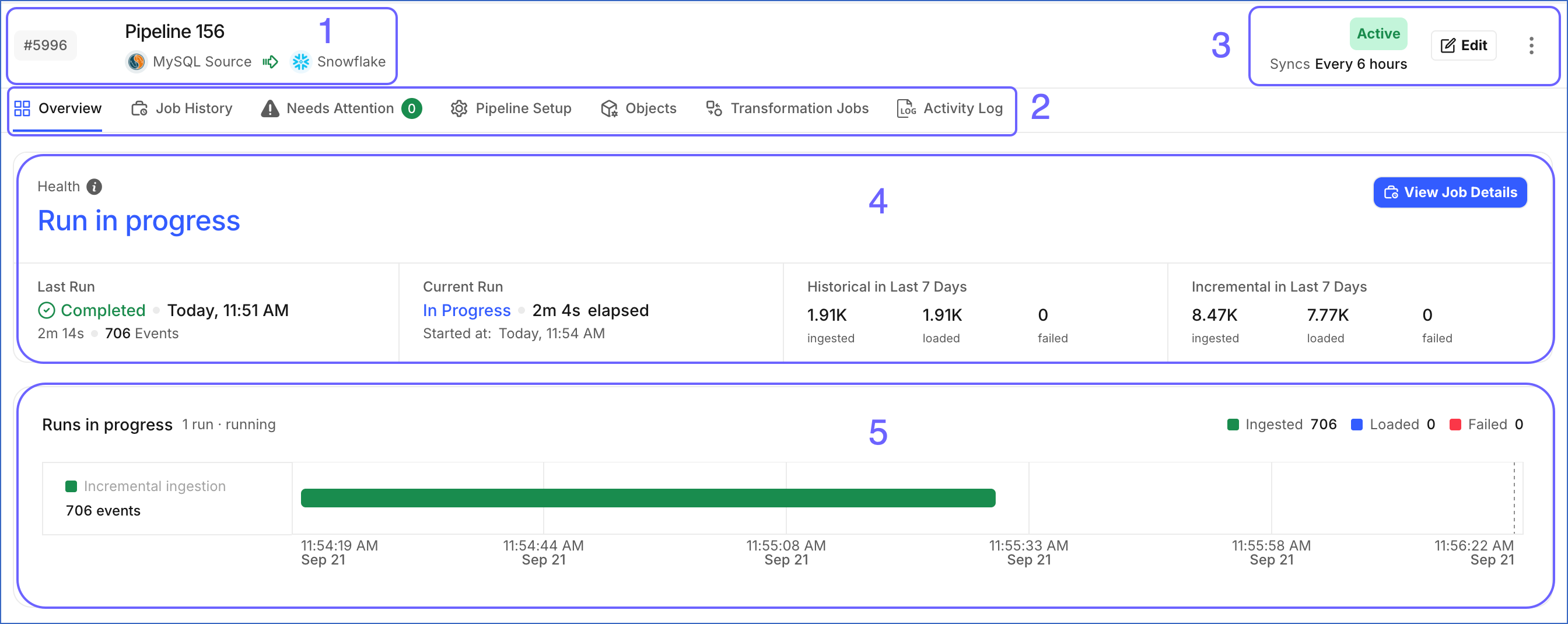
The following table describes each of these components:
| Page Component | Title | Description |
|---|---|---|
| 1 | Pipeline Header | Displays: - The serial number assigned to the Pipeline at the time of creation. - The Pipeline, Source, and Destination names, along with the Source and Destination logos. |
| 2 | Tool Bar | Provides links to the following tabs: - Overview: Displays the health of the Pipeline and the status of Pipeline runs. - Job History: Displays the list of Jobs created and processed for the Pipeline. - Needs Attention: Displays the active errors affecting the Pipeline and the recommended action for resolving each error. - Pipeline Setup: Displays the details of the Pipeline, Source, and Destination configurations that you specified during Pipeline setup. - Objects: Displays the list of object(s) that are available in your Source database. - Transformation Jobs: Displays the list of Transformation jobs configured to run after this Pipeline syncs data into your Destination. - Activity Log: Displays the list of all activities recorded for the Pipeline. |
| 3 | Pipeline Actions | Displays the list of actions that you can take on the Pipeline. - Click the Edit button to edit your Pipeline configurations. - Click the kebab menu (  ) to view the following option(s): ) to view the following option(s): - Disable: Temporarily stop the Pipeline from ingesting data and loading it to your Destination. - Sync Now: Start a Job to sync incremental data from your Source with the Destination. - Resync Pipeline: Restart the historical load for all the active objects in your Pipeline. - Delete Pipeline: Delete the Pipeline and remove it from the Pipelines List. |
| 4 | Pipeline Health | Displays the Pipeline’s current health and information about its recent and upcoming runs. Depending on the Pipeline’s state, this section can display the status of the last run, details of a run in progress, the estimated time of the next run, and the number of Events ingested, loaded, or failed during the last 7 days. |
| 5 | Pipeline Runs in Progress | Displays ingestion and loading activity for runs currently in progress. You can view the number of Events ingested, loaded, and failed, along with the type of activity. Click a run in the chart to view its details. |
Revision History
Refer to the following table for the list of key updates made to this page:
| Date | Release | Description of Change |
|---|---|---|
| Sep-24-2026 | NA | Updated section, Pipelines Detailed View to add information about the Overview tab. |
| Aug-26-2026 | NA | Updated section, Pipelines List View to add information about the Pipelines List View displayed to teams created on or after August 20, 2026. |