Attentive (Edge)
On This Page
Attentive is a marketing platform that brands use to send personalized SMS and email messages to their subscribers. It helps marketing teams collect subscriber consent, run campaigns and automated journeys, and track engagement, such as message delivery, opens, and link clicks.
Hevo uses the Product Catalog API to ingest the details of your product catalog uploads, and Attentive webhooks to receive subscription, message, link click, and custom attribute events. To ingest data, you must provide Hevo with the API key of a custom app that you create in your Attentive account.
Supported Features
| Feature Name | Supported |
|---|---|
| Capture deletes | Yes (for the Catalog Upload and Catalog Upload Error objects) |
| History mode | No |
| Custom data (user-configured tables & fields) | No |
| Data blocking (skip objects and fields) | Yes |
| Resync (objects and Pipelines) | Yes (for the Catalog Upload object) |
| API configurable | Yes |
Prerequisites
-
An active Attentive account from which data is to be ingested.
-
The Admin or Manager role in your Attentive account to create a custom app.
-
A webhook configured in the custom app after you create the Pipeline, to ingest the event data.
Obtain the API Key
Hevo connects to your Attentive account using the API key of a custom app. Attentive displays the API key only once, when you create the app.
Perform the following steps to create a custom app and obtain its API key:
-
Log in to your Attentive account.
-
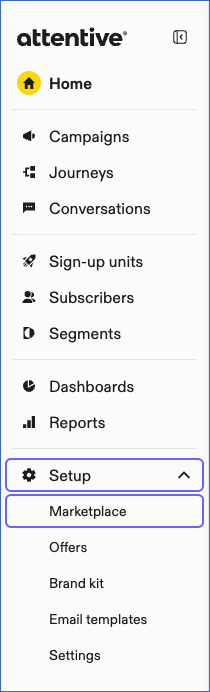
In the left navigation pane, click Setup, and then click Marketplace.
-
On the App marketplace page, click + Create app.

-
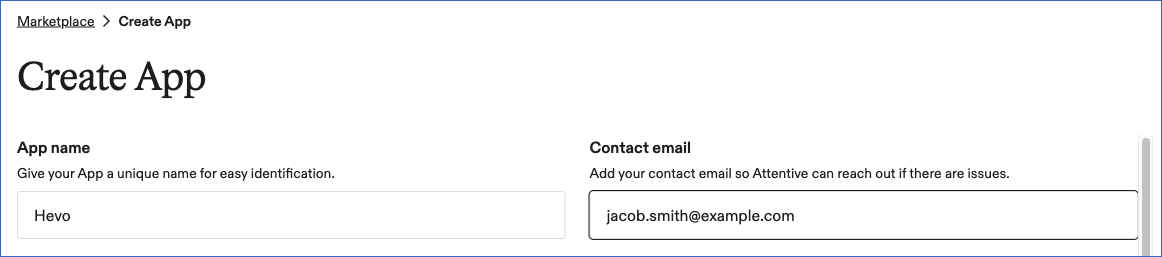
On the Create App page, specify the following:
-
App name: A unique name for the app. For example, Hevo.
-
Contact email: The email address at which Attentive can contact you about the app.
-
-
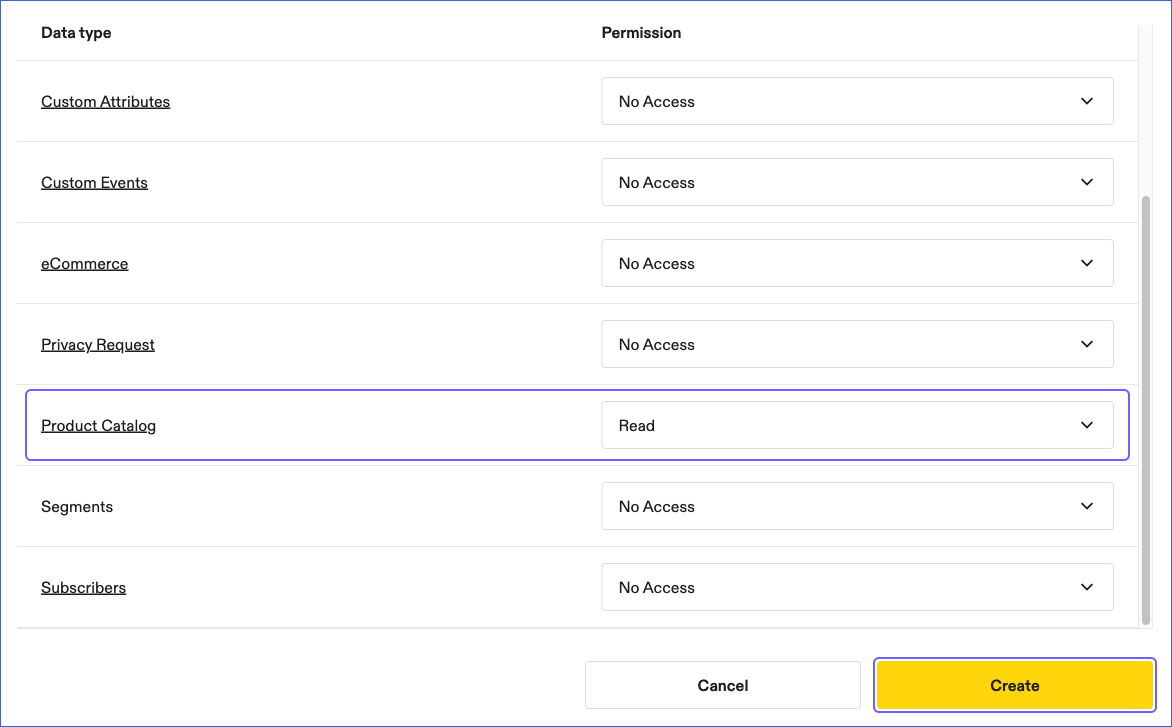
In the Permissions section, set the Product Catalog permission to Read, and then click Create.
Hevo needs this permission only to ingest the Catalog Upload and Catalog Upload Error objects. Hevo receives the event data through the webhook, which does not need any permission. You can leave the other permissions as No Access.
-
In the Copy API key dialog, click Copy, and save the key securely like any other password. Attentive does not display the key again.
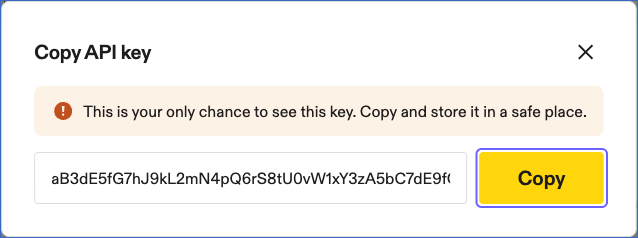
Use this API key while configuring your Attentive Source in Hevo.
Note: If you regenerate the API key or delete the app in Attentive, Hevo cannot connect to your account, and the Pipeline fails. To resume data ingestion, modify the Source configuration with the new API key within seven days, so that the webhook events received in the meantime are not lost. Deleting the app also deletes its webhook.
Configure Attentive as a Source in your Pipeline
Perform the following steps to configure your Attentive Source:
-
Click Pipelines in the Navigation Bar.
-
Click + Create Pipeline in the Pipelines List View.
-
On the Select Source Type page, select Attentive.
-
On the Select Destination Type page, select the type of Destination you want to use.
-
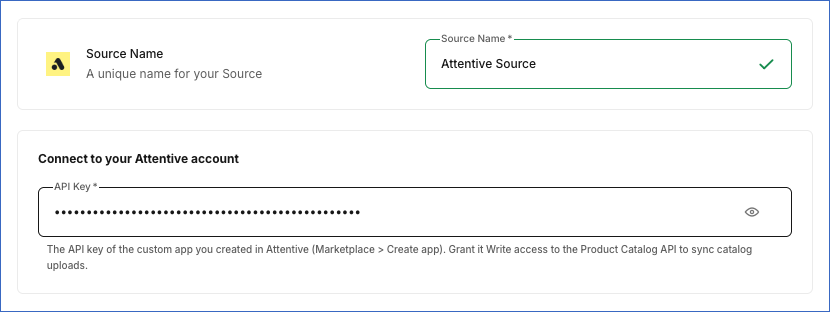
In the Configure Source screen, specify the following:
-
Source Name: A unique name for your Source, not exceeding 255 characters. For example, Attentive Source.
-
In the Connect to your Attentive account section, specify the following:
- API Key: The API key of the custom app that you created in Attentive.
-
-
Click Test & Continue to test the connection to your Attentive Source. Hevo checks whether Attentive accepts the API key and whether the key can read your product catalog uploads. If Attentive rejects the key, Hevo displays a message asking you to check the key. If the key does not have the Product Catalog permission, the connection succeeds, but the Catalog Upload and Catalog Upload Error objects are not available for ingestion. Once the test is successful, you can proceed to set up your Destination.
After you create the Pipeline, configure the webhook in your Attentive app to start receiving the event data.
Data Replication
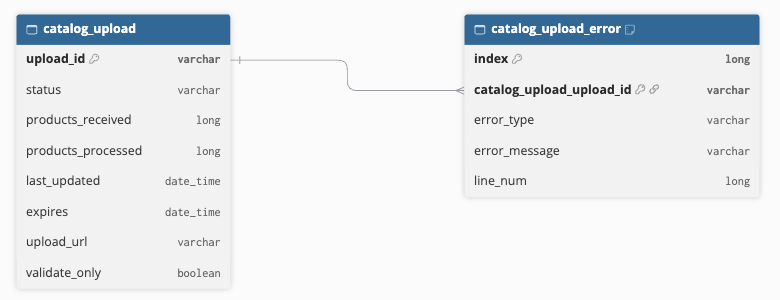
Hevo replicates data for all the objects selected on the Configure Objects page during Pipeline creation. By default, all supported objects and their available fields are selected. However, you can modify this selection while creating or editing the Pipeline. When you select the Catalog Upload object, Hevo also ingests its child object, Catalog Upload Error.
Hevo ingests the following types of data from your Source objects:
-
Historical Data: The first run of the Pipeline ingests all the catalog uploads that Attentive lists for your account. For the event objects, Hevo ingests only the events that Attentive sends to the Pipeline after you configure the webhook. Events that occurred before that are not ingested.
-
Incremental Data: Once the historical load is complete, Hevo ingests data as per the sync frequency:
-
For the Catalog Upload and Catalog Upload Error objects, Hevo ingests the entire data in each run.
-
For the event objects, Hevo ingests the events that Attentive sent to the Pipeline since the previous run.
-
Hevo stores the events that it receives through the webhook for seven days. If the Pipeline does not run successfully within seven days of an event, for example, because it is paused or failing, that event is not ingested.
You can resync only the Catalog Upload object. Resyncing it also resyncs its child object, Catalog Upload Error. When you resync the Pipeline, Hevo ingests the catalog uploads again, and for the event objects, only the events received in the last seven days. If you enable Drop and Load while resyncing the Pipeline, the event records older than seven days are permanently removed from the Destination.
Attentive allows each API key to make 150 requests per second. Read API rate limits. Hevo makes a few requests in each run, so the Pipeline is unlikely to reach this limit. If the limit is exceeded, Hevo retries the request. To understand how Hevo handles such scenarios, read Handling Rate Limit Exceptions.
Note: You can create a Pipeline with this Source only using the Merge load mode. The Append mode is not supported for this Source.
Schema and Primary Keys
Hevo uses the following schema to upload the records in the Destination. For a detailed view of the objects, fields, and relationships, click the ERD.
Data Model
The following is the list of tables (objects) that are created at the Destination when you run the Pipeline:
| Object | Description |
|---|---|
| Catalog Upload | Contains the product catalog uploads in your Attentive account, such as the status of each upload, the number of products received and processed, and the time at which the upload was last updated and expires. It includes a child object, Catalog Upload Error. |
| Catalog Upload Error | Contains the errors that Attentive found while validating each catalog upload, such as the error type, message, and the line number of the product in the uploaded file. |
| Custom Attribute | Contains the events sent when a custom attribute of a subscriber is set or changed, such as the name and value of the attribute. |
| Email Message Link Click | Contains the events sent when a subscriber clicks a link in an email, such as the message, the link, and its target URL. |
| Email Opened | Contains the events sent when a subscriber opens an email, such as the message ID, name, and type. |
| Email Sent | Contains the events sent when an email is sent to a subscriber, such as the subject, text, and sender and recipient email addresses. |
| SMS Email Subscribed | Contains the events sent when a subscriber opts in to SMS or email messages, such as the subscription type and the sign-up unit (creative) that collected the subscription. |
| SMS Email Unsubscribed | Contains the latest opt-out event of each subscriber for SMS and email messages, such as the subscription type. |
| SMS Inbound | Contains the events sent when a subscriber sends an SMS message to your brand, such as the message text and the sender and recipient phone numbers. |
| SMS Message Link Click | Contains the events sent when a subscriber clicks a link in an SMS message, such as the message, the link, and its target URL. |
| SMS Sent | Contains the events sent when an SMS message is sent to a subscriber, such as the message name, text, media URL, and sender phone number. |
Each event object also contains the details of the subscriber, such as the email address, phone number, coupons, and external identifiers, and of your Attentive company. Hevo loads the event fields that are not part of the schema into the additional_properties field.
Additional Information
Read the detailed Hevo documentation for the following related topics:
Configure Webhooks for Event Data
Attentive does not provide an API to read message, link click, subscription, or custom attribute data. Hevo ingests this data from the events that Attentive sends to the webhook URL of your Pipeline. To receive these events, configure a webhook in your Attentive app after you create the Pipeline.
Obtain the webhook URL
Perform the following steps to obtain the webhook URL of your Pipeline:
-
In the Pipeline Detailed View, click Pipeline Setup.
-
In the Configure Pipeline section, hover over the value of the Webhook URL field to view the complete URL, and copy it.

Configure the webhook in Attentive
Perform the following steps to configure the webhook in the custom app that you created for Hevo:
-
Log in to your Attentive account.
-
In the left navigation pane, click Setup, and then click Marketplace.
-
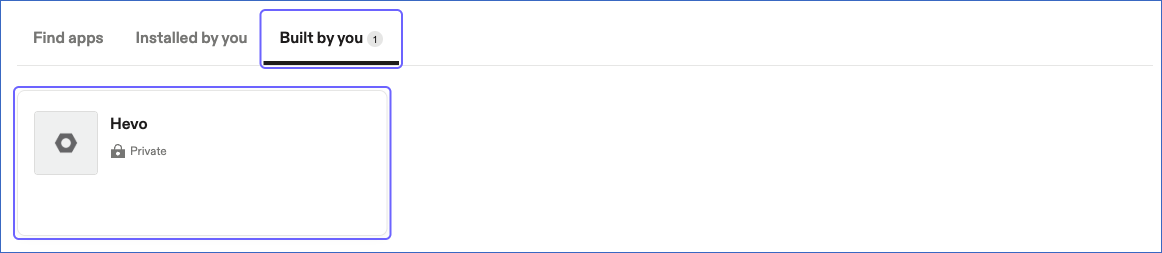
On the App marketplace page, click the Built by you tab, and then click the app whose API key you provided to Hevo.
-
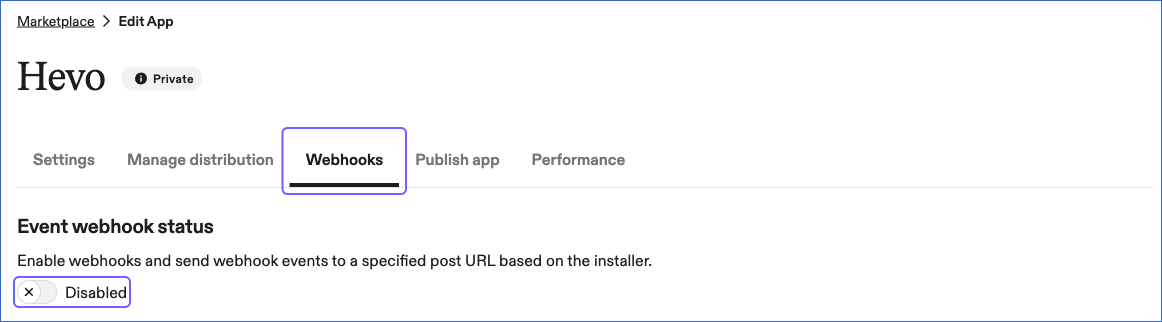
Click the Webhooks tab, and then turn on the Event webhook status toggle.
-
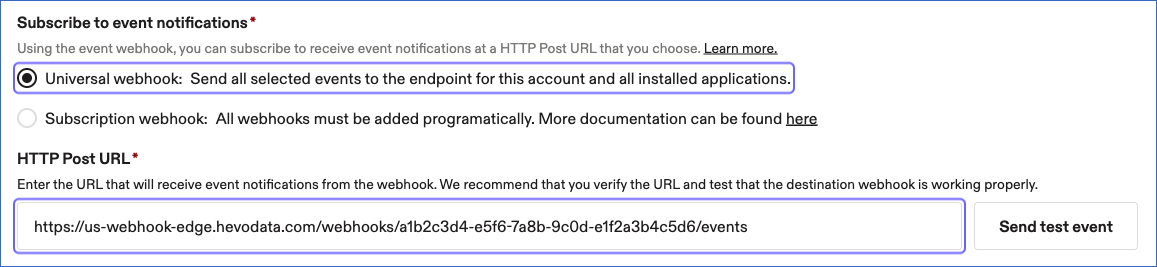
In the Subscribe to event notifications section, select Universal webhook, and in the HTTP Post URL field, paste the webhook URL that you copied from your Pipeline.
-
In the Select events to post to URL section, select the events of the objects that you want to ingest, and then click Save. The following table lists the events for each object:
Object Events Custom Attribute custom_attribute.setEmail Message Link Click email.message_link_clickEmail Opened email.openedEmail Sent email.sentSMS Email Subscribed sms.subscribed,email.subscribedSMS Email Unsubscribed sms.unsubscribed,email.unsubscribedSMS Inbound sms.inbound_messageSMS Message Link Click sms.message_link_clickSMS Sent sms.sent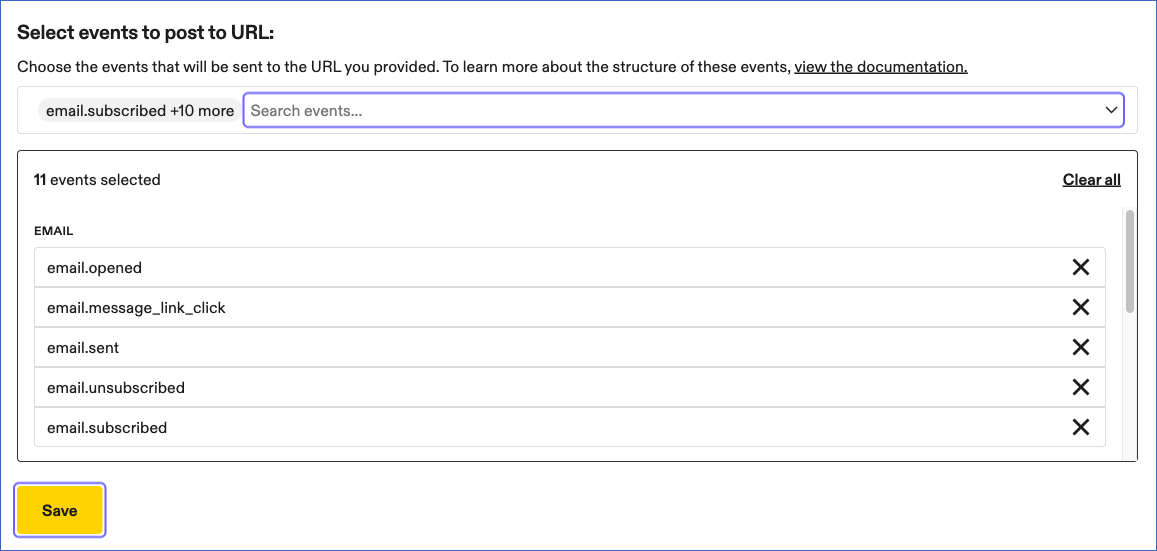
-
(Optional) To check the webhook, click Send test event next to the HTTP Post URL field, select an event type, and click Send test event. Hevo accepts the event with the status 202, and loads it into the Destination in the next run of the Pipeline.
Note: Attentive recommends that each event type be sent to only one app in your account. If another app, such as another integration, also receives the same events, the events may be duplicated or missed.
Handling of Deletes
For the Catalog Upload and Catalog Upload Error objects, Hevo uses a full data refresh approach to capture deletes. During each Pipeline run, Hevo compares the data fetched from the Source object with the data present in the Destination table. If a record exists in the Destination but is no longer returned by the Source, the record is marked as deleted by setting the value of the metadata column __hevo__marked_deleted to True.
The event objects contain events, which are not deleted in Attentive. Hevo does not capture deletes for these objects.
Source Considerations
-
If you remove the Product Catalog permission from your Attentive app after you create the Pipeline, the next run of the Pipeline fails for the Catalog Upload and Catalog Upload Error objects, and Hevo marks them as inaccessible. Later runs skip these objects. After you set the permission to Read again, Hevo ingests these objects automatically in the next run. You do not need to resync them.
-
If you select an event object later by editing the Pipeline, Hevo ingests the events of that object that it received in the last seven days, provided that the events of the object are selected in your Attentive webhook.
-
Attentive lists only your recent catalog uploads. When an upload is no longer listed, Hevo marks the upload and its errors as deleted in the Destination.
-
The
upload_urlfield of the Catalog Upload object contains a temporary link that Attentive creates for each upload. The link expires about 30 minutes after the upload is created. -
Attentive returns up to 10 errors for each validation type of a catalog upload. As a result, the Catalog Upload Error object may not contain all the errors of an upload.
-
The SMS Email Unsubscribed object contains only the latest opt-out event of each subscriber for each subscription type. If a subscriber opts out again, Hevo updates the existing record.
-
Attentive sends the
custom_attribute.setevent only when the value of a custom attribute changes. As a result, the Custom Attribute object does not contain the attributes whose values were set before you configured the webhook and have not changed since. -
Hevo accepts webhook events of up to 4 MB each.
Limitations
-
Hevo cannot ingest the events that occurred before you configured the webhook, as Attentive does not provide an API to read them.
-
Hevo does not support resyncing the event objects, as it stores the received events only for seven days, and Attentive does not provide an API to read them again. A Pipeline resync ingests only the events received in the last seven days.
Revision History
Refer to the following table for the list of key updates made to this page:
| Date | Release | Description of Change |
|---|---|---|
| Nov-03-2026 | 2.54 | New document. |