Criteo (Edge)
On This Page
Criteo is a commerce media and digital advertising platform that delivers personalized ads to consumers based on their online shopping and browsing behavior. Advertisers use Criteo Marketing Solutions to run retargeting and acquisition campaigns across devices and channels, and to measure how those campaigns perform through detailed statistics and reports.
Hevo uses the Criteo Marketing Solutions REST API to replicate data from your Criteo account to the Destination of your choice. Hevo authenticates with the API using the OAuth 2.0 client credentials flow. To ingest data, you must provide Hevo with the Client ID and Client Secret of a Criteo API application that the advertisers whose data you want to replicate have consented to.
In addition to the prebuilt objects, you can define custom reports by selecting the dimensions, time granularities, and metrics that fit your needs. Each custom report is replicated to its own table in the Destination.
Supported Features
| Feature Name | Supported |
|---|---|
| Capture deletes | Yes, except for the report objects and custom reports |
| History mode | No |
| Custom data (user-configured tables & fields) | Yes (custom reports) |
| Data blocking (skip objects and fields) | Yes |
| Resync (objects and Pipelines) | Yes |
| API configurable | Yes |
Prerequisites
-
An active Criteo account exists from which data is to be ingested.
-
Access to the Criteo Partners Portal to create an API application.
-
A user with access to the advertiser account is available to approve the consent request for the API application.
-
The Client ID and Client Secret are available to provide Hevo access to your Criteo account data.
Obtain the Client ID and Client Secret
Hevo connects to Criteo using the Client ID and Client Secret of an API application that uses the Client Credentials authentication method. To obtain these credentials, you must create and activate an API application in the Criteo Partners Portal, get the consent of the advertisers whose data you want to replicate, and then create an API key for the application.
Create and activate an API application
Perform the following steps to create an API application:
-
Log in to the Criteo Partners Portal.
-
On the My apps page, click Create a new app.

-
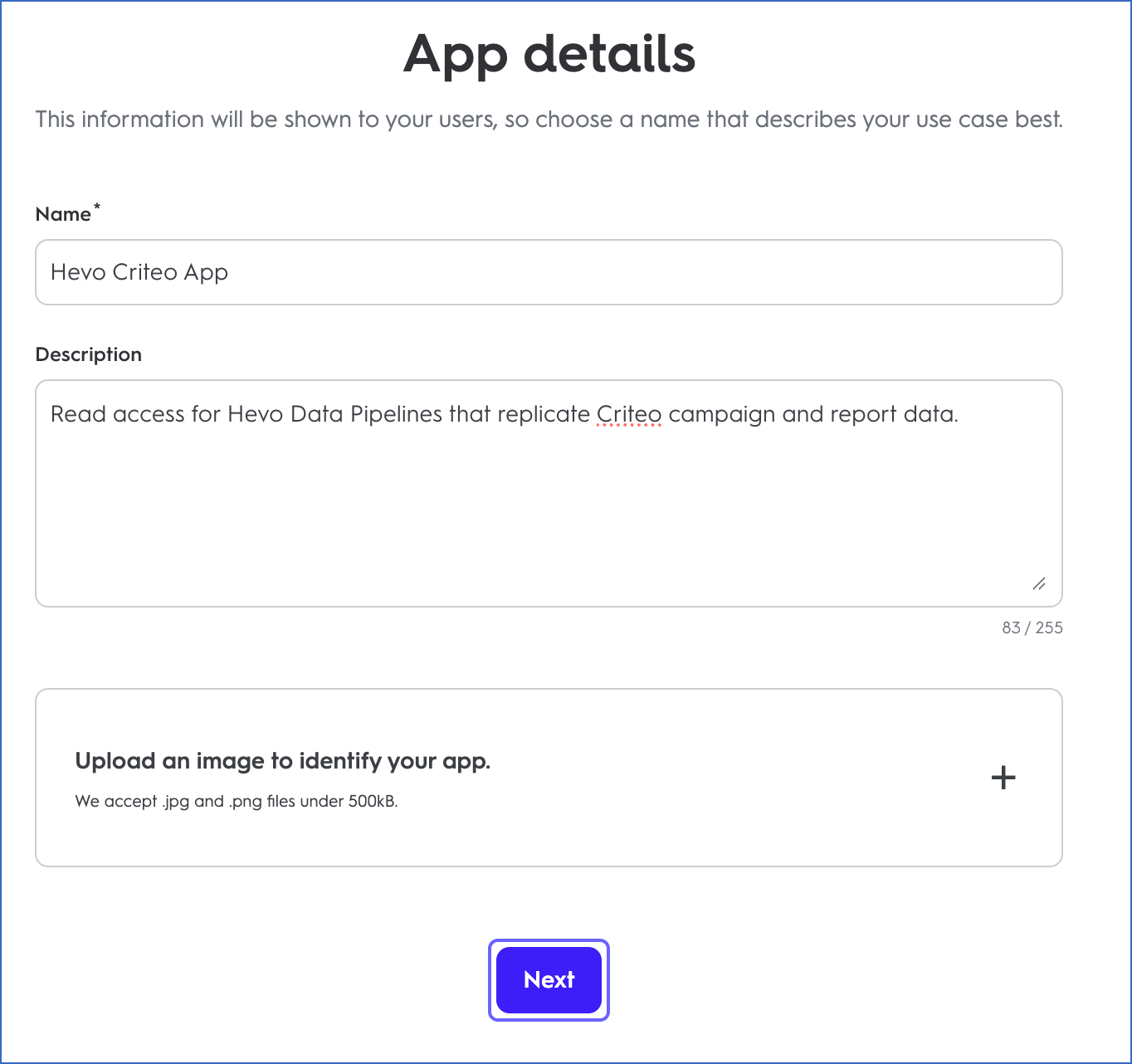
On the App details page, specify a Name and, optionally, a Description for your application, and then click Next. For example, Hevo Criteo App. The description is shown to the advertisers when they review the consent request.
-
On the Choose an authentication method page, select Client Credentials, and then click Create.
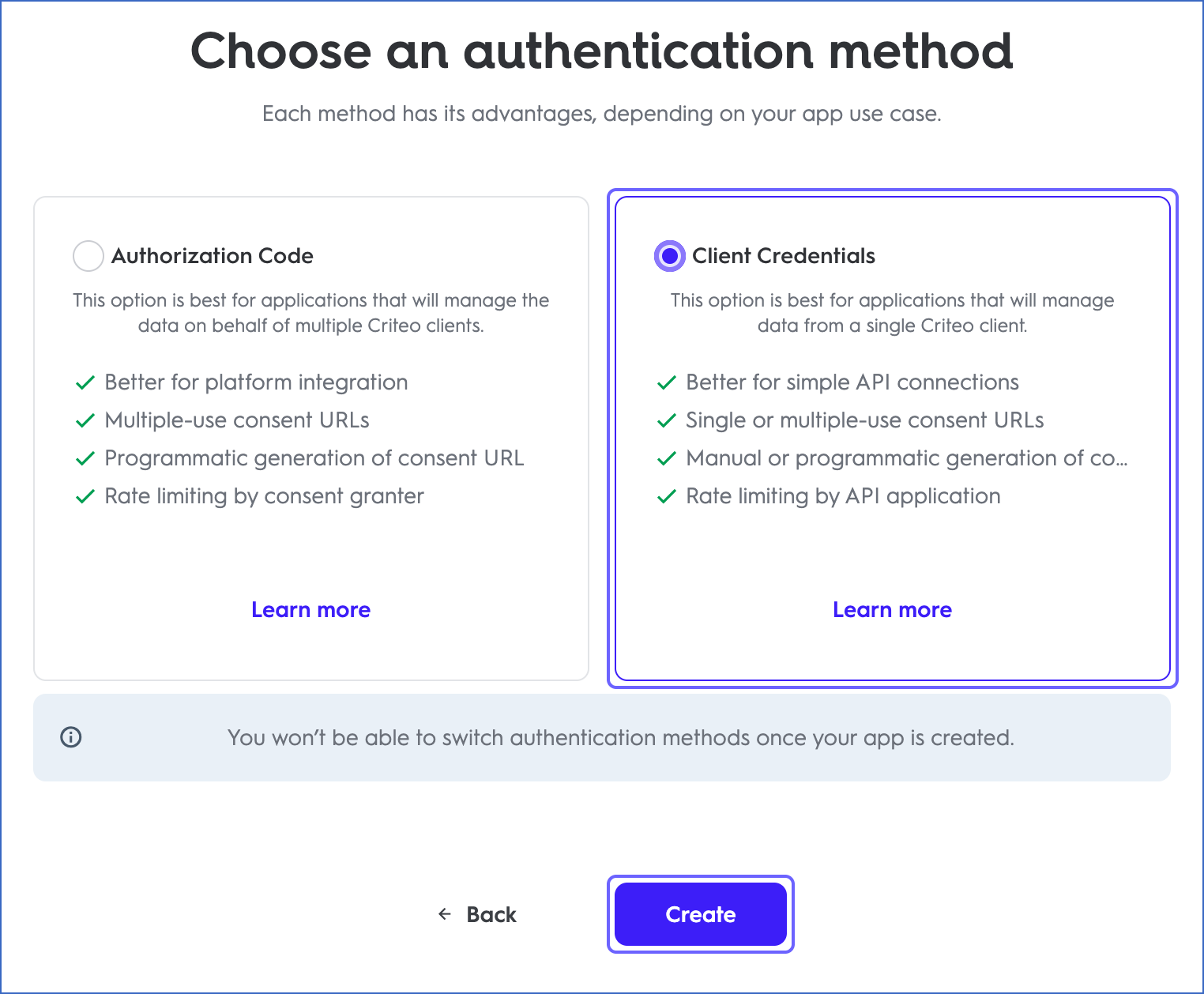
Note: You cannot change the authentication method after the application is created.
-
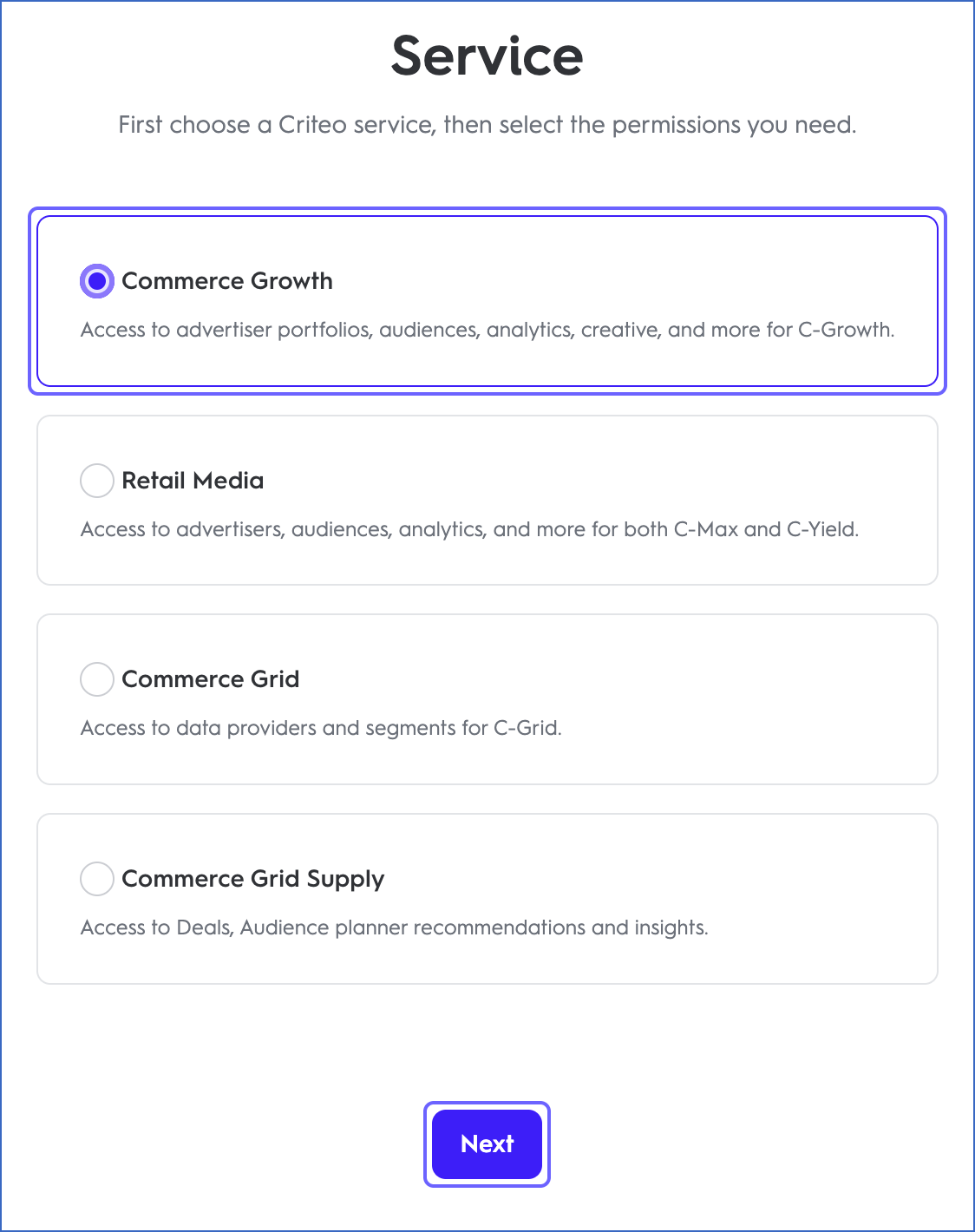
On the Service page, select Commerce Growth, and then click Next.
-
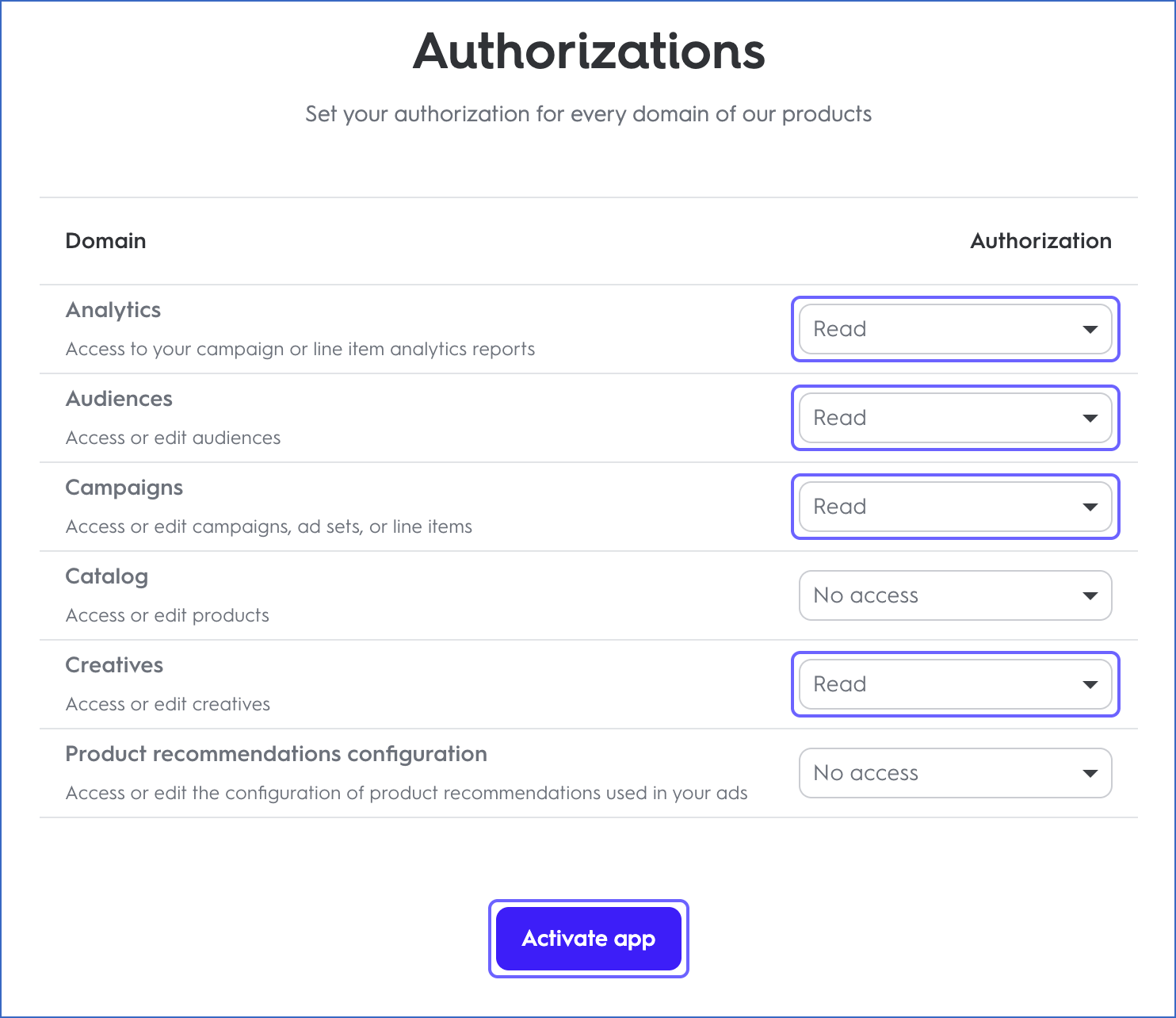
On the Authorizations page, set the authorization for the following domains to Read, and then click Activate app:
-
Analytics
-
Audiences
-
Campaigns
-
Creatives
-
-
In the Activate <Application name>? dialog, click Activate.
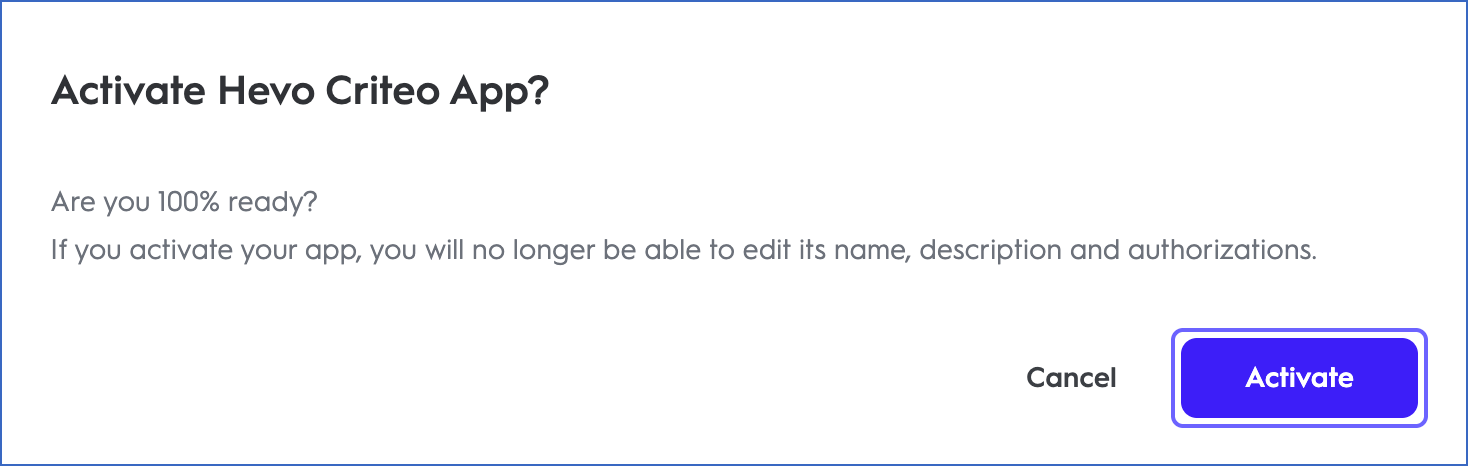
Note: After you activate the application, you cannot change its name, description, or authorizations.
Get the consent of the advertisers
Hevo can replicate data only for the advertisers that have approved the consent request of your application. Perform the following steps to get their consent:
-
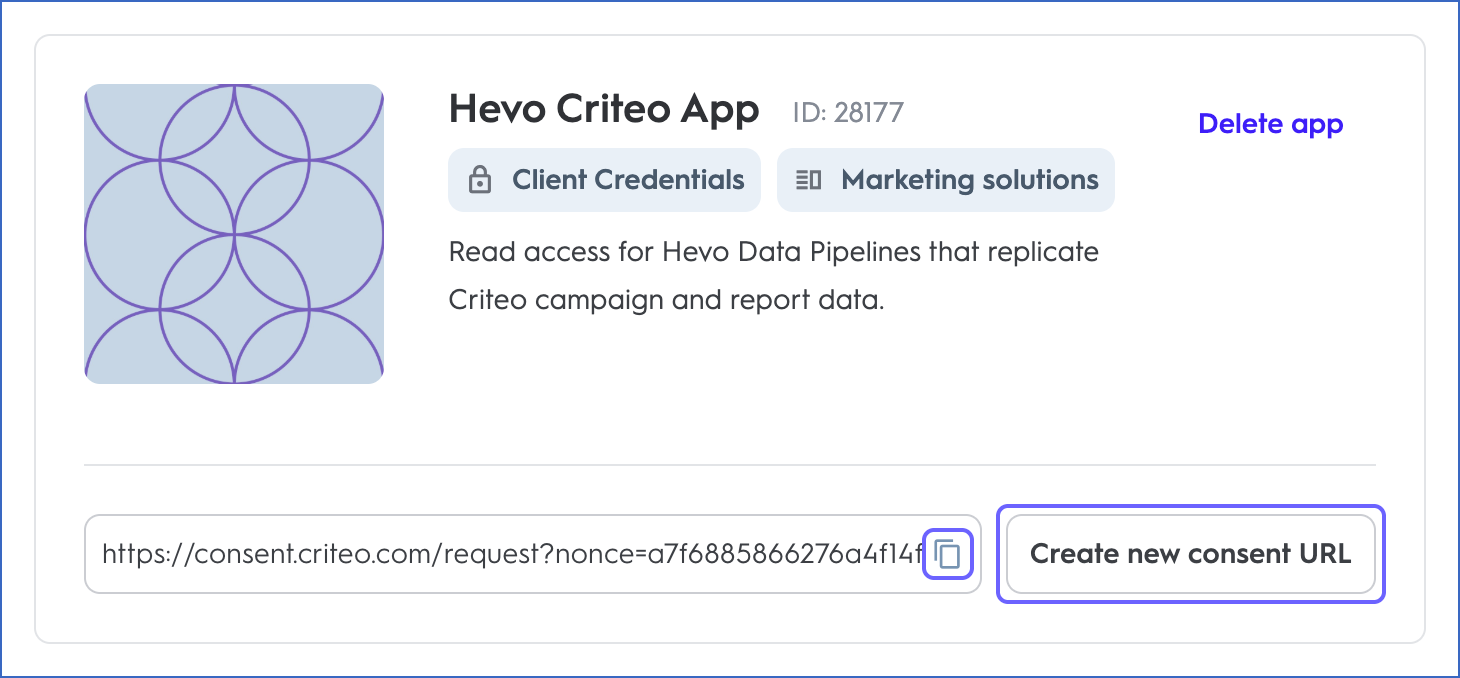
On the application details page, click Create new consent URL, and then click the Copy icon next to the URL.
-
Open the consent URL in a browser, or share it with a user who has access to the advertiser account.
-
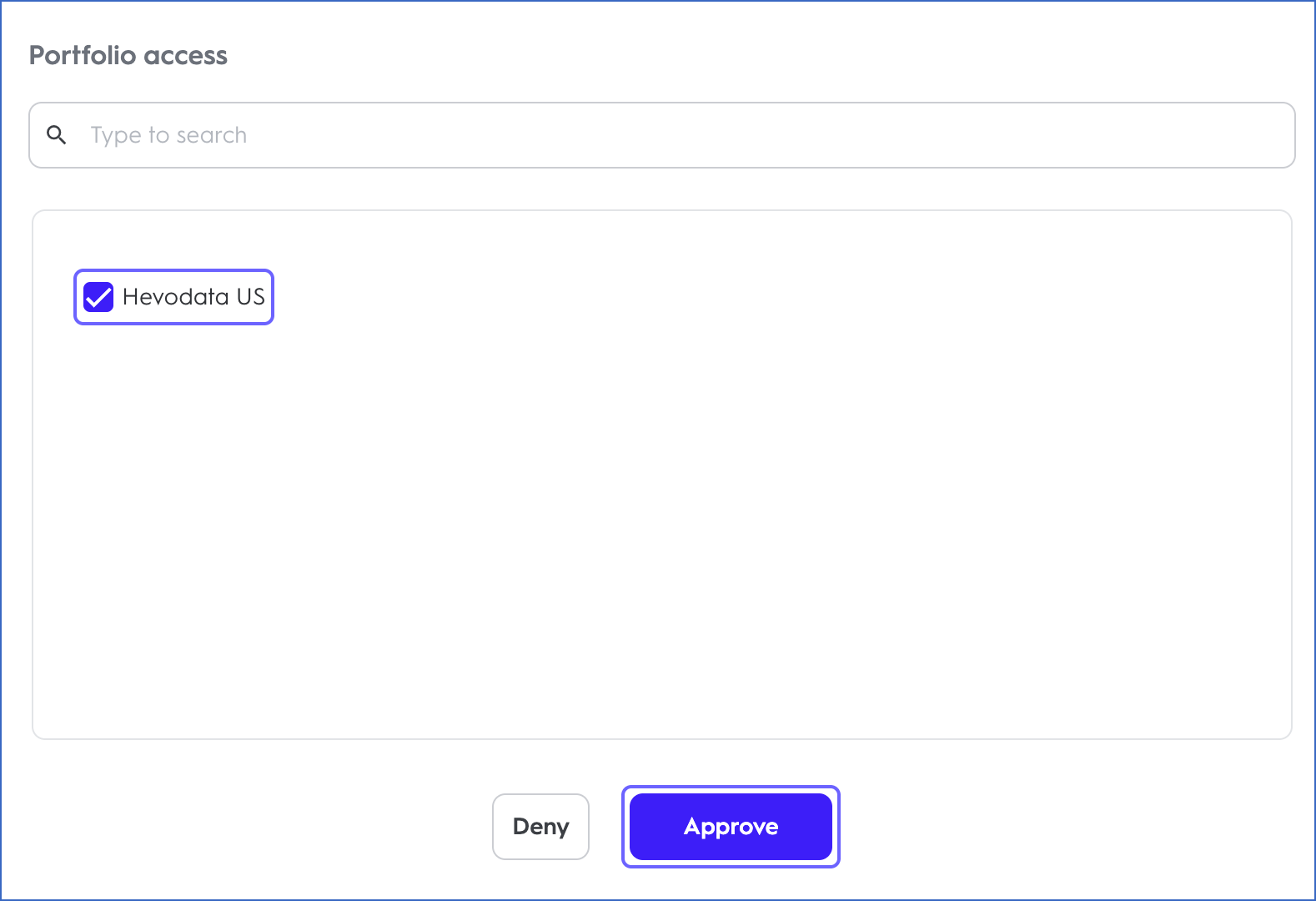
On the Access request page, under Portfolio access, select the advertisers whose data you want to replicate, and then click Approve.
Create an API key
Perform the following steps to create the Client ID and Client Secret:
-
On the application details page, in the App credentials section, click Create new key.
-
In the Create new key dialog, specify a Name for the key, and then click Create new key.
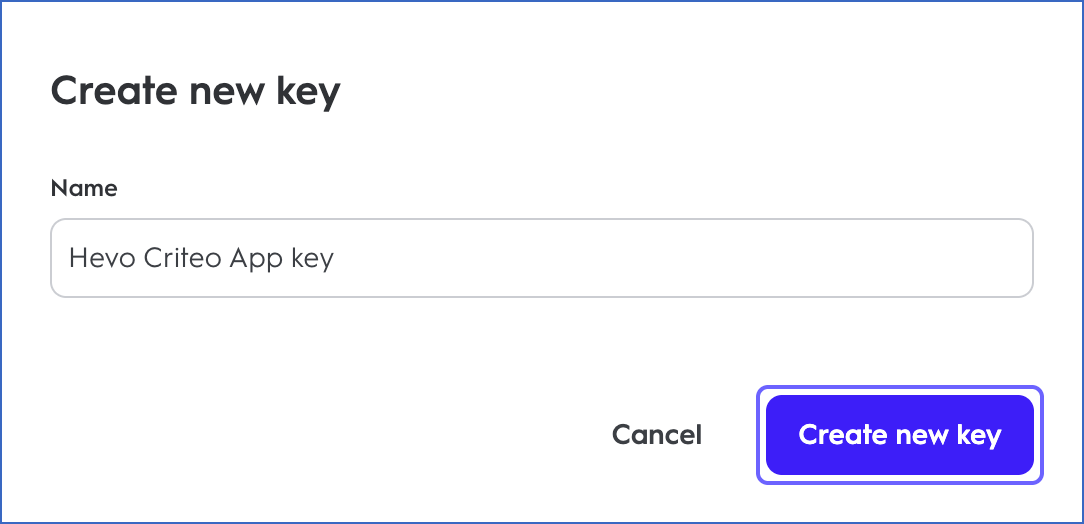
A text file containing your Client ID and Client Secret is downloaded. Store this file securely, as Criteo shows the Client Secret only once.
Read Client Credentials Setup for more information.
If the Client Secret configured in the Pipeline is revoked manually from your Criteo account, Hevo cannot authenticate with the Source. As a result, all active jobs for the Pipeline fail, and no data is replicated. To resume data replication, modify the Source configuration in the Pipeline with a valid Client ID and Client Secret. Once the updated credentials are saved, Hevo re-authenticates the Source, and data ingestion resumes from the last saved offset.
Configure Criteo as a Source in your Pipeline
Perform the following steps to configure your Criteo Source:
-
Click Pipelines in the Navigation Bar.
-
Click + Create Pipeline in the Pipelines List View.
-
On the Select Source Type page, select Criteo.
-
On the Select Destination Type page, select the type of Destination you want to use.
-
On the Select Pipeline Type page, click Edge, and then click Continue.
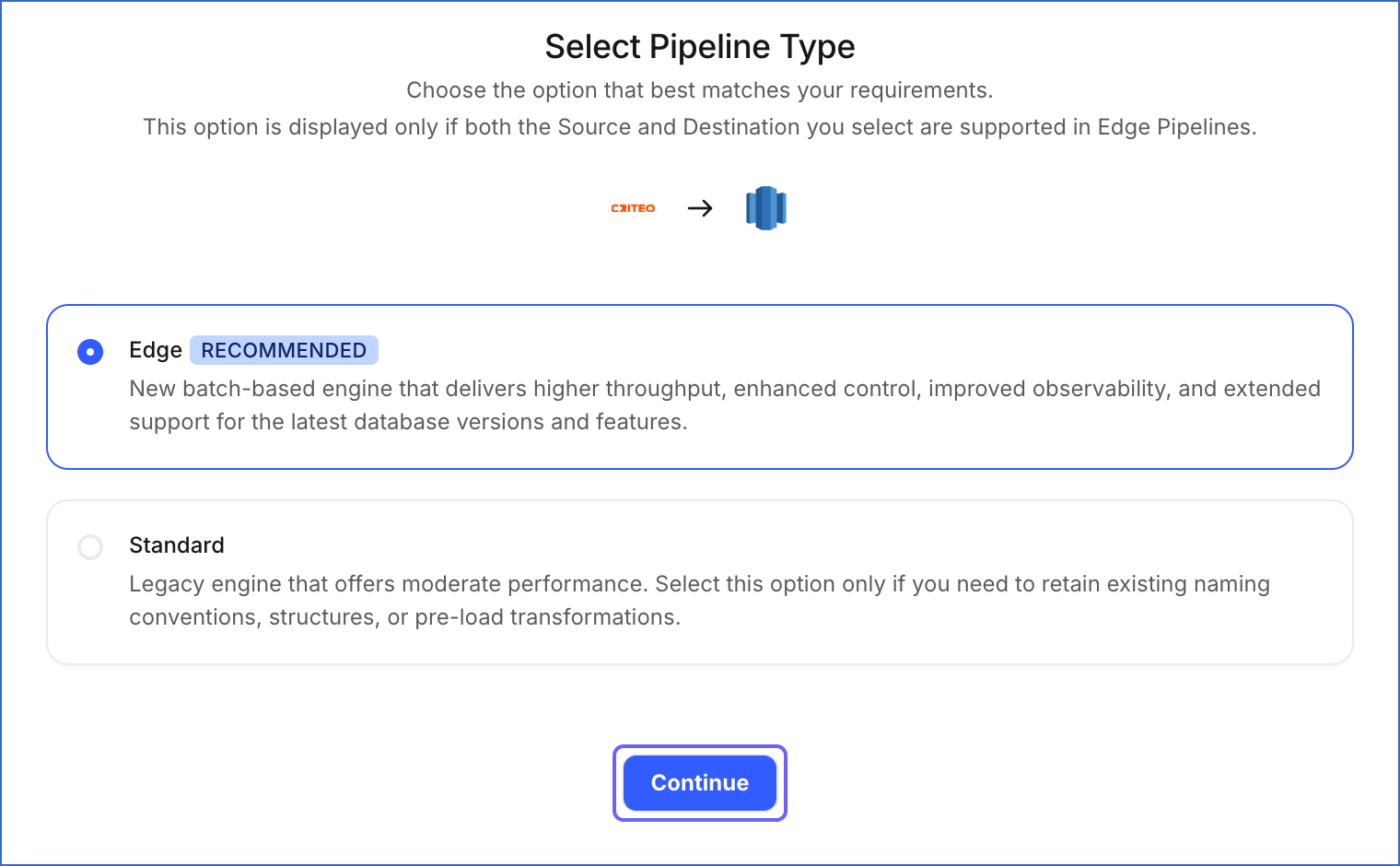
Note: This page appears only if the selected Destination type is supported in Edge. Otherwise, you can proceed to create an Edge Pipeline.
-
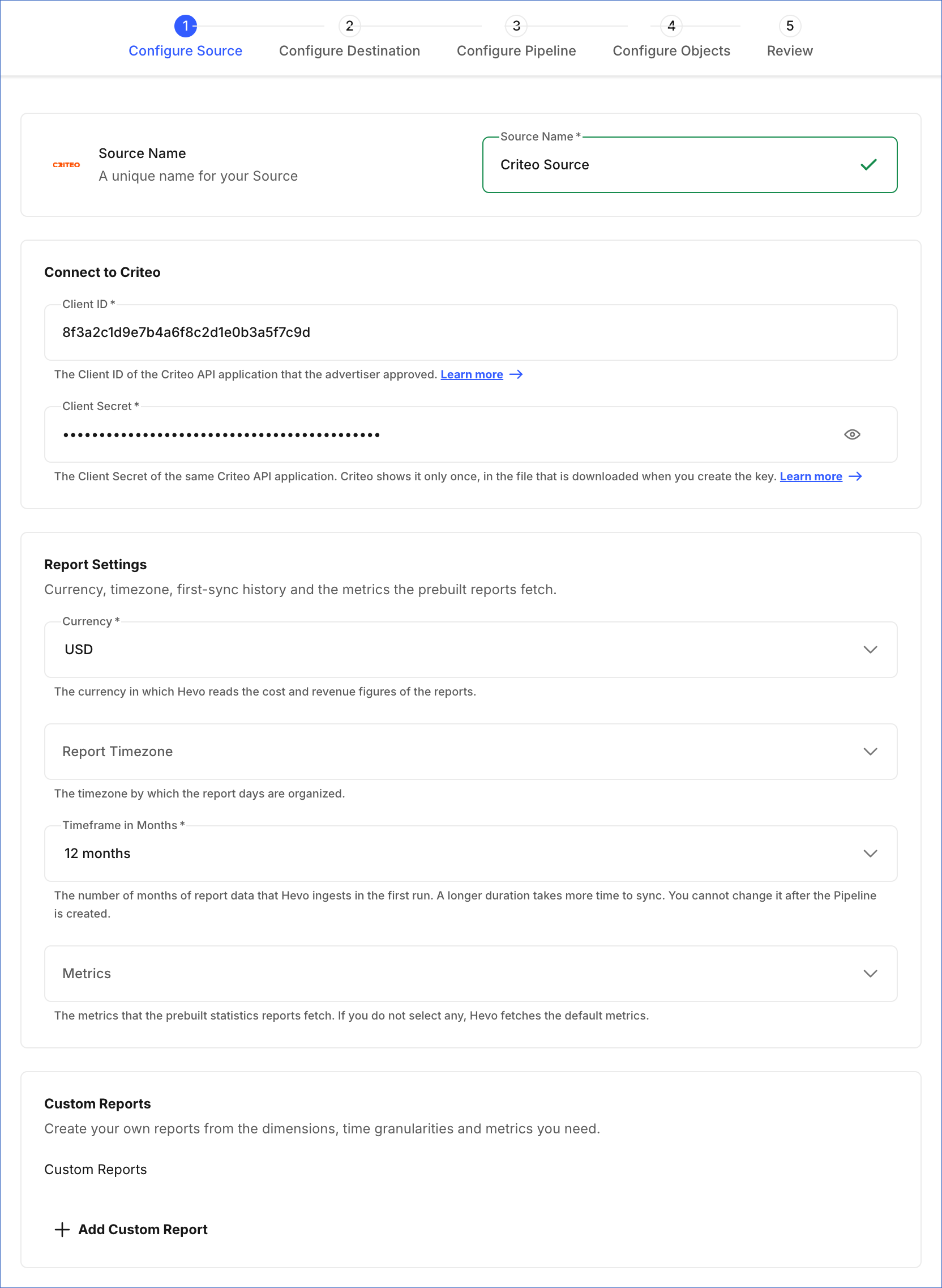
In the Configure Source screen, specify the following:
-
Source Name: A unique name for your Source, not exceeding 255 characters. For example, Criteo Source.
-
In the Connect to Criteo section, specify the following:
-
Client ID: The Client ID of the API application that you created in the Criteo Partners Portal.
-
Client Secret: The Client Secret of the API application that you created in the Criteo Partners Portal. The value is masked in the UI.
-
-
In the Report Settings section, specify how the reports are read:
-
Currency: From the drop-down, select the currency in which Hevo reads the cost and revenue figures of the reports. Default value: USD.
-
Report Timezone (Optional): From the drop-down, select the timezone by which the report days are organized. If you leave this field empty, Hevo uses UTC.
-
Timeframe in Months: From the drop-down, select the number of months of report data that Hevo must ingest in the first run. You can select one of the following values: 3 months, 6 months, 12 months, 24 months, or All time. Default value: 12 months.
Note: You cannot change this value after the Pipeline is created. A longer duration takes more time to sync.
-
Metrics (Optional): From the drop-down, select the metrics that the prebuilt statistics reports must fetch. If you do not select any metric, Hevo fetches the default metrics. The tables of the prebuilt reports contain a column for every metric, and the columns of the metrics that you do not select remain empty. You can deselect these fields for each object.
-
-
In the Custom Reports section (Optional), click Add Custom Report to define a report that covers your use case. You can add up to 50 custom reports. Each report syncs to its own table, named after the report. For each report, specify the following:
-
Report name: The Destination table name of this report. The name must be unique.
-
Report Level: From the drop-down, select the Criteo report from which this report is built. Default value: Statistics report.
-
Dimensions (Optional): From the drop-down, select the dimensions by which the report is broken down. For example, Advertiser, Campaign, Ad Set, Ad, Channel, OS, or Device.
-
Time Granularity (Optional): From the drop-down, select the time periods by which the report is broken down. You can select one or more of the following values: Hour, Day, Week, Month, or Year. Select more than one value to get a column for each.
-
Metrics: From the drop-down, select the metrics to add to the report. Refer to Criteo’s Campaign Statistics documentation for detailed descriptions of each metric.
-
-
-
Click Test & Continue to test the connection to your Criteo Source. Once the test is successful, you can proceed to set up your Destination.
When you click this button, Hevo performs the following validations:
-
The Client ID and Client Secret are valid and belong to an API application that the advertiser has approved. If Criteo rejects them, an error is displayed, and you cannot proceed until you correct them.
-
The names of the custom reports are unique within the Source.
-
The API application has the authorizations required to read the selected objects. If an authorization is missing, Hevo lists the objects that cannot be synced because of it. You can click Continue to proceed without those objects, or click Edit Configuration to update the Source.
-
Data Replication
Hevo replicates data for all the objects selected on the Configure Objects page during Pipeline creation. By default, all supported objects and their available fields are selected. However, you can modify this selection while creating or editing the Pipeline.
Selecting a parent object automatically includes all its associated child objects for replication. Child objects cannot be selected or deselected individually.
Hevo ingests the following types of data from your Source objects:
-
Historical Data: The first run of the Pipeline ingests all available historical data for the selected objects and loads it into the Destination. For the report objects, Hevo ingests historical data for the duration you select in the Timeframe in Months field while configuring the Source.
-
Incremental Data: Once the historical load is complete, new and updated records for objects are ingested as per the sync frequency.
The following table lists how Hevo ingests data for each object in subsequent Pipeline runs:
| Ingestion Type | Objects |
|---|---|
| Incremental | - Ad Statistics Daily Report - Ad Set Statistics Hourly Report - Ad Set Statistics Report - Ad Set Transaction Report - Campaign Statistics Daily Report - Log Level Report - Placement Report |
| Full Load | - Ad - Ad Set - Advertiser - Audience - Audience Ad Set - Call To Action - Campaign - Creative - Delivery Limitations Device - Delivery Limitations Environment - Delivery Limitations Operation System - Geolocation Country - Geolocation Subdivision - Geolocation Zip Code - HTML Tag - Image - Image Set - Image URL - Layout - Logo - Video |
For the incremental objects, Hevo ingests only the incremental data in subsequent Pipeline runs. Hevo reads each report in date windows and tracks the last date it has read completely. In each subsequent run, it ingests the data from that date onward.
For all other objects, Hevo ingests the entire data during each Pipeline run.
Priority-first sync: For all the report objects, Hevo ingests the most recent data first during the historical load. Hevo first fetches the last 30 days of data, by report date, and then ingests the rest of the historical data through time-boxed backward passes that alternate with the regular incremental syncs. As a result, you can start analyzing your recent report data before the historical load completes.
Note: During the historical load, Hevo loads the data for the other objects, such as Campaign and Ad Set, after the backward pass of the reports ends. For accounts with large report volumes, this data can take a few hours to reach the Destination.
Restated report data: Criteo updates the metrics of recent report days as conversions are attributed to clicks and displays. To capture these changes, Hevo re-ingests the last 30 days of data for all the report objects, except Log Level Report, and for the custom reports once a day, and updates the corresponding records in the Destination.
Criteo currently enforces a rate limit of 250 API calls per minute for each application that uses the client credentials authentication method. The statistics report is also subject to endpoint-specific limits. If these limits are exceeded, a rate limit exception occurs. To understand how Hevo handles such scenarios, read Handling Rate Limit Exceptions.
Note: You can create a Pipeline with this Source only using the Merge load mode. The Append mode is not supported for this Source.
Schema and Primary Keys
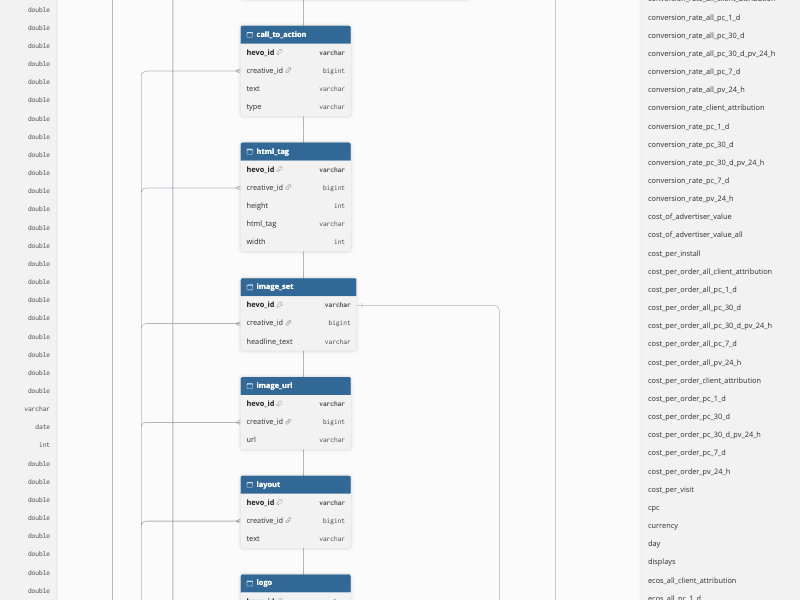
Hevo uses the following schema to upload the records in the Destination. For a detailed view of the objects, fields, and relationships, click the ERD.
Data Model
The following is the list of tables (objects) that are created at the Destination when you run the Pipeline:
| Object | Description |
|---|---|
| Ad | Contains the ads in your advertiser accounts, including their name, description, start and end dates, and the creative and ad set each ad is associated with. |
| Ad Set | Contains the ad sets of your campaigns, including their bidding, budget, schedule, frequency capping, attribution, and targeting settings. This object has the following child objects: - Delivery Limitations Device - Delivery Limitations Environment - Delivery Limitations Operation System - Geolocation Country - Geolocation Subdivision - Geolocation Zip Code |
| Ad Set Statistics Hourly Report | Contains hourly performance metrics for each ad set, such as displays, clicks, cost, conversions, and revenue, broken down by category. |
| Ad Set Statistics Report | Contains daily performance metrics for each ad set, such as displays, clicks, cost, conversions, and revenue, broken down by category. |
| Ad Set Transaction Report | Contains the transactions attributed to your ad sets, including the transaction ID, amount, currency, event type, transaction and event dates, and whether the transaction was attributed or cross-device. |
| Ad Statistics Daily Report | Contains daily performance metrics for each ad, such as displays, clicks, cost, conversions, and revenue. |
| Advertiser | Contains the advertisers in your portfolio that have consented to the API application, including the advertiser ID and name. |
| Audience | Contains the audiences defined for your advertisers, including their name, description, and creation and update timestamps. This object has a child object, Audience Ad Set, which maps each audience to the ad sets that target it. |
| Campaign | Contains the campaigns of your advertisers, including their name, objective, and spend limit settings. |
| Campaign Statistics Daily Report | Contains daily performance metrics for each campaign, such as displays, clicks, cost, conversions, and revenue. |
| Creative | Contains the creatives of your advertisers, including their name, status, format, and the display settings of dynamic, adaptive, and image creatives. This object has the following child objects: - Call To Action - HTML Tag - Image Set, which includes the Image child object - Image URL - Layout - Logo - Video |
| Log Level Report | Contains event-level information about your ad displays and clicks, such as the event timestamp, campaign, ad set, category, publisher app or referrer, environment, device and OS, viewability, and revenue in local currency and USD. |
| Placement Report | Contains daily placement-level performance metrics for each ad set, such as displays, clicks, cost, sales, revenue, and return on ad spend, broken down by environment and placement. |
Note: In addition to the objects listed above, Hevo creates one table for each custom report that you define while configuring the Source. The table is named after the report. It contains a column for each selected dimension, such as advertiser_name and campaign_name, a column for each selected time granularity, such as day, and a column for each selected metric, such as clicks and advertiser_cost. Hevo also adds a hevo_id column to uniquely identify each row.
Additional Information
Read the detailed Hevo documentation for the following related topics:
Handling of Deletes
Hevo handles deleted records differently based on how data is ingested for an object.
Hevo uses a full data refresh approach to capture delete actions for parent objects. During each Pipeline run, Hevo compares the data fetched from the Source object with the data present in the Destination table. If a record exists in the Destination but is no longer returned by the Source, the record is marked as deleted by setting the value of the metadata column _hevo_marked_deleted to True. This applies to the following objects:
-
Ad Set
-
Advertiser
-
Audience
-
Campaign
For the following objects, during each sync, Hevo removes the existing data from the corresponding Destination tables and loads them with the latest data ingested from the Source. As a result, if any records are deleted for these objects, those records are not present in the Destination after the next Pipeline run:
-
Ad
-
Audience Ad Set
-
Call To Action
-
Creative
-
Delivery Limitations Device
-
Delivery Limitations Environment
-
Delivery Limitations Operation System
-
Geolocation Country
-
Geolocation Subdivision
-
Geolocation Zip Code
-
HTML Tag
-
Image
-
Image Set
-
Image URL
-
Layout
-
Logo
-
Video
The following report objects do not support capturing deletes:
-
Ad Statistics Daily Report
-
Ad Set Statistics Hourly Report
-
Ad Set Statistics Report
-
Ad Set Transaction Report
-
Campaign Statistics Daily Report
-
Log Level Report
-
Placement Report
-
Custom reports
Source Considerations
-
Criteo makes log-level reports available for up to 30 days, starting from the previous day. As a result, Hevo can ingest historical data for the Log Level Report object only for the last 30 days, irrespective of the duration selected in the Timeframe in Months field.
-
Criteo retains placement data for up to 3 months. As a result, Hevo can ingest historical data for the Placement Report object only for the last 3 months, irrespective of the duration selected in the Timeframe in Months field.
Revision History
Refer to the following table for the list of key updates made to this page:
| Date | Release | Description of Change |
|---|---|---|
| Nov-23-2026 | 2.55 | New document. |