On This Page
GitHub is a developer platform that hosts Git repositories and provides tools for code review, issue tracking, project planning, continuous integration and delivery (CI/CD) automation, and security scanning. Teams use it to collaborate on software and to track how their code and engineering work change over time.
Hevo uses the GitHub REST API, the GitHub GraphQL API for Projects data, and webhooks to replicate data from your GitHub account to the Destination of your choice. To ingest data, you must authenticate Hevo with your GitHub account using one of the following methods:
-
GitHub OAuth: Log in to your GitHub account and authorize Hevo to access your repositories.
-
Personal Access Tokens: Provide up to 10 personal access tokens. Hevo distributes its requests across the tokens to avoid rate limiting. Use this method if you want to replicate data from a self-hosted GitHub Enterprise Server installation.
-
GitHub App: Provide the Client ID and private key of a GitHub App installed on your account or organization. GitHub Apps have higher rate limits and use fine-grained permissions.
Supported Features
| Feature Name | Supported |
|---|---|
| Capture deletes | Yes (for selected objects) |
| History mode | No |
| Custom data (user-configured tables & fields) | No |
| Data blocking (skip objects and fields) | Yes |
| Resync (objects and Pipelines) | Yes |
| API configurable | Yes |
Prerequisites
-
An active GitHub account from which data is to be ingested.
-
You have access to the repositories and organizations whose data you want to replicate.
-
If you want to authenticate using Personal Access Tokens, the personal access tokens are available to provide Hevo access to your GitHub account data.
-
If you want to authenticate using a GitHub App, the Client ID and private key of the GitHub App are available to provide Hevo access to your GitHub account data.
Obtain the GitHub Credentials
You must obtain the GitHub credentials only if you want to authenticate using Personal Access Tokens or a GitHub App. If you select the GitHub OAuth authentication method, you log in to your GitHub account while configuring the Source, and Hevo requests the repo, read:org, read:user, user:email, and read:project OAuth scopes.
Perform the steps in the section that corresponds to the authentication method you want to use.
Create a Personal Access Token
Perform the following steps to create a personal access token (classic):
-
Log in to your GitHub account.
-
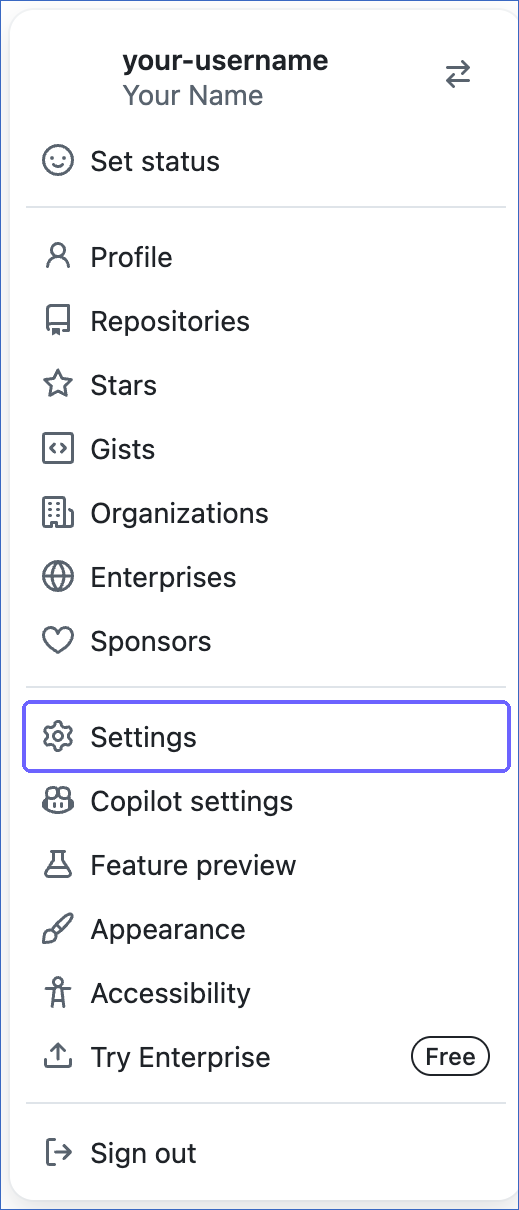
In the top-right corner of the page, click your profile picture, and then click Settings.
-
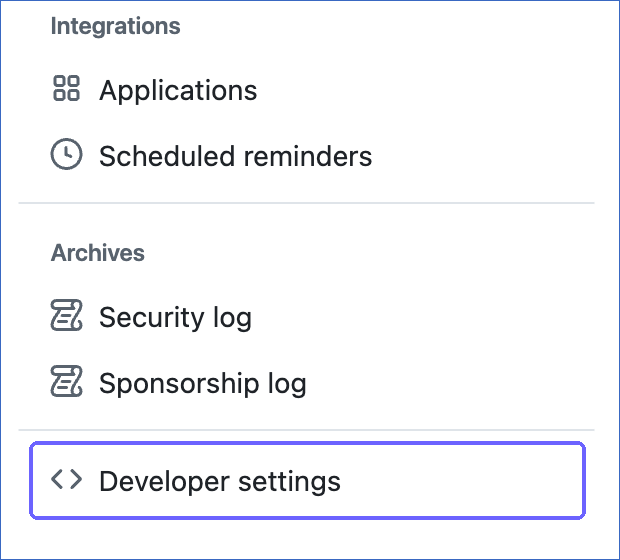
In the left navigation pane, click Developer settings.
-
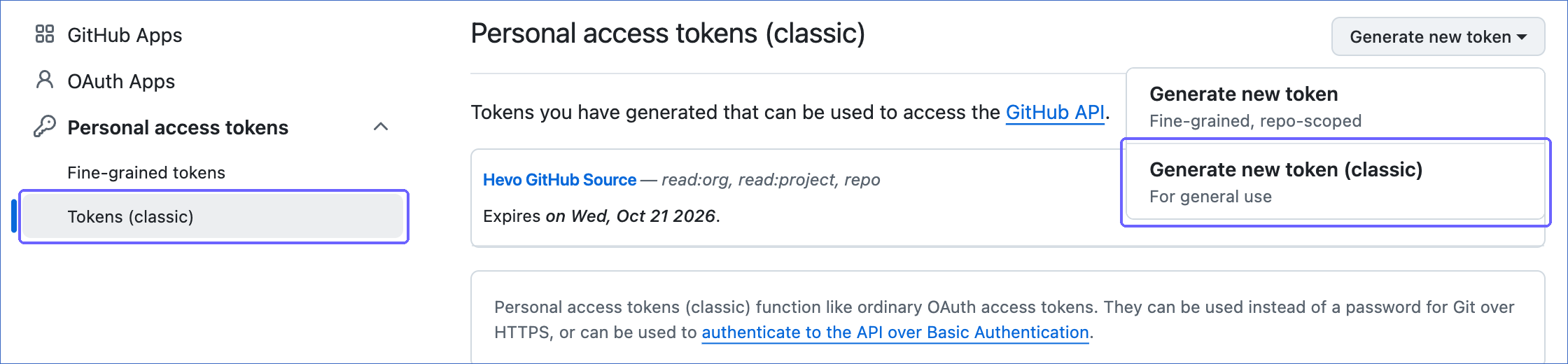
In the left navigation pane, under Personal access tokens, click Tokens (classic).
-
Click Generate new token, and then click Generate new token (classic).
-
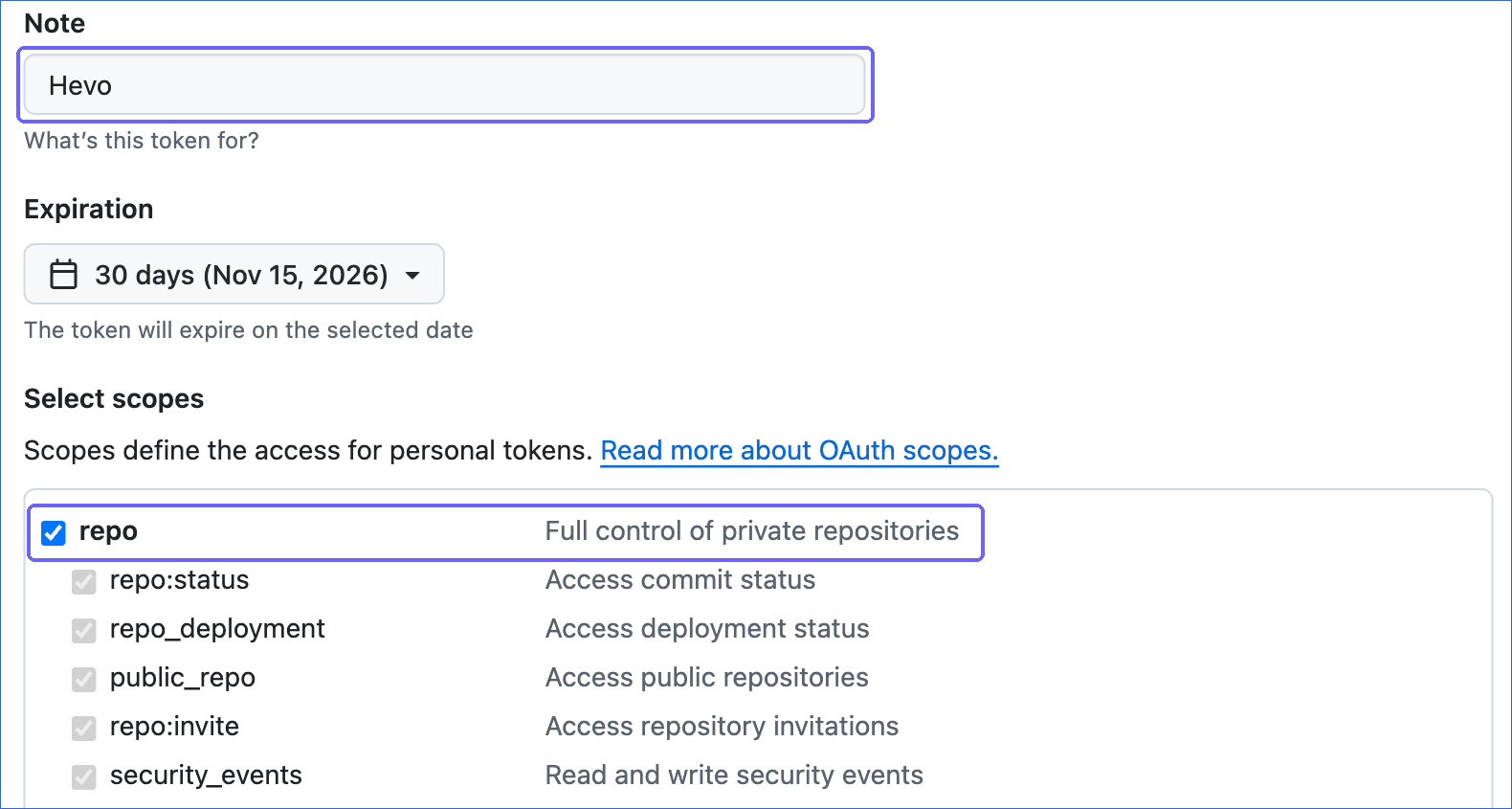
On the New personal access token (classic) page, specify the following:
-
Note: A descriptive name for the token. For example, Hevo.
-
Expiration: The duration after which the token expires.
-
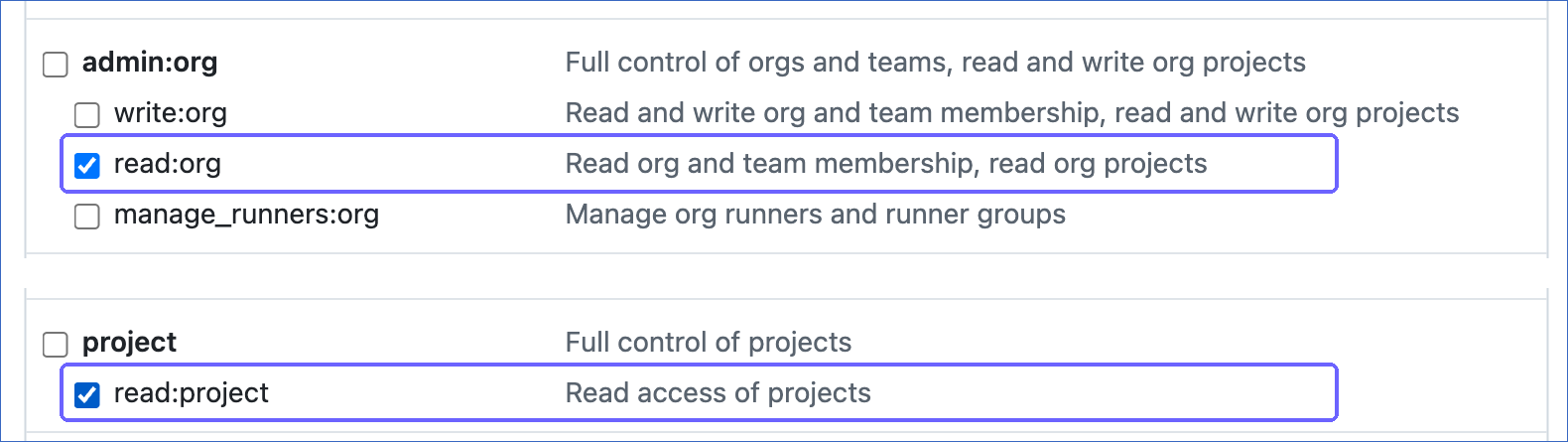
Select scopes: Select the repo and read:org scopes. To replicate the Projects objects, also select the read:project scope.
-
-
Click Generate token.
-
Copy the token and store it securely. GitHub does not display the token again. Use this token while configuring your GitHub Source in the Hevo Pipeline.
-
If your organization uses SAML single sign-on (SSO), next to the token, click Configure SSO, and then click Authorize next to the organization.
For more information, read Managing your personal access tokens.
You can create up to 10 tokens, preferably from different GitHub accounts, and add them to your Pipeline. Hevo distributes its requests across the tokens to avoid rate limiting. If you add more than one token, use tokens of the same type, for example, only classic tokens or only fine-grained tokens.
Note: You can also use a fine-grained personal access token. Grant the token read-only access to the repository and organization permissions listed in the GitHub App Permissions table. A fine-grained token can access the resources of only one account or organization. Also, GitHub does not allow fine-grained tokens to read check runs. Hence, if you use a fine-grained token, deselect the Commit Check Run object on the Configure Objects page.
Obtain the GitHub App Credentials
To authenticate using a GitHub App, you need a GitHub App that has read access to the data you want to replicate and is installed on the account or organization that owns your repositories. The GitHub App must be installed on only one account or organization.
Perform the following steps to obtain the Client ID and private key of the GitHub App:
-
Log in to your GitHub account.
-
In the top-right corner of the page, click your profile picture, and then click Settings. If the GitHub App is owned by an organization, click Your organizations, and then click Settings next to the organization.
-
In the left navigation pane, click Developer settings, and then click GitHub Apps.
-
On the GitHub Apps page, do one of the following:
-
To use an existing GitHub App, click Edit next to the GitHub App, and then proceed to step 6. Ensure that the GitHub App has the permissions required by Hevo.

-
To create a GitHub App, perform the following steps:
-
Click New GitHub App.
-
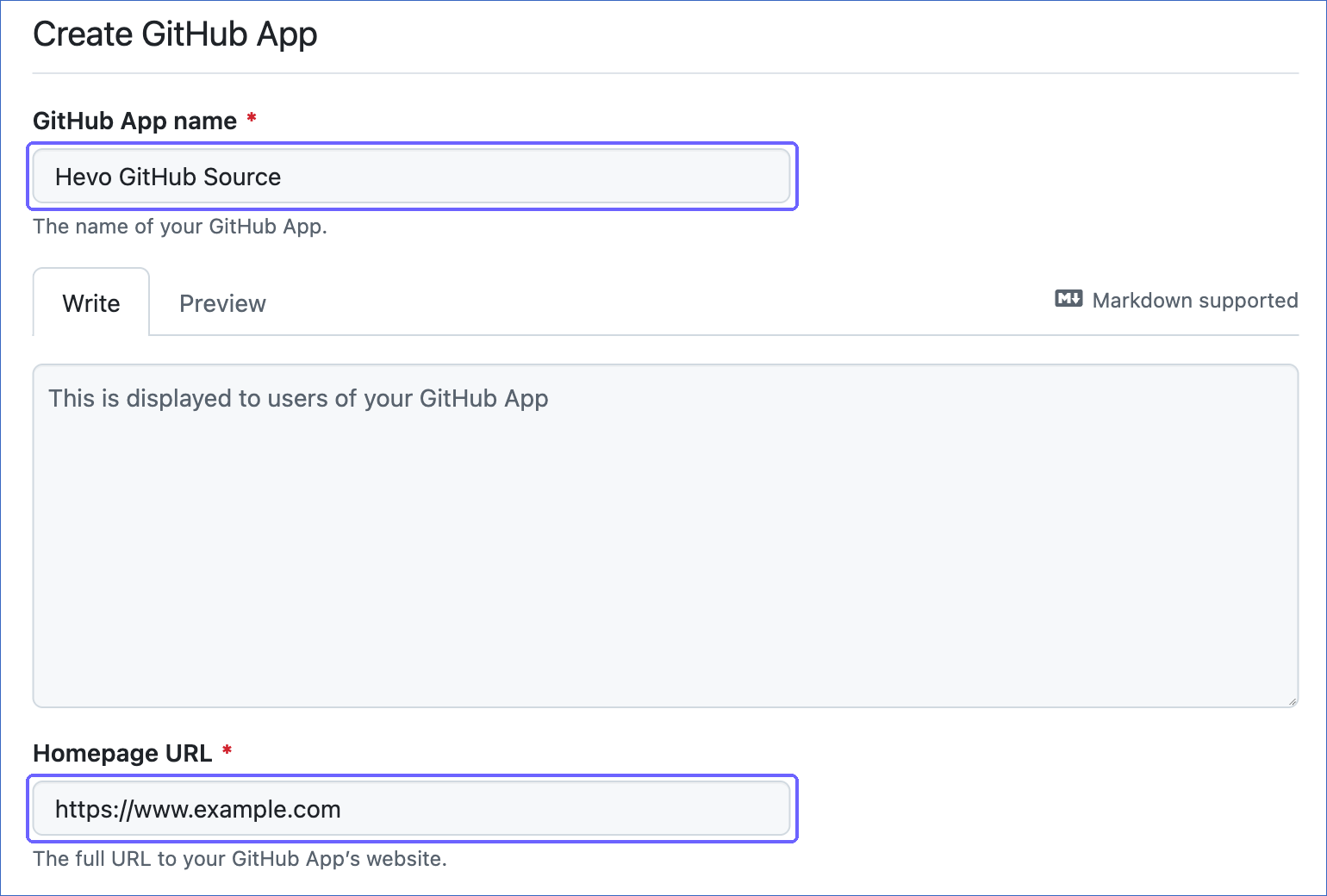
On the Create GitHub App page, specify the following:
-
GitHub App name: A unique name for the GitHub App. For example, Hevo GitHub Source.
-
Homepage URL: The URL of a website for the GitHub App, for example, your company’s website. Hevo does not use this URL.
-
Webhook: Deselect the Active check box. Hevo does not use the webhook of the GitHub App.

-
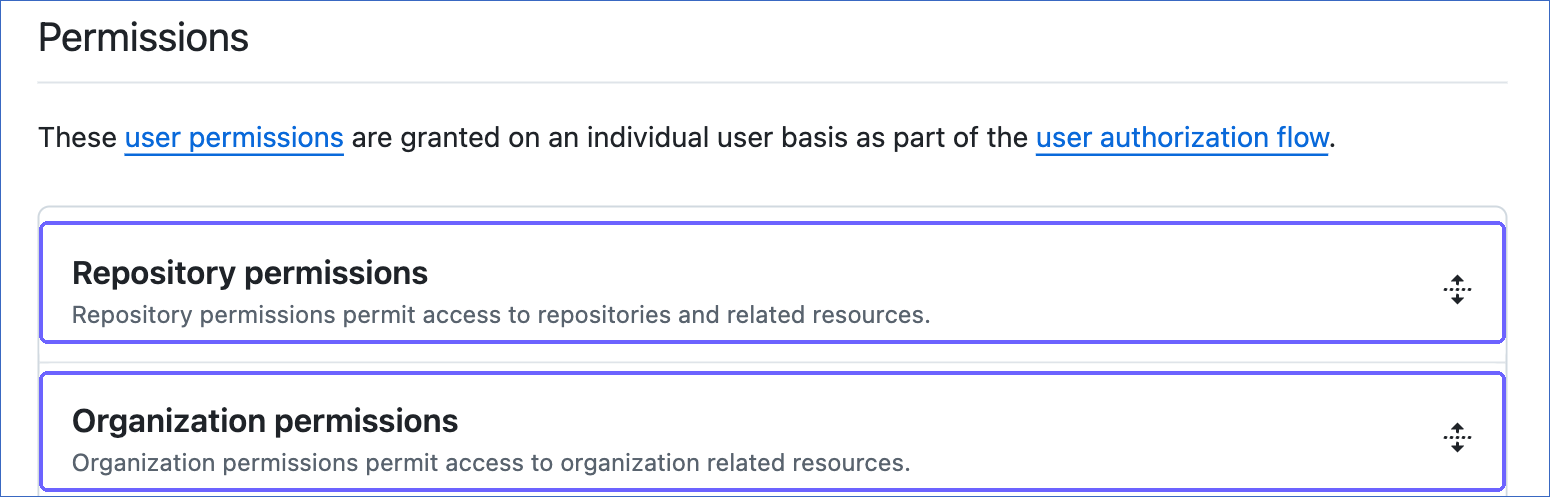
Permissions: Expand Repository permissions and Organization permissions, and select Read-only from the Access drop-down for each permission listed in the GitHub App Permissions table.
-
Where can this GitHub App be installed?: Select Only on this account.
-
-
Click Create GitHub App.

You are redirected to the General page of the GitHub App.
-
-
-
If the GitHub App is not installed on the account or organization whose data you want to replicate, perform the following steps:
-
In the left navigation pane, click Install App, and then click Install next to the account or organization.

-
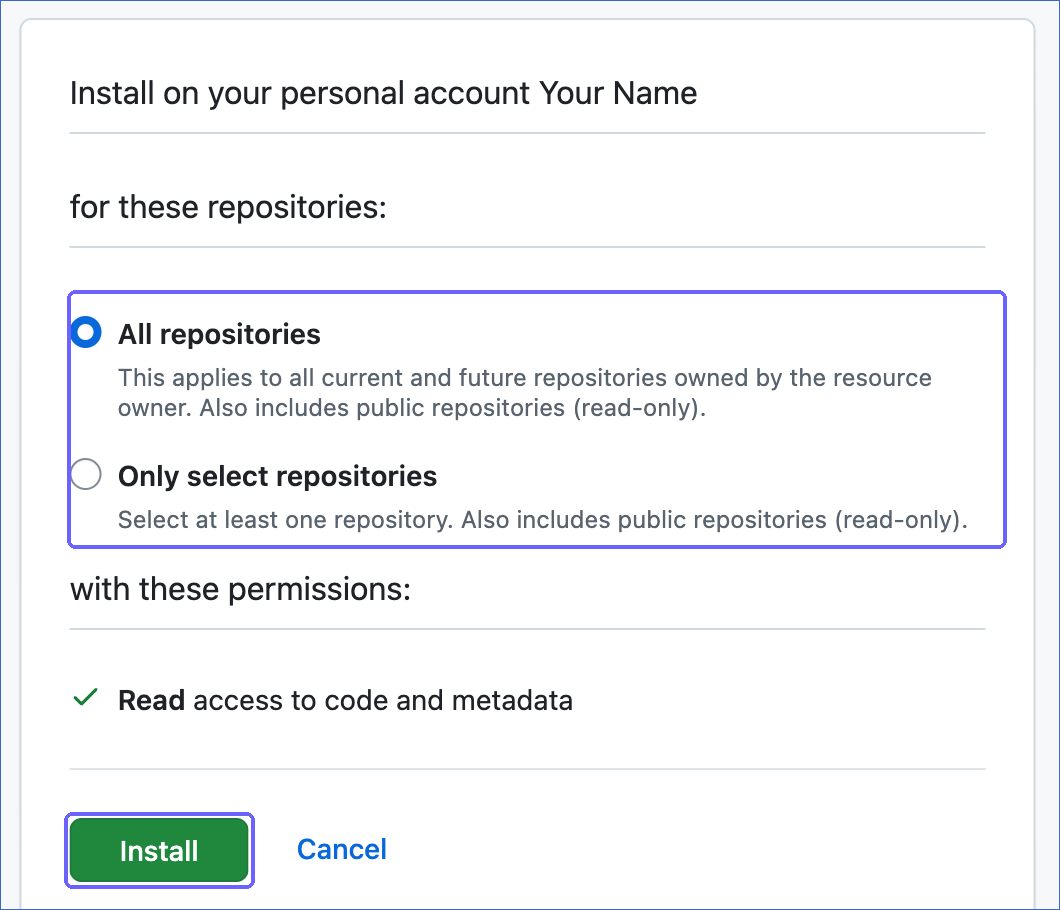
Select one of the following options, and then click Install:
-
All repositories: Gives the GitHub App access to all the current and future repositories of the account or organization.
-
Only select repositories: Gives the GitHub App access only to the repositories that you select. Hevo can then replicate data only from these repositories, even if you select Sync All Repositories while configuring the Source.
-
-
In the left navigation pane, click General.
-
-
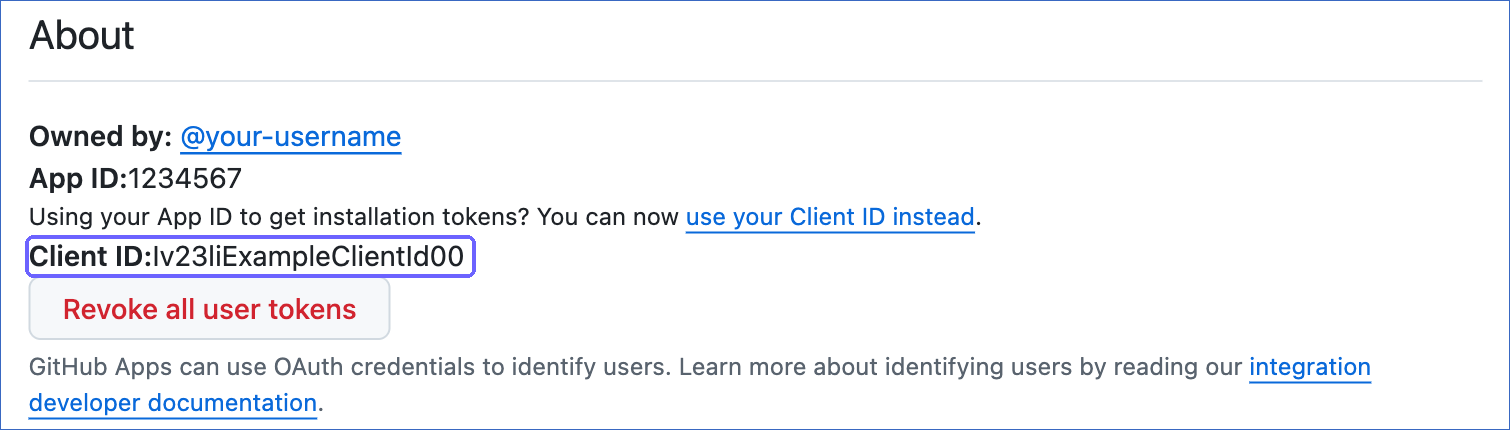
On the General page, copy the Client ID from the About section.
-
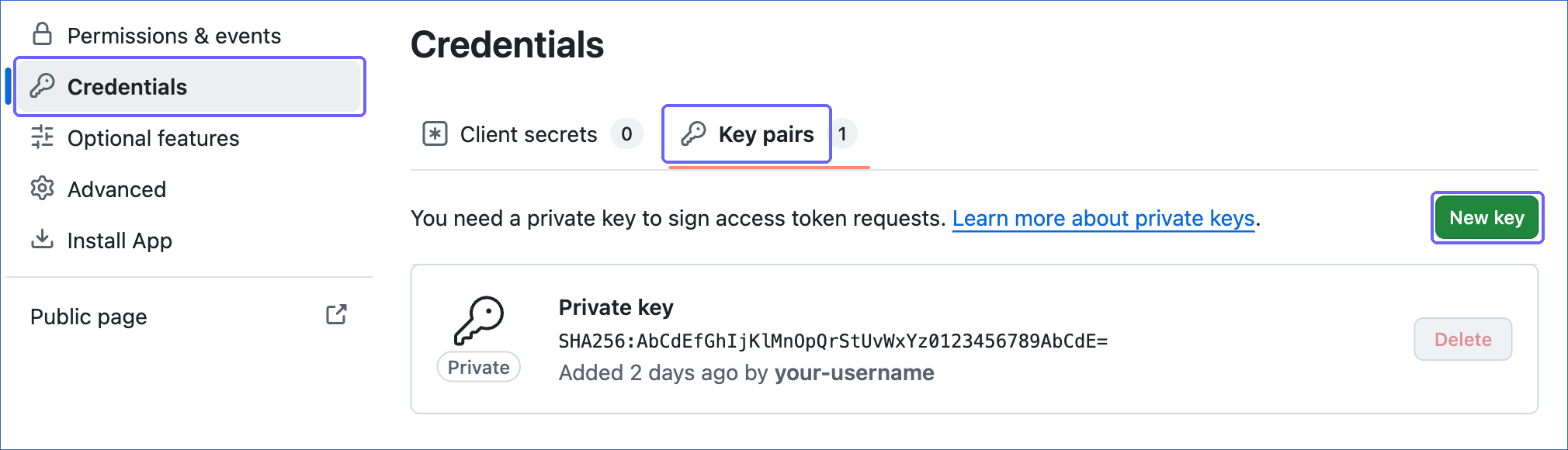
In the left navigation pane, click Credentials, click the Key pairs tab, and then click New key. GitHub downloads the private key as a .pem file, for example, my-app.2026-09-20.private-key.pem. Store the file securely. GitHub does not let you download the same private key again.
GitHub App Permissions
The GitHub App requires read access to the following permissions to replicate data for the corresponding objects. Read-only access is sufficient for all the permissions. If the GitHub App does not have a permission, Hevo skips the corresponding objects during ingestion, and the Pipeline does not fail.
| Permission | Type | Required for |
|---|---|---|
| Actions | Repository | Workflow, Workflow Run, and their child objects. |
| Administration | Repository | Page View, Repo Collaborator, Repo Team, and Repository Clone. |
| Checks | Repository | Commit Check Run. |
| Commit statuses | Repository | Commit Status. |
| Contents | Repository | Asset, Branch Commit Relation, Commit, Commit File, Commit Parent, Commit Pull Request, and Release. This permission is also required for the connection test. |
| Dependabot alerts | Repository | Security Alert, Security Advisory, and the child objects of Security Advisory. |
| Deployments | Repository | Deployment and Deployment Status. |
| Issues | Repository | Issue, Label, Milestone, and the child objects of Issue. |
| Metadata | Repository | Repository, Repository Language, Repository Property, Repository Topic, and Stargazer. GitHub selects this permission automatically. |
| Pull requests | Repository | Pull Request and its child objects. |
| GitHub Copilot Business | Organization | Copilot Seat. |
| Members | Organization | Org Member, Team, and Team Membership. |
| Organization Copilot metrics | Organization | Copilot Org Metric, Copilot User Metric, and their child objects. |
| Projects | Organization | Project V2 and its child objects. |
The User and User Email objects do not require a separate permission.
For more information, read Managing private keys for GitHub Apps.
Configure GitHub as a Source in your Pipeline
Perform the following steps to configure your GitHub Source:
-
Click Pipelines in the Navigation Bar.
-
Click + Create Pipeline in the Pipelines List View.
-
On the Select Source Type page, select GitHub.
-
On the Select Destination Type page, select the type of Destination you want to use.
-
On the Select Pipeline Type page, click Edge, and then click Continue.
This page appears only if the selected Destination type is supported in Edge and your Team has an existing GitHub Pipeline with the same Destination type. Otherwise, you can proceed to create an Edge Pipeline.
-
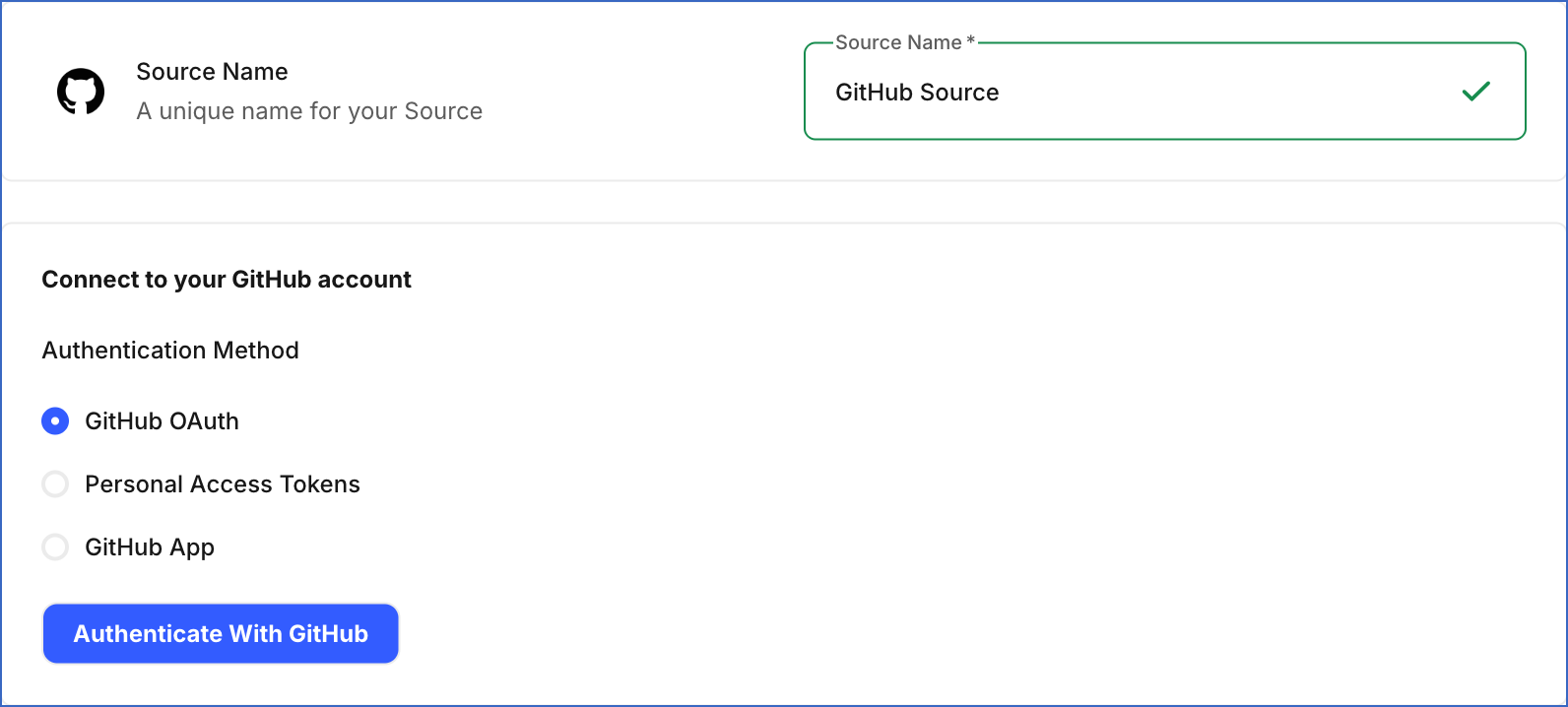
In the Configure Source screen, specify the following:
-
Source Name: A unique name for your Source, not exceeding 255 characters. For example, GitHub Source.
-
In the Connect to your GitHub account section, select the Authentication Method that you want to use for authenticating Hevo’s connection to your GitHub account. Default value: GitHub OAuth.
-
GitHub OAuth: Connect to your GitHub account using an authorization flow. Click Authenticate With GitHub, and then perform the following steps:
-
If you are not already logged in to your GitHub account, log in when prompted. Otherwise, proceed to step 2.
-
Review the permissions requested by Hevo. To replicate the data of an organization, click Grant next to the organization in the Organization access section. If you are not an owner of the organization, click Request to ask an organization owner to approve the access.
-
Click Authorize to authorize Hevo to access your GitHub data.
You are redirected to the Configure Source screen, where the username of the authorized GitHub account is displayed. To use a different GitHub account, click Reauthorize.
-
-
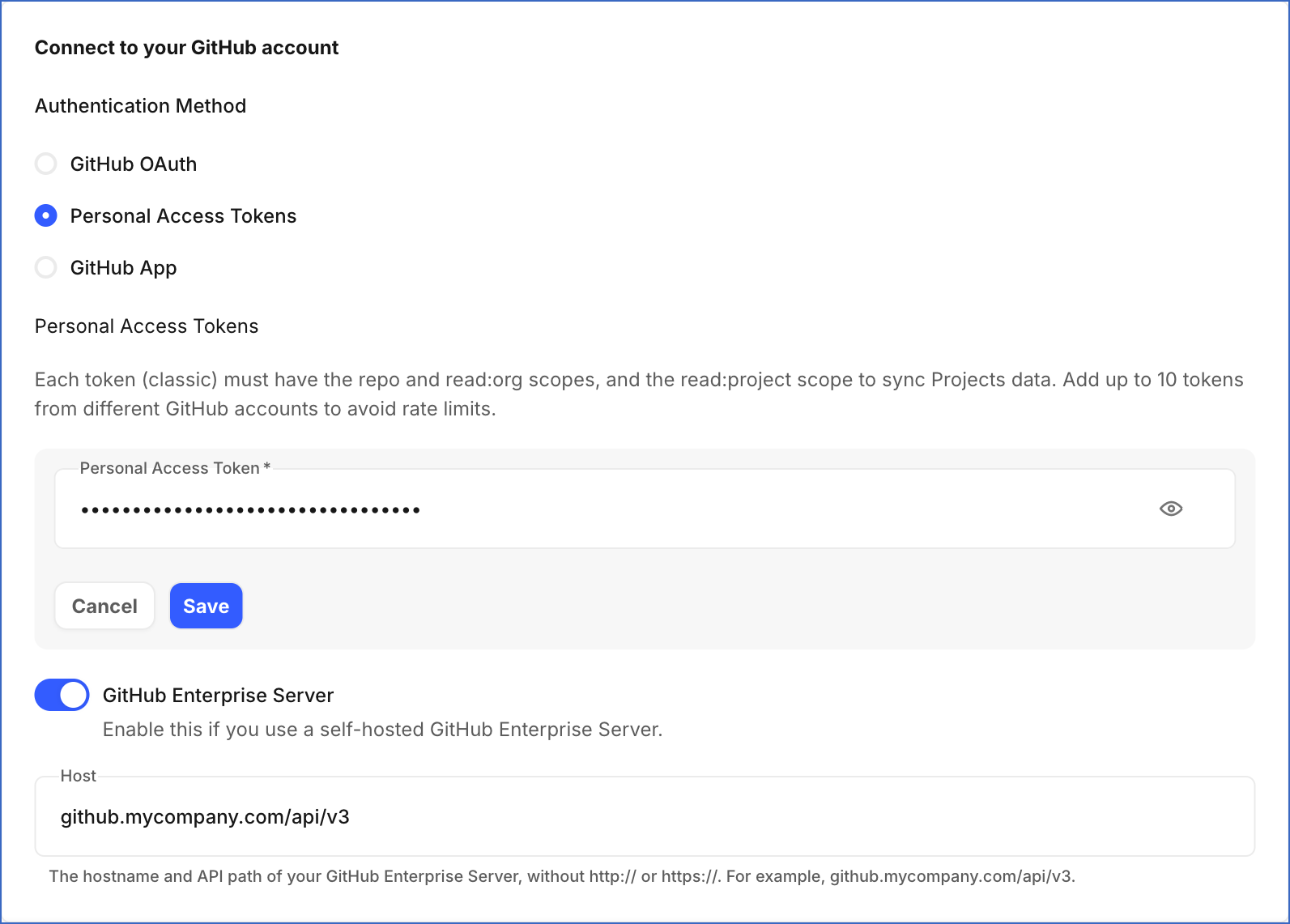
Personal Access Tokens: Connect to your GitHub account using one or more personal access tokens. Use this method if you want to replicate data from a self-hosted GitHub Enterprise Server installation.
-
Personal Access Tokens: The personal access token that you created in your GitHub account. To add a token, click + Add Token, paste the token in the Personal Access Token field, and then click Save. You can add up to 10 tokens, preferably from different GitHub accounts and of the same type. Hevo distributes its requests across the tokens to avoid rate limiting. Each classic token must have the repo and read:org scopes, and the read:project scope to replicate the Projects objects.
-
GitHub Enterprise Server: If enabled, Hevo connects to your self-hosted GitHub Enterprise Server installation instead of GitHub.com. Default value: Disabled. If you enable this option, specify the following:
- Host: The hostname and API path of your GitHub Enterprise Server, without http:// or https://. For example, github.mycompany.com/api/v3.
-
-
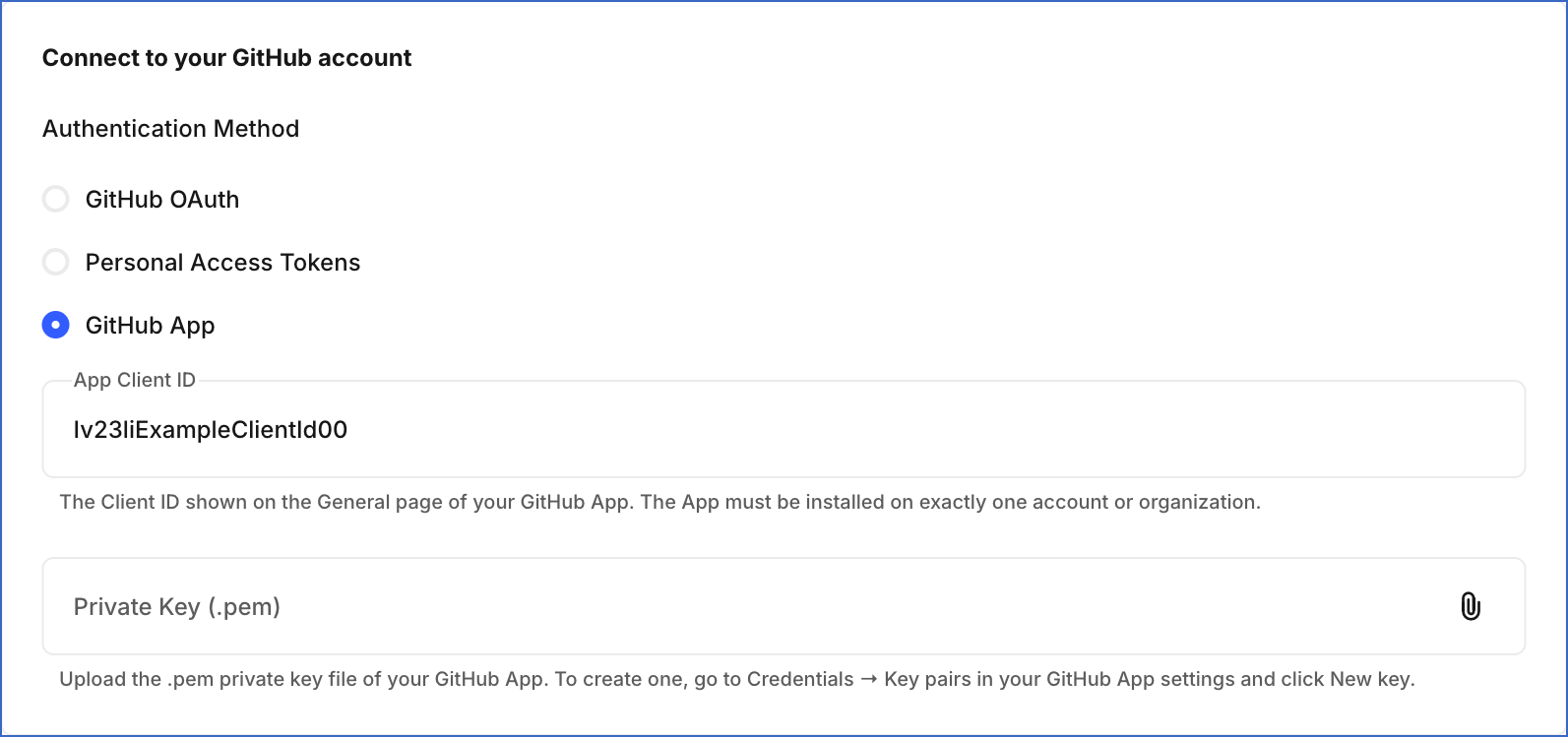
GitHub App: Connect to your GitHub account using a GitHub App installed on your account or organization. GitHub Apps have higher rate limits and use fine-grained permissions.
-
App Client ID: The Client ID of the GitHub App that you obtained from your GitHub account.
-
Private Key (.pem): The private key that you generated for the GitHub App. Click the attachment icon, and then select the .pem file that GitHub downloaded when you generated the key.
-
-
-
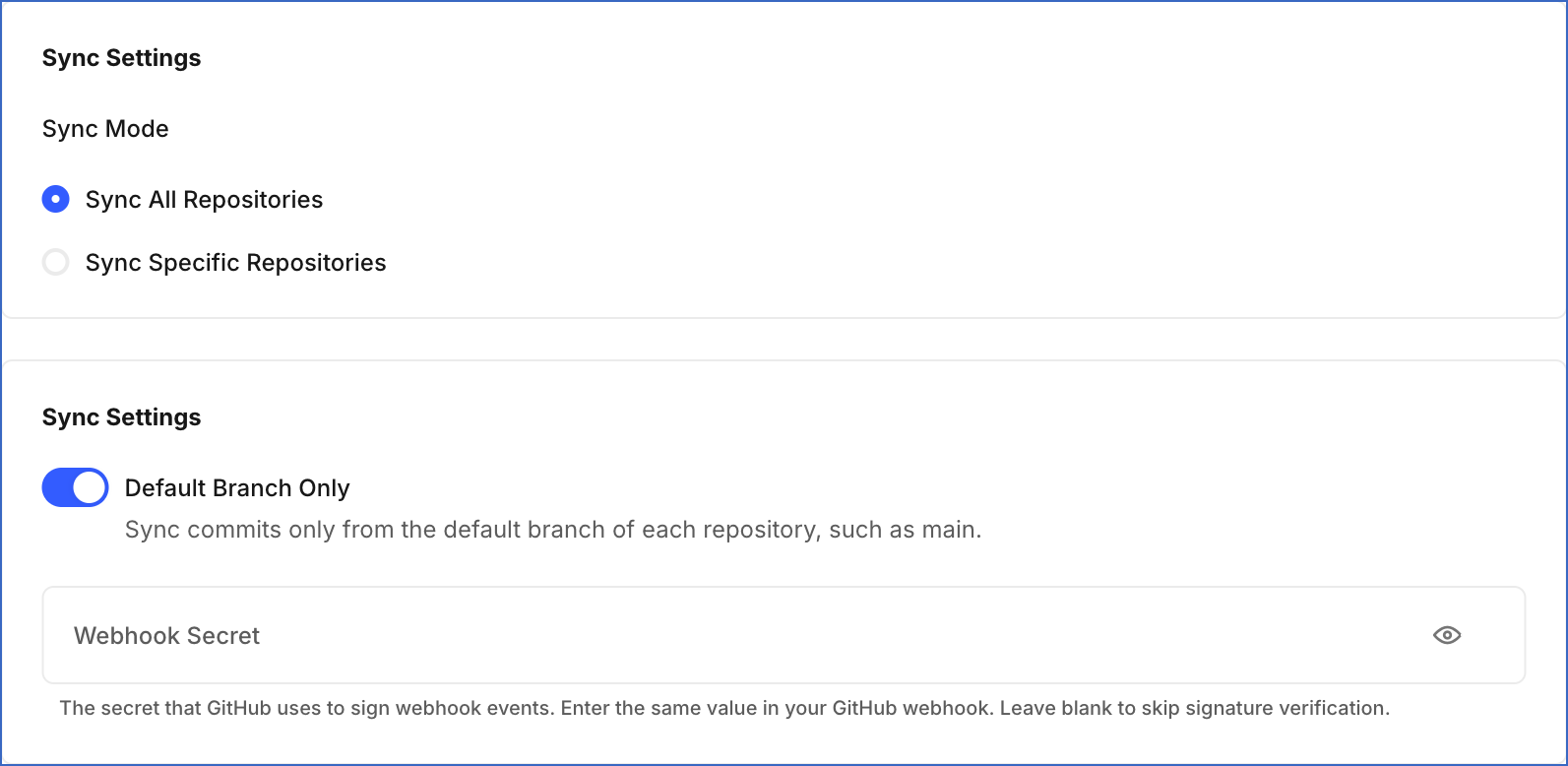
In the Sync Settings section, specify the following. If you select the GitHub OAuth authentication method, this section is displayed after you authenticate your GitHub account.
-
Sync Mode: Select one of the following options:
-
Sync All Repositories: Syncs data from all the repositories that Hevo can access, including the repositories that you create later. For the GitHub App method, these are the repositories that the GitHub App installation can access. This option is selected by default.
-
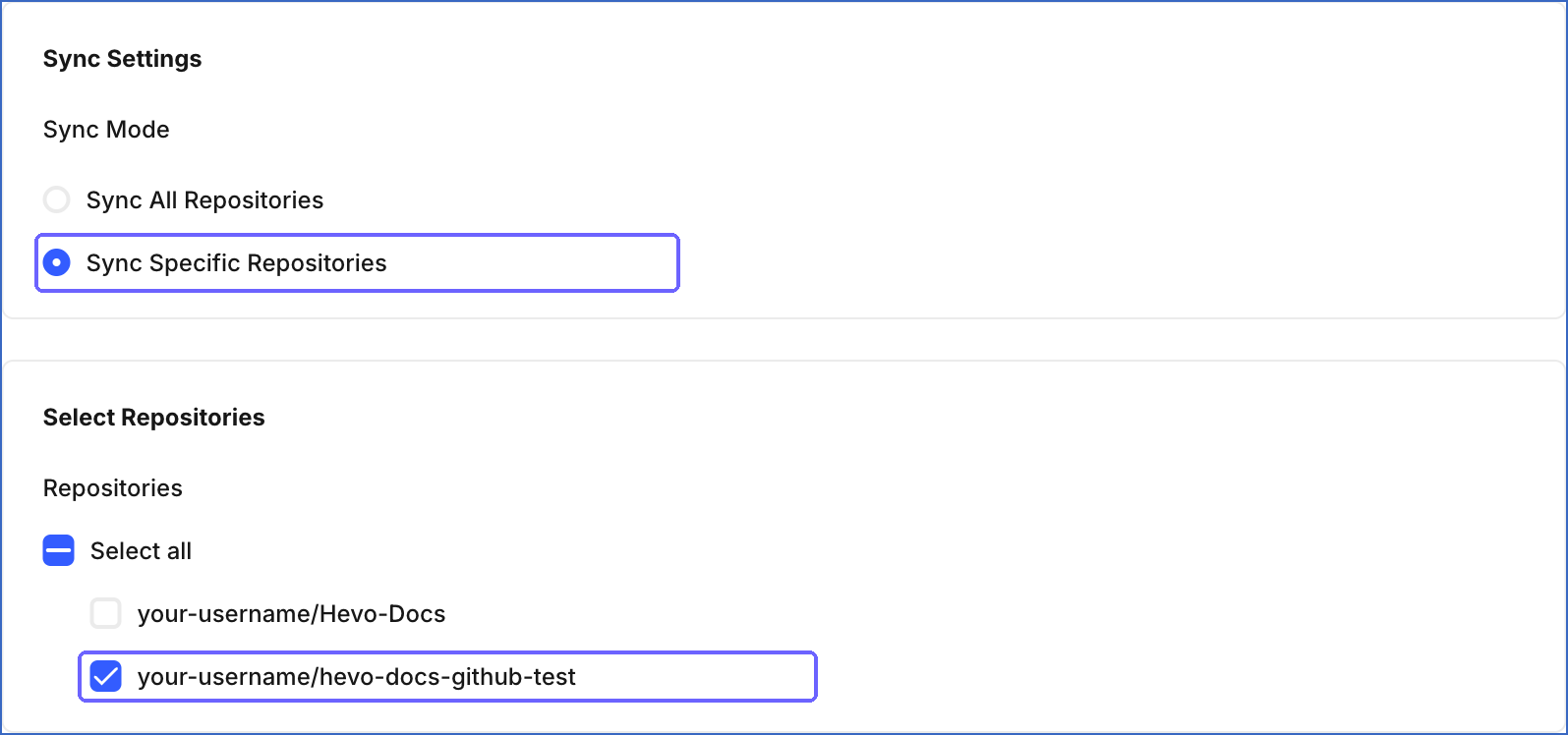
Sync Specific Repositories: Syncs data only from the repositories that you select. If you select this option, in the Select Repositories section, select the repositories whose data you want to sync.
-
-
Default Branch Only: If enabled, Hevo syncs commits only from the default branch of each repository, for example, main or master. This option also applies to the Branch Commit Relation object. Disable this option to sync commits from all branches. Default value: Enabled.
-
Webhook Secret (Optional): A secret that Hevo uses to verify the signature of the webhook events that GitHub sends. If you specify a secret, specify the same value while creating the webhook in your GitHub repository. Hevo then rejects the events that have a missing or invalid signature. If you leave this field blank, Hevo accepts all webhook events without verifying their signature.
-
-
-
Click Test & Continue to test the connection to your GitHub Source.
When you click this button, Hevo makes an API call to list the repositories that the authenticated account can access. For the GitHub App method, Hevo lists the repositories accessible to the App installation instead, and verifies that the App is installed on exactly one account or organization. For the Personal Access Tokens method, Hevo checks each token separately. If these checks pass, the connection test is marked as successful. You can then proceed to set up your Destination.
Note: The connection test fails if:
-
A personal access token is invalid or has expired, does not have the repo and read:org scopes, or is not authorized for your organization’s SAML SSO. Hevo lists the issue for each token.
-
The Host that you specified for your GitHub Enterprise Server is incorrect.
-
The GitHub App is not installed on any account or organization, or is installed on more than one.
-
Data Replication
Hevo replicates data for all the objects selected on the Configure Objects page during Pipeline creation. By default, all supported objects and their available fields are selected. However, you can modify this selection while creating or editing the Pipeline.
Selecting a parent object automatically includes all its associated child objects for replication. However, you can select or deselect the child objects individually.
Hevo ingests the following types of data from your Source objects:
-
Historical Data: The first run of the Pipeline ingests all available historical data for the selected objects and loads it into the Destination.
-
Incremental Data: Once the historical load is complete, new and updated records for objects are ingested as per the sync frequency.
For the following objects and their child objects, Hevo ingests only the incremental data in subsequent Pipeline runs:
-
Commit: Hevo ingests the commits created since the last Pipeline run, based on the committer date. If the Default Branch Only option is disabled, Hevo ingests the new commits of each branch in the same way.
-
Issue: Hevo ingests the issues and issue comments updated since the last Pipeline run, based on the updated_at field.
-
Pull Request: Hevo ingests the pull requests and review comments updated since the last Pipeline run, based on the updated_at field.
-
Workflow Run: Hevo ingests the workflow runs created since the last Pipeline run, based on the created_at field.
For all other objects, Hevo ingests the entire data during each Pipeline run.
GitHub enforces rate limits on the number of requests that can be made to its API in a given period of time. Requests authenticated with a personal access token or OAuth are limited to 5,000 requests per hour per user. Requests made by a GitHub App installation start at 5,000 requests per hour and scale with the number of repositories and users, up to 12,500 requests per hour, or 15,000 requests per hour for GitHub Apps owned by a GitHub Enterprise Cloud organization. If these limits are exceeded, a rate limit exception occurs. To understand how Hevo handles such scenarios, read Handling Rate Limit Exceptions.
Note: You can create a Pipeline with this Source only using the Merge load mode. The Append mode is not supported for this Source.
Schema and Primary Keys
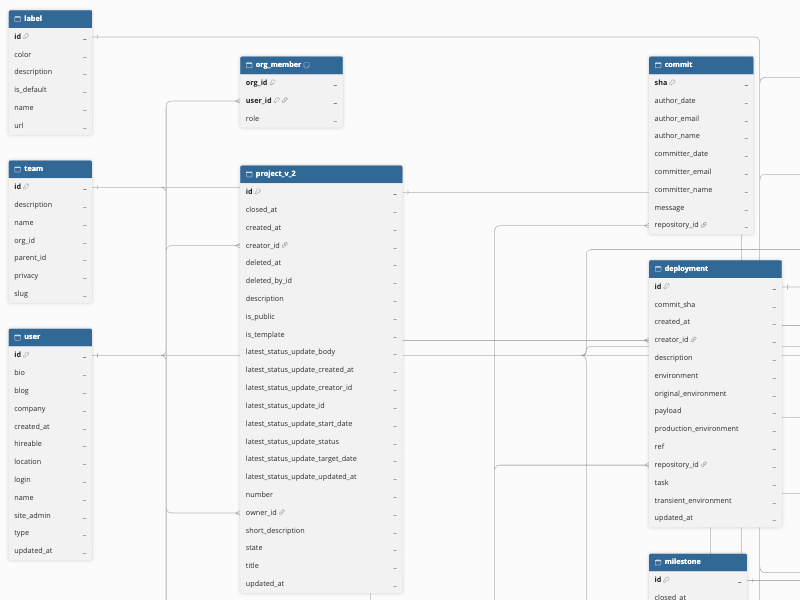
Hevo uses the following schema to upload the records to the Destination. For a detailed view of the objects, fields, and relationships, click the ERD.
Data Model
The following is the list of tables (objects) that are created at the Destination when you run the Pipeline:
| Object | Description |
|---|---|
| Commit | Contains the commits in your repositories, including the author and committer names, emails, and dates, and the commit message. It includes the following child objects: - Commit Check Run - Commit File - Commit Parent - Commit Pull Request - Commit Status |
| Copilot Org Metric | Contains the daily GitHub Copilot usage metrics for your organization. It includes the following child objects: - Copilot Org Metric By Feature - Copilot Org Metric By IDE - Copilot Org Metric By Language Feature - Copilot Org Metric By Language Model - Copilot Org Metric By Model Feature |
| Copilot Seat | Contains the GitHub Copilot seats assigned in your organization, including the assignee of each seat. |
| Copilot User Metric | Contains the daily GitHub Copilot usage metrics for each user in your organization. It includes the following child objects: - Copilot User Metric By Feature - Copilot User Metric By IDE - Copilot User Metric By Language Feature - Copilot User Metric By Language Model - Copilot User Metric By Model Feature |
| Deployment | Contains the deployments created for your repositories, such as the environment, ref, commit, and creator of each deployment. It includes a child object, Deployment Status. |
| Issue | Contains the issues in your repositories, such as the title, body, state, and assignee of each issue. As GitHub treats pull requests as issues, this object also includes the issue records of pull requests. It includes the following child objects: - Issue Assignee - Issue Assignee History - Issue Closed History - Issue Comment - Issue Label - Issue Label History - Issue Locked History - Issue Mention - Issue Merged - Issue Milestone History - Issue Referenced - Issue Renamed |
| Label | Contains the labels defined in your repositories, such as the name, color, and description of each label. |
| Milestone | Contains the milestones defined in your repositories, such as the title, state, and due date of each milestone. |
| Org Member | Contains the members of your organization and their role in it. |
| Page View | Contains the daily page view counts for each repository over the last 14 days. |
| Project V2 | Contains the projects (Projects V2) of your organization, such as the title, description, and status of each project. It includes the following child objects: - Project V2 Custom Field - Project V2 Item |
| Pull Request | Contains the pull requests in your repositories, including their head and base branches and commits, draft status, merge commit, and creation and closing times. It includes the following child objects: - Pull Request Auto Merge - Pull Request Merge Queue - Pull Request Ready For Review History - Pull Request Review - Pull Request Review Comments - Pull Request Review Dismissed - Requested Reviewer History |
| Release | Contains the releases published in your repositories, such as the tag, name, and publishing time of each release. It includes a child object, Asset. |
| Repo Collaborator | Contains the collaborators of your repositories and their permissions. |
| Repository | Contains the repositories that Hevo can access, such as the name, owner, visibility, and default branch of each repository. It includes the following child objects: - Branch Commit Relation - Repo Team - Repository Clone - Repository Language - Repository Property - Repository Topic |
| Security Advisory | Contains the security advisories associated with the Dependabot alerts of your repositories. It includes the following child objects: - Security Advisory CWE - Security Advisory Vulnerability - Security CWE - Security Reference - Security Vulnerability |
| Security Alert | Contains the Dependabot alerts of your repositories, such as the state, severity, and affected dependency of each alert. |
| Stargazer | Contains the users who have starred your repositories. |
| Team | Contains the teams of your organization, such as the name, privacy setting, and parent team of each team. It includes a child object, Team Membership. |
| User | Contains the GitHub accounts referenced in the other objects, such as users, bots, and organizations. |
| User Email | Contains the author and committer names and email addresses found in the commits of your repositories. |
| Workflow | Contains the GitHub Actions workflows defined in your repositories. |
| Workflow Run | Contains the GitHub Actions workflow runs of your repositories, such as the status, conclusion, and trigger event of each run. It includes the following child objects: - Workflow Run Attempt - Workflow Run Job - Workflow Run Job Step - Workflow Run Pull Request |
Additional Information
Read the detailed Hevo documentation for the following related topics:
- Configure Webhooks for Capturing Delete Events
- Handling of Deletes
- Source Considerations
- Limitations
Configure Webhooks for Capturing Delete Events
GitHub does not return deleted records through its REST API. To capture the deletes of review comments, and of commits that are removed from a branch by a force push, Hevo uses GitHub webhooks. To enable this, you must create a webhook in your GitHub repository using the webhook URL generated for your Pipeline.
Perform the following steps to configure webhooks for capturing delete events:
Obtain the Webhook URL for your Pipeline
Perform the following steps to obtain the webhook URL generated by Hevo for your Pipeline:
-
In the Pipeline’s toolbar, click Pipeline Setup.
-
In the Configure Pipeline section, copy the URL displayed in the Webhook URL field.

Create a Webhook in your GitHub repository
Perform the following steps to create a webhook in your GitHub repository:
-
Log in to your GitHub account as the owner of the repository or a user with admin access to it.
-
Open the repository, click Settings, and then, in the left navigation pane, click Webhooks.
-
Click Add webhook.
-
On the Webhooks / Add webhook page, specify the following:
-
Payload URL: The webhook URL that you copied from your Hevo Pipeline.
-
Content type: Select application/json.
-
Secret (Optional): The value that you specified in the Webhook Secret field while configuring the Source.
-
Which events would you like to trigger this webhook?: Select Let me select individual events, and then select Issue comments, Issues, Pull request review comments, Pushes, and Repositories. Alternatively, select Send me everything.
-
-
Ensure that Active is selected, and then click Add webhook.
Repeat these steps for each repository whose deletes you want to capture. Alternatively, to capture the deletes of all the repositories in an organization, create a single webhook in your organization’s settings. To do this, log in as an organization owner, click Settings on the organization page, click Webhooks in the left navigation pane, and then perform steps 3 to 5.
Note: If you select other events, GitHub sends notifications for those events to the webhook URL. However, Hevo ignores these notifications, and they do not affect data ingestion.
Handling of Deletes
Hevo captures deletes differently based on the object:
-
Inferred deletes: For the following objects, Hevo uses a full data refresh approach to capture delete actions. During each Pipeline run, Hevo compares the data fetched from the Source object with the data present in the Destination table. If a record exists in the Destination but is no longer returned by the Source, the record is marked as deleted by setting the value of the metadata column __hevo__marked_deleted to True. This applies only if you select Sync All Repositories as the Sync Mode.
Asset, Milestone, Org Member, Project V2, Release, Repo Collaborator, Repository, Repository Language, Repository Property, Repository Topic, Stargazer, Team, and Workflow.
-
Child records replaced in each run: For the Issue Assignee, Issue Label, Repo Team, and Team Membership objects, Hevo fetches the current records for each parent record during each Pipeline run and replaces the records in the Destination. Records that no longer exist in the Source are removed from the Destination.
-
Webhook-based deletes: If you configure a webhook in your GitHub repository, Hevo captures the following deletes:
-
When a review comment is deleted, Hevo marks the review comment as deleted in the Pull Request Review Comments object by setting the value of the metadata column __hevo__marked_deleted to True.
-
When a force push removes commits from a branch, Hevo removes the records of those commits from the Commit File, Commit Parent, and Commit Pull Request objects.
-
Hevo does not capture deletes for the other objects.
Source Considerations
-
GitHub treats pull requests as issues. As a result, the Issue object also contains the issue records of pull requests.
-
GitHub provides repository traffic data only for the last 14 days. Hence, the Page View and Repository Clone objects contain data only for the last 14 days. GitHub also provides this data only to users with push access to the repository.
-
GitHub provides Copilot usage metrics only for the last 28 days. Hence, during each Pipeline run, Hevo ingests the Copilot metrics for the last 28 days. The metrics loaded in the earlier runs are retained in the Destination, so the history of the metrics builds up over time.
-
GitHub provides the Copilot data only for organizations that have a GitHub Copilot Business or Copilot Enterprise subscription. To replicate the Copilot objects, the GitHub account that you authenticate with must be an owner of the organization. To replicate the Copilot Org Metric and Copilot User Metric objects, the Copilot usage metrics policy must also be enabled in your organization’s Copilot settings. If these conditions are not met, Hevo skips the Copilot objects for the organization, and the Pipeline does not fail.
-
The Org Member, Team, Team Membership, Project V2, and Copilot objects contain organization data. Hevo ingests this data only for the organizations that own the repositories you sync. Hence, if you sync only the repositories of a personal account, these objects do not contain any data. Hevo does not ingest the projects owned by a personal account.
-
Hevo does not check the permissions of your token, OAuth authorization, or GitHub App when you select the objects on the Configure Objects page. If the credentials do not have access to the data of an object, for example, the traffic data or the Dependabot alerts of a repository, Hevo skips that repository or organization for the object during ingestion. The Pipeline does not fail, and the other data is replicated as usual.
-
From July 2026, GitHub limits access to the list of stargazers of a repository to its admins and collaborators. Hence, the Stargazer object may not contain data for the repositories in which the authenticated GitHub account is not an admin or a collaborator.
-
Hevo ingests the workflow runs based on the time they are created, and does not fetch a workflow run again once a newer run is ingested. Hence, if a workflow run is in progress when Hevo ingests it, its final status and conclusion may not be updated in the Workflow Run object.
-
GitHub provides Dependabot alerts only for repositories in which Dependabot alerts are enabled. Hence, the Security Alert and Security Advisory objects do not contain data for the other repositories.
-
GitHub does not return commits for empty repositories. Hence, Hevo skips the repositories that do not have any commits while ingesting the Commit object and its child objects.
Limitations
-
Hevo supports a GitHub App only if it is installed on a single account or organization. If your GitHub App is installed on more than one account or organization, the connection test fails. To use the GitHub App, uninstall it from all the accounts except the one whose data you want to replicate.
-
You can use the GitHub App authentication method only with GitHub.com. To replicate data from a GitHub Enterprise Server installation, use the Personal Access Tokens authentication method.
-
If you select Sync Specific Repositories as the Sync Mode and create a webhook for your organization, Hevo also processes the webhook events of the repositories that you did not select.
Revision History
Refer to the following table for the list of key updates made to this page:
| Date | Release | Description of Change |
|---|---|---|
| Oct-14-2026 | NA | New document. |