Microsoft Dynamics 365 Business Central (Edge)
On This Page
Microsoft Dynamics 365 Business Central is a cloud-based business management solution for small and mid-sized businesses. It brings together finance, sales, purchasing, inventory, and project management in a single application, so that businesses can manage their operations and gain insight into their financial and operational data.
Hevo uses the Business Central REST APIs and the Hevo Business Central extension to replicate data from your Business Central online environment to the Destination of your choice. The extension adds read-only API pages to your environment that expose the fields that Hevo replicates from the Business Central tables. It also records the records deleted from these tables, so that Hevo can mark them as deleted in the Destination. To ingest data, you must install the extension and assign the HEVO READ permission set to the Business Central user who authorizes Hevo. You then provide Hevo with your Tenant ID and the name of your Business Central environment, sign in with Microsoft, and select the companies from which you want to ingest data.
Supported Features
| Feature Name | Supported |
|---|---|
| Capture deletes | Yes |
| History mode | No |
| Custom data (user-configured tables & fields) | No |
| Data blocking (skip objects and fields) | Yes |
| Resync (objects and Pipelines) | Yes |
| API configurable | No |
Prerequisites
-
An active Microsoft Dynamics 365 Business Central online environment, production or sandbox, from which data is to be ingested. The environment must run Business Central version 28.0 (2026 release wave 1) or later. Business Central on-premises is not supported.
-
The Tenant ID of the Microsoft Entra tenant that your Business Central belongs to, and the name of your Business Central environment are available.
-
The Hevo Business Central extension, version 1.2.0.0 or later, is installed in the environment. To install the extension, you must have the EXTEND. MGT. - ADMIN permission set or be a member of the D365 Extension MGT user group in Business Central.
-
The Business Central user who authorizes Hevo has a Business Central license, can access the environment, and is assigned the HEVO READ permission set for all companies or for each company from which you want to ingest data.
-
You can consent to Hevo’s application in your Microsoft Entra tenant. Whether users can consent depends on the user consent settings of your tenant. If your tenant does not let users consent to third-party apps, or allows it only for apps from verified publishers, a Microsoft Entra administrator must grant consent once for your organization. To do this, the administrator clicks Authenticate Your Business Central Account while configuring the Source, signs in, and selects Consent on behalf of your organization in the Microsoft consent prompt. After that, users in your tenant can authorize Hevo without consenting again.
Set up your Business Central Environment
Perform the following steps to prepare your Business Central environment for Hevo:
-
Review the Hevo Integration Setup (Optional)
Obtain the Tenant ID
The Tenant ID is the Directory (tenant) ID of the Microsoft Entra ID tenant that your Business Central belongs to. Perform the following steps to obtain it:
-
Log in to the Microsoft Entra admin center with an account in your organization’s tenant.
-
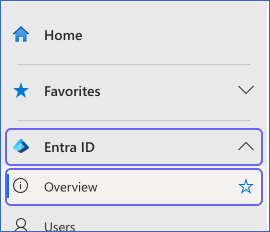
In the left navigation pane, click Entra ID, and then click Overview.
-
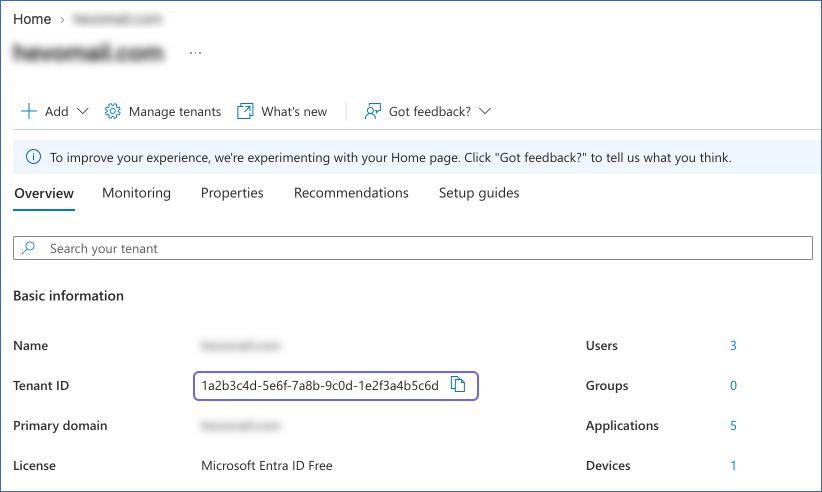
On the Overview tab, copy the Tenant ID. You need this as the Tenant ID when you configure the Source in Hevo.
For more information, read How to find your Microsoft Entra tenant ID.
Obtain the Environment Name
Hevo reads the data of one Business Central environment in each Pipeline. Perform the following steps to obtain the name of the environment:
-
Log in to the Business Central admin center as an administrator.
-
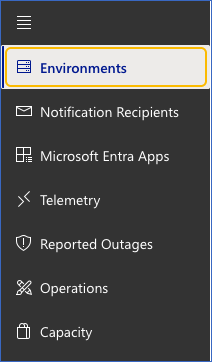
In the left navigation pane, click Environments.
-
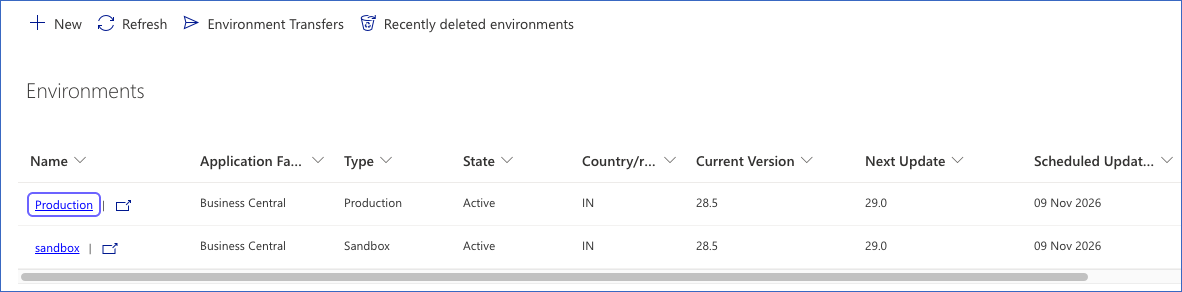
On the Environments page, copy the value in the Name column for the environment from which you want to ingest data. For example, Production.
You can also find the environment name in the URL of your Business Central environment, https://businesscentral.dynamics.com/<tenant ID>/<environment name>.
For more information, read Managing environments in the Business Central admin center.
Install the Hevo Business Central Extension
The Hevo Business Central extension (publisher: Hevo Data) is a per-tenant extension that adds read-only API pages for the objects that Hevo replicates. It also records the records deleted from these objects, so that Hevo can mark them as deleted in the Destination. The extension does not change your business data, and it does not make any outbound requests. It stores its own delete-capture data: one Hevo Integration Setup entry for each company, and a Hevo Deleted Record table. Delete capture is turned on by default in every company, including companies created later.
Hevo requires version 1.2.0.0 or later of the extension. We recommend that you install the latest version. The extension is installed as an .app file. Its source code is available in the public hevoio/mbc-setup-with-al GitHub repository, from which you can build the .app file. Alternatively, contact Hevo Support to obtain the latest version of the file.
Build the .app file from the GitHub repository
The hevoio/mbc-setup-with-al repository contains the manifest of the extension (app.json) and its source file (src/HevoBusinessCentralConnector.al). To build the .app file, you need Visual Studio Code and a Business Central sandbox environment, from which Visual Studio Code downloads the Microsoft symbol files required for the build. If you do not have a sandbox environment, create one in the Business Central admin center, or contact Hevo Support to obtain the .app file. Skip this section if you obtained the .app file from Hevo Support.
Perform the following steps to build the .app file:
-
Install Visual Studio Code and the AL Language extension for Microsoft Dynamics 365 Business Central.
-
Download the hevoio/mbc-setup-with-al repository. To do this, click Code, click Download ZIP, and then extract the file. Alternatively, clone the repository using Git.
-
In Visual Studio Code, click File, click Open Folder, and then select the folder that contains the app.json file.
Note: Do not run AL: Go!, and do not change the id, publisher, version, or idRanges values in the app.json file. Business Central uses these values to upgrade the installed extension in place.
-
Open the Command Palette (Ctrl+Shift+P on Windows, Cmd+Shift+P on macOS), and run AL: Download symbols. When prompted, sign in with a Business Central administrator account and select your sandbox environment. If Visual Studio Code creates a .vscode/launch.json file, check that its environmentName value is the name of your sandbox environment.
-
Open the Command Palette, and run AL: Package (Ctrl+Shift+B). Visual Studio Code builds the extension and saves the .app file, for example, Hevo Data_Hevo Business Central Connector_1.2.1.2.app, in the same folder. The version in the file name matches the version in the app.json file.
Upload and deploy the extension
Perform the following steps to install the extension:
-
Log in to your Business Central environment as a user with the EXTEND. MGT. - ADMIN permission set. We recommend that you install the extension in a sandbox environment first. Install the extension in each environment from which you want to ingest data.
-
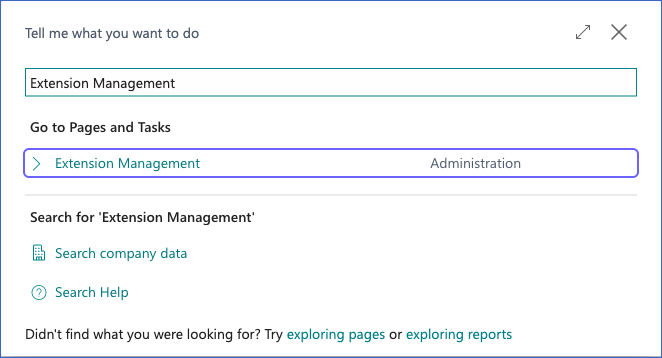
Select Search (Alt+Q) in the upper-right corner, enter Extension Management, and then click the related link.
-
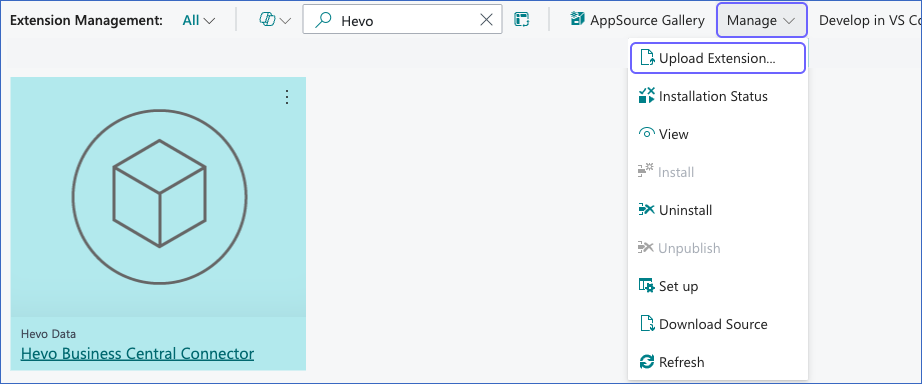
On the Extension Management page, click Manage, and then click Upload Extension.
-
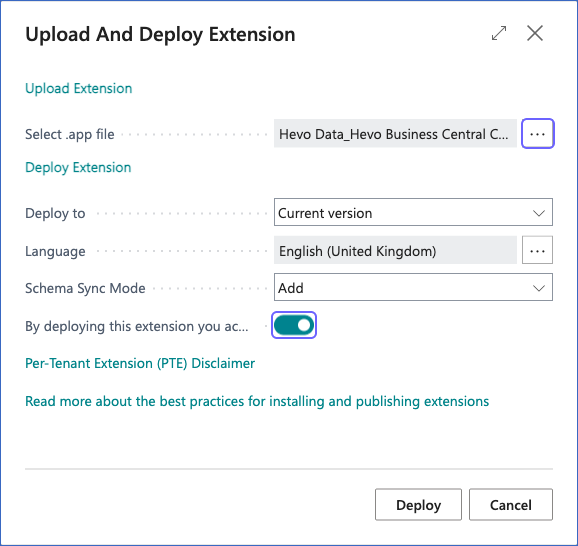
In the Upload And Deploy Extension dialog, specify the following:
-
Select .app file: Click the … (More options) icon, and select the Hevo Business Central extension .app file that you built from the GitHub repository or obtained from Hevo Support.
-
Deploy to: Select Current version. This is the default value.
-
Language: The language of the extension. You can retain the default value.
-
Schema Sync Mode: Select Add. This is the default value.
-
Turn on the toggle to acknowledge that your data may be sent outside the compliance boundary of Business Central. Microsoft requires this acknowledgment for each per-tenant extension.
-
-
Click Deploy.
-
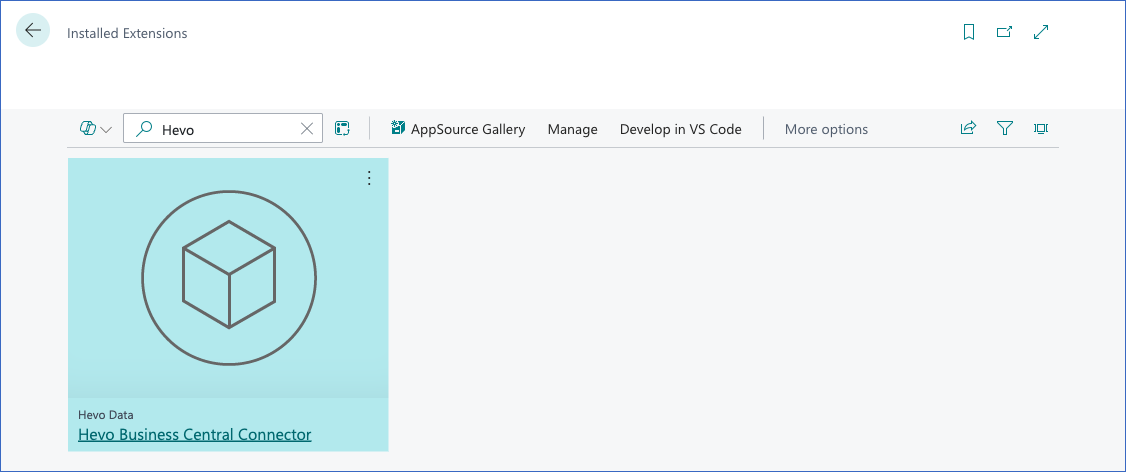
On the Extension Management page, verify that the Hevo Business Central Connector extension, published by Hevo Data, is listed as installed with version 1.2.0.0 or later. The deployment can take a few minutes. To check its progress, click Manage, and then click Installation Status.
-
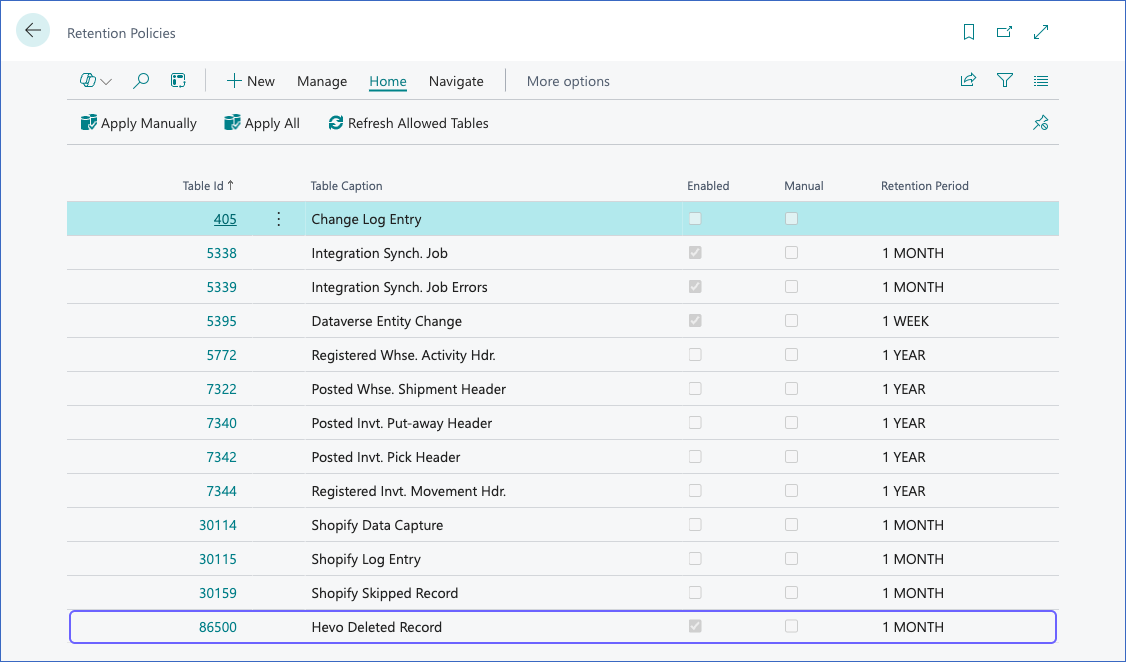
Select Search (Alt+Q), enter Retention Policies, and then click the related link. Check that the Retention Policies page lists the Hevo Deleted Record table. The extension keeps the deleted-record entries for one month by default. You can change the retention period, but not to less than seven days. If the user who installed the extension cannot create retention policies, no policy is created. If the user cannot schedule retention jobs, the policy is created but not enabled. In these cases, ask an administrator to create or enable the policy.
For more information, read Install and uninstall apps.
Note: Microsoft updates Business Central online environments regularly. If the extension is uninstalled during an update, Hevo cannot read your data, and all the active jobs of the Pipeline fail. In this case, install the latest version of the extension, and assign the Hevo permission sets again, if required. After you reinstall the extension, the objects that were synced before it was removed fail with a message asking you to resync them, because the records deleted in the meantime were not recorded. Resync the affected objects to resume ingestion.
Assign the Hevo Permission Sets
The Hevo Business Central extension adds the following permission sets:
-
HEVO READ (Hevo connector read access): Provides read access to the extension’s API pages, including the pages from which Hevo reads the deleted records, and includes Microsoft’s D365 READ permission set, which Business Central needs to calculate the values of some fields. You must assign this permission set to the Business Central user whose Microsoft account you use to authorize Hevo.
-
HEVO ADMIN (Hevo connector administration): Includes HEVO READ, lets a user turn delete capture on or off on the Hevo Integration Setup page, and lets a user delete the deleted-record entries. This permission set is optional. Assign it to the administrators who manage delete capture, and to any user without the SUPER permission set who runs the retention policy job for the Hevo Deleted Record table.
Users who create, edit, or delete records in Business Central do not need any Hevo permission set.
Perform the following steps to assign the HEVO READ permission set:
-
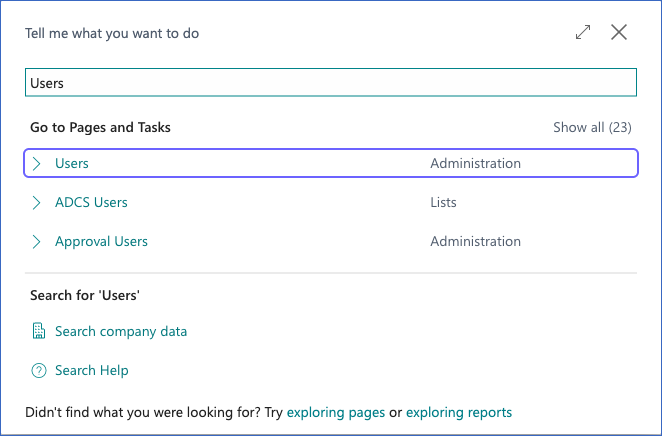
In Business Central, select Search (Alt+Q) in the upper-right corner, enter Users, and then click the related link.
-
Click the name of the user who authorizes Hevo to open the User Card page.

-
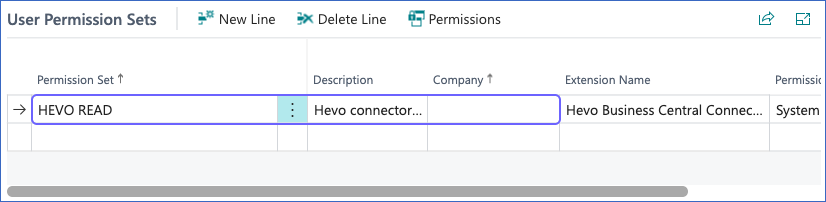
On the User Permission Sets FastTab, on a new line, specify the following:
-
Permission Set: Select HEVO READ.
-
Company: Leave this field blank to apply the permission set to all companies. Alternatively, select a company, and then repeat this step for each company from which you want to ingest data.
-
Optionally, repeat these steps to assign the HEVO ADMIN permission set to the administrators who should be able to turn delete capture on or off.
For more information, read Assign permission sets to users.
Review the Hevo Integration Setup
The Hevo Integration Setup page of the extension shows the delete-capture settings of the current company:
-
Delete Capture Enabled: Specifies whether the extension records the deleted records of the company. This option is turned on by default when you create a company. Installing or upgrading the extension turns it on in every company, including the companies where it was turned off. You do not need to change it.
-
Capture Enabled At: The date and time when delete capture was last turned on in the company.
-
Tombstones Purged Through: The deletion time of the newest deleted-record entry that the retention policy removed.
To check the settings, select Search (Alt+Q) in Business Central, enter Hevo Integration Setup, and then click the related link. Hevo cannot change these settings, because it has read-only access to the extension.

If a company was created by a user who cannot write the extension’s setup, the company has no Hevo Integration Setup entry, and the connection test fails for that company. To create the entry, open the Hevo Integration Setup page once in that company as an administrator.
Note: Delete Capture Enabled is a setting of each company in Business Central, and all the Pipelines that read the same environment share it. If you turn it off, Hevo continues to replicate the new and updated records of the company, but captures its deletes only once a week. Read Handling of Deletes.
Configure Microsoft Dynamics 365 Business Central as a Source in your Pipeline
Perform the following steps to configure your Microsoft Dynamics 365 Business Central Source:
-
Click Pipelines in the Navigation Bar.
-
Click + Create Pipeline in the Pipelines List View.
-
On the Select Source Type page, select Microsoft Dynamics 365 Business Central.
-
On the Select Destination Type page, select the type of Destination you want to use.
-
On the Select Pipeline Type page, click Edge, and then click Continue.
This page appears only if the selected Destination type is supported in Edge and your Team has an existing Microsoft Dynamics 365 Business Central Pipeline with the same Destination type. Otherwise, you can proceed to create an Edge Pipeline.
-
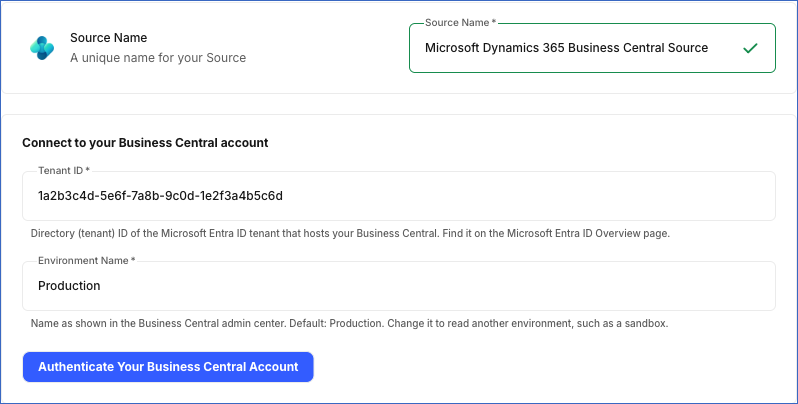
In the Configure Source screen, specify the following:
-
Source Name: A unique name for your Source, not exceeding 255 characters. For example, Microsoft Dynamics 365 Business Central Source.
-
In the Connect to your Business Central account section, specify the following:
-
Tenant ID: The Directory (tenant) ID of the Microsoft Entra ID tenant that your Business Central belongs to.
-
Environment Name: The name of your Business Central environment, as shown in the Business Central admin center. Default value: Production. Change it to read another environment, such as a sandbox. If you change the environment, you must select the companies again.
-
Authenticate Your Business Central Account: This button appears after you specify the Tenant ID. Perform the following steps to authorize Hevo:
-
Click Authenticate Your Business Central Account.
-
Sign in with the Microsoft account of the Business Central user to whom you assigned the HEVO READ permission set, and accept the consent prompt for Hevo’s application. If Microsoft displays Need admin approval, ask a Microsoft Entra administrator to grant consent for your organization.
You are redirected to the Configure Source screen, where the Account Added field and the Reauthorize button are displayed. The Account Added field displays the Microsoft account with which you signed in. To authorize Hevo with a different account, click Reauthorize. If you change the Tenant ID, you must authenticate again.
-
-
-
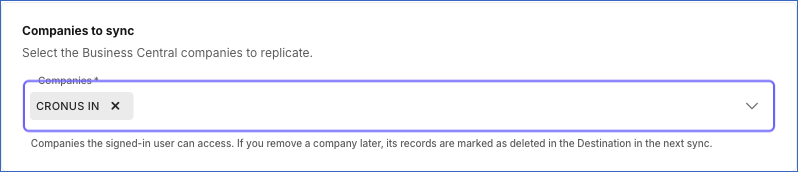
In the Companies to sync section, which appears after you authenticate, select one or more companies from the Companies drop-down. The list contains the companies in the environment that the signed-in user can access, sorted by their display names. If you remove a company later, its records are marked as deleted in the Destination in the next Pipeline run.
-
-
Click Test & Continue to test the connection to your Microsoft Dynamics 365 Business Central Source. Once the test is successful, you can proceed to set up your Destination.
When you click this button, Hevo lists the companies in your environment, checks that each company you selected still exists, reads the company information of each company through the Hevo Business Central extension, and checks that Hevo can read the records deleted in each company. Hevo also runs these checks before each sync.
Note: The connection test fails if:
-
The Environment Name does not match an environment in your Business Central tenant.
-
Business Central rejects the sign-in, or the authorization has expired.
-
The signed-in user cannot access the environment, for example, because the user does not have a Business Central license.
-
A selected company was renamed or deleted, or the signed-in user can no longer see it. In this case, select the companies again.
-
The Hevo Business Central extension is not installed, or the signed-in user does not have the HEVO READ permission set for a selected company.
-
The extension is older than version 1.2.0.0, or a selected company has no Hevo Integration Setup entry.
If Delete Capture Enabled is turned off for a company, the connection test still succeeds. Read Handling of Deletes.
-
Data Replication
Hevo replicates data for all the objects selected on the Configure Objects page during Pipeline creation. By default, all supported objects and their available fields are selected. However, you can modify this selection while creating or editing the Pipeline.
Hevo ingests the following types of data from your Source objects:
-
Historical Data: The first run of the Pipeline ingests all the existing data of the selected objects for each company that you select, and loads it into the Destination.
-
Incremental Data: Once the historical load is complete, the records that are created or updated in each company are ingested as per the sync frequency. Hevo identifies these records using the system_modified_at field, and reads them with a five-minute overlap to avoid missing records.
In each incremental run, Hevo also reads the records deleted since the previous run from the Hevo Business Central extension, and marks them as deleted in the Destination. Hevo does not read your data again on a schedule. It reads an object in full only in the first run, when you resync the object or the Pipeline, and when you remove a company from the Source. If delete capture is turned off for a company, Hevo reads each object in full once every seven days instead. If you add a company to the Source later, Hevo ingests all the existing data of that company in the next Pipeline run.
The data of all the companies is loaded into the same Destination table for each object. Each record contains the company_id field, which identifies the company to which it belongs.
Microsoft Dynamics 365 Business Central enforces a rate limit of 6,000 OData requests for each user within a 5-minute sliding window. If this limit is exceeded, a rate limit exception occurs. To understand how Hevo handles such scenarios, read Handling Rate Limit Exceptions.
Note: You can create a Pipeline with this Source using either the Merge or the Append load mode. Merge is the default load mode. If an object uses the Append load mode, each full read of the object adds a complete copy of its data to the Destination table, and deleted records are not marked. Hevo reads an object in full in the first run, when you resync it, when you remove a company from the Source, and once a week while delete capture is turned off for a company.
Schema and Primary Keys
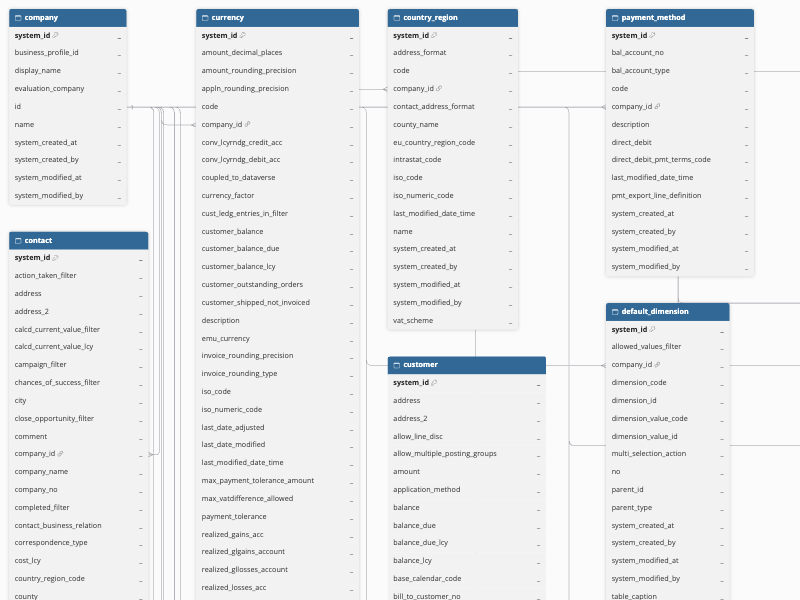
Hevo uses the following schema to upload the records in the Destination. For a detailed view of the objects and their fields, click the ERD.
Data Model
The following is the list of tables (objects) that are created at the Destination when you run the Pipeline. The primary key of every table is system_id.
| Object | Description |
|---|---|
| Company | Contains the list of companies in your Business Central environment, with their names, display names, and business profile identifiers. This object contains all the companies in the environment that the signed-in user can access, not only the ones you select in the Companies field. The system_id of each record is the ID of the company. |
| Currency | Contains the currencies set up in Business Central, including currency codes, descriptions, symbols, and rounding and conversion settings. |
| Country Region | Contains the countries and regions used on addresses and in reporting, along with their codes, names, and related VAT and intra-community settings. |
| Payment Method | Contains the payment methods that can be assigned to customers, vendors, and documents, such as cash or bank transfer. |
| Unit Of Measure | Contains the units of measure, such as piece, box, or kilogram, in which items are bought, stored, and sold. |
| Bank Account | Contains the bank accounts of your company, including bank details, currency, balances, and posting and payment-related settings. |
| Company Information | Contains the business details of each company, such as its name, address, contact information, registration numbers, and shipping and bank details. Each company has one record. |
| Contact | Contains the people and organizations you do business with, including their contact details, type, and relationships to customers, vendors, and salespeople. |
| Currency Exchange Rate | Contains the exchange rates for each currency over time, including the starting date and the exchange rate and adjustment amounts. |
| Customer | Contains details of customers, including contact and address information, posting groups, payment terms, credit limits, balances, and sales-related settings. |
| Default Dimension | Contains the default dimension values assigned to master records, such as customers, vendors, items, and accounts, that are applied when you create entries for them. |
| Dimension | Contains the dimensions, such as department or project, used to analyze entries across your financial data. |
| Dimension Set Entry | Contains the dimension and dimension value combinations that make up each dimension set attached to ledger entries and documents. |
| Dimension Value | Contains the values defined for each dimension, including their codes, names, type, and blocked status. |
| Employee | Contains details of employees, including personal and contact information, job title, employment dates, status, and related posting information. |
| Gen Journal Batch | Contains the batches within general journal templates, which group journal lines for posting. Each record includes the batch name, template, balancing account, and numbering settings. |
| Gen Journal Line | Contains the unposted lines in general journals, including the posting date, document number, account, amount, currency, and balancing account. |
| Gen Product Posting Group | Contains the general product posting groups that determine the general ledger accounts used when posting items and resources. |
| G/L Account | Contains the chart of accounts, including account numbers, names, categories, account type, income or balance sheet classification, and posting settings. |
| G/L Entry | Contains the posted general ledger entries, including the posting date, document number, account, debit and credit amounts, and dimensions. |
| Inventory Posting Group | Contains the inventory posting groups that determine the general ledger accounts used for inventory transactions. |
| Item | Contains details of the items you buy and sell, including descriptions, type, unit of measure, pricing and costing information, inventory levels, and posting groups. |
| Item Category | Contains the categories used to group items, including their codes, descriptions, and parent categories. |
| Item Ledger Entry | Contains the posted entries that record every inventory transaction, such as purchases, sales, and adjustments, with quantities, locations, and cost information. |
| Item Variant | Contains the variants of items, such as different sizes or colors, including their codes and descriptions. |
| Job | Contains the jobs (projects) you manage, including their descriptions, customers, status, dates, and posting settings. |
| Location | Contains the locations, such as warehouses or distribution centers, where you store inventory, including their address, contact, and warehouse settings. |
| Opportunity | Contains the sales opportunities tracked in Business Central, including the contact, salesperson, status, and the current stage. |
| Payment Terms | Contains the payment terms that define due dates and discounts for documents, including the due date and discount calculations. |
| Posted Gen Journal Batch | Contains the batches of general journal lines that have been posted. |
| Posted Gen Journal Line | Contains the general journal lines that have been posted, including the posting date, document number, account, and amounts. |
| Purchase Header | Contains the header information of purchase documents that are not yet posted, such as orders, including the vendor, document type, dates, amounts, and status. The lines of a document are available in the purchase_line object. |
| Purchase Line | Contains the lines of unposted purchase documents, including the item or account, quantity, unit cost, and amounts. Each line is linked to its header through the document number. |
| Purch Inv Header | Contains the header information of posted purchase invoices, including the vendor, posting date, amounts, and payment terms. |
| Purch Inv Line | Contains the lines of posted purchase invoices, including the item or account, quantity, unit cost, and amounts. |
| Purch Rcpt Header | Contains the header information of posted purchase receipts, including the vendor, posting date, and shipping details. |
| Purch Rcpt Line | Contains the lines of posted purchase receipts, including the item, quantity received, and location. |
| Reason Code | Contains the reason codes that you assign to entries and documents to identify why a transaction was created. |
| Sales Cr Memo Header | Contains the header information of posted sales credit memos, including the customer, posting date, and amounts. |
| Sales Cr Memo Line | Contains the lines of posted sales credit memos, including the item or account, quantity, unit price, and amounts. |
| Sales Header | Contains the header information of sales documents that are not yet posted, such as orders and quotes, including the customer, document type, dates, amounts, and status. The lines of a document are available in the sales_line object. |
| Sales Invoice Header | Contains the header information of posted sales invoices, including the customer, posting date, amounts, and payment terms. |
| Sales Invoice Line | Contains the lines of posted sales invoices, including the item or account, quantity, unit price, and amounts. |
| Sales Line | Contains the lines of unposted sales documents, including the item or account, quantity, unit price, and amounts. Each line is linked to its header through the document number. |
| Sales Shipment Header | Contains the header information of posted sales shipments, including the customer, posting date, and shipping details. |
| Sales Shipment Line | Contains the lines of posted sales shipments, including the item, quantity shipped, and location. |
| Shipment Method | Contains the shipment methods, such as delivery terms, that are assigned to customers, vendors, and documents. |
| Time Sheet Detail | Contains the daily time entries recorded on time sheet lines, including the resource, date, and quantity of time. |
| Vendor | Contains details of vendors, including contact and address information, posting groups, payment terms, balances, and purchase-related settings. |
Additional Information
Read the detailed Hevo documentation for the following related topics:
Handling of Deletes
Business Central does not return deleted records in its API responses. Hence, the Hevo Business Central extension records each record deleted from the tables that Hevo replicates. Delete capture is turned on by default. In every Pipeline run, Hevo reads these entries and marks the deleted records in the Destination by setting the value of the metadata column __hevo__marked_deleted to True. The other fields of the record keep their last values. As a result, a record deleted in Business Central is marked as deleted in the next Pipeline run, for all objects.
In the first run and in a resync, Hevo also compares the data it reads with the data present in the Destination table, and marks the records that it no longer finds as deleted.
If you remove a company from the Source, or the company is deleted in Business Central, Hevo reads every object in full in the next run and marks the records of that company as deleted.
Delete capture turned off: If an administrator turns off Delete Capture Enabled on the Hevo Integration Setup page of a company, the connection test still succeeds, and Hevo continues to replicate the new and updated records of that company. Hevo then reads each object in full once every seven days, for all the selected companies, and marks the records that it no longer finds as deleted. Turn the setting back on to capture deletes in every run, and then resync the objects of the Pipeline to mark the records deleted since the last weekly full read.
Note:
-
If deleted-record entries are missing, for example, because delete capture was turned off and on between two runs, the extension was reinstalled, or the entries were removed by the retention policy (one month by default), the affected objects fail with a message asking you to resync them. Resync the affected objects to resume ingestion.
-
If Hevo cannot read the deleted records of a company during a run, for example, because the extension was uninstalled or the HEVO READ permission set was removed, the affected objects fail without loading any data, and Hevo retries them in the next run.
-
In rare cases, such as records deleted by custom code without being read first, the extension cannot record the delete. Hevo marks such records as deleted only when you resync the object.
-
Hevo captures deletes only for the objects that use the Merge load mode.
Source Considerations
-
Business Central does not update the system_modified_at field of a record when the value of a calculated field (FlowField) changes, such as a customer’s balance. Hence, Hevo updates such a value only when the record itself changes, or when you resync the object. The value in the Destination can be older than seven days. If delete capture is turned off for a company, the weekly full read also updates these values.
-
The Company object contains all the companies in your Business Central environment that the signed-in user can access, irrespective of the companies you select in the Companies field.
-
Hevo reads the data of one Business Central environment in each Pipeline. To ingest data from another environment, such as a sandbox, create a separate Pipeline.
-
Hevo stores the selected companies by their name. If a selected company is renamed or deleted in Business Central, or the signed-in user can no longer see it, the connection test and the Pipeline fail until you select the companies again. If the extension has recorded the company as deleted, Hevo instead skips the company, reads every object in full once, and marks the records of the company as deleted. This full read takes about as long as the first run. Remove the deleted company from the Companies field. Otherwise, the Pipeline fails once the retention policy removes the extension’s record of the deletion, one month later by default.
-
If delete capture is turned off for a company and all the records of an object are deleted in Business Central, the weekly full read returns no records, and Hevo does not mark the existing records of that object as deleted.
-
Delete capture makes bulk deletes in Business Central, such as posting large journals or running date compression, slower, because the extension records each deleted record.
-
The extension keeps the deleted-record entries for one month by default, under Retention Policies. If a Pipeline is paused for longer than that, the affected objects fail with a message asking you to resync them.
-
If the ingestion of an object fails for one company, the object fails for all the companies in that run.
Limitations
-
Hevo replicates a fixed set of 49 objects. Custom tables and the tables added by other extensions are not available.
-
The extension follows the US and worldwide (W1) versions of the Business Central tables. In a localized version that removes one of these fields, the extension may fail to install. Contact Hevo Support in this case.
-
Hevo does not ingest the content of Blob fields. These fields, such as picture in the Company Information and G/L Account objects, and work_description in the sales header objects, are loaded as NULL. Their media links are loaded into the *_odata_media_*_link fields.
-
For Media and MediaSet fields, such as item and contact pictures, Hevo ingests the ID of the media, not the image.
-
Hevo does not ingest fields that Microsoft has marked as obsolete. For example, the invoice_copies field of the Customer object is loaded as NULL.
-
The evaluation_company field of the Company object is always loaded as NULL.
-
When you copy a company in Business Central, the records of the new company keep the system_id of the original records. As system_id is the primary key of every table, if you select both companies and use the Merge load mode, the records of one company overwrite the matching records of the other company in the Destination.
Troubleshooting
The following table lists the errors that you may see while configuring the Source or during ingestion, and how to resolve them:
| Error | Cause | Resolution |
|---|---|---|
| Business Central environment ‘<name>’ was not found | The Environment Name does not match an environment in your tenant. | Copy the environment name from the Business Central admin center, and update it in the Source configuration. |
| Business Central rejected the sign-in | Business Central rejected the sign-in, or the authorization expired or was revoked. | Check the Tenant ID, and authenticate again as a user of the environment. If your tenant requires admin consent, ask an administrator to grant consent to Hevo’s application. |
| Cannot list the companies in Business Central environment ‘<name>’ | The signed-in user cannot access the environment. | Ensure that the user has a Business Central license and access to the environment. |
| Business Central environment ‘<name>’ has no companies the signed-in user can see | The signed-in user cannot access any company in the environment. | Give the user access to the companies from which you want to ingest data, and authenticate again. |
| Cannot read data for company ‘<name>’ (HTTP 404) | The Hevo Business Central extension is not installed in the environment. | Install the extension, and then test the connection again. |
| Cannot read data for company ‘<name>’ (HTTP 401 or 403) | The signed-in user does not have the HEVO READ permission set for the company. | Assign the HEVO READ permission set with the Company field left blank, or for the company. |
| Hevo cannot read deleted records for company ‘<name>’ | The extension is older than version 1.2.0.0, the user does not have the HEVO READ permission set, or the company has no Hevo Integration Setup entry. | Upgrade the extension to version 1.2.0.0 or later, assign the HEVO READ permission set, or open the Hevo Integration Setup page once in the company. |
| Gap in Hevo’s delete feed | Deleted-record entries are missing for an object, for example, because delete capture was turned off and on, the extension was reinstalled, or the entries were removed by the retention policy before Hevo read them. | Resync the object. Keep delete capture turned on, and run the Pipeline more often than the retention period. |
| These selected companies are no longer in Business Central environment ‘<name>’ | A selected company was renamed or deleted, or the signed-in user can no longer see it. | Select the companies again in the Source configuration, and remove the deleted company. |
| Every company selected for this pipeline was deleted in Business Central | All the selected companies were deleted. | Select at least one existing company in the Source configuration. |
| No company is selected for this pipeline | The Companies field is empty. | Select at least one company in the Source configuration. |
| Business Central is limiting requests right now (HTTP 429) or did not answer in time | Business Central limited the requests or was temporarily unavailable. | Wait a few minutes, and then test the connection again. |
If the extension fails to install, check that your environment runs Business Central version 28.0 or later, and that no other extension in the environment uses the object IDs 86500 to 86649. For other errors, contact Hevo Support.
Revision History
Refer to the following table for the list of key updates made to this page:
| Date | Release | Description of Change |
|---|---|---|
| Oct-23-2026 | NA | New document. |