On This Page
Salesforce Marketing Cloud is a digital marketing platform that helps businesses engage customers through email, mobile, social media, and web channels. It enables marketers to create personalized campaigns, automate customer journeys, and track customer engagement.
Hevo uses the Salesforce Marketing Cloud SOAP API and REST API to replicate core objects such as campaigns, journeys, subscribers, and send events. To replicate Data Extensions and email tracking data, Hevo uses the Enhanced FTP (SFTP). This requires additional SFTP credentials during Pipeline setup.
To connect Salesforce Marketing Cloud to Hevo, create an Installed Package in Salesforce Marketing Cloud, a container that holds API integrations and their credentials, and provide the generated Client ID and Client Secret.
Supported Features
| Feature Name | Supported |
|---|---|
| Capture deletes | Yes |
| Custom data (user-configured tables & fields) | Yes |
| Data blocking (skip objects and fields) | Yes |
| Resync (objects and Pipelines) | Yes |
| API configurable | Yes |
| Authorization via API | Yes |
Prerequisites
-
An active Salesforce Marketing Cloud account exists from which data is to be ingested.
-
You have Administrator access to Salesforce Marketing Cloud to create an Installed Package and configure API permissions.
-
The client ID and secret are available from the Installed Package.
-
(Optional) You have the required SFTP credentials to ingest data available through SFTP, such as Data Extensions and email tracking data.
Create an Install Package and Obtain API Credentials
You need to create an API Integration package to generate the Client ID, Client Secret, and Subdomain to allow Hevo to read your Salesforce Marketing Cloud data. To do this:
-
Log in to your Salesforce Marketing Cloud account.
-
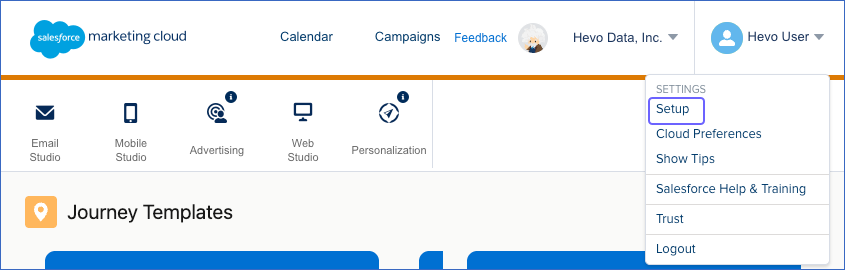
In the top right corner of the page, hover over your username, and then click Setup.
-
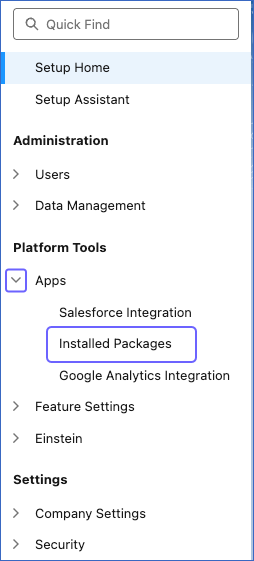
In the left navigation pane, under Platform Tools, click the Apps drop-down and then click Installed Packages.
-
On the Installed Packages page, click New.

-
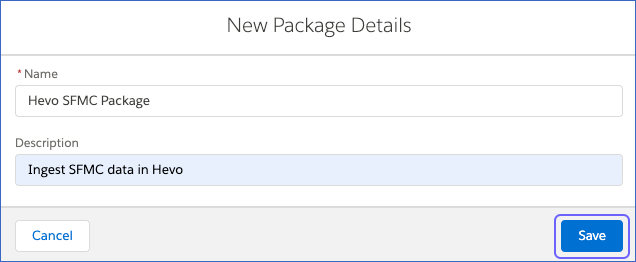
On the New Package Details pop-up window, specify a unique name and a brief description for the package, and then click Save.
-
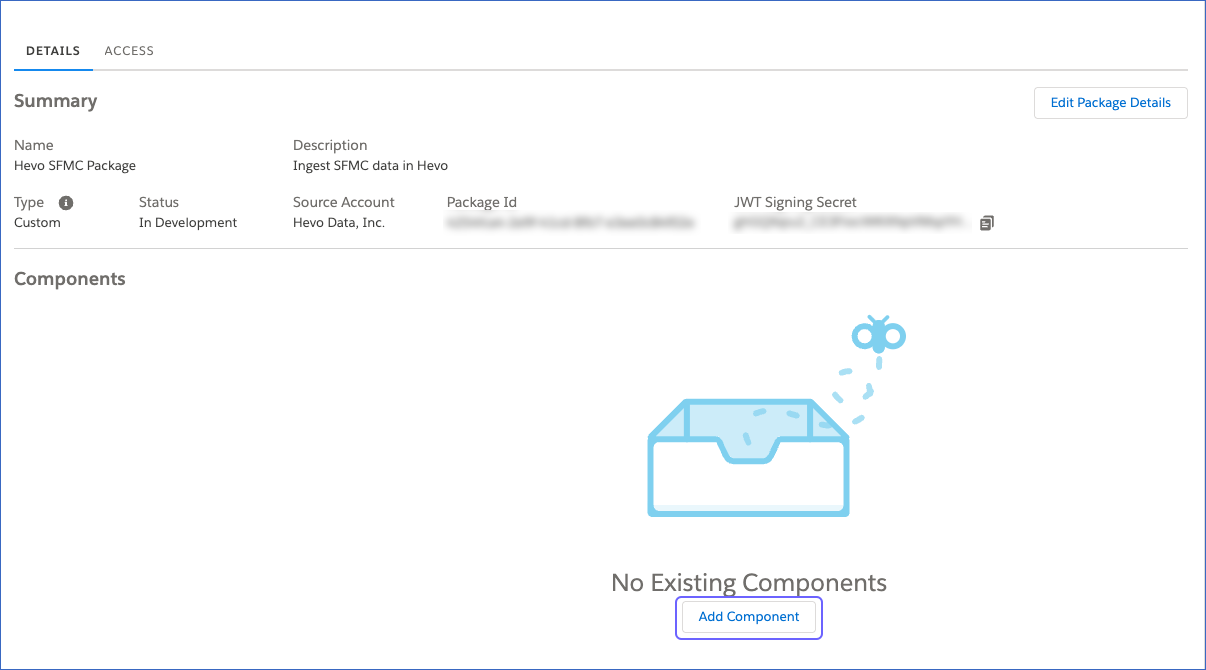
In the Components section, click Add Component.
-
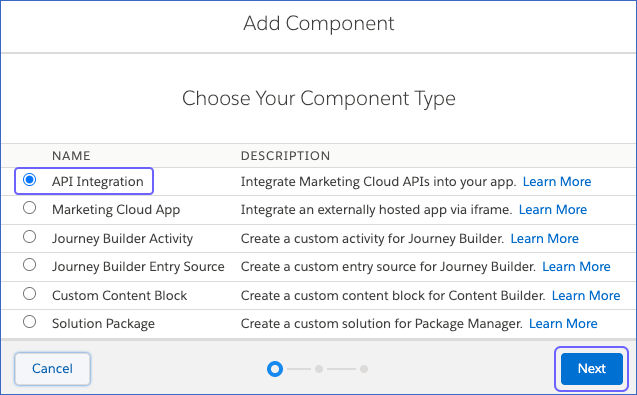
In the Add Component pop-up window, select API Integration, and then click Next.
-
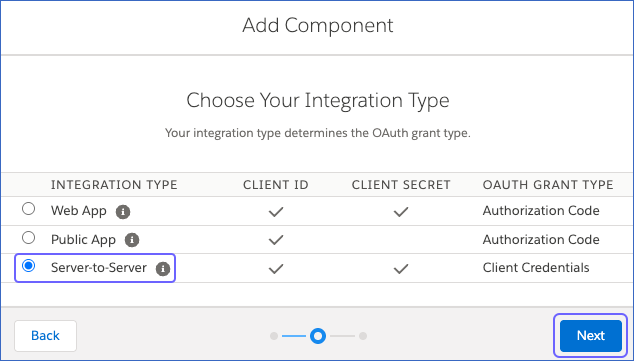
Select Server-to-Server as the integration type and click Next.
-
Configure the following scopes for the Installed Package, and then click Save:
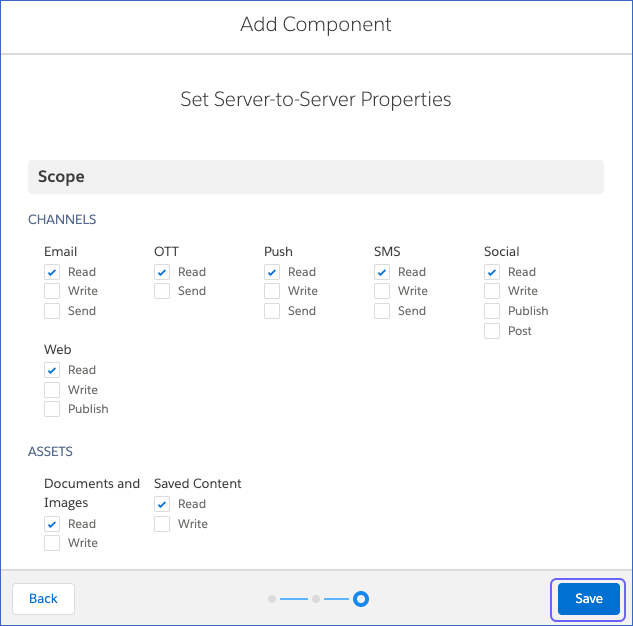
Read
-
Campaign
-
Documents and Images
-
Email
-
File Locations
-
Journeys
-
List and Subscribers
-
OTT
-
OTT Channels
-
Push
-
Saved Content
-
SMS
-
Social
-
Web
Read and Write
- Data Extensions
Read, Write, and Execute
- Automations
Note:
-
The Data Extensions permissions are required only if you enable the Ingest Data Extensions option while configuring your Source in Hevo.
-
The Automations permissions are required only if you enable the Ingest Data Extensions or Ingest Tracking Tables option while configuring your Source in Hevo.
-
-
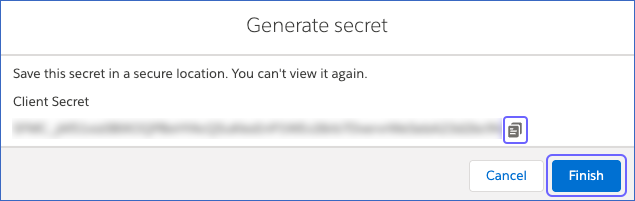
In the Generate secret pop-up window, copy the Client Secret and click Finish. Store the Client Secret securely.
-
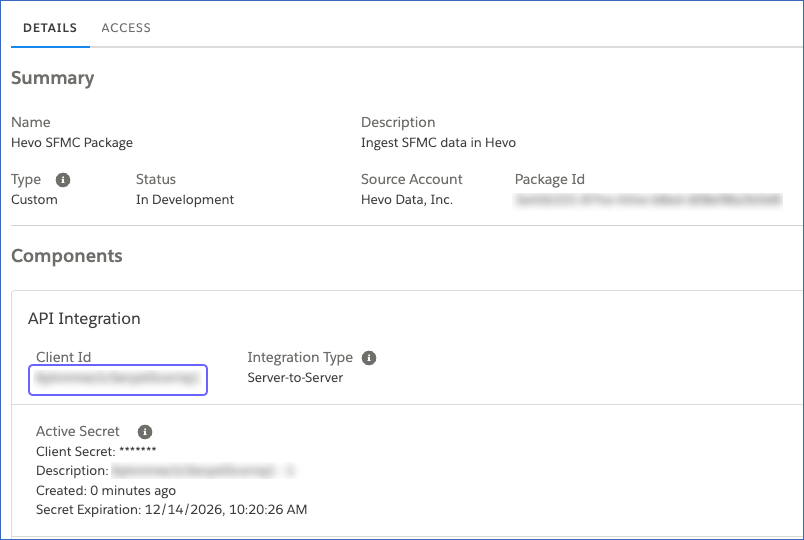
In the Components section, under API Integration, copy the Client Id and store it securely.
-
Click to copy the Authentication Base URI. The Subdomain is the string between
https://and.auth.marketingcloudapis.com.For example, if the URL ishttps://mc68kfxmfcrk1w1148s4f0ww32vy.auth.marketingcloudapis.com, the Subdomain is mc68kfxmfcrk1w1148s4f0ww32vy.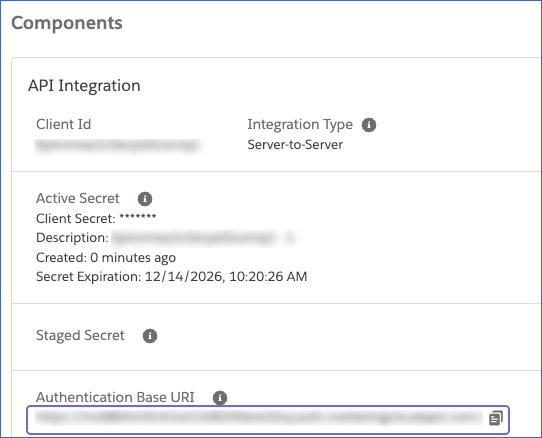
Use the Client Id, Client Secret, and Subdomain values while configuring your Salesforce Marketing Cloud Source in Hevo.
Note: If the Client ID or Client Secret configured in the Pipeline is manually rotated or revoked from the Installed Package, Hevo cannot authenticate with the Source. As a result, all active jobs for the Pipeline fail, and no data is replicated. To resume data replication, modify the Source configuration in the Pipeline with valid credentials. Once the updated credentials are saved, Hevo re-authenticates the Source, and data ingestion resumes from the last saved offset.
Set up SFTP Access (Optional)
Hevo uses Salesforce Marketing Cloud’s Enhanced FTP (SFTP) to ingest data from Data Extensions and Tracking Tables. You must configure SFTP access only if you enable the Ingest Data Extensions or Ingest Tracking Tables option while configuring your Source in Hevo.
To set up SFTP access, perform the following steps:
1. Create a File Location
Create an enhanced FTP file location to store the files generated by Salesforce Marketing Cloud for Hevo to ingest.
-
Log in to your Salesforce Marketing Cloud account.
-
In the top right corner of the page, hover over your username, and then click Setup.
-
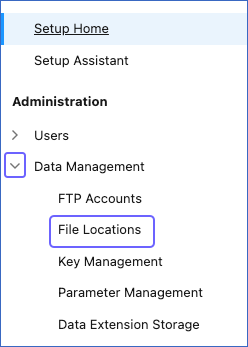
In the left navigation pane, under Administration, click the Data Management drop-down and then click File Locations.
-
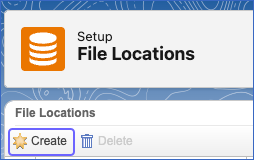
On the File Locations page, click Create.
-
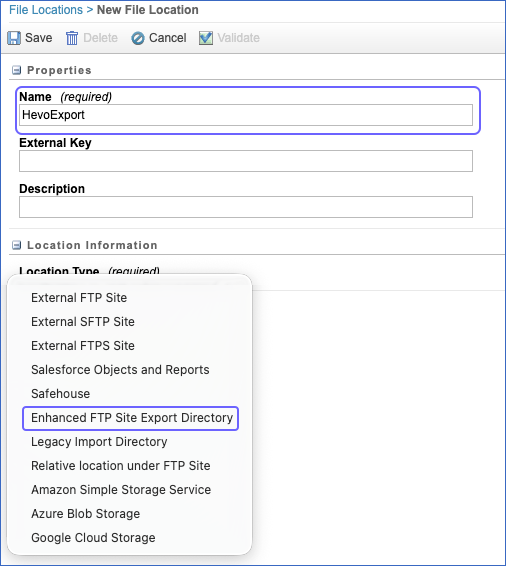
On the page that appears, specify the Name as HevoExport and select Enhanced FTP Site Export Directory from the Location Type drop-down.
-
Click Save.
2. Configure Authentication
Configure an FTP user to allow Hevo to access the files stored in the enhanced FTP location. You can authenticate using either a password or an SSH key pair.
Using password authentication
-
Log in to your Salesforce Marketing Cloud account.
-
In the top right corner of the page, hover over your username, and then click Setup.
-
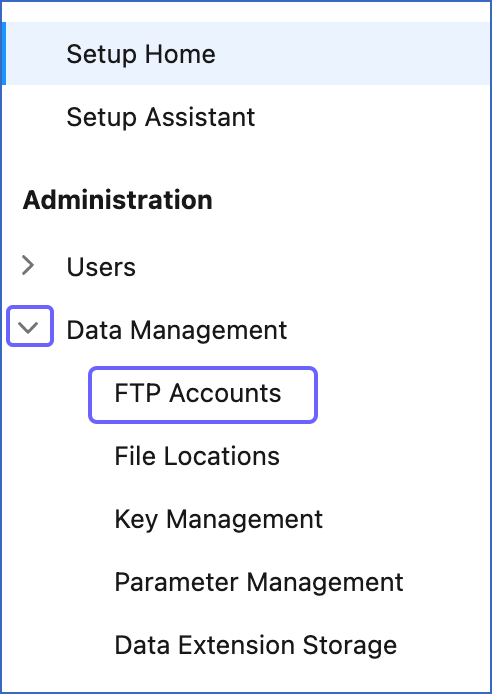
In the left navigation pane, under Administration, click the Data Management drop-down and then click FTP Accounts.
-
On the FTP Accounts page, make a note of the host and port values, and then click Create User.

-
In the window that appears, specify your email address and a password, and then click Next.
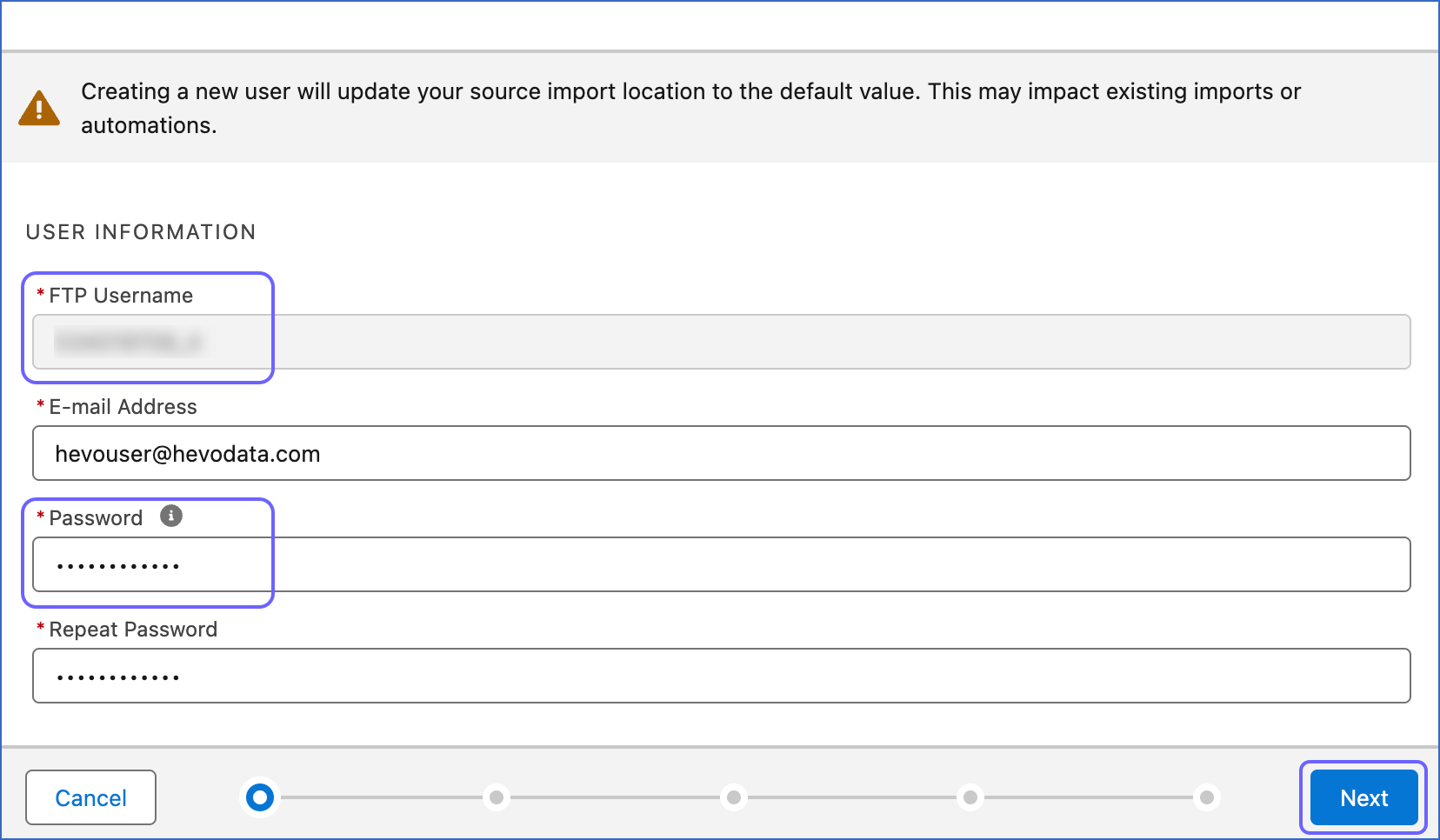
Make a note of the FTP Username and Password.
-
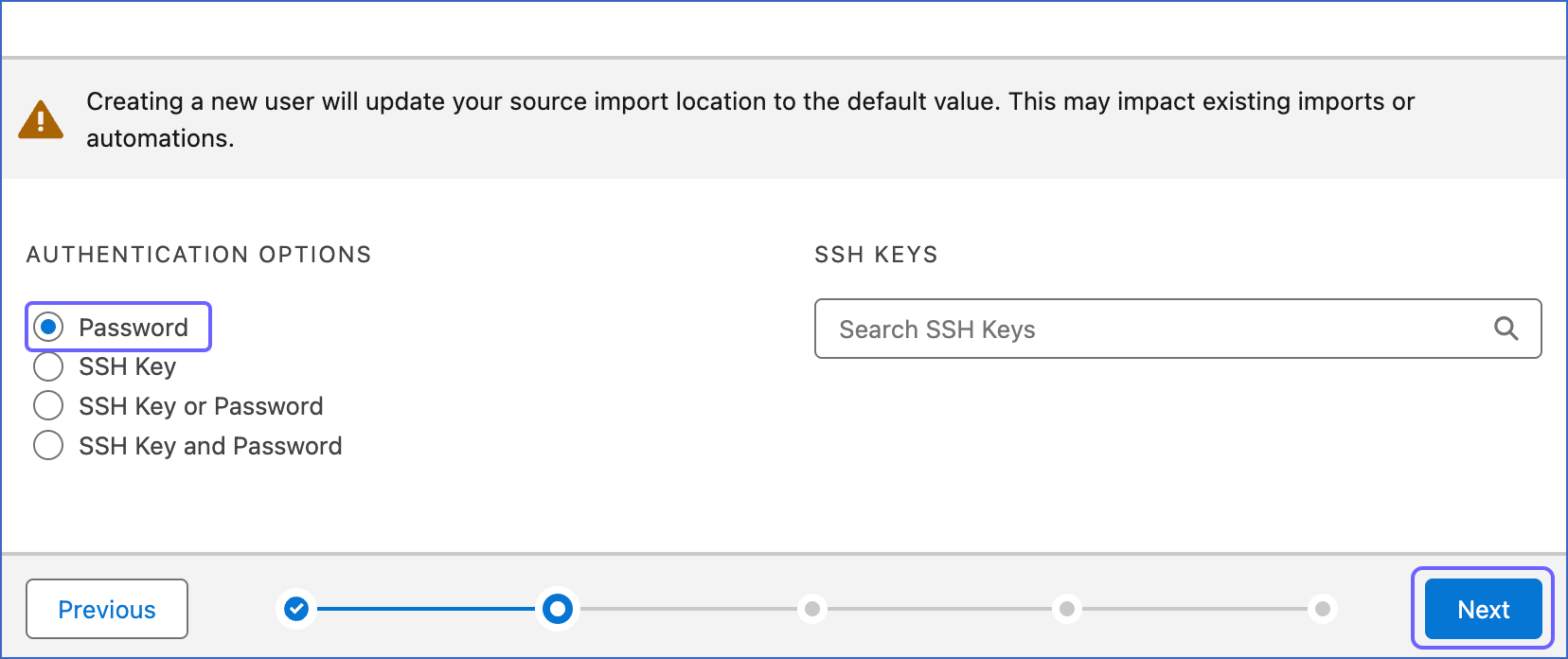
In the AUTHENTICATION OPTIONS section, select Password and click Next.
-
In the PERMISSIONS section, select the checkboxes as follows and click Next:
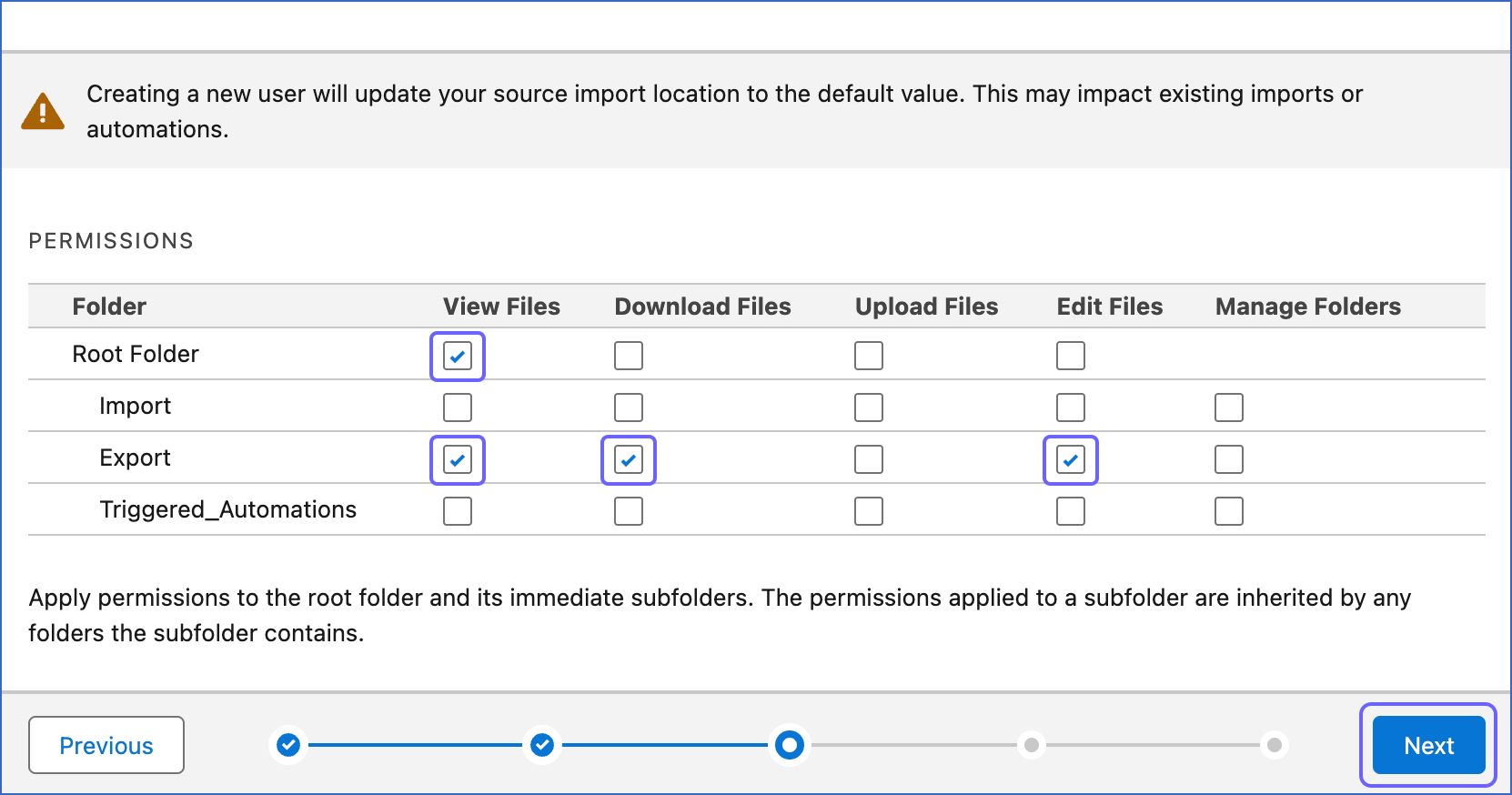
- Root Folder: View Files
- Export: View Files, Download Files, Edit Files
-
Skip to the FOLDERS section by clicking Next, and then click Save.
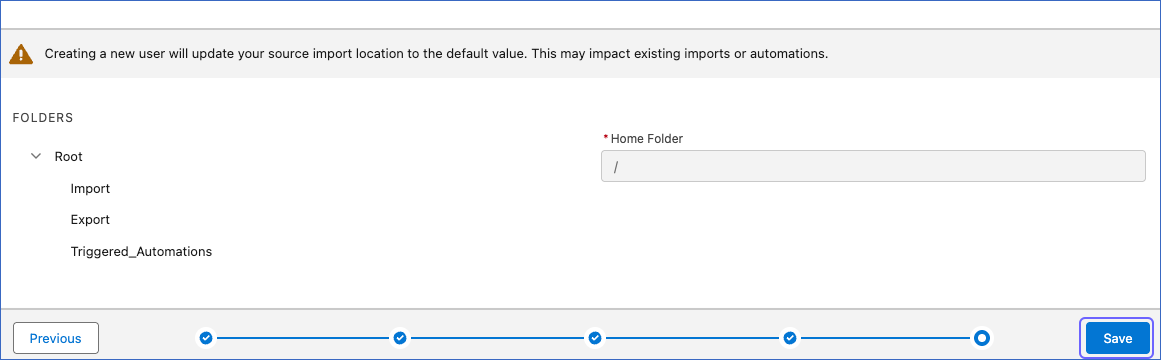
Use the host, port, FTP Username, and Password values while configuring your Source in Hevo.
Using key pair authentication
To use an SSH key pair for authentication, you must:
-
Upload the public key file to your Salesforce Marketing Cloud account
-
Create an FTP user using the uploaded file
1. Generate a private and public key pair
-
Open a terminal window, and on the command line, run the following command to generate a private key:
ssh-keygen -t rsa -b 4096 -m PEM -f <private_key_name> -N ""Note: Replace the placeholder values in the commands above with your own. For example, <private_key_name> with rsa_key.
Both the private and public keys are generated. Save the key files in a secure location.
-
In the terminal window, on the command line, run the following command:
ssh-keygen -e -m RFC4716 -f <public_key_name>.pub > <public_key_name>.pub.ssh2Note: Replace the placeholder values in the commands above with your own. For example, <public_key_name> with rsa_key.
This converts the public key file generated in step 1 to an SSH2 (RFC4716) format, which is required by Salesforce Marketing Cloud.
2. Upload the public key file
-
Log in to your Salesforce Marketing Cloud account.
-
In the top right corner of the page, hover over your username, and then click Setup.
-
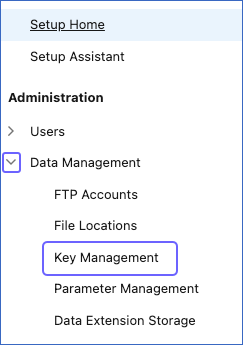
In the left navigation pane, under Administration, click the Data Management drop-down and then click Key Management.
-
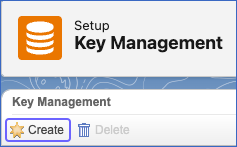
On the Key Management page, click Create.
-
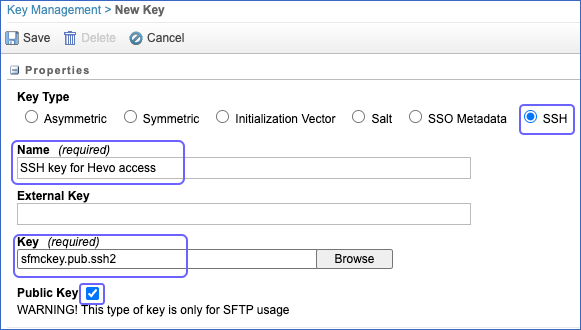
In the Properties section, do the following:
-
Select SSH as the Key Type.
-
In the Name field, specify a unique name for the public key you want to upload.
-
In the Key field, click Browse and upload the .pub.ssh2 file that you generated in the Generate a private and public key pair section.
-
Select the Public Key check box.
-
-
Click Save.
3. Create an FTP User
-
In the left navigation pane, under Administration, click the Data Management drop-down and then click FTP Accounts.
-
On the FTP Accounts page, note the host and port values, and then click Create User.
-
In the window that appears, specify your email address and a password, and then click Next.
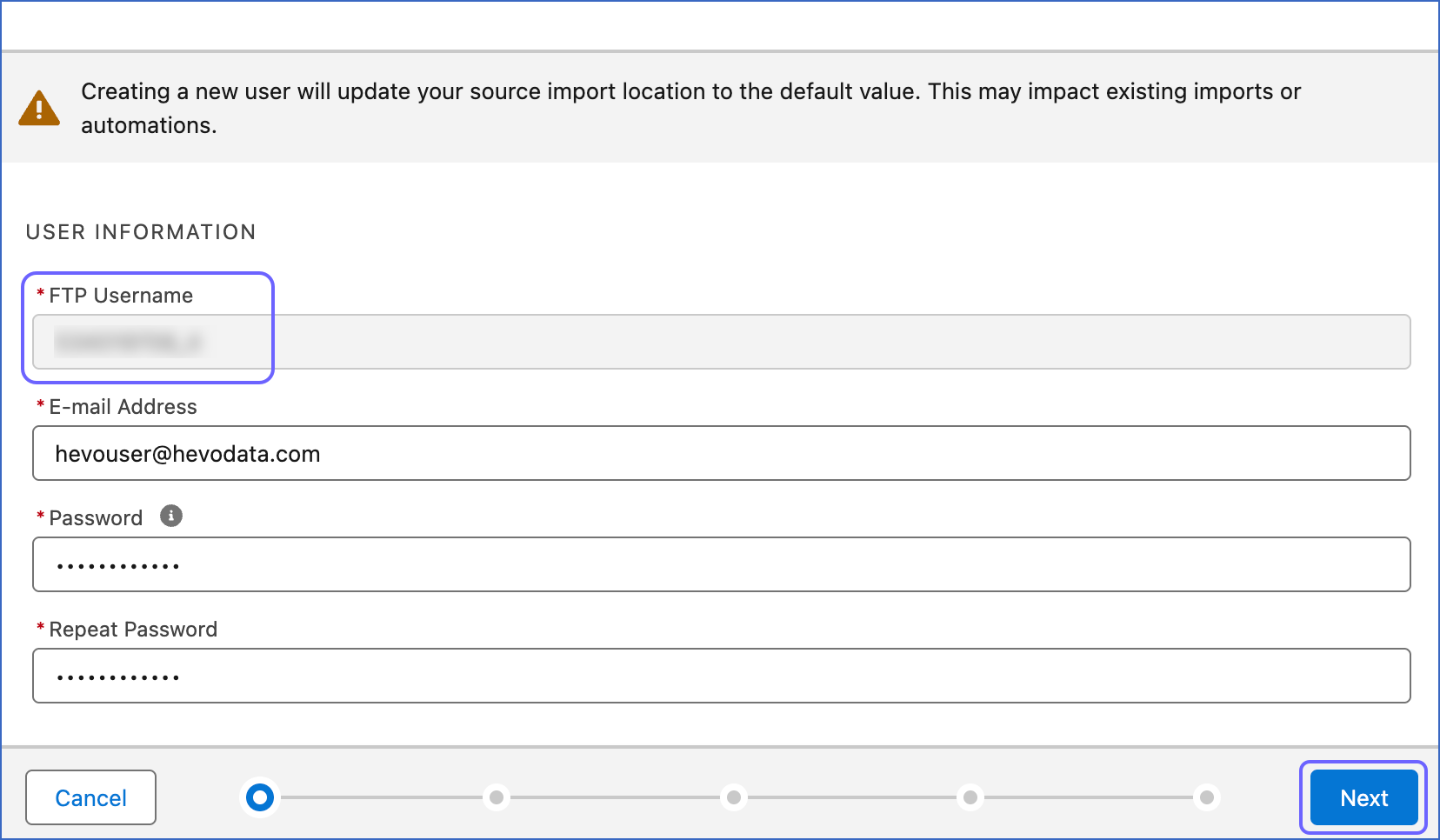
Make a note of the FTP Username. Use this value while configuring your Source in Hevo.
-
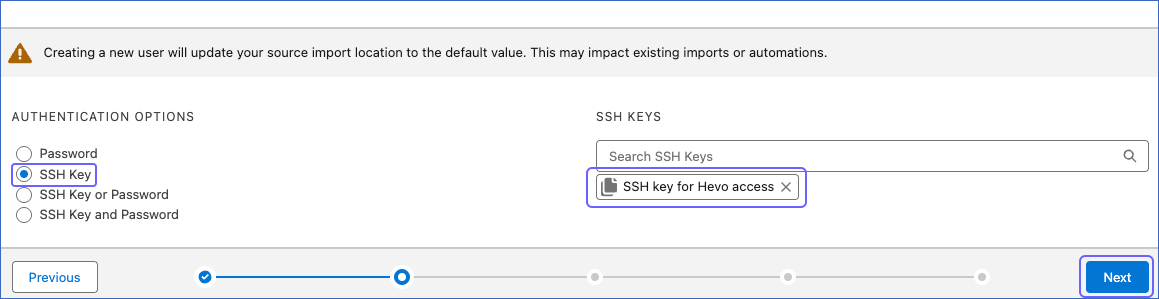
In the AUTHENTICATION OPTIONS section, select SSH Key.
-
In the SSH KEYS section, search for and select the public key file that you uploaded in Upload the public key file section, and then click Next.
-
In the PERMISSIONS section, select the check boxes as follows and click Next:
- Root Folder: View Files
- Export: View Files, Download Files, Edit Files
-
Skip to the FOLDERS section by clicking Next, and then click Save.
Use the host, port, and FTP Username while configuring your Source in Hevo.
Configure Salesforce Marketing Cloud as a Source in your Pipeline
Perform the following steps to configure your Salesforce Marketing Cloud Source:
-
Click Pipelines in the Navigation Bar.
-
Click + Create Pipeline in the Pipelines List View.
-
On the Select Source Type page, select Salesforce Marketing Cloud.
-
On the Select Destination Type page, select the type of Destination you want to use.
-
On the Select Pipeline Type page, click Edge, and then click Continue.
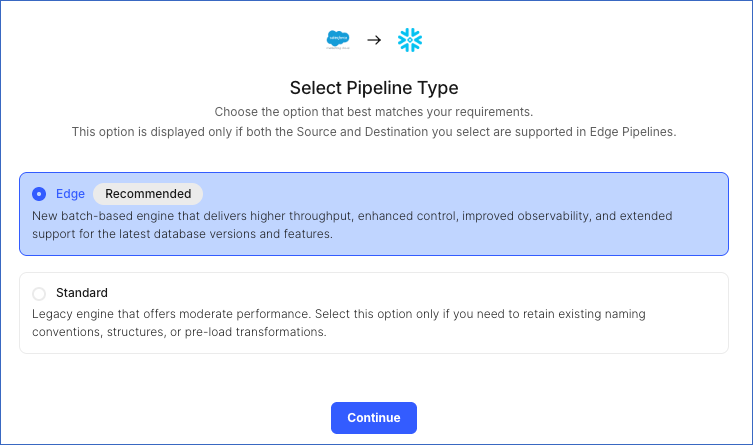
This page appears only if the selected Destination type is supported in Edge and your Team has an existing Salesforce Marketing Cloud Pipeline with the same Destination type. Otherwise, you can proceed to create an Edge Pipeline.
-
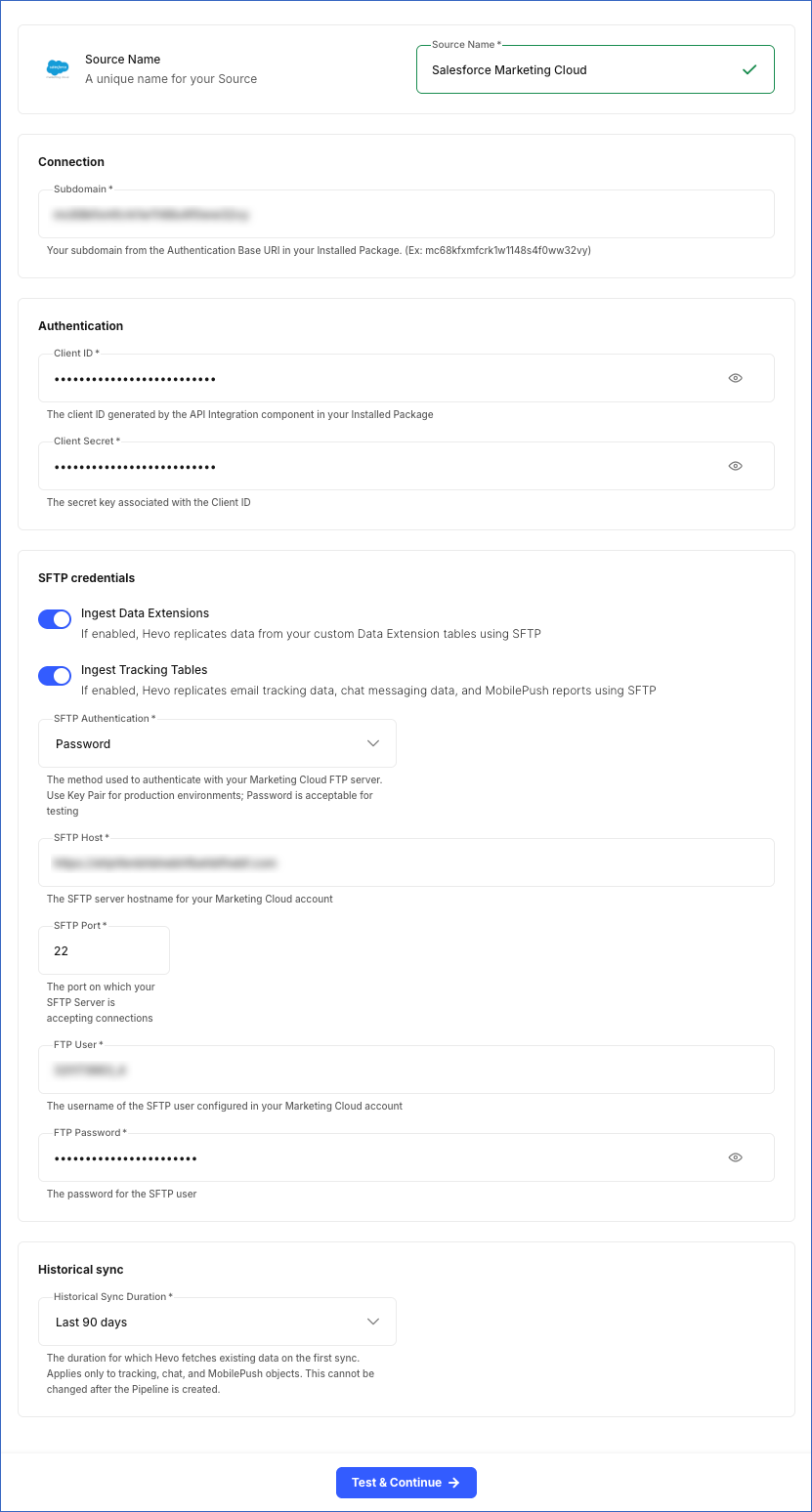
In the Configure Source screen, specify the following:
-
Source Name: A unique name for your Source, not exceeding 255 characters. For example, Salesforce Marketing Cloud Source.
-
In the Connection section:
- Subdomain: The 28-character identifier of your Marketing Cloud account. This is the string you obtained in the Create an Install Package and Obtain API Credentials section.
-
In the Authentication section:
-
Client ID: The Client ID of the API Integration component you obtained in the Create an Install Package and Obtain API Credentials section.
-
Client Secret: The Client Secret from the API Integration component you obtained in the Create an Install Package and Obtain API Credentials section.
-
-
(Optional) SFTP credentials:
If you want to ingest data using SFTP, enable one or both of the following options:
-
Ingest Data Extensions: If enabled, Hevo ingests data from your Salesforce Marketing Cloud Data Extensions.
-
Ingest Tracking Tables: Allows Hevo to ingest email tracking data, chat messaging data, and MobilePush reports. This option is enabled by default.
If you enable either of the options, specify the following:
-
SFTP Authentication Method: Select the authentication method for SFTP connections. You can authenticate using any of the following options:
-
Password: Authenticate using an FTP username and password. Suitable for testing environments.
-
Key Pair: Authenticate using an FTP username and an RSA private key (PEM format). Recommended for production environments.
-
-
SFTP Host: The Enhanced FTP hostname for your Marketing Cloud account. This is the hostname you obtained in the Configure Authentication section.
-
SFTP Port: The port number for the SFTP connection. This is the port you obtained in the Configure Authentication section. Default value: 22.
-
FTP User: The FTP username you configured in the Configure Authentication section.
Based on the SFTP authentication method you selected, specify the following fields:
-
FTP Password: The password for your FTP user you configured in the Using password authentication section. This field is displayed if you select Password as the SFTP Authentication Method.
-
Private Key: Upload the PEM-encoded RSA private key you generated for your FTP user in the Using key pair authentication section. This field is displayed if you select Key Pair as the SFTP Authentication Method.
-
-
In the Historical sync section:
- Historical Sync Duration: The duration for which you want to ingest existing data from the Source. This cannot be changed after the Pipeline is created. Default duration: Last 90 Days.
-
-
Click Test & Continue to test the connection to your Salesforce Marketing Cloud Source.
When you click this button, Hevo:
-
Validates the Subdomain, Client ID, and Client Secret.
-
Verifies that the Installed Package grants the required scopes for the selected configuration.
-
If the Ingest Data Extensions or Ingest Tracking Tables option is enabled:
-
Verifies that the HevoExport file location is configured.
-
Checks that Data Extension extraction is supported for your account.
-
Tests the SFTP connection and access to the /Export/ directory.
-
-
If the validations are successful, it verifies that Hevo can access your Marketing Cloud data, and the connection test is marked as successful. You can then proceed to set up your Destination.
Data Replication
Hevo replicates data for all the objects selected on the Configure Objects page during Pipeline creation. By default, all supported objects and their available fields are selected. However, you can modify this selection while creating or editing the Pipeline.
Hevo ingests the following types of data from your Source objects:
-
Historical Data: The first run of the Pipeline ingests all available historical data for the selected objects and loads it into the Destination. For tracking events, chat messaging, and MobilePush report objects, historical data is ingested based on the historical sync duration selected when creating the Pipeline.
-
Incremental Data: Once the historical load is complete, new and updated records for objects are ingested as per the sync frequency.
For the following objects, Hevo ingests the entire data during each Pipeline run:
-
journey
-
activity
-
campaign
-
campaign_asset
-
ott_registration
-
push_application
-
list
-
list_subscriber
-
account_history
-
business_unit_history
-
Data Extension objects
Note:
-
To ingest Data Extensions, enable the Ingest Data Extensions option and provide valid SFTP credentials.
-
Data Extensions are synced once every 24 hours.
For all other objects, Hevo ingests only the incremental data in subsequent Pipeline runs. Incremental changes are detected using timestamp fields such as ModifiedDate, EventDate, modifiedDate, and extract_window_end.
The following objects are replicated in the History mode:
-
list
-
list_subscriber
-
campaign
-
email
All other objects are replicated to the Destination in Merge mode.
Salesforce Marketing Cloud enforces rate limits on its SOAP and REST API endpoints. If this limit is exceeded, a rate limit exception occurs. To understand how Hevo handles such scenarios, read Handling Rate Limit Exceptions.
Schema and Primary Keys
Hevo uses the following schema to upload the records to the Destination. For a detailed view of the objects, fields, and relationships, click the ERD.
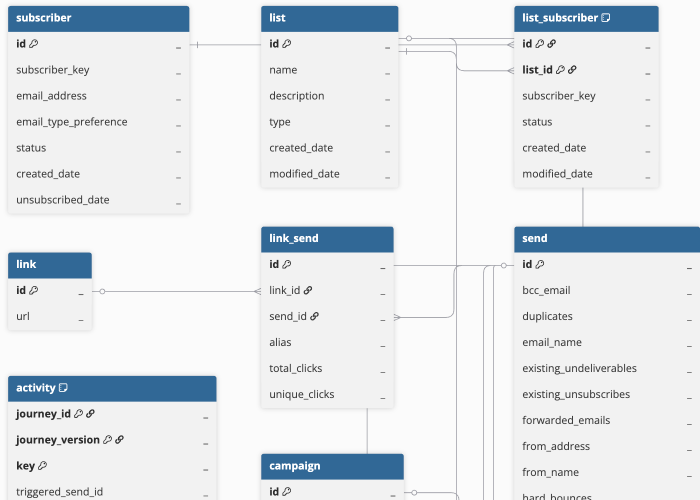
Data Model
The following is the list of tables (objects) that are created at the Destination when you run the Pipeline:
| Object | Description |
|---|---|
| account_history | Contains historical snapshots of Marketing Cloud account details, including account type, business name, contact information, subscription details, and configuration metadata. |
| bounce_event | Contains email bounce events, including bounce type, reason, subscriber details, and associated send information. |
| business_unit_history | Contains historical snapshots of Business Unit details, including account settings, contact information, and parent account relationships. |
| campaign | Contains Marketing Cloud campaigns, including campaign name, description, code, and related assets. This object has a child object, campaign_asset. |
| chat_inbound_message_log | Contains inbound chat message records, including channel ID, mobile number, message data, and creation timestamp. |
| chat_potential_unsubs | Contains contacts that may be unsubscribed from chat messaging channels, including contact details and unsubscribe indicators. |
| chat_tracking | Contains chat messaging tracking records, including delivery status, contact details, journey information, and event timestamps. |
| click_event | Contains email link click events, including clicked URLs, subscriber details, location information, and associated send details. |
| <data_extension_*> | Contains data from customer-defined Data Extensions in your Marketing Cloud account. The schema for each Data Extension is discovered dynamically from the Data Extension’s field metadata. Each Data Extension is replicated as a separate Destination table. |
| Contains email assets, including name, subject line, preheader, HTML body, and asset type identifier. | |
| forwarded_email_event | Contains email forwarding events, including subscriber information, event type, and associated send details. |
| forwarded_email_opt_in_event | Contains opt-in events for recipients who subscribe through forwarded emails, including subscriber and send information. |
| journey | Contains Journey Builder journeys, including journey configuration, status, channel, and version details. This object has a child object, activity. |
| link_send | Contains link-level email engagement metrics, including total and unique clicks for each link in a send. This object has a child object, link. |
| list | Contains subscriber lists, including list name, type, and description. |
| list_subscriber | Contains the relationship between subscribers and lists, including subscriber key, subscription status, and list membership details. |
| mobile_push_detail_report | Contains MobilePush delivery and engagement records, including contact details, delivery status, platform information, and event timestamps. This object has a child object, push_message. |
| open_event | Contains email open events, including subscriber details, location information, and associated send details. |
| ott_registration | Contains Over-the-top (OTT) channel registrations, including channel, application, and platform details. |
| push_application | Contains MobilePush application configurations, including application settings and platform-specific configuration details. |
| send | Contains bulk email send records, including delivery statistics, sender information, and email subject details. |
| sent_event | Contains email sent events, including subscriber, campaign, send, and list details. |
| subscriber | Contains subscriber records for your Marketing Cloud account, including subscriber key, email address, email type preference, and subscription status. |
| survey_event | Contains survey response events, including survey questions, responses, and subscriber details. |
| triggered_send | Contains triggered email send definitions, including sender details, email settings, and execution status. |
| unsub_event | Contains email unsubscribe events, including subscriber details, unsubscribe reason, and associated send information. |
Additional Information
Read the detailed Hevo documentation for the following related topics:
Handling of Deletes
During each Pipeline run, Hevo compares the data fetched from the Source with the data present in the Destination table. If a record exists in the Destination but is no longer returned by the Source, Hevo marks the record as deleted by setting the metadata column __hevo__marked_deleted to True. This applies to journey, activity, and all user-defined Data Extension objects.
For all other objects, deleted records are not available through the Salesforce Marketing Cloud API and cannot be captured by Hevo.
Source Considerations
-
To ingest Data Extensions, your Salesforce Marketing Cloud account must support Data Extension extraction. If this extract type is not available, the Ingest Data Extensions toggle must remain disabled.
-
Hevo recommends creating a separate Pipeline for Data Extensions. Including Data Extensions in a Pipeline with other objects can slow the replication of those objects.
-
Some Marketing Cloud editions do not include the Chat Messaging Detail Extract, MobilePush Detail Extract, or Tracking Extract. If these extract types are not supported in your Marketing Cloud, the corresponding objects are marked as Inaccessible in the Pipeline Objects screen.
-
Hevo supports only Enhanced Packages that use OAuth 2.0 authentication. Legacy Packages are not supported.
Limitations
- For Data Extensions without a primary key, Hevo automatically creates a unique identifier field, _hevo_id, for each record to uniquely identify rows in the Destination.
Revision History
Refer to the following table for the list of key updates made to this page:
| Date | Release | Description of Change |
|---|---|---|
| Jun-22-2026 | NA | New document. |