Zoho Books (Edge)
On This Page
Zoho Books is an online accounting application that businesses use to manage their invoices, bills, expenses, payments, projects, and taxes, and to track their contacts, items, and chart of accounts.
Hevo uses the Zoho Books API to replicate the accounting data of your Zoho Books organization, such as invoices, bills, credit notes, payments, contacts, items, and journals, to the Destination of your choice. Hevo connects to Zoho Books using OAuth 2.0 with a Zoho API client that you register. To ingest data, you must provide Hevo with the Client ID and Client Secret of the API client, the ID of your Zoho Books organization, and the region of your Zoho account, and then authorize Hevo to read your data.
Supported Features
| Feature Name | Supported |
|---|---|
| Capture deletes | Yes. For the Contact, Credit Note, Customer Payment, and Invoice objects, deletes are captured only when you resync the object. |
| History mode | No |
| Custom data (user-configured tables & fields) | Yes, for the custom fields of the Bill, Contact, Credit Note, Invoice, Purchase Order, and Sales Order objects |
| Data blocking (skip objects and fields) | Yes |
| Resync (objects and Pipelines) | Yes |
| API configurable | Yes |
Prerequisites
-
An active Zoho Books organization exists from which data is to be ingested.
-
You are assigned a role in the Zoho Books organization that has View access to the Contacts, Items, Sales, Purchases, Accountant, Projects, and Settings modules, such as the Admin role. Hevo can ingest only the data that your role can access. Read Source Considerations.
-
A Zoho API client is registered, and its Client ID and Client Secret are available.
-
The Organization ID of your Zoho Books organization is available.
Create a Zoho API Client
Hevo connects to Zoho Books through an OAuth client that you register in the Zoho API Console. Register the client in the API Console of the data center where your Zoho account is hosted, for example, https://api-console.zoho.com for the US data center or https://api-console.zoho.eu for the Europe data center. Read OAuth.
Perform the following steps to create an API client:
-
Log in to the Zoho API Console with the Zoho account that you use to access Zoho Books.
-
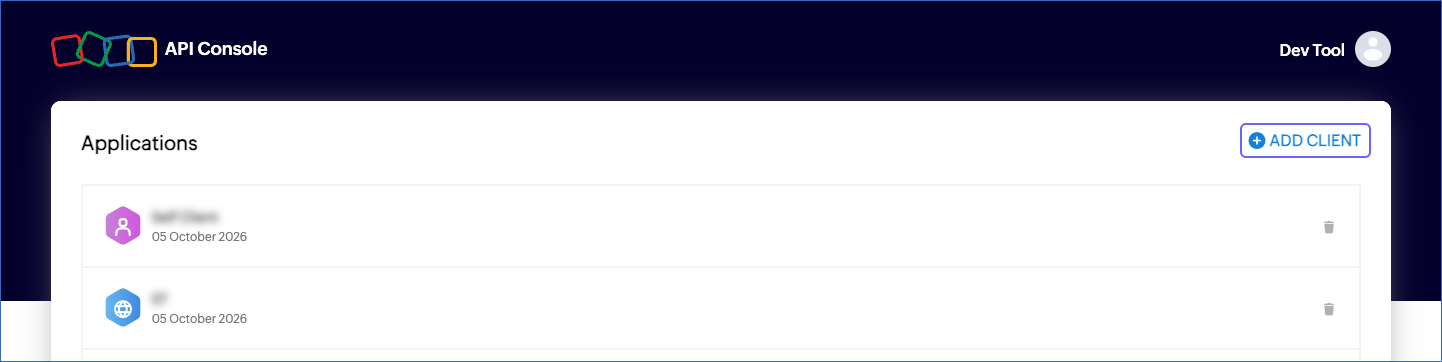
On the Applications page, click ADD CLIENT. If you have not created a client before, Zoho displays the client types directly.
-
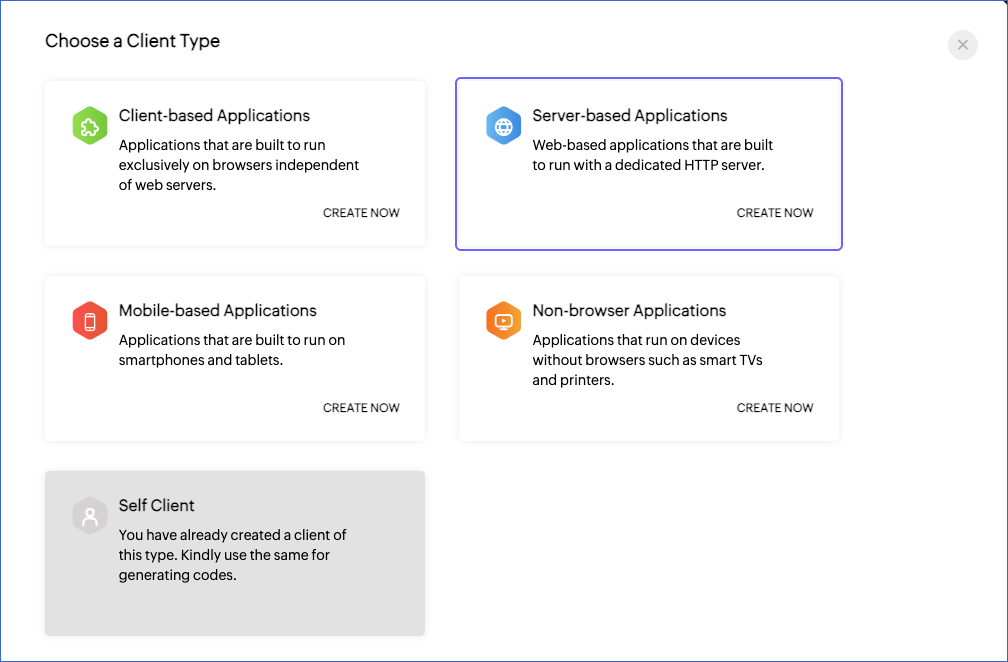
In the Choose a Client Type page, click CREATE NOW in the Server-based Applications card.
-
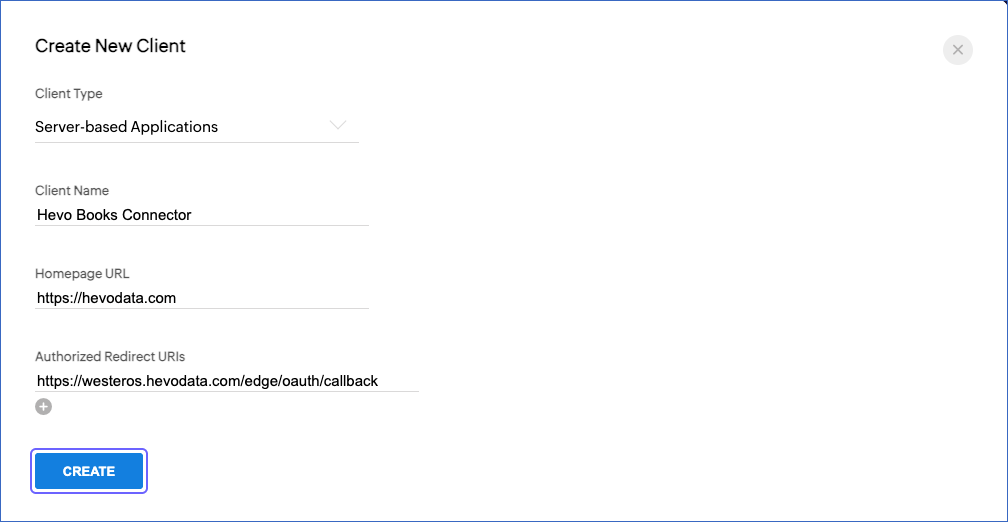
In the Create New Client page, specify the following, and then click CREATE:
-
Client Name: A name for the client. For example, Hevo Books Connector. Zoho does not allow the word Zoho in the client name.
-
Homepage URL: The URL of your company website. For example, https://hevodata.com.
-
Authorized Redirect URIs: https://westeros.hevodata.com/edge/oauth/callback. Hevo returns to this URL after you authorize it to read your Zoho Books data.
-
-
Click the Client Secret tab, and then copy the Client ID and the Client Secret and save them securely like any other password.
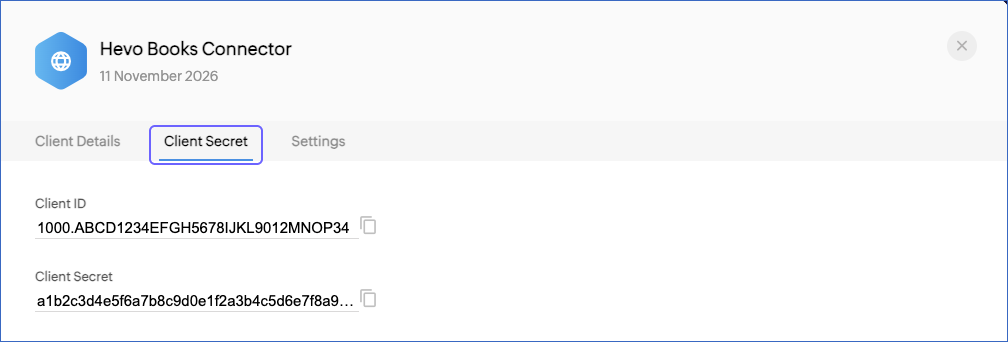
Use these credentials when configuring your Zoho Books Source in Hevo. The Client ID and Client Secret remain available on the Client Secret tab of the client, so you can copy them again later.
If you delete the API client, regenerate its Client Secret, or revoke the access granted to Hevo in your Zoho account, Hevo cannot authenticate with Zoho Books, and all active jobs of the Pipeline fail. To resume data replication, modify the Source configuration in the Pipeline with valid credentials and authorize Hevo again. Once the updated configuration is saved, Hevo re-authenticates the Source, and data ingestion resumes from the last saved position.
Obtain the Organization ID
A Zoho account can belong to more than one Zoho Books organization. Hevo ingests data from the organization whose ID you specify while configuring the Source.
Perform the following steps to obtain the Organization ID:
-
Log in to your Zoho Books organization.
-
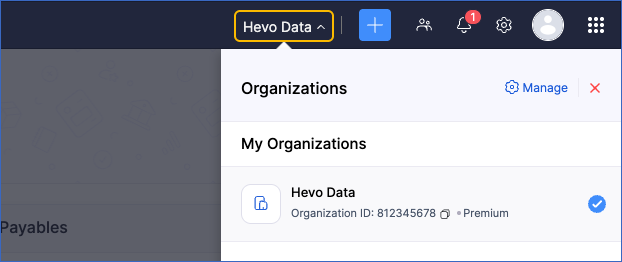
In the top-right corner, click the name of your organization.
-
In the Organizations panel, copy the Organization ID of the organization from which you want to ingest data. The panel also displays the Zoho Books plan of the organization, for example, Premium.
Scopes Required by Hevo
When you authorize Hevo, Zoho asks you to grant the following read-only scopes. Hevo does not create, modify, or delete any data in your Zoho Books organization.
| Scope | Objects |
|---|---|
| ZohoBooks.contacts.READ | Contact, Contact Address, Contact Person, and Default Template |
| ZohoBooks.invoices.READ | Invoice and its child objects |
| ZohoBooks.creditnotes.READ | Credit Note, Credit Note Refund, and the child objects of Credit Note |
| ZohoBooks.customerpayments.READ | Customer Payment and Customer Payment Invoice |
| ZohoBooks.bills.READ | Bill |
| ZohoBooks.estimates.READ | Estimate |
| ZohoBooks.expenses.READ | Expense |
| ZohoBooks.salesorders.READ | Sales Order |
| ZohoBooks.purchaseorders.READ | Purchase Order |
| ZohoBooks.projects.READ | Project and Time Entry |
| ZohoBooks.accountants.READ | Chart of Account, Chart of Account Document, and Journal List |
| ZohoBooks.settings.READ | Currency, Item, Tax, and Users. Hevo also uses this scope to validate the Organization ID and to read the definitions of your custom fields. |
| AaaServer.profile.READ | None. Hevo uses this scope to read the email address of the Zoho account that authorizes Hevo, which is displayed as Account Added in the Source configuration. |
Configure Zoho Books as a Source in your Pipeline
Perform the following steps to configure your Zoho Books Source:
-
Click Pipelines in the Navigation Bar.
-
Click + Create Pipeline in the Pipelines List View.
-
On the Select Source Type page, select Zoho Books.
-
On the Select Destination Type page, select the type of Destination you want to use.
-
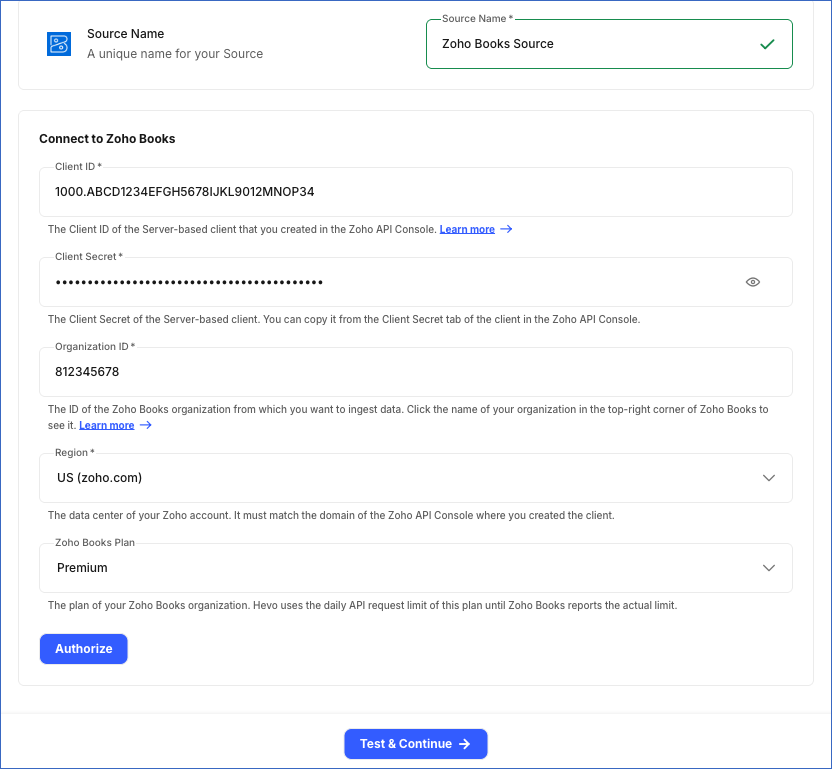
In the Configure Source screen, specify the following:
-
Source Name: A unique name for your Source, not exceeding 255 characters. For example, Zoho Books Source.
-
In the Connect to Zoho Books section:
-
Client ID: The Client ID of the API client that you created.
-
Client Secret: The Client Secret of the API client.
-
Organization ID: The ID of the Zoho Books organization from which you want to ingest data.
-
Region: The data center where your Zoho account is hosted. Select one of the following: US (zoho.com), Europe (zoho.eu), India (zoho.in), Australia (zoho.com.au), or Japan (zoho.jp). The region must match the domain of the Zoho API Console in which you created the API client. Default value: US (zoho.com).
-
Zoho Books Plan (Optional): The plan of your Zoho Books organization. Select one of the following: Free, Standard, Professional, Premium, Elite, or Ultimate. Hevo uses the daily API request limit of this plan until Zoho Books reports the actual limit of your organization. Read API Request Limits. Default value: Free.
-
Click Authorize, and log in to your Zoho account if prompted. On the consent page, select the check box to allow access to the requested scopes, and then click Accept. Hevo displays the email address of your Zoho account as Account Added.
-
-
-
Click Test & Continue to test the connection to your Zoho Books Source. Once the test is successful, you can proceed to set up your Destination.
When you click this button, Hevo performs the following validations:
-
The OAuth authorization is valid. Hevo checks this by listing the organizations of your Zoho account in the selected region.
-
The Organization ID that you specified is one of the organizations listed for your Zoho account.
-
Data Replication
Hevo replicates data for all the objects selected on the Configure Objects page during Pipeline creation. By default, all supported objects and their available fields are selected. However, you can modify this selection while creating or editing the Pipeline. To ingest a child object, you must also select its parent object. For example, to ingest the Invoice Line Item object, you must also select the Invoice object. The Data Model lists the child objects of each parent object.
In the first run of the Pipeline, Hevo ingests all the data available for the selected objects in your Zoho Books organization. In the subsequent runs, as per the sync frequency, Hevo ingests data as follows:
| Ingestion | Parent Objects |
|---|---|
| New and updated records, based on the time each record was last modified in Zoho Books | Contact, Credit Note, Customer Payment, and Invoice |
| All the records, in each run | Bill, Chart of Account, Credit Note Refund, Currency, Estimate, Expense, Item, Journal List, Project, Purchase Order, Sales Order, Tax, Time Entry, and Users |
Hevo ingests the child objects of a parent object along with it. When Hevo ingests a new or updated parent record, it replaces the child records of that parent in the Destination.
Pipelines with this Source support both the Merge and Append load modes.
API Request Limits
Zoho Books allows up to 100 API requests per minute for an organization, and a daily number of API requests that depends on the plan of the organization: Free - 1,000; Standard - 2,000; Professional - 5,000; and Premium, Elite, and Ultimate - 10,000. Read API Call Limit. These limits are shared by all the applications that use the Zoho Books API of your organization.
Hevo tracks the daily limit using the request counts that Zoho Books returns with each response, and keeps 5% of the daily limit, at least 25 requests, unused for your other applications. The plan that you select in the Source configuration is used only for the first request of each run, or if Zoho Books does not return the request counts. So, if you select a plan with a lower limit than that of your organization, Hevo still uses the actual limit of your organization. If the daily limit is reached, Hevo stops ingesting data for the day and resumes from the last saved position in a later run, after the limit resets. If Zoho Books returns a rate limit error for the per-minute limit, Hevo waits and retries the request. To understand how Hevo handles such scenarios, read Handling Rate Limit Exceptions.
Schema and Primary Keys
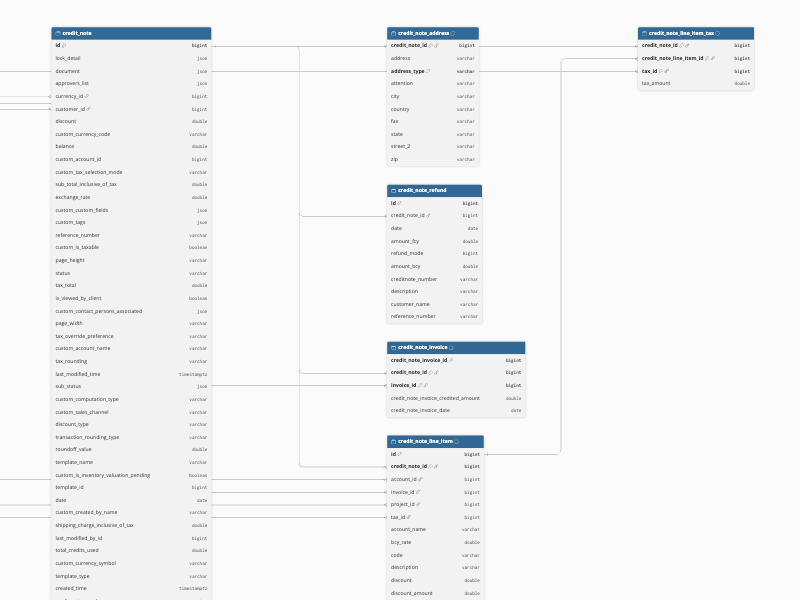
Hevo uses the following schema to upload the records in the Destination. For a detailed view of the objects, fields, and relationships, click the ERD.
Data Model
The following is the list of tables (objects) that are created at the Destination when you run the Pipeline:
| Object | Description |
|---|---|
| Bill | Contains the bills received from your vendors, with their amounts, dates, due dates, and status. |
| Chart of Account | Contains the accounts in your chart of accounts, with their type, code, and status. It includes a child object, Chart of Account Document, which contains the documents attached to each account. |
| Contact | Contains your customers and vendors, with their contact details, currency, payment terms, and tax details. It includes the following child objects: - Contact Address - Contact Person - Default Template |
| Credit Note | Contains the credit notes issued to your customers, with their amounts, balance, and status. It includes the following child objects: - Credit Note Address - Credit Note Invoice - Credit Note Line Item, which includes the Credit Note Line Item Tax child object |
| Credit Note Refund | Contains the refunds issued against credit notes, with their amount, date, and refund mode. |
| Currency | Contains the currencies configured in your organization, with their symbol and exchange rate. |
| Customer Payment | Contains the payments received from your customers, with their amount, date, payment mode, and the account that received them. It includes a child object, Customer Payment Invoice, which contains the invoices to which each payment is applied. |
| Estimate | Contains the estimates (quotes) sent to your customers, with their amounts and status. |
| Expense | Contains the expenses recorded in your organization, with their amount, account, and customer. |
| Invoice | Contains the invoices raised for your customers, with their amounts, dates, taxes, and payment status. It includes the following child objects: - Invoice Address - Invoice Contact Person - Invoice Line Item, which includes the Invoice Line Item Tag, Invoice Line Item Tax, and Invoice Line Item Warehouse child objects - Invoice Payment Gateway |
| Item | Contains the products and services that you sell or purchase, with their rate, unit, and tax. |
| Journal List | Contains the manual journals recorded in your organization, with their date, reference number, and total. |
| Project | Contains the projects in your organization, with their customer, billing method, and status. |
| Purchase Order | Contains the purchase orders raised for your vendors, with their amounts, delivery date, and status. |
| Sales Order | Contains the sales orders created for your customers, with their amounts, shipment date, and status. |
| Tax | Contains the taxes configured in your organization, with their rate and type. |
| Time Entry | Contains the time logged against the tasks of your projects, with the user, duration, and billing status. |
| Users | Contains the users of your organization, with their email address, role, and status. |
Additional Information
Read the detailed Hevo documentation for the following related topics:
Handling of Deletes
Hevo marks a record as deleted by setting the value of the metadata column __hevo__marked_deleted to True. Hevo captures deletes as follows:
-
For the objects whose records Hevo ingests in full in each run, Hevo compares the records fetched from Zoho Books with those in the Destination table. Records that are no longer returned by Zoho Books are marked as deleted in the Destination. The Chart of Account Document child object is replaced in full in each run, so the records removed in Zoho Books are removed from the Destination table.
-
For the Contact, Credit Note, Customer Payment, and Invoice objects, Hevo ingests only the new and updated records in the subsequent runs, so it does not capture records that are deleted in Zoho Books. These records remain in the Destination until you resync the object. When you resync the object, Hevo ingests all its records and marks the records that are no longer returned by Zoho Books, and their child records, as deleted.
-
For the child objects of the Contact, Credit Note, Customer Payment, and Invoice objects, when Hevo ingests a new or updated parent record, it replaces the child records of that parent in the Destination. The child records that were removed from the parent record in Zoho Books are marked as deleted.
Source Considerations
-
Hevo ingests data from one Zoho Books organization in a Pipeline. To ingest data from more than one organization, create a Pipeline for each organization.
-
The daily API request limit of your Zoho Books plan is shared by all the applications that use the Zoho Books API of your organization. If your plan has a low daily limit, increase the sync frequency interval of the Pipeline or deselect the objects that you do not need. Read API Request Limits.
-
To ingest the Contact, Credit Note, and Invoice objects and their child objects, Hevo makes one API request for each record in the first run and when you resync the object. If the number of records in such an object is more than your organization’s daily API request limit allows, Hevo cannot ingest the object, and the object fails with an error. In this case, upgrade your Zoho Books plan or buy additional API requests from Zoho, or deselect the object and its child objects. Hevo retries the object in each run, so ingestion resumes once the limit is increased.
-
Hevo ingests the custom fields of the Bill, Purchase Order, and Sales Order objects as separate columns, named custom_cf_ followed by the API name of the field. For the Contact, Credit Note, and Invoice objects, Hevo ingests the custom fields as a JSON array in the custom_custom_fields column.
Some standard Zoho Books fields are also loaded into columns with the custom_ prefix, for example, custom_currency_code in the Credit Note object. These columns are not custom fields. Your custom fields are always loaded into the custom_cf_* columns or the custom_custom_fields column.
-
If your role in Zoho Books cannot read an object, Hevo marks the object as Inaccessible and displays it in the Needs Attention tab of the Pipeline. The other objects continue to be ingested. To ingest the object, grant your role View access to the corresponding module in Zoho Books, and then resync the object.
-
If your role can access only some records of a module, for example, only the customers assigned to you, Hevo ingests only those records. For the objects that Hevo ingests in full in each run, records that your role can no longer access are marked as deleted in the Destination.
-
Hevo supports Zoho accounts hosted in the US, Europe, India, Australia, and Japan data centers. Accounts hosted in other Zoho data centers, such as Canada, Saudi Arabia, UAE, UK, and China, are not supported. Contact Hevo Support to request support for these data centers.
Revision History
Refer to the following table for the list of key updates made to this page:
| Date | Release | Description of Change |
|---|---|---|
| Nov-12-2026 | 2.54 | New document. |