- Introduction
-
Getting Started
- Creating an Account in Hevo
- Subscribing to Hevo via AWS Marketplace
- Subscribing to Hevo via Snowflake Marketplace
- Connection Options
- Familiarizing with the UI
- Creating your First Pipeline
- Data Loss Prevention and Recovery
- Upgrading Pipeline from Standard to Edge
-
Data Ingestion
- Types of Data Synchronization
- Ingestion Modes and Query Modes for Database Sources
- Ingestion and Loading Frequency
- Data Ingestion Statuses
- Deferred Data Ingestion
- Handling of Primary Keys
- Handling of Updates
- Handling of Deletes
- Hevo-generated Metadata
- Best Practices to Avoid Reaching Source API Rate Limits
-
Edge
- Data Ingestion
- Core Concepts
-
Pipelines
- Familiarizing with the Pipelines UI
- Creating an Edge Pipeline
- Working with Edge Pipelines
- Pipeline Job History
- Pipeline Overview
- Needs Attention
- Object and Schema Management
- Activity Log
-
Sources
- Connect AI
- PostgreSQL
- Oracle
- MySQL
- SQL Server
- CockroachDB
- Troubleshooting Database Sources
- Salesforce Bulk API V2
- Ordergroove
- BambooHR
- Stripe
- NetSuite SuiteAnalytics
- Shopify
- Slack
- ClickUp
- Monday.com
- Pipedrive
- Workable
- Fathom
- HubSpot
- Salesforce Marketing Cloud
- Google Analytics 4
- Google Ads
- Facebook Ads
- Microsoft Ads
- LinkedIn Ads
- Xero
- Instagram Business
- Amazon Selling Partner
- TikTok Ads
- StackAdapt
- Amazon Ads
- Pinterest Organic
- Zendesk Support
- Snapchat Ads
- TikTok Organic
- Google Search Console
- Klaviyo v2
- Braintree Payments
- Facebook Pages
- Tempo
- Auth0
- Naming Conventions for Source Data Entities
- Destinations
- Transformations
- Alerts
- Activate
- Custom Connectors
-
Releases
- Edge Release Notes - September 2026
- Edge Release Notes - August 2026
- Edge Release Notes - July 2026
- Edge Release Notes - June 2026
- Edge Release Notes - May 2026
- Edge Release Notes - April 2026
- Edge Release Notes - March 2026
- Edge Release Notes - February 2026
- Edge Release Notes - January 2026
- Edge Release Notes - December 2025
- Edge Release Notes - November 2025
- Edge Release Notes - October 2025
- Edge Release Notes - September 2025
- Edge Release Notes - August 2025
- Edge Release Notes - July 2025
- Edge Release Notes - November 2024
-
Data Loading
- Loading Data in a Database Destination
- Loading Data to a Data Warehouse
- Optimizing Data Loading for a Destination Warehouse
- Deduplicating Data in a Data Warehouse Destination
- Manually Triggering the Loading of Events
- Scheduling Data Load for a Destination
- Loading Events in Batches
- Data Loading Statuses
- Data Spike Alerts
- Name Sanitization
- Table and Column Name Compression
- Parsing Nested JSON Fields in Events
-
Pipelines
- Data Flow in a Pipeline
- Familiarizing with the Pipelines UI
- Working with Pipelines
- Managing Objects in Pipelines
- Pipeline Jobs
-
Transformations
-
Python Code-Based Transformations
- Supported Python Modules and Functions
-
Transformation Methods in the Event Class
- Create an Event
- Retrieve the Event Name
- Rename an Event
- Retrieve the Properties of an Event
- Modify the Properties for an Event
- Fetch the Primary Keys of an Event
- Modify the Primary Keys of an Event
- Fetch the Data Type of a Field
- Check if the Field is a String
- Check if the Field is a Number
- Check if the Field is Boolean
- Check if the Field is a Date
- Check if the Field is a Time Value
- Check if the Field is a Timestamp
-
TimeUtils
- Convert Date String to Required Format
- Convert Date to Required Format
- Convert Datetime String to Required Format
- Convert Epoch Time to a Date
- Convert Epoch Time to a Datetime
- Convert Epoch to Required Format
- Convert Epoch to a Time
- Get Time Difference
- Parse Date String to Date
- Parse Date String to Datetime Format
- Parse Date String to Time
- Utils
- Examples of Python Code-based Transformations
-
Drag and Drop Transformations
- Special Keywords
-
Transformation Blocks and Properties
- Add a Field
- Change Datetime Field Values
- Change Field Values
- Drop Events
- Drop Fields
- Find & Replace
- Flatten JSON
- Format Date to String
- Format Number to String
- Hash Fields
- If-Else
- Mask Fields
- Modify Text Casing
- Parse Date from String
- Parse JSON from String
- Parse Number from String
- Rename Events
- Rename Fields
- Round-off Decimal Fields
- Split Fields
- Examples of Drag and Drop Transformations
- Effect of Transformations on the Destination Table Structure
- Transformation Reference
- Transformation FAQs
-
Python Code-Based Transformations
-
Schema Mapper
- Using Schema Mapper
- Mapping Statuses
- Auto Mapping Event Types
- Manually Mapping Event Types
- Modifying Schema Mapping for Event Types
- Schema Mapper Actions
- Fixing Unmapped Fields
- Resolving Incompatible Schema Mappings
- Resizing String Columns in the Destination
- Changing the Data Type of a Destination Table Column
- Schema Mapper Compatibility Table
- Limits on the Number of Destination Columns
- File Log
- Troubleshooting Failed Events in a Pipeline
- Mismatch in Events Count in Source and Destination
- Audit Tables
- Activity Log
-
Pipeline FAQs
- Can multiple Sources connect to one Destination?
- What happens if I re-create a deleted Pipeline?
- Why is there a delay in my Pipeline?
- Can I change the Destination post-Pipeline creation?
- Why is my billable Events high with Delta Timestamp mode?
- Can I drop multiple Destination tables in a Pipeline at once?
- How does Run Now affect scheduled ingestion frequency?
- Will pausing some objects increase the ingestion speed?
- Can I see the historical load progress?
- Why is my Historical Load Progress still at 0%?
- Why is historical data not getting ingested?
- How do I set a field as a primary key?
- How do I ensure that records are loaded only once?
- Why can't I see my Pipelines after logging in?
- Events Usage
-
Sources
- Free Sources
-
Databases and File Systems
- Data Warehouses
-
Databases
- Connecting to a Local Database
- Amazon DocumentDB
- Amazon DynamoDB
- Elasticsearch
-
MongoDB
- Generic MongoDB
- MongoDB Atlas
- Support for Multiple Data Types for the _id Field
- Example - Merge Collections Feature
-
Troubleshooting MongoDB
-
Errors During Pipeline Creation
- Error 1001 - Incorrect credentials
- Error 1005 - Connection timeout
- Error 1006 - Invalid database hostname
- Error 1007 - SSH connection failed
- Error 1008 - Database unreachable
- Error 1011 - Insufficient access
- Error 1028 - Primary/Master host needed for OpLog
- Error 1029 - Version not supported for Change Streams
- SSL 1009 - SSL Connection Failure
- Troubleshooting MongoDB Change Streams Connection
- Troubleshooting MongoDB OpLog Connection
-
Errors During Pipeline Creation
- SQL Server
-
MySQL
- Amazon Aurora MySQL
- Amazon RDS MySQL
- Azure MySQL
- Generic MySQL
- Google Cloud MySQL
- MariaDB MySQL
-
Troubleshooting MySQL
-
Errors During Pipeline Creation
- Error 1003 - Connection to host failed
- Error 1006 - Connection to host failed
- Error 1007 - SSH connection failed
- Error 1011 - Access denied
- Error 1012 - Replication access denied
- Error 1017 - Connection to host failed
- Error 1026 - Failed to connect to database
- Error 1027 - Unsupported BinLog format
- Failed to determine binlog filename/position
- Schema 'xyz' is not tracked via bin logs
- Errors Post-Pipeline Creation
-
Errors During Pipeline Creation
- MySQL FAQs
- Oracle
-
PostgreSQL
- Amazon Aurora PostgreSQL
- Amazon RDS PostgreSQL
- Azure PostgreSQL
- Generic PostgreSQL
- Google Cloud PostgreSQL
- Heroku PostgreSQL
- Upgrading Pipelines with PostgreSQL Sources to Use the pgoutput Plugin
-
Troubleshooting PostgreSQL
-
Errors during Pipeline creation
- Error 1003 - Authentication failure
- Error 1006 - Connection settings errors
- Error 1011 - Access role issue for logical replication
- Error 1012 - Access role issue for logical replication
- Error 1014 - Database does not exist
- Error 1017 - Connection settings errors
- Error 1023 - No pg_hba.conf entry
- Error 1024 - Number of requested standby connections
- Errors Post-Pipeline Creation
-
Errors during Pipeline creation
-
PostgreSQL FAQs
- Can I track updates to existing records in PostgreSQL?
- How can I migrate a Pipeline created with one PostgreSQL Source variant to another variant?
- How can I prevent data loss when migrating or upgrading my PostgreSQL database?
- Why do FLOAT4 and FLOAT8 values in PostgreSQL show additional decimal places when loaded to BigQuery?
- Why is data not being ingested from PostgreSQL Source objects?
- Troubleshooting Database Sources
- Database Source FAQs
- File Storage
- Engineering Analytics
- Finance & Accounting Analytics
-
Marketing Analytics
- ActiveCampaign
- AdRoll
- Amazon Ads
- Apple Search Ads
- AppsFlyer
- CleverTap
- Criteo
- Drip
- Facebook Ads
- Facebook Page Insights
- Firebase Analytics
- Freshsales
- Google Ads
- Google Analytics 4
- Google Analytics 360
- Google Play Console
- Google Search Console
- HubSpot
- Instagram Business
- Klaviyo v2
- Lemlist
- LinkedIn Ads
- Mailchimp
- Mailshake
- Marketo
- Microsoft Ads
- Onfleet
- Outbrain
- Pardot
- Pinterest Ads
- Pipedrive
- Recharge
- Segment
- SendGrid Webhook
- SendGrid
- Salesforce Marketing Cloud
- Snapchat Ads
- SurveyMonkey
- Taboola
- TikTok Ads
- Twitter Ads
- Typeform
- YouTube Analytics
- Product Analytics
- Sales & Support Analytics
- Source FAQs
-
Destinations
- Familiarizing with the Destinations UI
- Cloud Storage-Based
- Databases
-
Data Warehouses
- Amazon Redshift
- Amazon Redshift Serverless
- Azure Synapse Analytics
- Databricks
-
Google BigQuery
- Clustering in BigQuery
- Partitioning in BigQuery
- Structure of Data in the Google BigQuery Data Warehouse
- Loading Data to a Google BigQuery Data Warehouse
- Near Real-time Data Loading using Streaming
- Modifying BigQuery Destinations to Use Service Account Authentication
- Troubleshooting Google BigQuery
- Google BigQuery FAQs
- Hevo Managed Google BigQuery
- Snowflake
- Troubleshooting Data Warehouse Destinations
-
Destination FAQs
- Can I change the primary key in my Destination table?
- Can I change the Destination table name after creating the Pipeline?
- How can I change or delete the Destination table prefix?
- Why does my Destination have deleted Source records?
- How do I filter deleted Events from the Destination?
- Does a data load regenerate deleted Hevo metadata columns?
- How do I filter out specific fields before loading data?
- Transform
- Alerts
- Account Management
- Activate
- Glossary
-
Releases- 2026 Releases
-
2025 Releases
- Release 2.44 (Dec 01, 2025-Jan 12, 2026)
- Release 2.43 (Nov 03-Dec 01, 2025)
- Release 2.42 (Oct 06-Nov 03, 2025)
- Release 2.41 (Sep 08-Oct 06, 2025)
- Release 2.40 (Aug 11-Sep 08, 2025)
- Release 2.39 (Jul 07-Aug 11, 2025)
- Release 2.38 (Jun 09-Jul 07, 2025)
- Release 2.37 (May 12-Jun 09, 2025)
- Release 2.36 (Apr 14-May 12, 2025)
- Release 2.35 (Mar 17-Apr 14, 2025)
- Release 2.34 (Feb 17-Mar 17, 2025)
- Release 2.33 (Jan 20-Feb 17, 2025)
-
2024 Releases
- Release 2.32 (Dec 16 2024-Jan 20, 2025)
- Release 2.31 (Nov 18-Dec 16, 2024)
- Release 2.30 (Oct 21-Nov 18, 2024)
- Release 2.29 (Sep 30-Oct 22, 2024)
- Release 2.28 (Sep 02-30, 2024)
- Release 2.27 (Aug 05-Sep 02, 2024)
- Release 2.26 (Jul 08-Aug 05, 2024)
- Release 2.25 (Jun 10-Jul 08, 2024)
- Release 2.24 (May 06-Jun 10, 2024)
- Release 2.23 (Apr 08-May 06, 2024)
- Release 2.22 (Mar 11-Apr 08, 2024)
- Release 2.21 (Feb 12-Mar 11, 2024)
- Release 2.20 (Jan 15-Feb 12, 2024)
-
2023 Releases
- Release 2.19 (Dec 04, 2023-Jan 15, 2024)
- Release Version 2.18
- Release Version 2.17
- Release Version 2.16 (with breaking changes)
- Release Version 2.15 (with breaking changes)
- Release Version 2.14
- Release Version 2.13
- Release Version 2.12
- Release Version 2.11
- Release Version 2.10
- Release Version 2.09
- Release Version 2.08
- Release Version 2.07
- Release Version 2.06
-
2022 Releases
- Release Version 2.05
- Release Version 2.04
- Release Version 2.03
- Release Version 2.02
- Release Version 2.01
- Release Version 2.00
- Release Version 1.99
- Release Version 1.98
- Release Version 1.97
- Release Version 1.96
- Release Version 1.95
- Release Version 1.93 & 1.94
- Release Version 1.92
- Release Version 1.91
- Release Version 1.90
- Release Version 1.89
- Release Version 1.88
- Release Version 1.87
- Release Version 1.86
- Release Version 1.84 & 1.85
- Release Version 1.83
- Release Version 1.82
- Release Version 1.81
- Release Version 1.80 (Jan-24-2022)
- Release Version 1.79 (Jan-03-2022)
-
2021 Releases
- Release Version 1.78 (Dec-20-2021)
- Release Version 1.77 (Dec-06-2021)
- Release Version 1.76 (Nov-22-2021)
- Release Version 1.75 (Nov-09-2021)
- Release Version 1.74 (Oct-25-2021)
- Release Version 1.73 (Oct-04-2021)
- Release Version 1.72 (Sep-20-2021)
- Release Version 1.71 (Sep-09-2021)
- Release Version 1.70 (Aug-23-2021)
- Release Version 1.69 (Aug-09-2021)
- Release Version 1.68 (Jul-26-2021)
- Release Version 1.67 (Jul-12-2021)
- Release Version 1.66 (Jun-28-2021)
- Release Version 1.65 (Jun-14-2021)
- Release Version 1.64 (Jun-01-2021)
- Release Version 1.63 (May-19-2021)
- Release Version 1.62 (May-05-2021)
- Release Version 1.61 (Apr-20-2021)
- Release Version 1.60 (Apr-06-2021)
- Release Version 1.59 (Mar-23-2021)
- Release Version 1.58 (Mar-09-2021)
- Release Version 1.57 (Feb-22-2021)
- Release Version 1.56 (Feb-09-2021)
- Release Version 1.55 (Jan-25-2021)
- Release Version 1.54 (Jan-12-2021)
-
2020 Releases
- Release Version 1.53 (Dec-22-2020)
- Release Version 1.52 (Dec-03-2020)
- Release Version 1.51 (Nov-10-2020)
- Release Version 1.50 (Oct-19-2020)
- Release Version 1.49 (Sep-28-2020)
- Release Version 1.48 (Sep-01-2020)
- Release Version 1.47 (Aug-06-2020)
- Release Version 1.46 (Jul-21-2020)
- Release Version 1.45 (Jul-02-2020)
- Release Version 1.44 (Jun-11-2020)
- Release Version 1.43 (May-15-2020)
- Release Version 1.42 (Apr-30-2020)
- Release Version 1.41 (Apr-2020)
- Release Version 1.40 (Mar-2020)
- Release Version 1.39 (Feb-2020)
- Release Version 1.38 (Jan-2020)
- Early Access New
Managing Transformation Projects (Edge)
Once a Transformation project is created, you can rename it or delete it if it is no longer needed.
Refer to the following sections to manage your Transformation projects:
Renaming a Transformation Project
You can rename a Transformation project to better reflect its purpose. You may also want to rename it if it was created with an incorrect name.
Perform the following steps to rename a Transformation project:
-
In the Navigation Bar, click Transformations.
-
On the Transformations page, click the Edit icon corresponding to the project you want to rename.

-
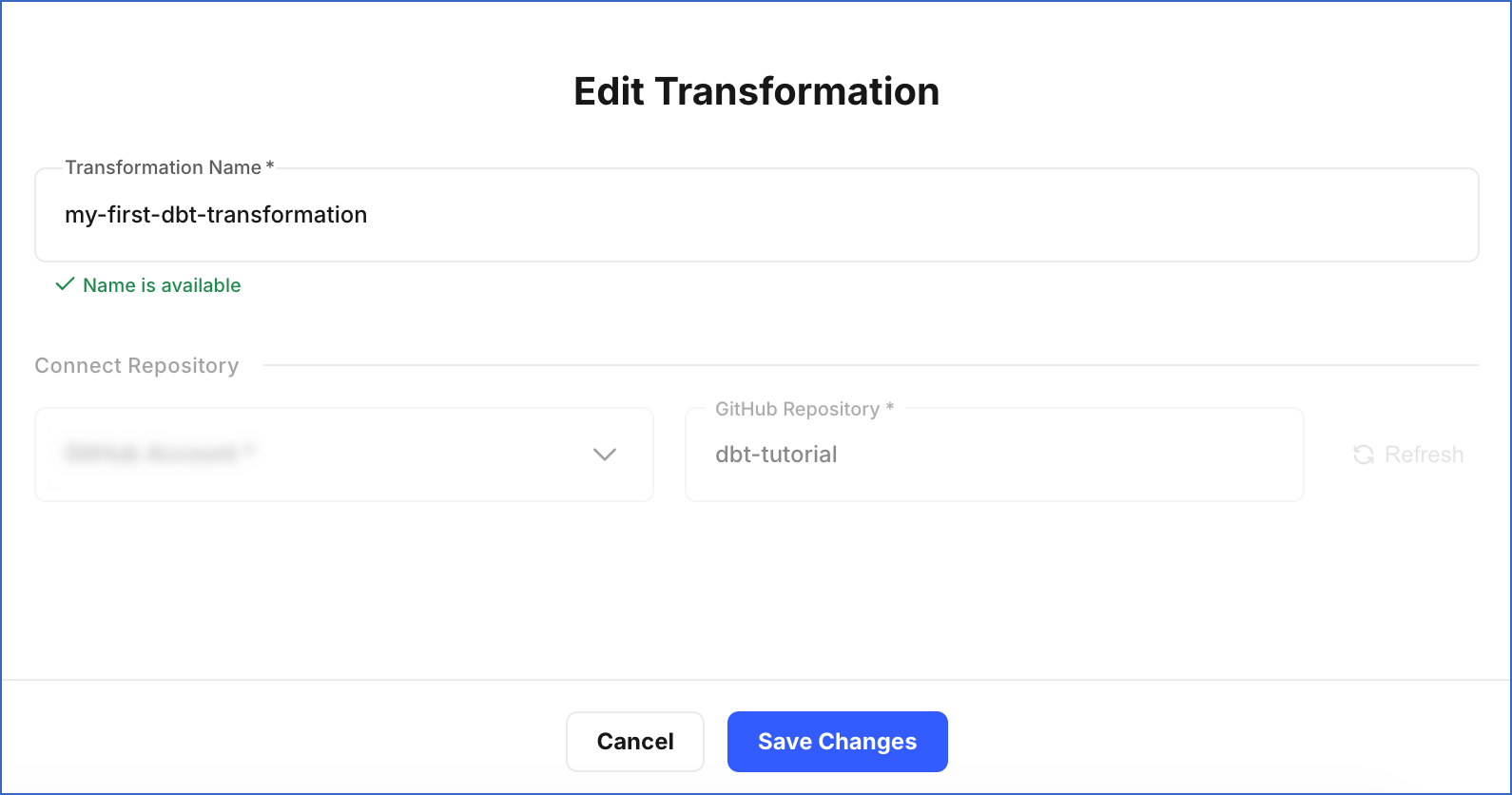
On the Edit Transformation page, do the following:
-
Specify a new name for your project in the Transformation Name field.
-
Click Save Changes.
-
A notification is displayed to confirm that the project name has been updated successfully. You can see the updated name on the Transformations page.
Deleting a Transformation Project
You can delete a Transformation project if it is no longer needed. Deleting a project permanently removes all its environments, jobs, and run history. This action cannot be undone and does not affect the data already loaded to your Destination.
Note: If jobs are actively running when a project is deleted, those runs will be terminated.
Some scenarios where you may want to delete a Transformation project:
-
The project was created for testing and is no longer required.
-
The project has been replaced by a new one.
-
The project is no longer in use.
Perform the following steps to delete a Transformation project:
-
In the Navigation Bar, click Transformations.
-
On the Transformations page, click the Delete icon corresponding to the project you want to delete.

-
In the Delete Transformation dialog, type the exact name of the project in the field, and then click Delete.
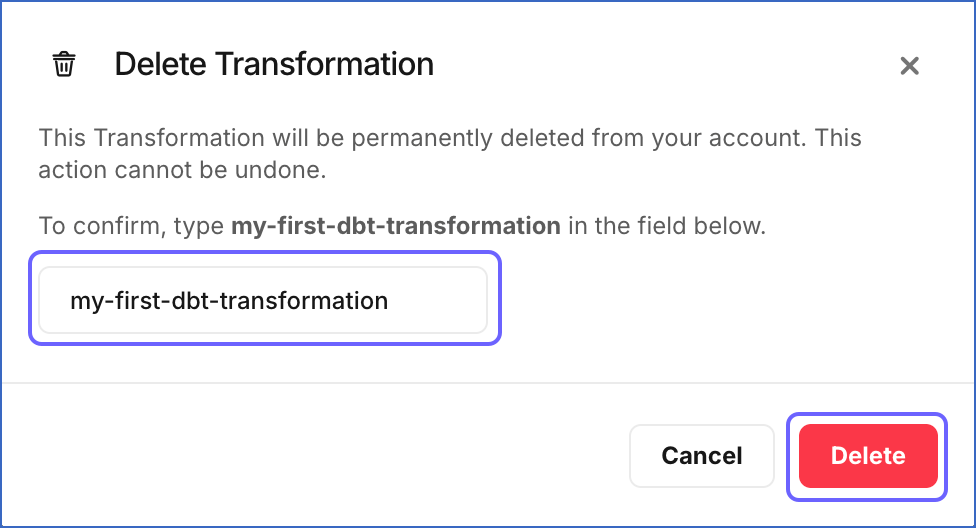
A notification is displayed to confirm that the project has been deleted successfully.
Revision History
Refer to the following table for the list of key updates made to this page:
| Date | Release | Description of Change |
|---|---|---|
| Jul-01-2026 | NA | New document. |