Connecting Through AWS VPC Peering
On This Page
Hevo provides you with the option of connecting to your AWS Source or Destination database, such as Amazon RDS or Amazon Aurora, via VPC peering. This option is available only under a business plan.
Note: The AWS database that you are connecting to must not be publicly accessible; it must not have a public IP address.
As seen in the image below, to establish a connection through VPC peering between the Hevo platform and your database, Hevo:

-
Creates an intermediate VPC or uses an existing one.
-
Peers an intermediate VPC with the VPC in which your database is created.
-
Communicates with your database through a tunnel instance inside the intermediate VPC.
The following image illustrates the steps for connecting your Source or Destination database through AWS VPC peering. The steps are also described in detail in the sections below.
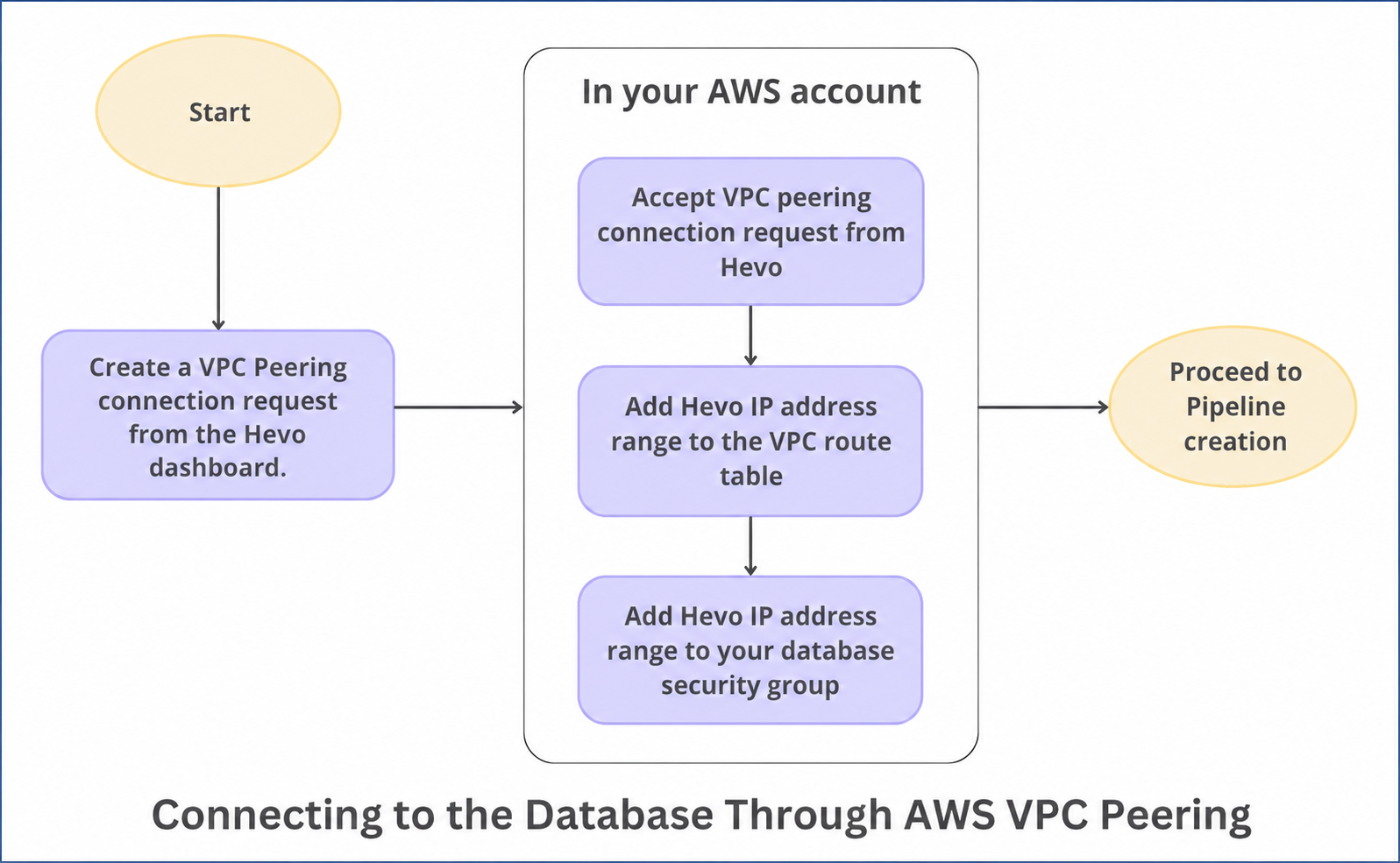
Obtain Your AWS VPC Details
To create a VPC peering connection request, obtain the following details from your AWS account.
Obtain the AWS Account ID and Region
-
Log in to your AWS Console.
-
Make a note of the following and save them securely:
-
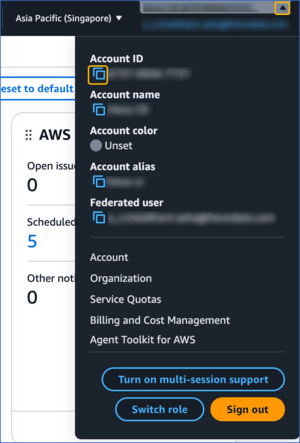
Account ID: In the top-right corner, click your account name, and from the drop-down, click the copy icon to copy the Account ID.
-
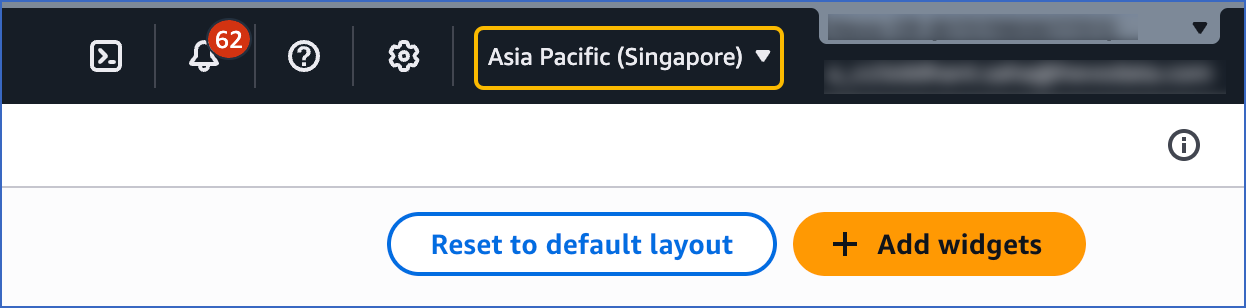
Region: Next to your account name, copy the AWS region where your Source or Destination database is hosted.
-
Obtain the VPC ID and CIDR Range
-
Log in to your Amazon VPC console.
-
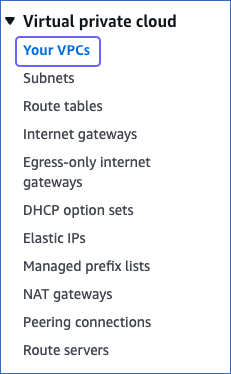
In the left navigation pane, under Virtual private cloud, click Your VPCs.
-
On the Your VPCs page, click the VPC that contains your database, copy the values in the VPC ID and IPv4 CIDR columns, and save them securely.
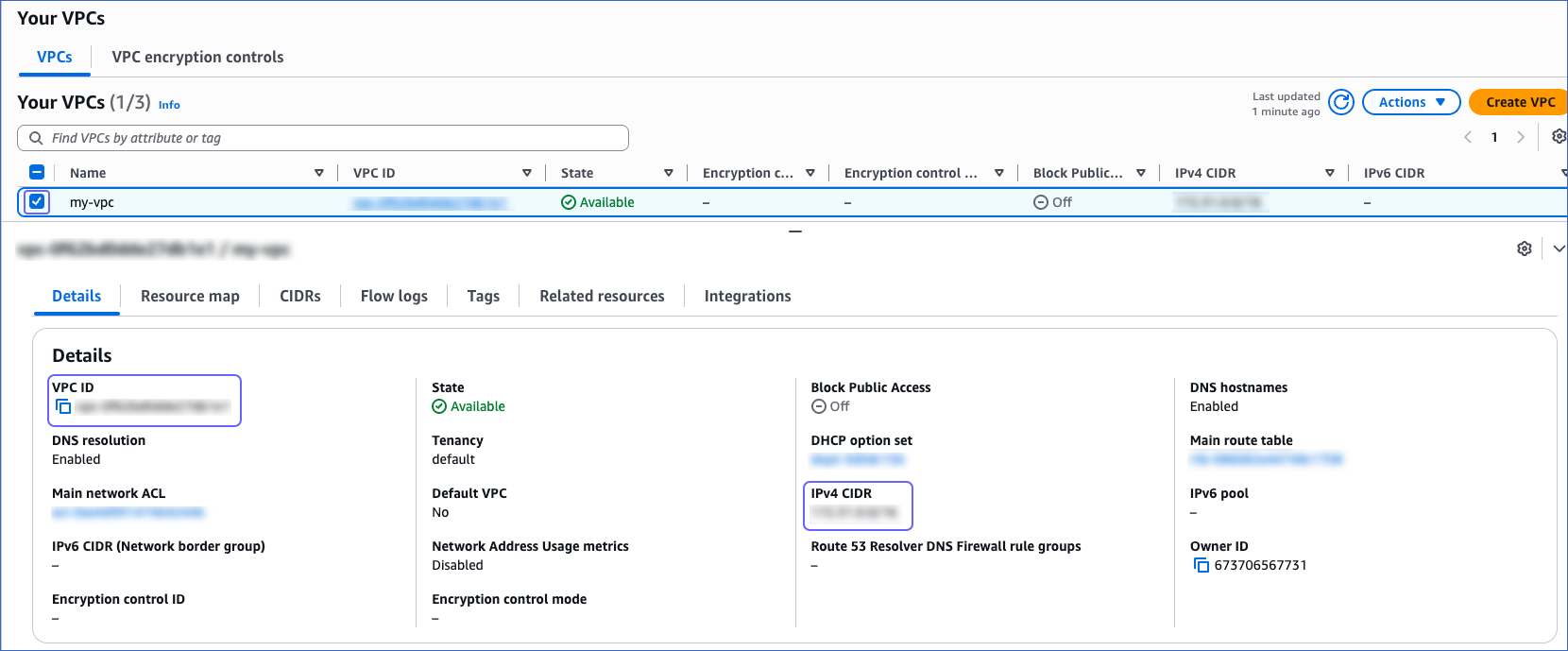
Once you obtain these values, you can use them to create a VPC peering connection request.
Create a VPC Peering Connection Request
Perform the following steps to request a VPC peering connection from the Hevo dashboard:
-
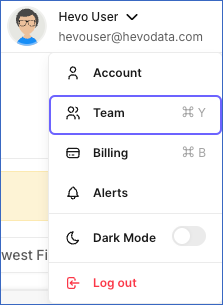
In the top right corner of the Hevo dashboard, click the drop-down next to your username, and then click Team.
-
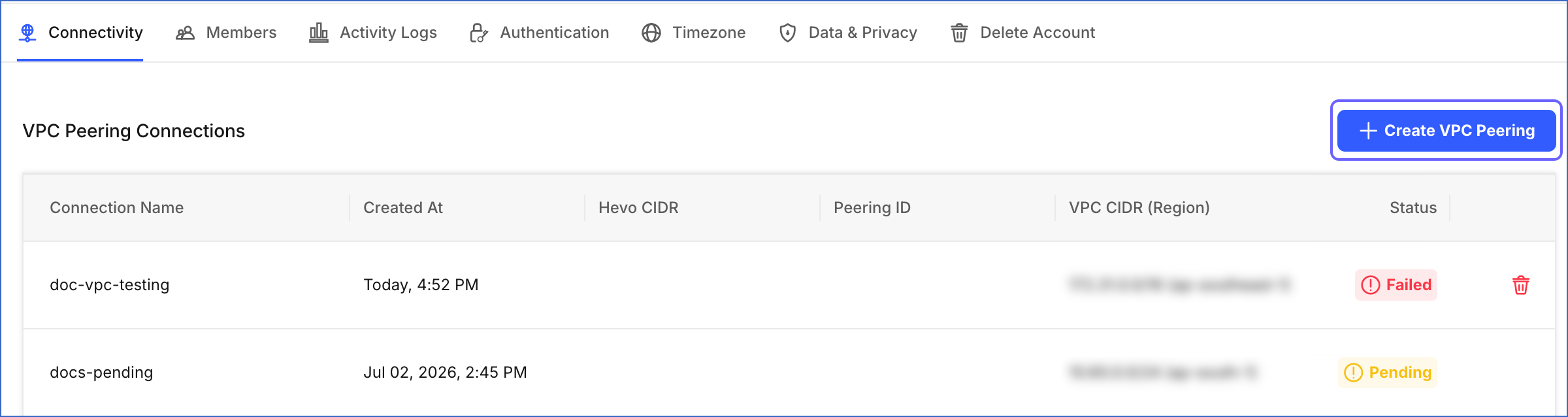
In the top navigation pane, click the Connectivity tab.

-
On the VPC Peering Connections page, click + Create VPC Peering.
-
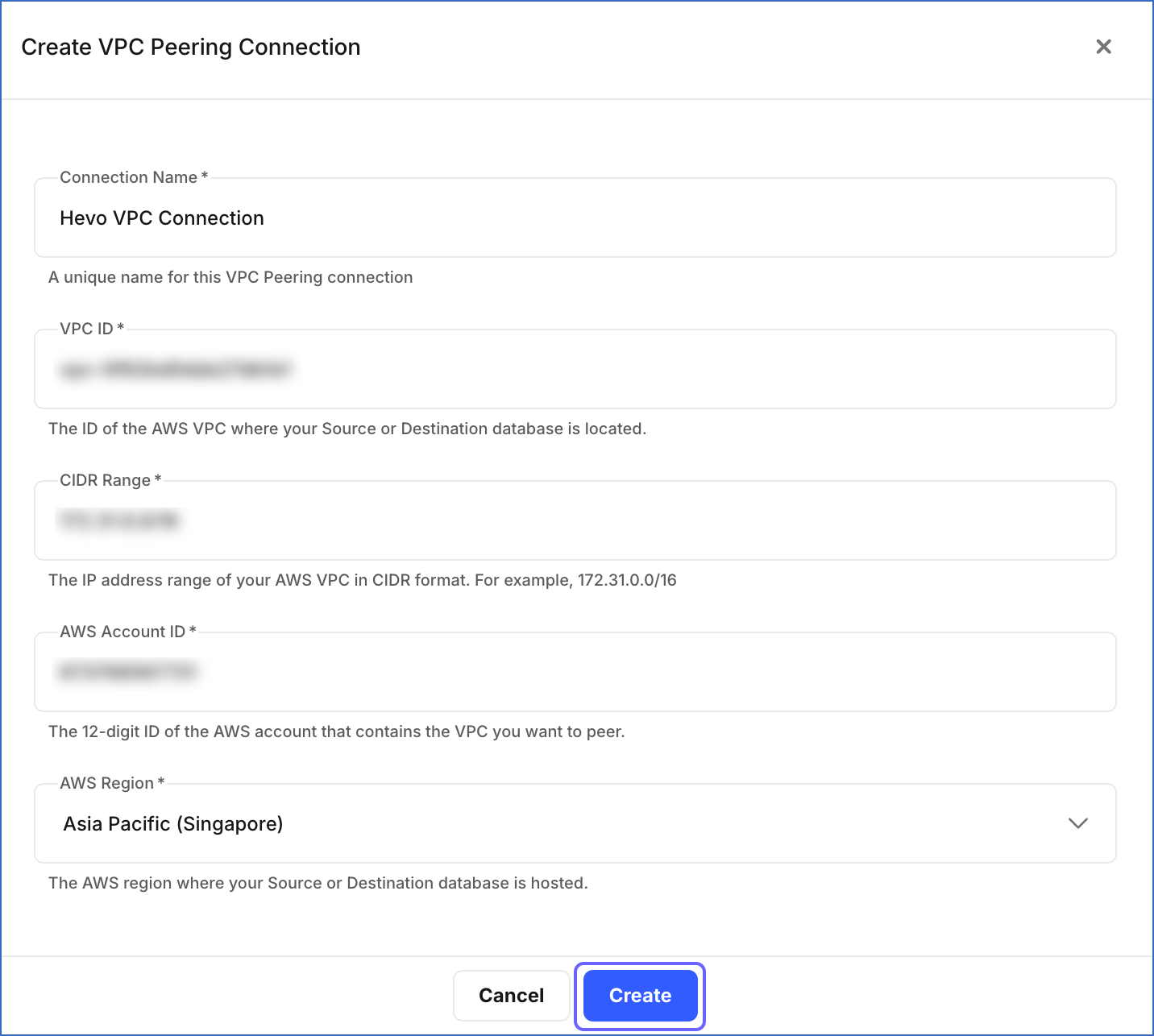
On the Create VPC Peering Connection page, specify the following, and then click Create:
-
Connection Name: A unique name for your VPC peering connection. For example, Hevo VPC Connection.
-
VPC ID: The ID of the AWS VPC that contains your Source or Destination database.
-
CIDR Range: The IP address range of your AWS VPC in CIDR format obtained in the Obtain the VPC ID and CIDR Range section. For example, 172.31.0.0/16. If the CIDR range overlaps with Hevo’s CIDR range, the request enters a Request Submitted state, requiring manual intervention from Hevo’s infrastructure team.
-
AWS Account ID: The 12-digit ID of the AWS account in which your VPC exists, obtained in the Obtain the AWS Account ID and Region section.
-
AWS Region: Select the AWS region, obtained in the Obtain the AWS Account ID and Region section, in which your Source or Destination database is hosted from the drop-down.
-
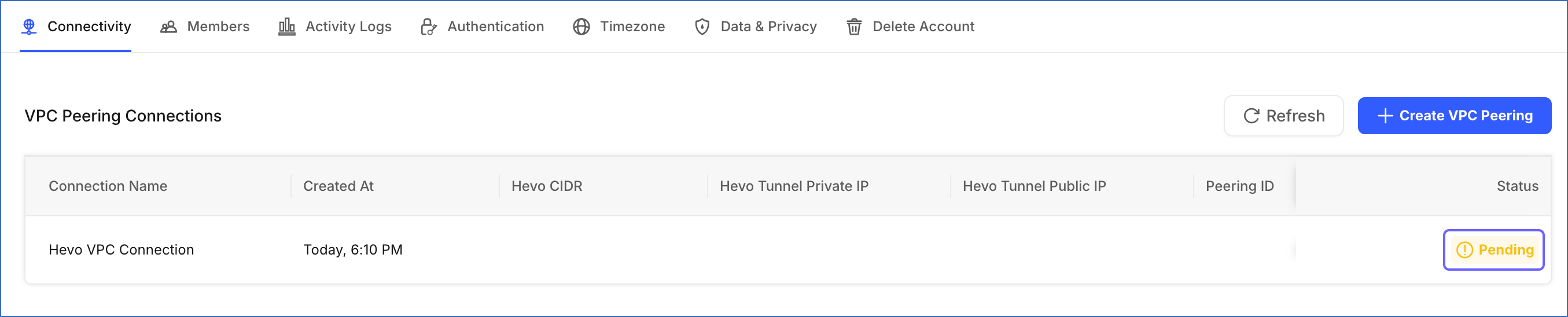
Your VPC peering connection request is submitted to Hevo and now appears on the VPC Peering Connections page in one of the following states:
-
Pending: Hevo automatically provisions the VPC peering connection. This usually takes a few minutes. The status is updated automatically after your request is provisioned.
-
Request Submitted: The connection requires manual setup by Hevo’s infrastructure team due to network or infrastructure requirements. This may take longer. No action is needed from your end. The status is updated automatically once your request is provisioned.

Note: You cannot delete a VPC peering connection from the dashboard. If you no longer need a connection, contact Hevo Support to have it removed.
Once your request reaches Pending Acceptance, you must accept the connection request sent by Hevo from your Amazon VPC console within 7 days; otherwise, it automatically expires and must be resubmitted.
Accept the VPC Peering Connection Request
Once your request has been provisioned, Hevo generates a VPC peering connection request to your AWS account and displays the following information on the VPC Peering Connections page:

-
Hevo CIDR: The IP address range of Hevo’s network, in CIDR format. For example, 10.0.0.0/28. Add this to your VPC route table and database security group, so that traffic to your database is routed through the peering connection and permitted to reach it.
-
Peering ID: The ID of the peering connection request that Hevo generates. For example, pcx-011221a11abcd1011. Use this to identify the peering connection request from Hevo in your Amazon VPC console.
To accept the VPC peering request from your AWS account, perform the following steps:
-
Log in to your Amazon VPC console.
-
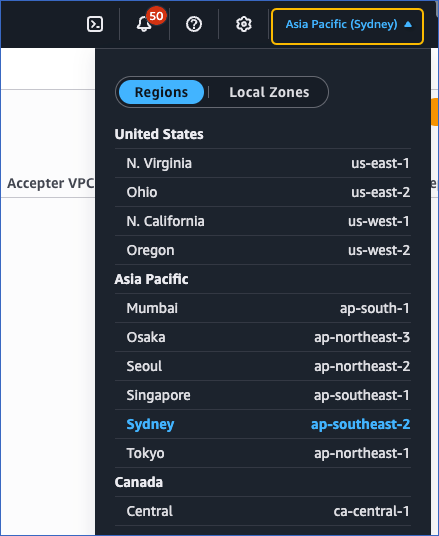
In the top right corner of the page, click the region selector and choose the region where your database’s VPC is located. This must match the AWS Region you specified when creating the request in Step 1.
-
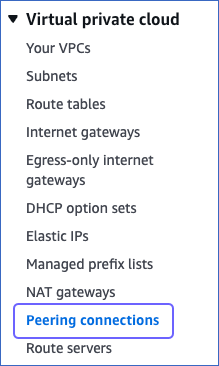
In the left navigation pane, under Virtual private cloud, click Peering connections.
-
On the Peering connections page, do the following:
-
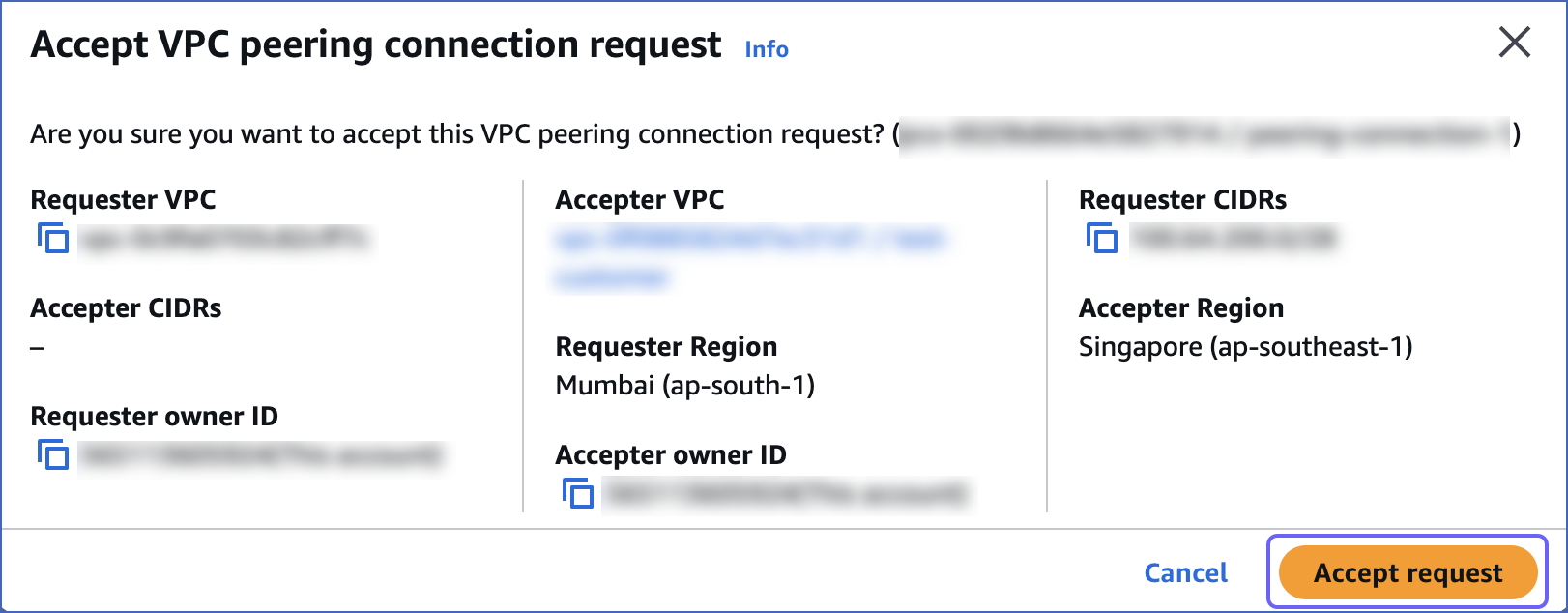
Click the peering connection request from Hevo, click Actions, and select Accept request from the drop-down.

-
In the pop-up dialog that appears, click Accept request.
-
Once accepted, the VPC Peering connection status changes to Available on the Hevo dashboard. To allow network traffic to reach your database, you must update your VPC’s route table.
Add Hevo CIDR to your VPC Route Table
A VPC route table contains rules that define the path for communication inside the VPC. To send network traffic bound for Hevo through the VPC peering connection, add the Hevo CIDR to your VPC route table. For this, perform the following steps:
-
Log in to your Amazon VPC console.
-
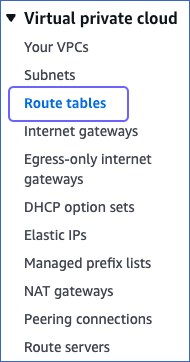
In the navigation pane, under Virtual private cloud, click Route tables.
-
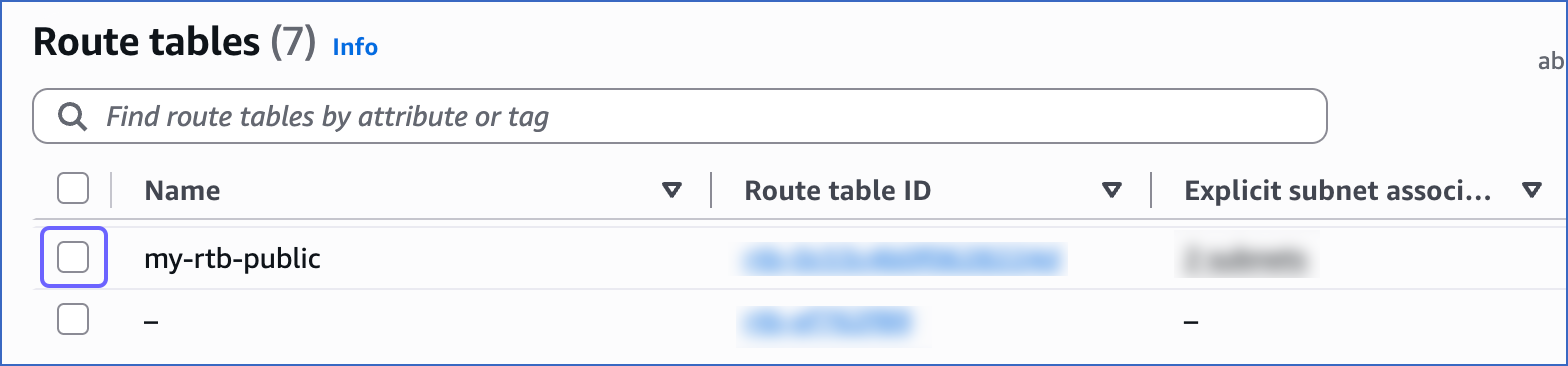
On the Route tables page, click the route table associated with your database VPC.
-
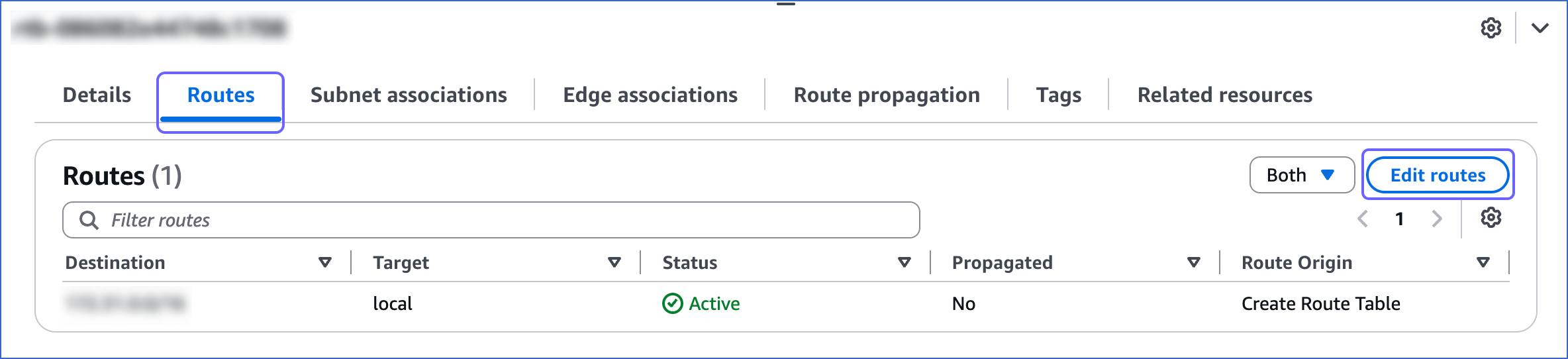
In the <Your Route table ID> section, click Routes and then, click Edit routes.
-
On the Edit routes page, do the following:


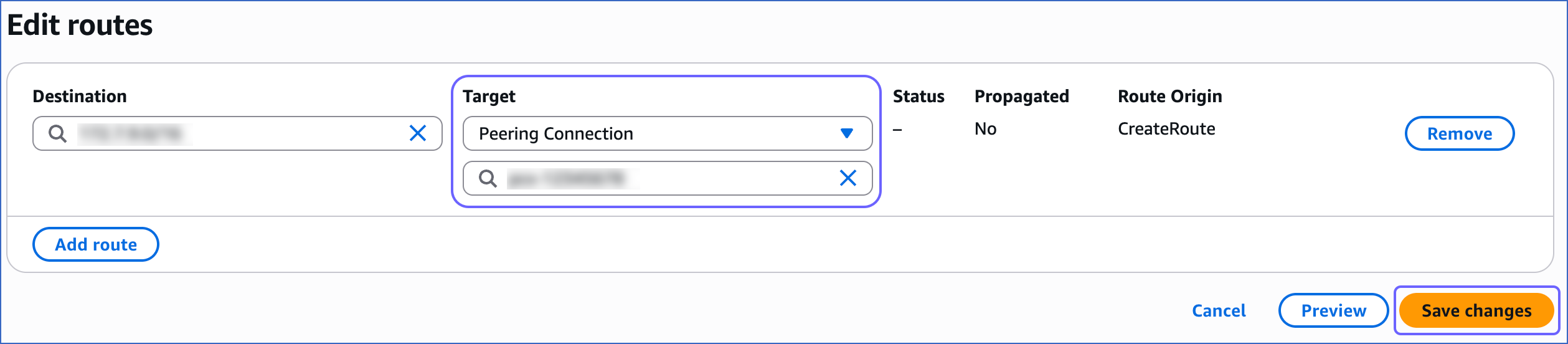
Your route table is updated and now directs traffic for Hevo through the peering connection. Next, update your database’s security group to allow traffic from Hevo’s CIDR to your database.
Add Hevo CIDR to your Database Security Group
A database security group contains rules that allow access to the database from specific IP addresses or IP address ranges. To allow inbound traffic to your database instance from Hevo, add the Hevo CIDR obtained in Step 2 to your database’s security group. For this, perform the following steps:
-
Log in to your Amazon VPC console.
-
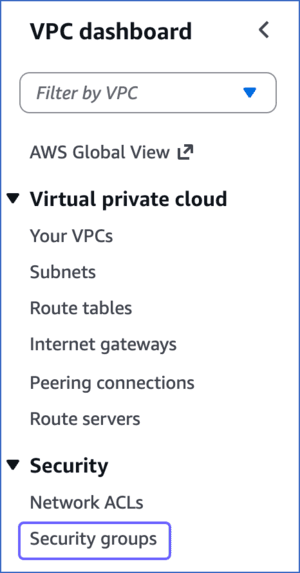
In the left navigation pane, under Security, click Security groups.
-
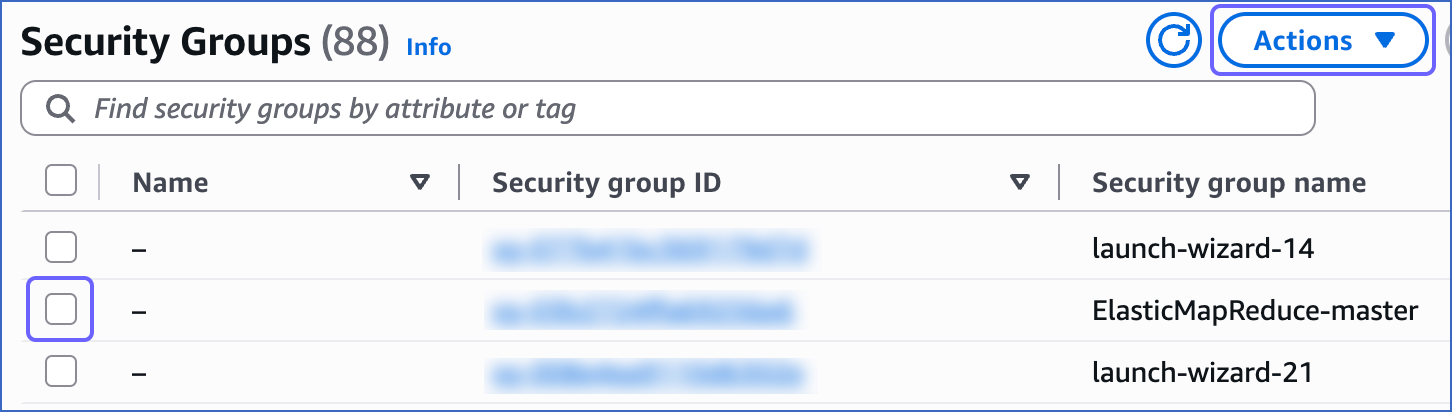
On the Security Groups page, select the check box for the Security group ID associated with your database, and click Actions.
Note: If multiple security groups are associated with your database instance, you only need to update one of them.
-
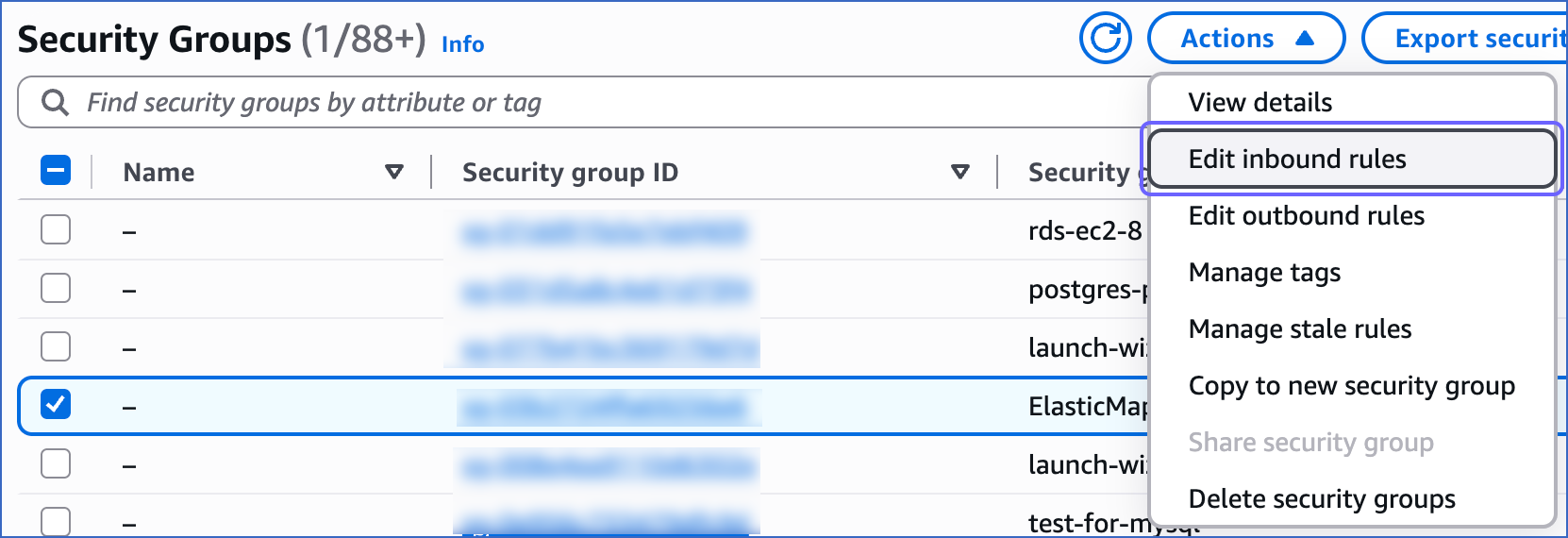
From the Actions drop-down, select Edit inbound rules.
-
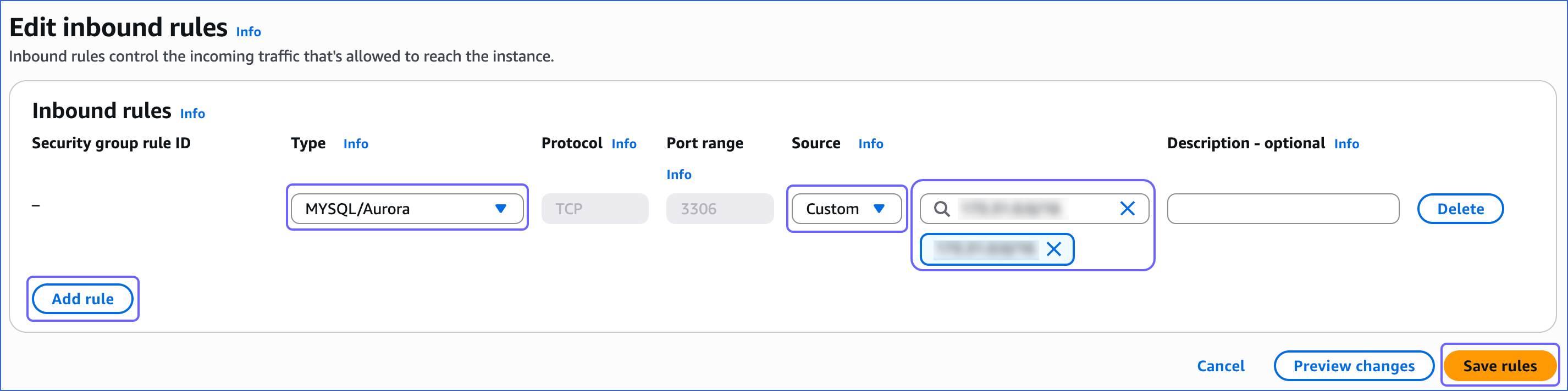
On the Edit inbound rules page, do the following:
-
Click Add rule.
-
From the Type drop-down, select the type of your database instance. For example, MYSQL/Aurora.
-
The Port range column is pre-filled with the port number of your database instance. For example, 3306 for a MySQL/Aurora database.
Note: If your database is configured to use a non-default port, select Custom TCP from the Type drop-down, and then enter the port number.
-
From the Source drop-down, select Custom and enter the Hevo CIDR obtained in Step 2.
-
Click Save rules.
-
Your AWS database is now reachable through the peering connection, and you can configure it as a Source or Destination in Hevo.
Configuring VPC Peering for Edge Pipelines
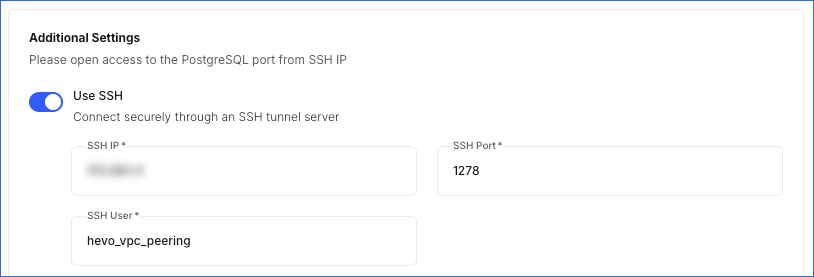
If you are creating an Edge Pipeline, use the Hevo Tunnel Private IP as the SSH IP to configure your Source to use a VPC Peering connection. The Hevo Tunnel Private IP is displayed on the VPC Peering Connections page once the connection status shows Available.

To connect your Source to Hevo using VPC peering, enable the Use SSH toggle in the Additional Settings section during Source configuration, and then do the following:
-
In the SSH IP field, enter the Hevo Tunnel Private IP obtained from the VPC Peering Connections page.
-
In the SSH Port field, enter 1278.
-
In the SSH User field, enter hevo_vpc_peering.
Revision History
Refer to the following table for the list of key updates made to this page:
| Date | Release | Description of Change |
|---|---|---|
| Aug-05-2026 | NA | Added section Obtain Your AWS VPC Details, to describe how to obtain your AWS VPC details required to create a VPC peering connection request. |
| Jul-13-2026 | 2.51 | Updated the doc to reflect the self-service VPC Peering Connection request flow from the Hevo dashboard. |
| Mar-21-2025 | NA | Added a note to clarify database accessibility to connect through VPC Peering. |
| Mar-25-2024 | 2.21.3 | New document. |