On This Page
Jira Cloud is a cloud-based work management platform from Atlassian that teams use to plan, track, and manage work. It enables software, IT, and business teams to organize issues, projects, sprints, and service requests, and to report on their progress.
Hevo uses the Jira Cloud REST APIs, including the Jira platform, Jira Software, Jira Service Management, and Assets APIs, to replicate data into the Destination of your choice. Hevo also uses webhooks to capture delete events for the issue, project, and sprint objects, and to keep the sprint object up to date.
Hevo supports the following authentication methods to connect to your Jira Cloud site:
-
Basic: Allows Hevo to connect to your site using the email address of your Atlassian account and an API token generated for that account.
-
Open Authorization (OAuth): Allows Hevo to connect to your site through an authorization flow, where you log in to your Atlassian account and grant Hevo access to your Jira Cloud site. This method is easier to set up, as it does not require you to create or manage any credentials.
-
Service Account: Allows Hevo to connect to your site using the client ID and client secret of an OAuth 2.0 credential created for an Atlassian service account. A service account is not associated with a person, so the connection is not affected when users leave or change roles in your organization.
Supported Features
| Feature Name | Supported |
|---|---|
| Capture deletes | Yes (for specific objects) |
| History mode | No |
| Custom data (user-configured tables & fields) | Yes |
| Data blocking (skip objects and fields) | Yes |
| Resync (objects and Pipelines) | Yes |
| API configurable | No |
Prerequisites
-
An active Jira Cloud site exists from which data is to be ingested.
-
You are logged in as a user with the Browse spaces permission for the projects from which you want to ingest data. To ingest data for objects such as project_role and security_scheme, the user must also have the Administer Jira global permission. Read Source Considerations for the permissions that each such object requires.
-
If you are authenticating using a service account, you are logged in as an organization admin in Atlassian Administration to create the service account credentials.
-
If you are authenticating using the Basic or Service Account method, the required credentials are available to provide Hevo access to your Jira Cloud data.
Obtain the Jira Cloud Credentials
To connect Hevo to your Jira Cloud site using the Basic or Service Account authentication method, you need the following credentials:
-
Basic: The email address of your Atlassian account and an API token generated for that account.
-
Service Account: The client ID and client secret of an OAuth 2.0 credential created for an Atlassian service account.
These credentials allow Hevo to authenticate the connection to your Jira Cloud site and access your data. You do not need to obtain any credentials for the OAuth method, as you authorize Hevo from the Configure Source screen while creating the Pipeline.
Perform the steps in the section that corresponds to the authentication method you want to use.
Obtain the API Token
An API token allows Hevo to authenticate with your Jira Cloud site using your Atlassian account when you use the Basic authentication method. Atlassian has deprecated the use of account passwords for basic authentication with its REST APIs, so you must use an API token instead.
Perform the following steps to obtain the API token:
-
Log in to your Atlassian account as the user whose account you want Hevo to connect with.
-
On the API Tokens page, click Create API token.
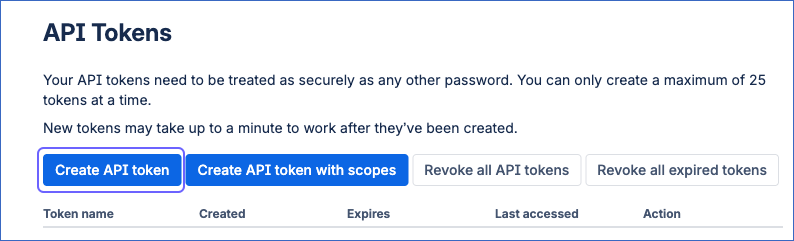
Note: Hevo does not support API tokens with scopes, as Atlassian accepts these tokens only through its API gateway URL. Do not use the Create API token with scopes option.
-
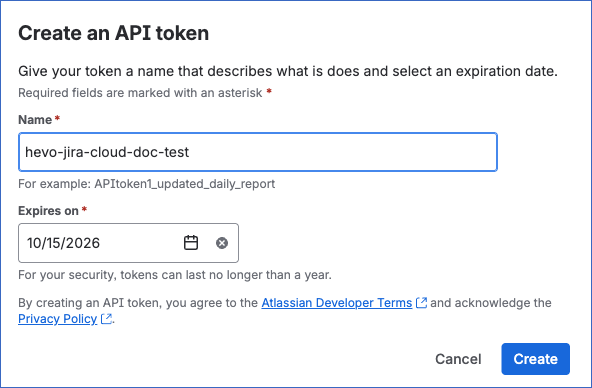
In the Create an API token dialog, do the following:
-
Specify the following:
-
Name: A unique name to identify the API token. For example, hevo-jira-cloud-doc-test.
-
Expires on: The date on which the API token expires. You can select a date from one day up to one year from the current date. Default value: One week from the current date.
Note: After the token expires, Hevo cannot ingest data until you create a new token and update it in your Source configuration.
-
-
Click Create.
-
-
In the Copy your API token dialog, click Copy to copy the API token, and save it securely like any other password.
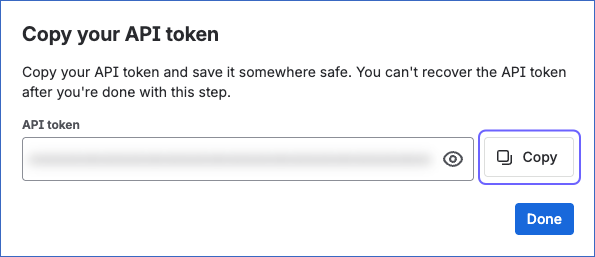 Atlassian displays the API token only once. After you close the Copy your API token dialog, the API token cannot be retrieved. If the API token is lost, you must create a new one and modify the Source configuration in the Pipeline with the new API token.
You can now view the newly created API token on the API Tokens page. Use this API token, along with the email address of your Atlassian account, while configuring your Jira Cloud Source in the Pipeline.
Obtain the Service Account Credentials
A service account is an Atlassian account that is not associated with a person. To use the Service Account authentication method, you must give a service account access to Jira and create an OAuth 2.0 credential for it. The credential provides the client ID and client secret that Hevo uses to connect to your Jira Cloud site.
Note: You must log in as an organization admin to perform these steps.
Perform the following steps to obtain the service account credentials:
-
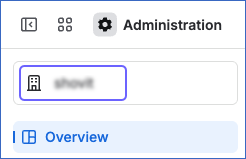
Log in to Atlassian Administration and select your organization.
-
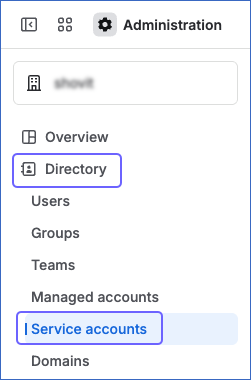
In the left navigation pane, click Directory, and then click Service accounts.
-
On the Service accounts page, do one of the following:
-
To use an existing service account, click the service account that you want Hevo to use.
-
To create a service account, perform the following steps:
-
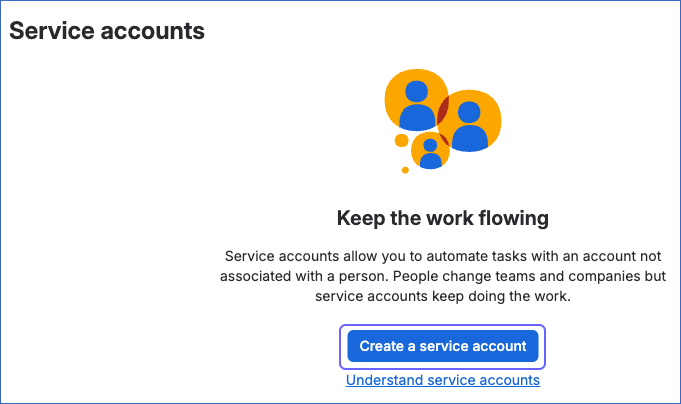
Click Create a service account.
-
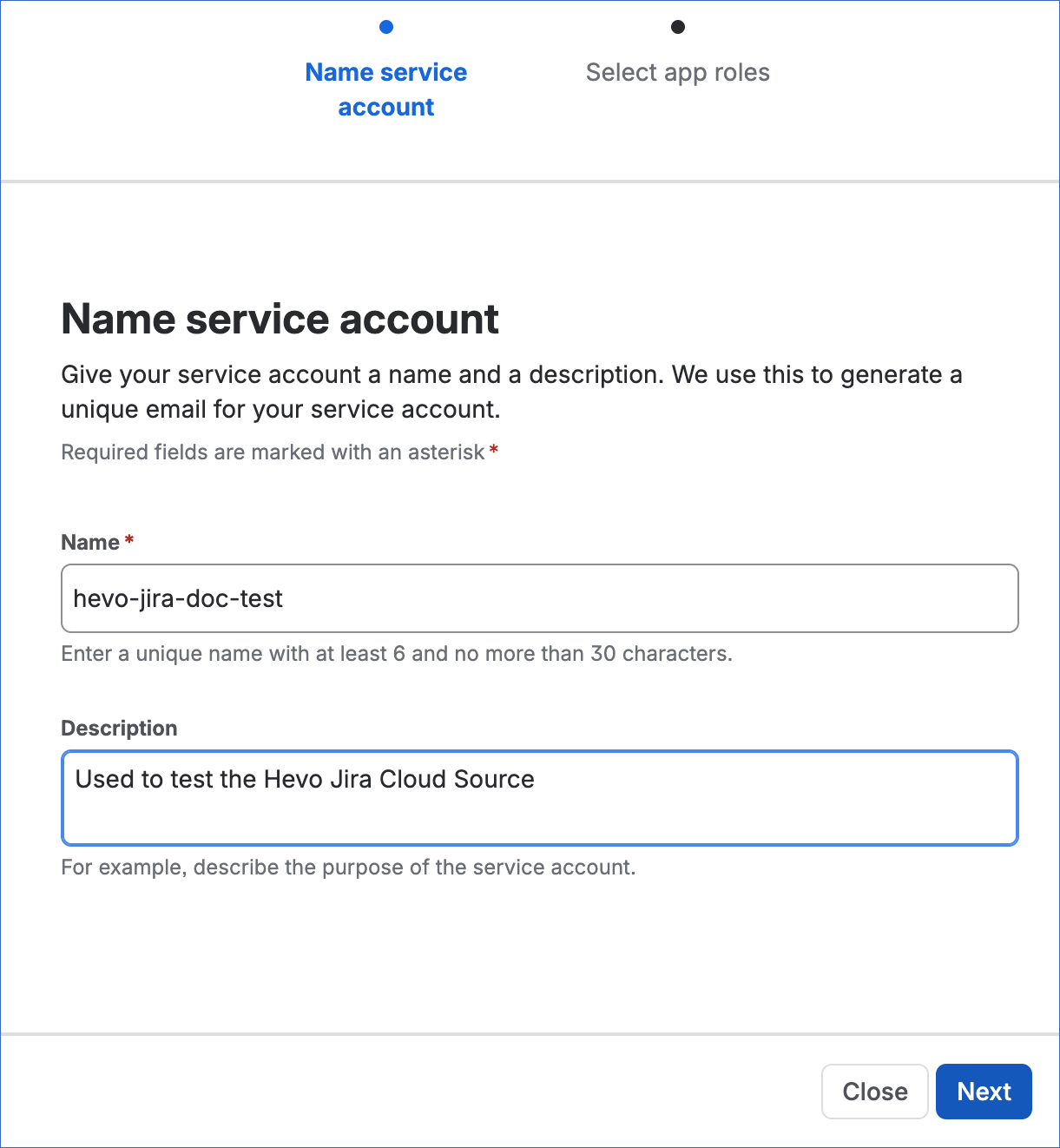
On the Name service account page, do the following:
-
Specify the following:
-
Name: A unique name for the service account, between 6 and 30 characters. For example, hevo-jira-doc-test.
-
Description: A suitable text to describe the purpose of the service account.
-
-
Click Next.
-
-
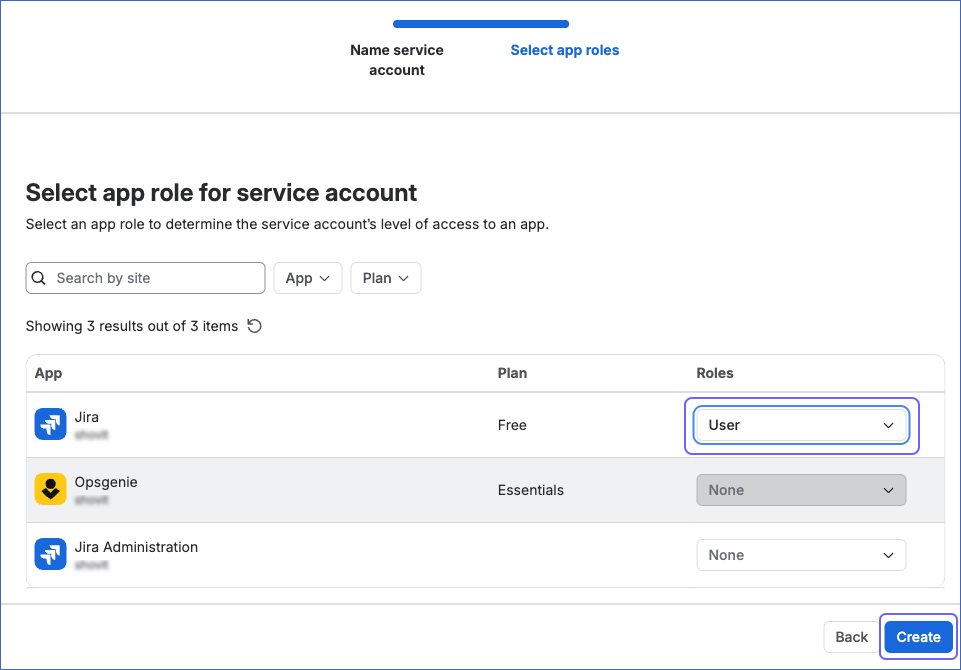
On the Select app roles page, do the following:
-
From the Roles drop-down for each of the following apps on your site, select the corresponding role:
App Role Required for Jira User Projects, issues, and the other Jira objects. This role is mandatory. Jira Administration App admin The objects that require the Administer Jira global permission, such as project_role and security_scheme. Jira Service Management User (agent) The Jira Service Management objects, such as request and sla. Assets User The Assets objects. Note: If an app is not listed for your site, skip it. Hevo marks the objects that require the app as Inaccessible.
-
Click Create.
You are redirected to the page of the newly created service account.
-
-
-
-
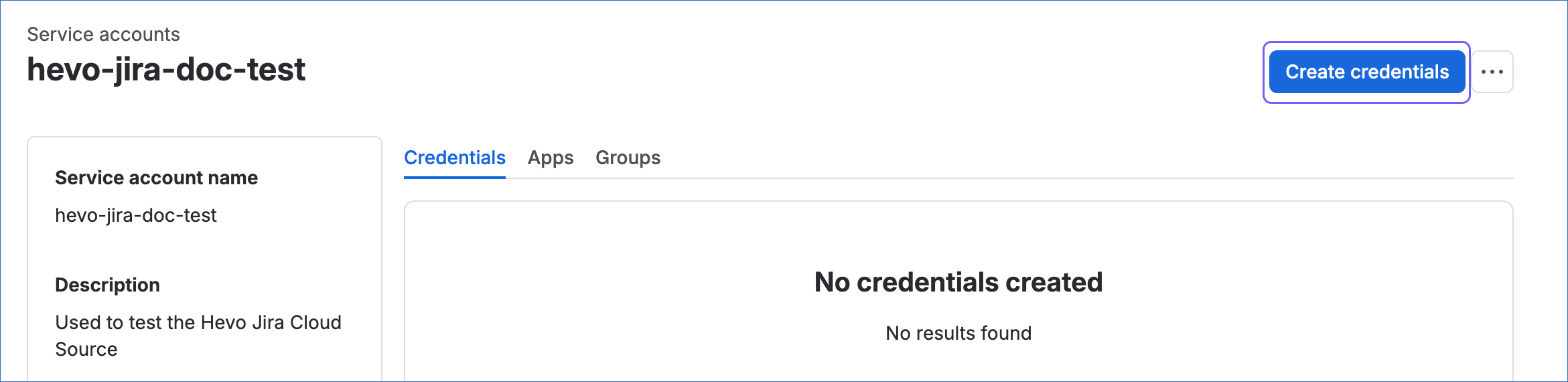
On the <Your Service Account Name> page, click Create credentials.
-
On the Choose authentication type page, select OAuth 2.0, and then click Next.

-
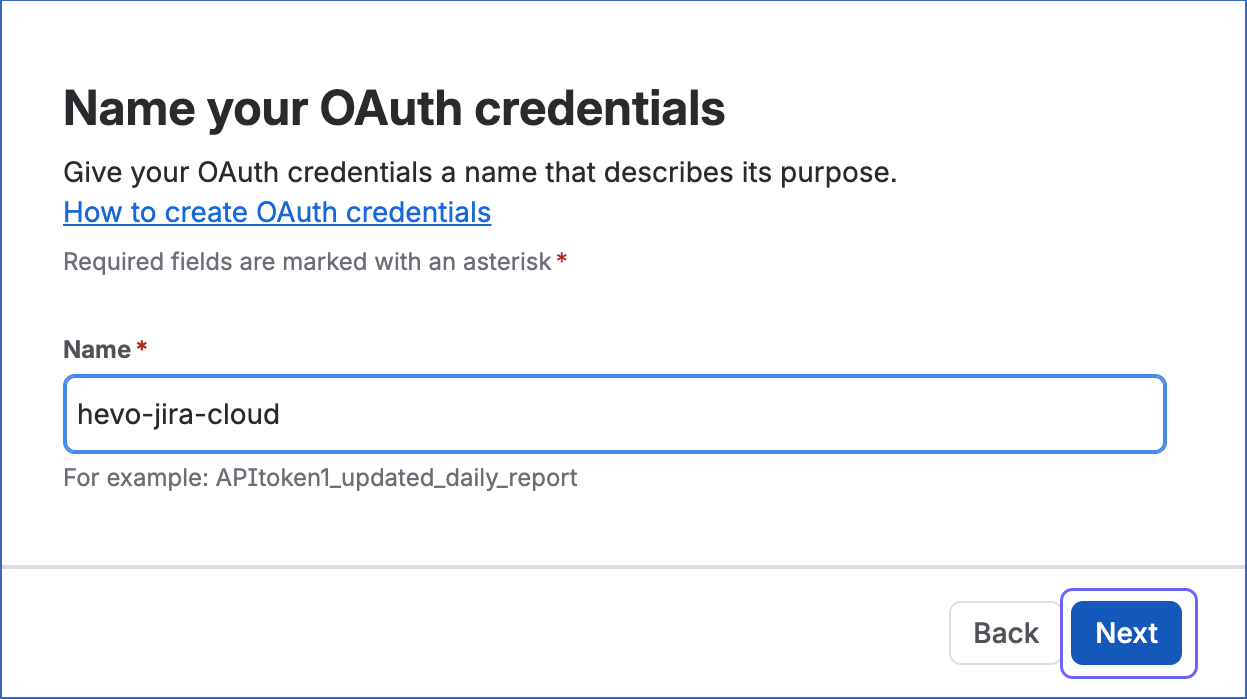
On the Name your OAuth credentials page, specify a unique Name for the credential, and then click Next.
-
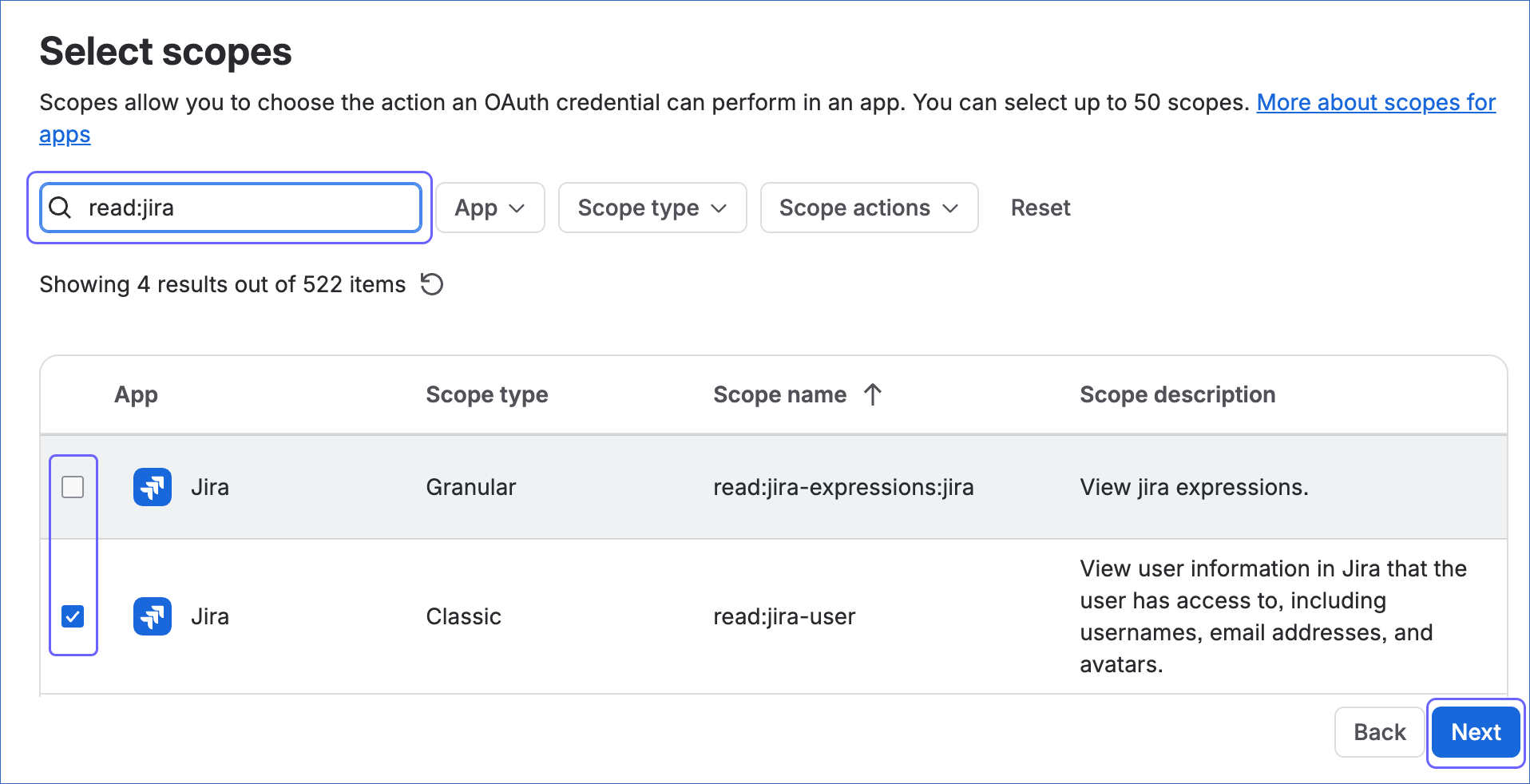
On the Select scopes page, do the following:
-
Search for and select the check box next to each of the following scopes:
Category Scope Description Jira platform read:jira-workRead project and issue data, including attachments, comments, and worklogs. This scope is mandatory. read:jira-userRead user information, such as names and email addresses. manage:jira-configurationRead Jira configuration data, such as statuses, project roles, and permission schemes. manage:jira-projectRead issue security schemes and their security levels. read:issue-details:jiraRead issue details, which Hevo requires to search for issues and to read the issues on boards. read:project:jiraRead projects, which Hevo requires to read boards and the projects linked to them. Jira Software read:board-scope:jira-softwareRead boards and the issues on them. read:board-scope.admin:jira-softwareRead board configuration, such as board filters and properties. read:epic:jira-softwareRead epics and the issues related to them. read:sprint:jira-softwareRead sprints and the issues in them. Jira Service Management read:servicedesk-requestRead customer requests, including approvals, comments, and request types. Assets read:cmdb-object:jiraRead Assets objects and their attribute values. read:cmdb-schema:jiraRead Assets object schemas. read:cmdb-type:jiraRead Assets object types. read:cmdb-attribute:jiraRead the attributes of Assets object types. Note: If a scope other than
read:jira-workis not granted, Hevo cannot ingest data for the objects that require it. Although themanage:jira-configurationandmanage:jira-projectscopes allow write access, Hevo uses them only to read data from your Jira Cloud site. -
Click Next.
-
-
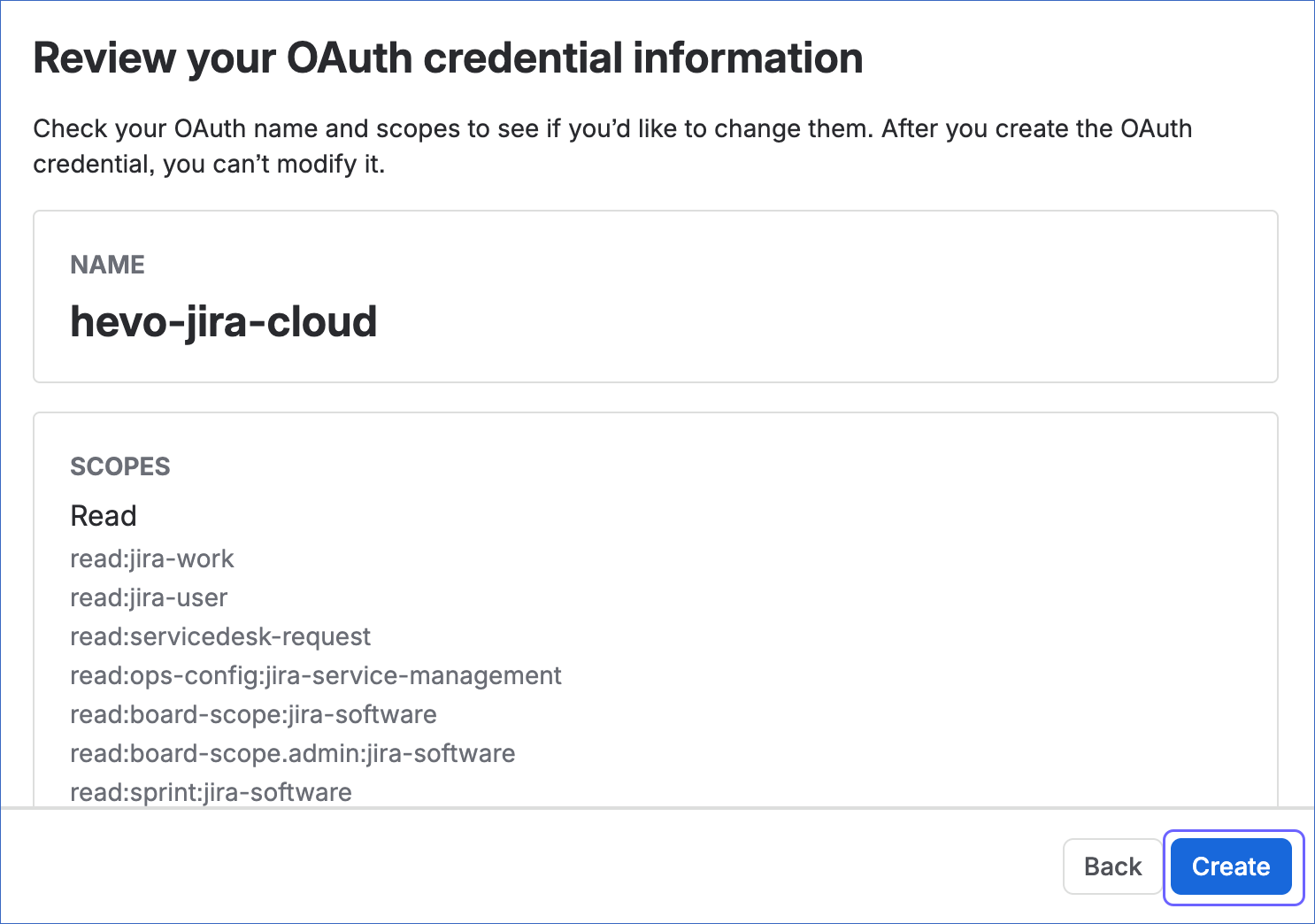
On the Review your OAuth credential information page, verify the name and scopes of the credential, and then click Create.
-
On the Your OAuth credential page, click the Copy icon next to Client ID and Client secret to copy them, and save them securely like any other password.
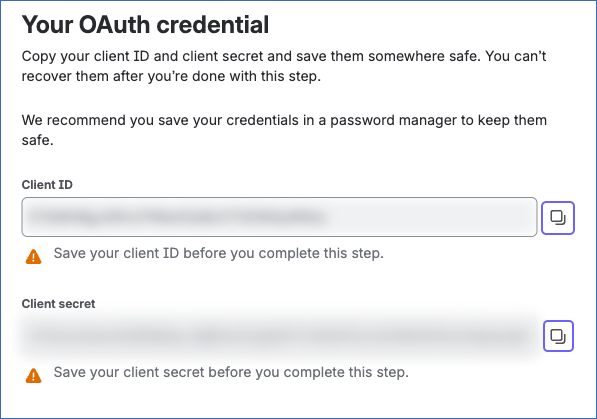 Atlassian displays the client ID and client secret only once. After you leave the Your OAuth credential page, they cannot be retrieved. If the credentials are lost, you must create a new OAuth 2.0 credential and modify the Source configuration in the Pipeline with the new credentials.
You now have the client ID and client secret of the OAuth 2.0 credential. Use them while configuring your Jira Cloud Source in the Pipeline.
If the credentials configured in the Pipeline are revoked manually from your Atlassian account, Hevo cannot authenticate with the Source. As a result, all active jobs for the Pipeline fail, and no data is replicated. To resume data replication, modify the Source configuration in the Pipeline with valid credentials. Once the updated credentials are saved, Hevo re-authenticates the Source, and data ingestion resumes from the last saved offset.
Configure Jira Cloud as a Source in your Pipeline
Perform the following steps to configure your Jira Cloud Source:
-
Click Pipelines in the Navigation Bar.
-
Click + Create Pipeline in the Pipelines List View.
-
On the Select Source Type page, select Jira Cloud.
-
On the Select Destination Type page, select the type of Destination you want to use.
-
On the Select Pipeline Type page, click Edge, and then click Continue.

This page appears only if the selected Destination type is supported in Edge and your Team has an existing Jira Cloud Pipeline with the same Destination type. Otherwise, you can proceed to create an Edge Pipeline.
-
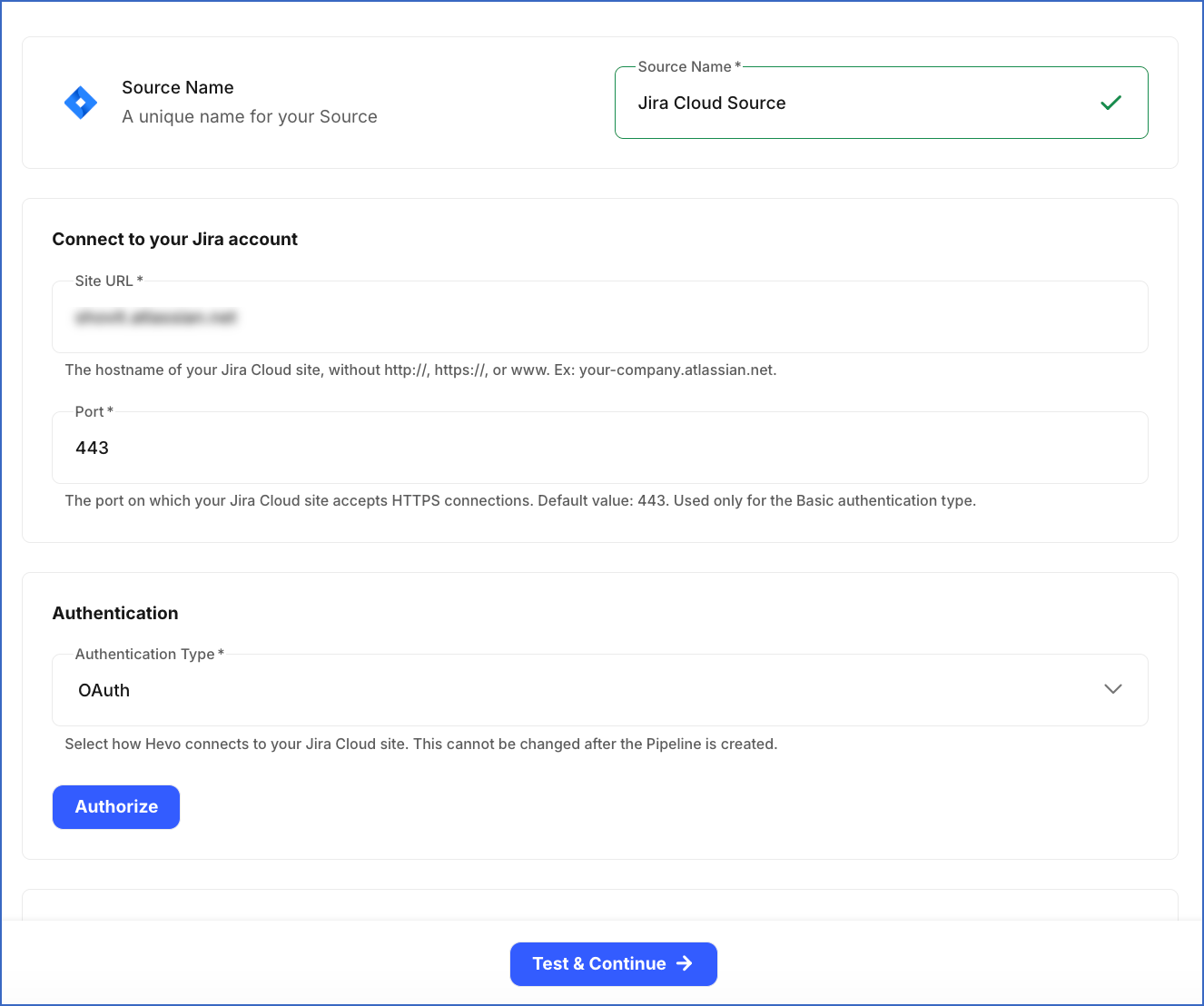
In the Configure Source screen, specify the following:
-
Source Name: A unique name for your Source, not exceeding 255 characters. For example, Jira Cloud Source.
-
In the Connect to your Jira account section:
-
Site URL: The hostname of your Jira Cloud site, without http, https, or www. For example, your-company.atlassian.net.
-
Port: The port on which your Jira Cloud site accepts HTTPS connections. Hevo uses this value only for the Basic authentication method. Default value: 443.
-
-
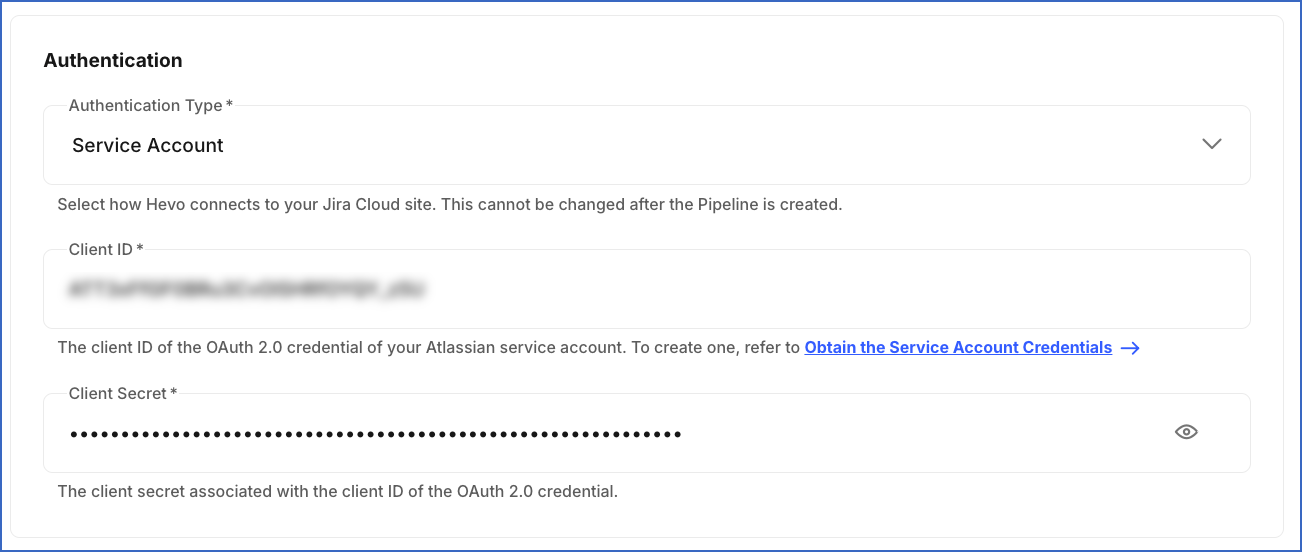
In the Authentication section, from the Authentication Type drop-down, select the method you want to use for authenticating Hevo’s connection to your Jira Cloud site. Default value: OAuth.
-
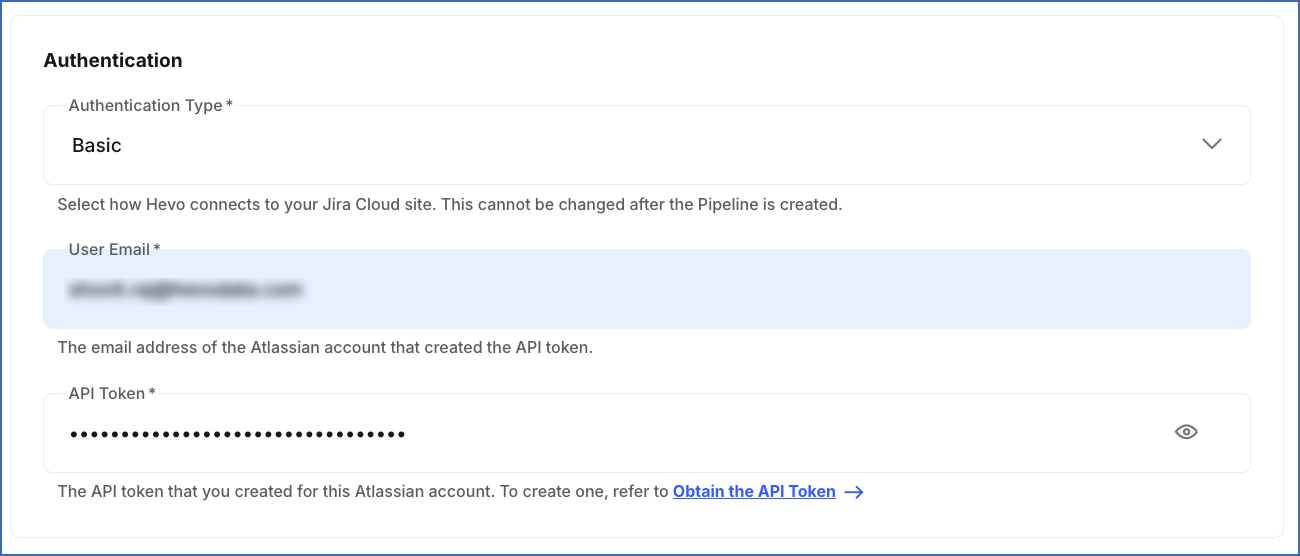
Basic: Connect to your Jira Cloud site using the email address of your Atlassian account and an API token.
-
User Email: The email address of the Atlassian account that created the API token. For example, jane@your-company.com.
-
API Token: The API token that you obtained in the Obtain the API Token section.
-
-
OAuth: Connect to your Jira Cloud site using an authorization flow. Click Authorize, and then perform the following steps:
-
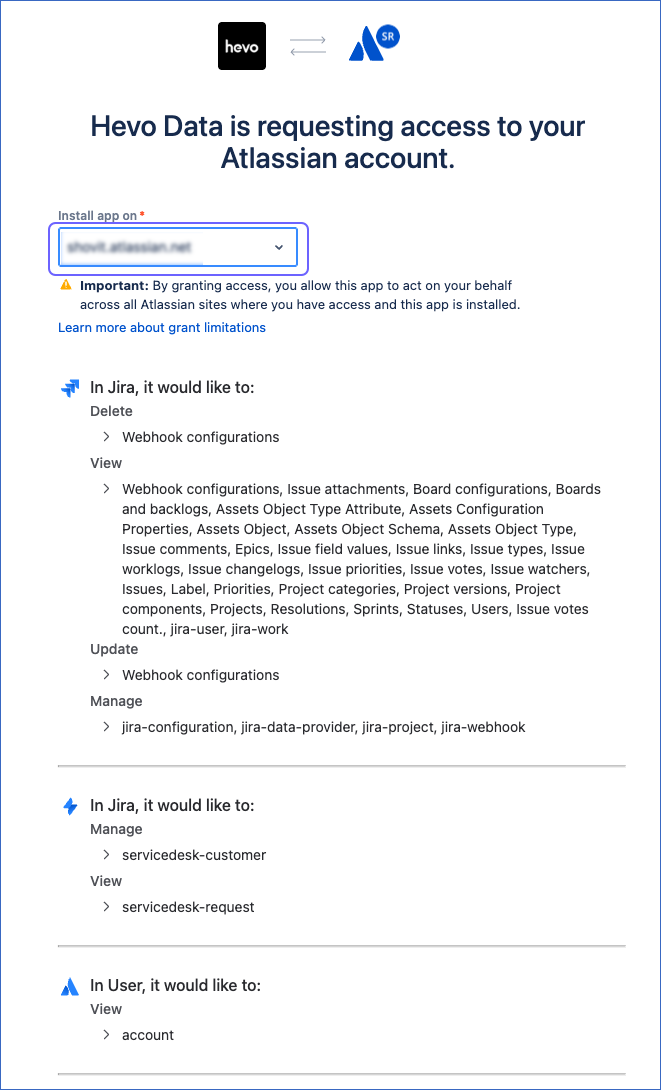
If you are not already logged in to your Atlassian account, log in when prompted. Otherwise, proceed to step 2.
-
From the Install app on drop-down, select the Jira Cloud site that you specified in the Site URL field.
-
Review the access requested by Hevo, and then click Accept to authorize Hevo to access your Jira Cloud data.
You are redirected to the Configure Source screen, where the email address of the authorized account is displayed.
-
-
Service Account: Connect to your Jira Cloud site using the credentials of an Atlassian service account.
-
Client ID: The client ID of the OAuth 2.0 credential that you created for the service account.
-
Client Secret: The client secret of the OAuth 2.0 credential that you created for the service account.
-
-
-
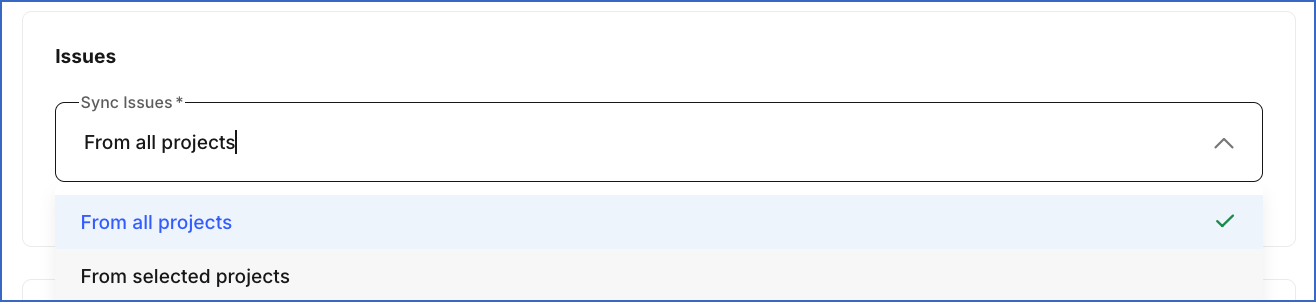
In the Issues section:
-
From the Sync Issues drop-down, select the projects from which you want Hevo to ingest issues. Default value: From all projects.
-
From all projects: Hevo ingests issues from all existing projects and from projects created later in your Jira Cloud site.
-
From selected projects: Hevo ingests issues only from the projects that you select. Projects created later in your Jira Cloud site are not included automatically.
- Projects: The projects from which you want to ingest issues. You can select multiple projects from the drop-down.
Note: Hevo applies the project selection only to issues and their related objects. Objects such as board, project, project_role_actor, and the Jira Service Management objects contain data from all projects in your Jira Cloud site.
-
-
-
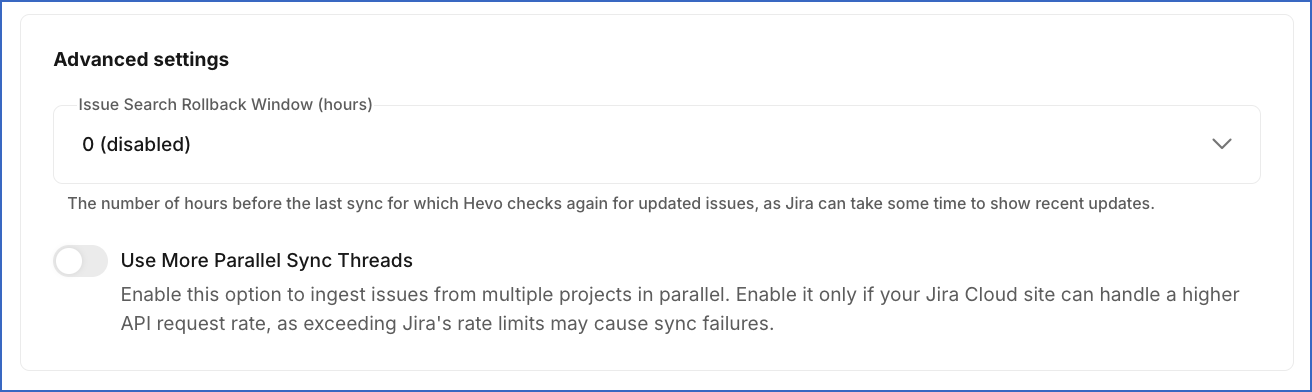
In the Advanced settings section:
-
Issue Search Rollback Window (hours): The number of hours, from 0 to 48, by which Hevo moves back the start of each incremental ingestion to re-ingest recently updated issues. Jira can return recently updated issues in its search results with a delay, and this setting helps capture such updates. Default value: 0 (disabled).
-
Use More Parallel Sync Threads: If enabled, Hevo ingests issues from multiple projects in parallel, which reduces the time taken to sync your data. Enable this option only if your Jira Cloud site can handle a higher rate of API requests, as exceeding Jira’s rate limits may cause sync failures. Default value: Disabled.
-
Note: You cannot change the Site URL, Port, and Authentication Type fields after the Pipeline is created.
-
-
Click Test & Continue to test the connection to your Jira Cloud Source.
When you click this button, Hevo makes an API call to retrieve the details of the authenticated user. For the OAuth and Service Account methods, Hevo verifies that the access token includes a scope to read projects. If you select From selected projects, Hevo also verifies that the selected projects can still be accessed. If these checks pass, the connection test is marked as successful. You can then proceed to set up your Destination.
Data Replication
Hevo replicates data for all the objects selected on the Configure Objects page during Pipeline creation. By default, all supported objects and their available fields are selected. However, you can modify this selection while creating or editing the Pipeline.
Hevo ingests the following types of data from your Source objects:
-
Historical Data: The first run of the Pipeline ingests all available historical data for the selected objects and loads it into the Destination.
-
Incremental Data: Once the historical load is complete, new and updated records for objects are ingested as per the sync frequency.
For the following objects, Hevo ingests only the incremental data in subsequent Pipeline runs:
| Object Category | Objects |
|---|---|
| Issues | issue, aggregateprogress, asset_object_issue, attachment, attachment_metadata, comment, epic, field_option, issue_link, issuerestriction, organization, priority, progress, resolution, service, team, timetracking, votes, worklog |
| Issue History | issue_field_history, issue_field_rendered, issue_multiselect_history |
| Issue Details | issue_form, issue_property, issue_remote_link, issue_user_vote, issue_watcher, worklog_property |
| Jira Service Management | approval, approver, request, request_comment, request_type, sla |
| Users | user, user_group |
| Assets | asset_object_schema, asset_object_type, asset_object_type_attribute |
| Custom Fields | The tables that Hevo creates for the custom fields in your Jira Cloud site |
Incremental changes are detected using the updated field of issues. For each project, Hevo ingests the issues updated since the start of the previous Pipeline run, along with the data of the objects associated with those issues. For the asset_object_schema, asset_object_type, and asset_object_type_attribute objects, Hevo detects changes using the time at which the object schema or object type was last updated. Once every 24 hours, Hevo also re-ingests the data of all users referenced in your Jira Cloud site.
For the board, permission_scheme, and security_scheme objects and their child objects, Hevo ingests the entire data once every 24 hours. For all other objects, Hevo ingests the entire data during each Pipeline run. Events ingested through data refresh are not billable.
Note: Jira can return recently updated issues in its search results with a delay. To re-ingest the issues updated just before a Pipeline run started, specify the number of hours in the Issue Search Rollback Window (hours) field while configuring your Source.
Jira Cloud enforces API rate limits on the number of calls that can be made in a given time period. If this limit is exceeded, a rate limit exception occurs. To understand how Hevo handles such scenarios, read Handling Rate Limit Exceptions.
Note: You can create a Pipeline with this Source only using the Merge load mode. The Append mode is not supported for this Source.
Schema and Primary Keys
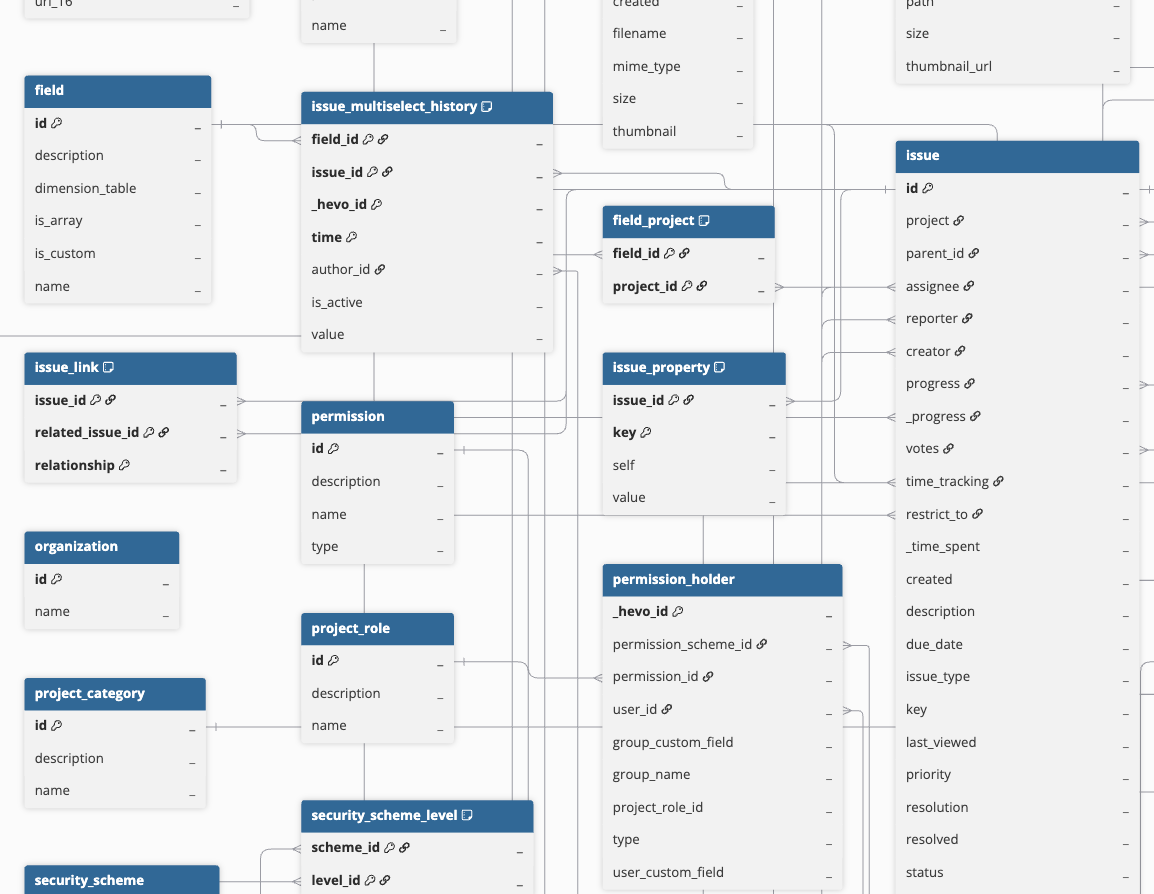
Hevo uses the following schema to upload the records in the Destination. For a detailed view of the objects, fields, and relationships, click the ERD.
Data Model
The following is the list of tables (objects) that are created at the Destination when you run the Pipeline:
| Object | Description |
|---|---|
| Approval | Contains the approvals requested on Jira Service Management requests, including the approval name, the final decision, and the dates on which the approval was created and completed. It includes a child object, Approver. |
| Asset Object | Contains the objects stored in your Assets schemas, such as hardware and software assets, including the object key, label, object type, and creation and update timestamps. It includes the following child objects: - Asset Object Schema - Asset Object Type - Asset Object Type Attribute - Asset Object Type Attribute Object - Asset Reference Type - Asset Schema Status |
| Board | Contains the Jira Software boards in your Jira Cloud site, including the board name and type, such as scrum or kanban. It includes the following child objects: - Issue Board - Project Board - Sprint - Sprint Board |
| Field | Contains the system and custom fields available in your Jira Cloud site, including the field name, description, whether the field is a custom field, and whether it holds multiple values. |
| Field Project | Contains the mapping between custom fields and the projects in which they are available. |
| Issue | Contains the issues in your Jira Cloud site, including the issue key, summary, description, status, priority, assignee, reporter, and creation, update, and resolution timestamps. It includes the following child objects: - Aggregate Progress - Asset Object Issue - Attachment - Attachment Metadata - Comment - Epic - Field Option - Issue Link - Issue Restriction - Organization - Priority - Progress - Resolution - Service - Team - Time Tracking - Votes - Worklog Note: The Attachment and Attachment Metadata objects contain only file details, such as the file name, size, and URL. The file content is not replicated. |
| Issue Field History | Contains the history of changes made to issue fields, including the field, its value, the time of the change, and the user who made the change. It includes the following child objects: - Issue Field Rendered - Issue Multiselect History |
| Issue Form | Contains the forms attached to issues, including the form name, state, and the answers submitted in the form. |
| Issue Property | Contains the custom properties stored against issues by apps and integrations, including the property key and value. |
| Issue Remote Link | Contains the links from issues to resources outside Jira, including the name of the linked application, and the title and URL of the linked resource. |
| Issue Type | Contains the issue types available in your Jira Cloud site, such as bug, task, and story, including whether the issue type is a subtask and its hierarchy level. |
| Issue User Vote | Contains the users who voted for each issue. |
| Issue Watcher | Contains the users who are watching each issue. |
| Permission Scheme | Contains the permission schemes defined in your Jira Cloud site, including the scheme name and description. It includes the following child objects: - Permission - Permission Holder |
| Project | Contains the projects in your Jira Cloud site, including the project key, name, type, lead, category, and whether the project is archived. It includes the following child objects: - Component - Project Category - Version |
| Project Role | Contains the project roles defined in your Jira Cloud site, including the role name and description. It includes a child object, Project Role Actor. |
| Request | Contains the Jira Service Management customer requests, including the request type, the service project, and the link to the request in the customer portal. It includes the following child objects: - Request Comment - Request Type |
| Security Scheme | Contains the issue security schemes defined in your Jira Cloud site, including the scheme name, description, and default security level. It includes the following child objects: - Security Level - Security Scheme Level |
| SLA | Contains the Service Level Agreement (SLA) information for Jira Service Management requests, including the SLA name, start and stop times, goal duration, elapsed and remaining time, and whether the SLA was breached. |
| Status | Contains the workflow statuses in your Jira Cloud site, including the status name, description, and the status category to which the status belongs. |
| Status Category | Contains the status categories, such as To Do, In Progress, and Done, that group related workflow statuses. |
| User | Contains the users referenced in your Jira Cloud site, including their name, email address, locale, time zone, and whether the account is active. It includes a child object, User Group. |
| Worklog Property | Contains the custom properties stored against worklogs by apps and integrations, including the property key and value. |
Note: Hevo does not store the values of custom fields in the issue object. These values are stored in the issue_field_history object, or in the issue_multiselect_history object for fields that hold multiple values. For custom fields that hold structured data, such as a set of attributes instead of a single text or number value, Hevo also creates a separate table for each custom field type, named after the type. For example, com_atlassian_jira_plugin_system_customfieldtypes_agent_sessions. Such a table is marked as Inaccessible on the Configure Objects page until the corresponding field contains a value in your Jira Cloud site.
Additional Information
Read the detailed Hevo documentation for the following related topics:
Configure Webhooks for Capturing Delete Events
For the issue, project, and sprint objects, Hevo captures delete events through webhooks. Hevo does not create a webhook in your Jira Cloud site for any authentication method. To capture these delete events, you must create a webhook in your Jira Cloud site using the webhook URL generated for your Pipeline. Once configured, whenever records for these objects are deleted, Hevo sets the metadata column __hevo__marked_deleted to True for the corresponding records in the Destination. Hevo also uses the sprint events sent through the webhook to update the sprint object, which is otherwise ingested only once every 24 hours.
Note: Hevo cannot capture the records that were deleted before you created the webhook.
Perform the following steps to configure webhooks for capturing delete events:
Obtain the Webhook URL for your Pipeline
Perform the following steps to obtain the webhook URL generated by Hevo for your Pipeline:
-
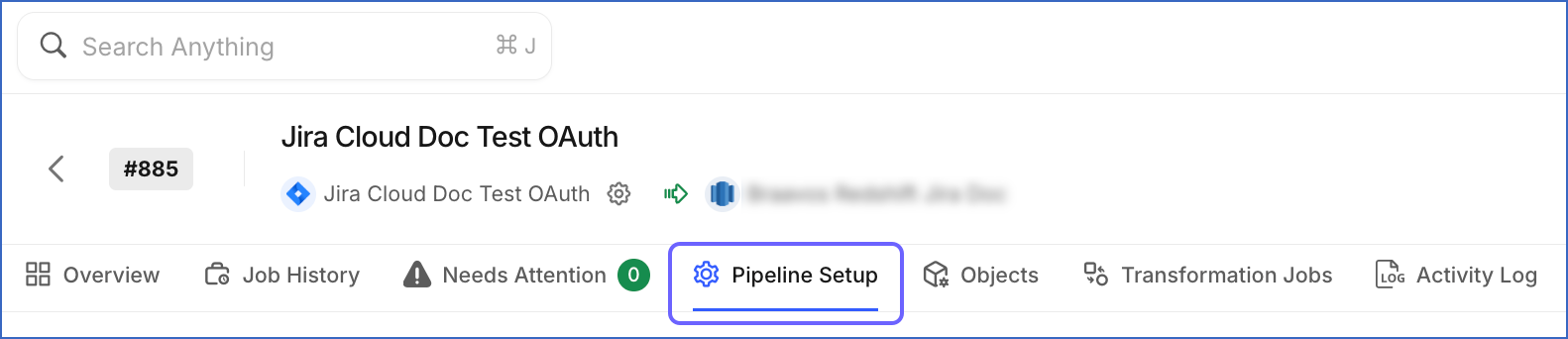
In the Pipeline’s toolbar, click Pipeline Setup.
-
Scroll down to the Configure Pipeline section and copy the URL displayed in the Webhook URL field.

Use this URL while creating the webhook in your Jira Cloud site.
Create a Webhook in your Jira Cloud site
Perform the following steps to create a webhook in your Jira Cloud site to capture delete events for the issue, project, and sprint objects:
-
Log in to your Jira Cloud site as a user with the Administer Jira global permission.
-
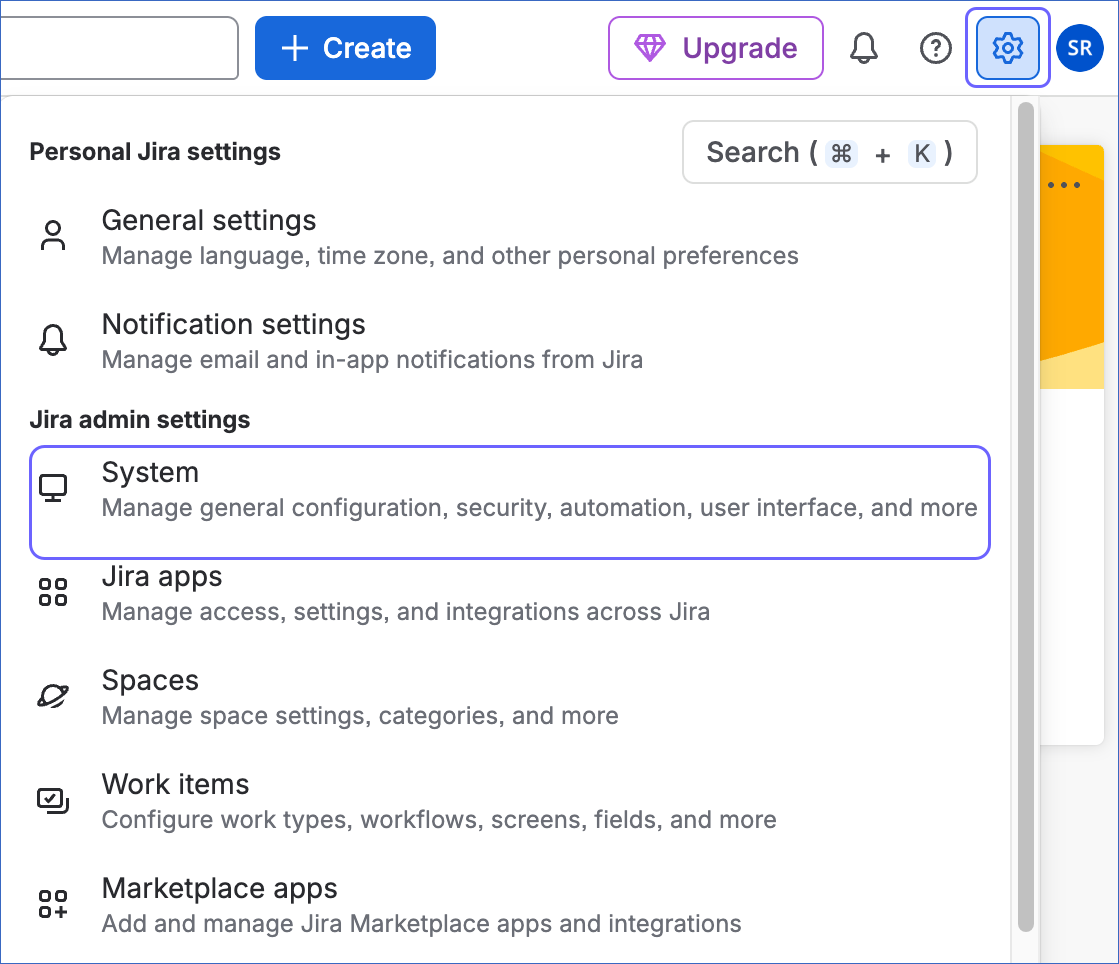
In the top navigation bar, click the Settings icon, and then under Jira admin settings, click System.
-
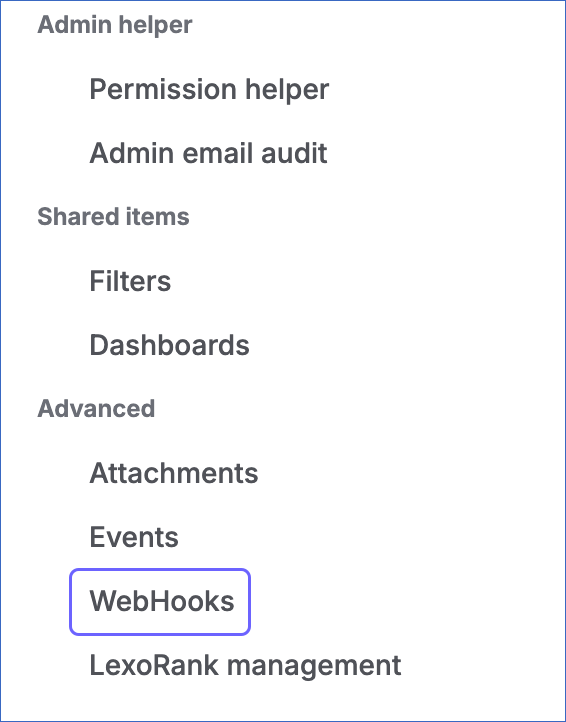
In the left navigation pane, under Advanced, click WebHooks.
-
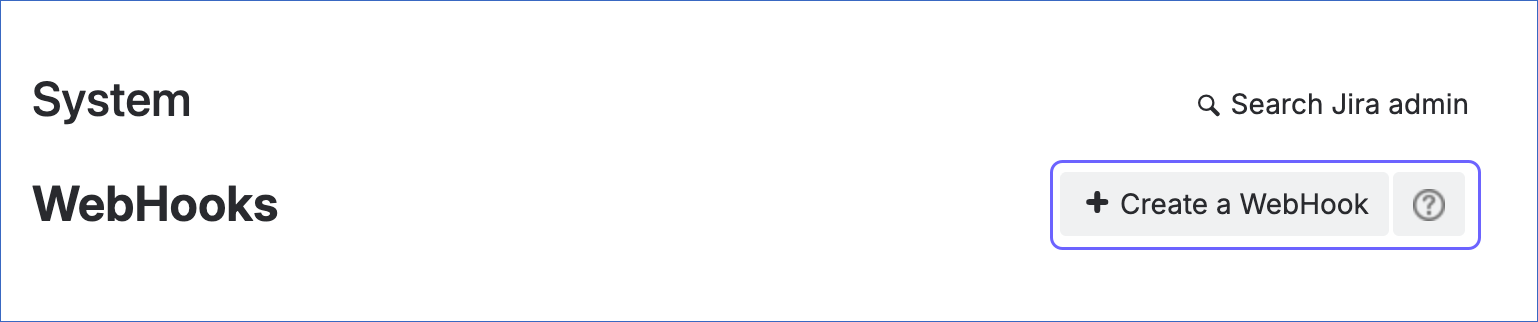
On the WebHooks page, click Create a WebHook.
-
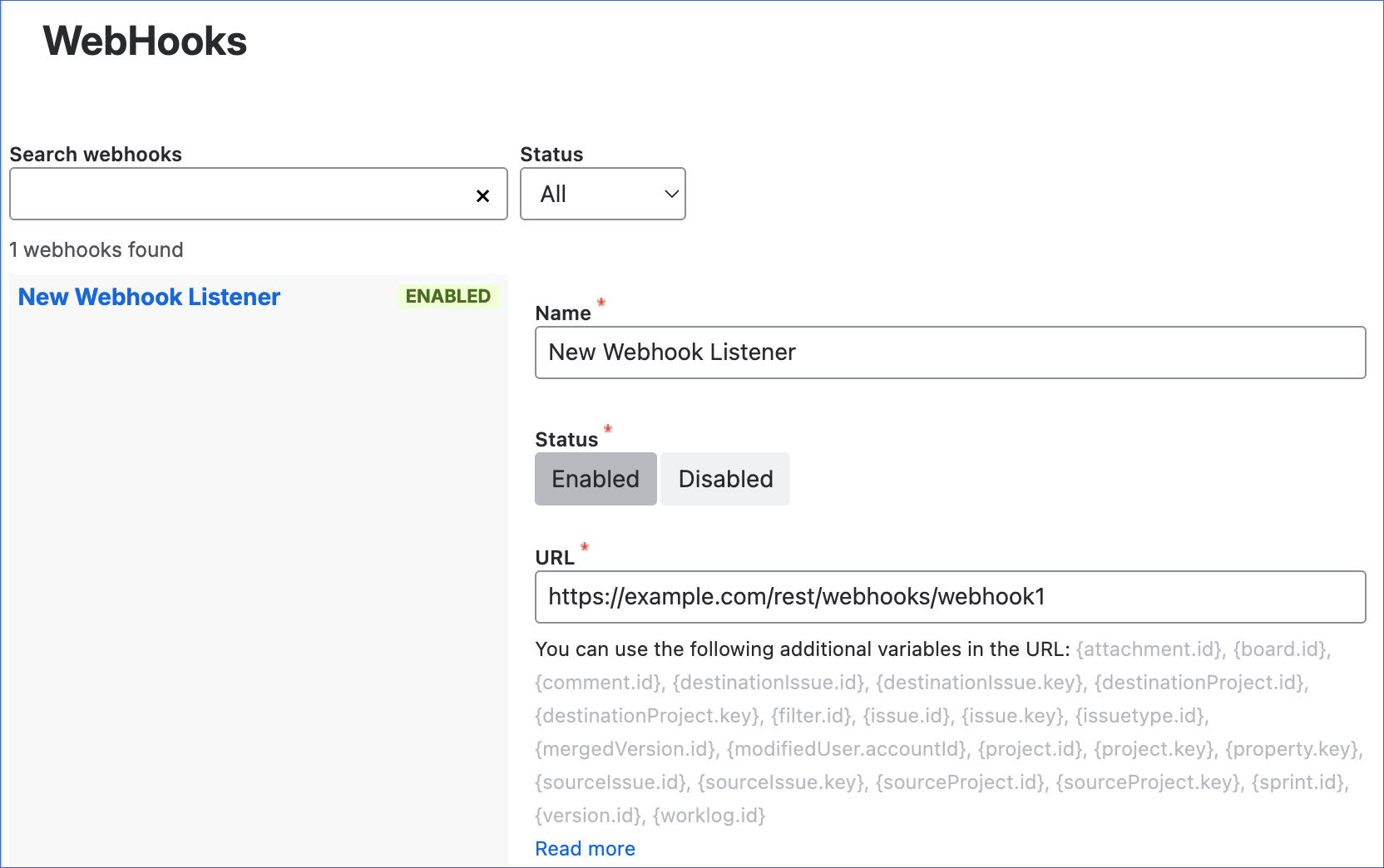
Specify the following:
-
Name: A unique name to identify the webhook.
-
Status: Select Enabled.
-
URL: The webhook URL that you obtained from your Pipeline.
-
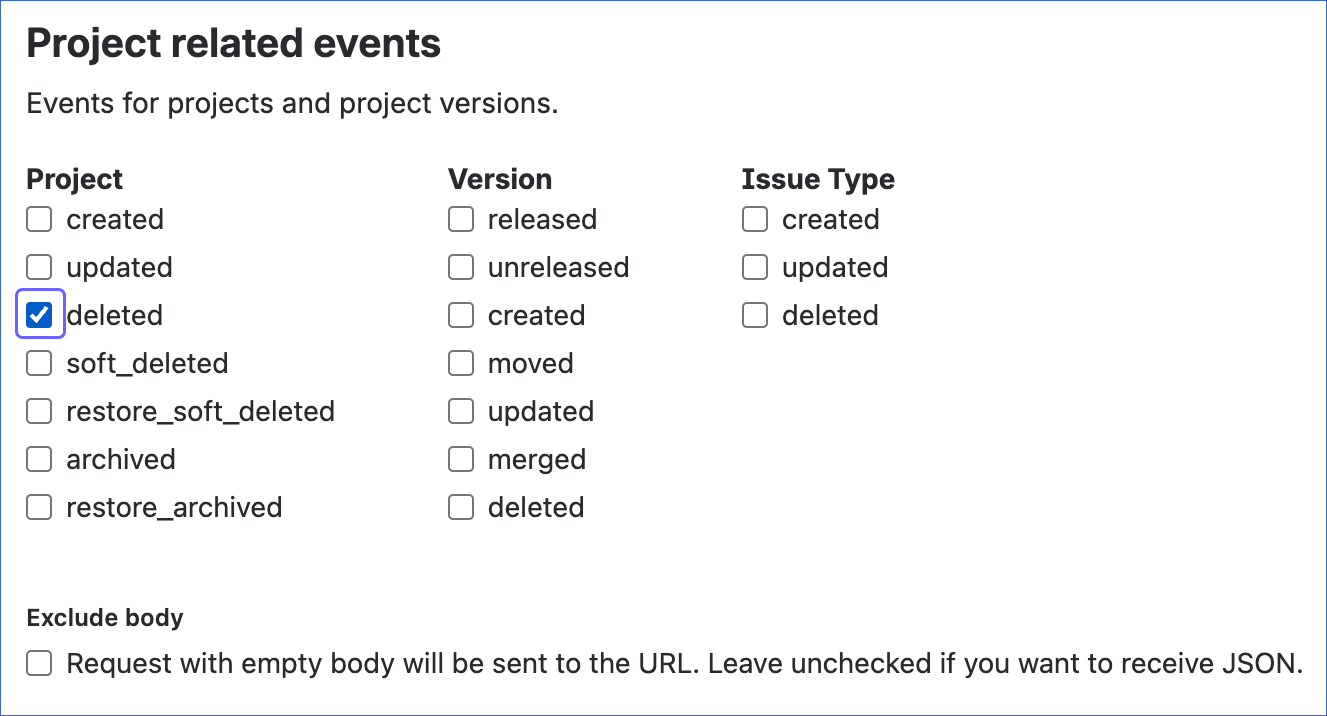
Events: Select the check boxes for the following events:
-
Under Jira Software related events, next to Sprint, select created, deleted, updated, started, and closed.
-
Under Issue related events, next to Issue, select deleted.
-
Under Project related events, next to Project, select deleted.
Note: If you select any additional events, Jira Cloud may send notifications for those events to the configured webhook URL. However, Hevo ignores these notifications, and they do not affect data ingestion.
-
-
Exclude body: Ensure that this check box is not selected, as Hevo requires the event details sent in the request body.
-
-
Click Create to save the webhook.
You can now view the newly created webhook on the WebHooks page. Read Manage webhooks for more information.
Handling of Deletes
Hevo uses the following methods to capture deleted records for your Source objects:
| Method | How it works | Applies to |
|---|---|---|
| Capturing delete events through webhooks | Jira Cloud sends delete event notifications to Hevo through the webhook that you create in your Jira Cloud site. These events are processed in the next Pipeline run to mark the corresponding records as deleted in the Destination by setting the value of the metadata column __hevo__marked_deleted to True. | - issue - project - sprint |
| Comparing Source and Destination data | Hevo identifies deleted records by comparing the latest data fetched from the Source with the data present in the Destination. If a record exists in the Destination but is no longer returned by the Source, Hevo marks the record as deleted in the Destination. | - asset_object - board - field - field_project - issue_board - permission - permission_holder - permission_scheme - project_board - project_role - project_role_actor - sprint_board |
| Re-ingesting records along with their parent record | When Hevo re-ingests a parent record, such as an issue, it removes the existing records of these objects that belong to the parent record from the Destination and loads the latest records from the Source. As a result, a record deleted in the Source is removed from the Destination the next time its parent record is ingested. | - asset_object_issue - asset_object_type_attribute_object - issue_field_history - issue_field_rendered - issue_link - issue_multiselect_history - issue_property - issue_remote_link - issue_user_vote - issue_watcher - security_scheme_level - user_group - worklog |
For all other objects, Hevo does not capture deletes. If a record is deleted in Jira Cloud, it remains in the Destination unless you resync the object with the Drop and load option enabled.
Note: When an issue or a project is deleted, Hevo marks only the corresponding record of the issue or project object as deleted. The records of its related objects, such as comments and components, remain in the Destination. Also, if a project is moved to the trash in your Jira Cloud site, Hevo marks it as deleted only after the project is permanently deleted. This happens when the project is deleted from the trash, or 60 days after it was moved to the trash.
Source Considerations
-
Hevo marks an object as Inaccessible on the Configure Objects page if it cannot access the object’s data in your Jira Cloud site. The following objects require the listed permissions for the user or service account that you use to connect Hevo to your site:
Objects Required Permission project_role, security_scheme and its child objects, and field_project The Administer Jira global permission. project_role_actor The Administer spaces permission for each project, or the Administer Jira global permission. user_group The Browse users and groups global permission. issue_form The Browse spaces permission for each project. sla and the other Jira Service Management objects An agent role in the service projects from which you want to ingest data. In addition, the Jira Service Management objects require Jira Service Management to be enabled for your site. The Assets objects require a Jira Service Management plan that includes Assets, as Hevo supports Assets only on sites with Jira Service Management.
-
Atlassian does not provide the
read:cmdb-config:jirascope for service account credentials. As a result, if you use the Service Account authentication method, Hevo cannot ingest data for the asset_schema_status and asset_reference_type objects.
Revision History
Refer to the following table for the list of key updates made to this page:
| Date | Release | Description of Change |
|---|---|---|
| Oct-09-2026 | NA | New document. |